

Waves V15 is the first major update in about two and a half years, and its biggest feature is the enhanced AI mix platform "StudioVerse." With StudioVerse Instruments and Audio Effects, even beginners can easily make use of thousands of presets created by top producers. Improvements that greatly boost production efficiency have been implemented, including enhanced features for popular plug-ins such as SSL G-Master Buss Compressor and H-Delay, expanded MIDI Learn and a new parameter lock function. This article also explains the steps from installation to activation in detail, giving you the knowledge to make the most of the new features.
The Evolution of the Next-Generation Platform "StudioVerse" and Many New Features
The Waves plug-ins, long loved in music production, have received their first major update in about two and a half years.
The new version, V15, includes many new features and improvements, expanding creative possibilities.
This article explains the main new features of Waves V15 and the steps from installation to activation.
StudioVerse Instruments Makes Music Production Easier
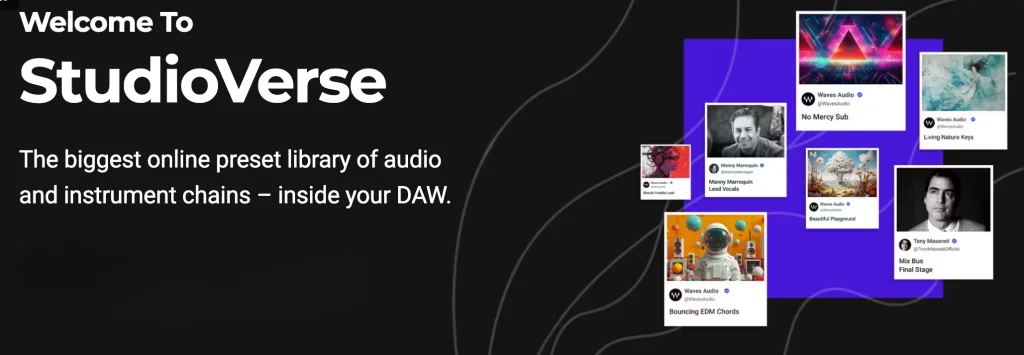
Last April, Waves announced "StudioVerse," an AI-powered mix platform.
The highlight especially worth noting in the V15 update is the new plug-in "StudioVerse Instruments" added to StudioVerse.
StudioVerse has the largest online preset library, and with this update, its instrument presets have been expanded.
These presets were created by top producers and mixing engineers and can be used by everyone from beginners to professionals.
The online preset library is also constantly updated with the latest content, and presets can be downloaded for free and used.
Features of StudioVerse Instruments
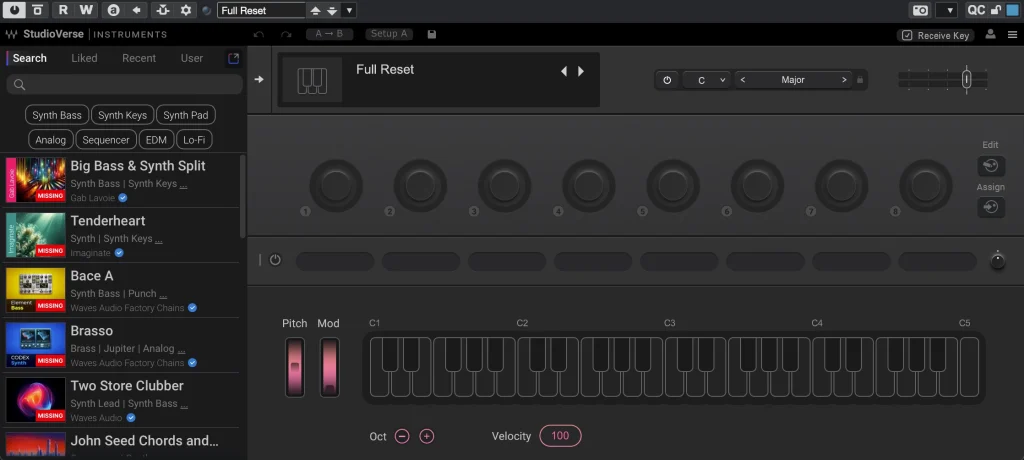
StudioVerse Instruments is a plug-in that lets you easily find and try thousands of custom instrument presets.
By combining instruments, MIDI effects and audio effects (including third-party plug-ins), it is possible to create sounds that are uniquely your own.
Intuitive operation keeps your music production moving, and even beginners can easily handle complex settings.
For example, you can find presets with the search bar or tags and play them immediately on a MIDI keyboard.
In addition, presets you create can be shared with other users.
Features of StudioVerse Audio Effects
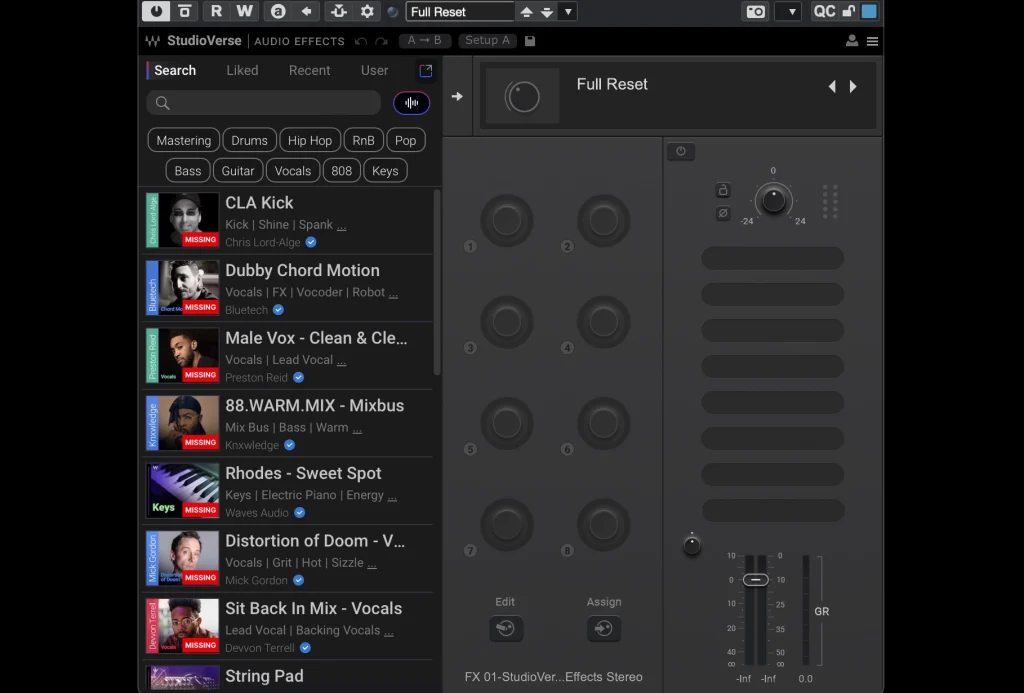
StudioVerse Audio Effects unifies the former StudioRack, letting you manage and use multiple audio effects from the StudioVerse library on a single screen.
Keyword search and AI recommendations make it easy to find presets, and many effect settings used by famous artists are provided.
This lets users easily achieve a professional sound.
Also, because combining and adjusting effects is easy, even beginners can create high-quality sound.
A Note About StudioVerse
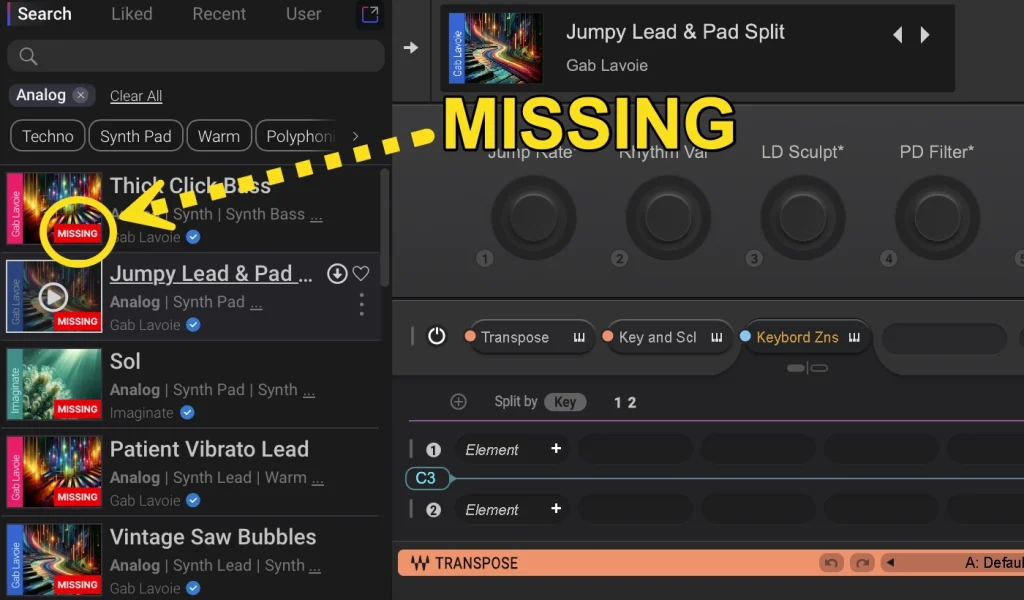
If you do not own a plug-in used in a preset, "Missing" is displayed.
You can load and download the preset, but it cannot fully reproduce the sound.
Waves offers a subscription service, and subscribing lets you make the most of StudioVerse.
There is also a 7-day free trial, so if you are interested, please check it out.

Enhancements and New Features for Popular Plug-ins
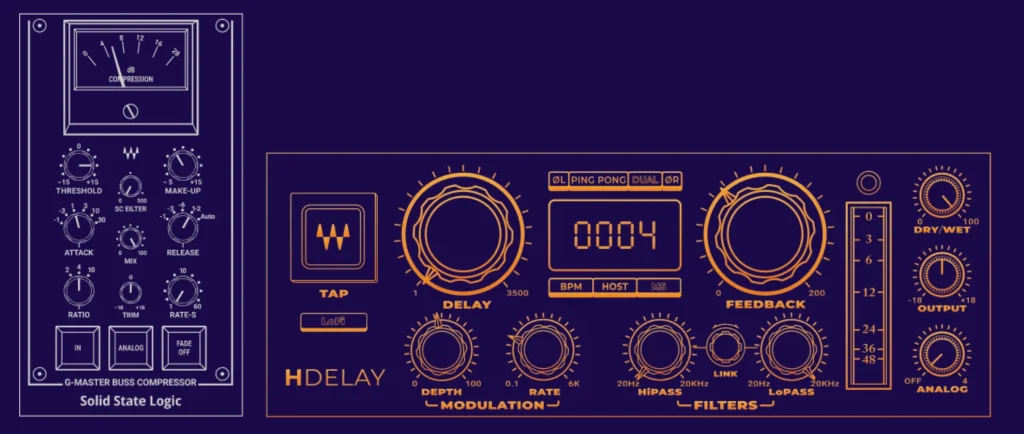
New features have been added to particularly popular plug-ins.
SSL G-Master Buss Compressor introduces a high-pass sidechain filter, a function that works only in StudioVerse and enables finer dynamics control.
H-Delay Hybrid Delay also gains a new Dual Mode, which lets you adjust the left and right delay times separately.
In addition, you can now choose the starting direction of ping-pong delay, enabling more creative delay effects.
Other New Features and Improvements
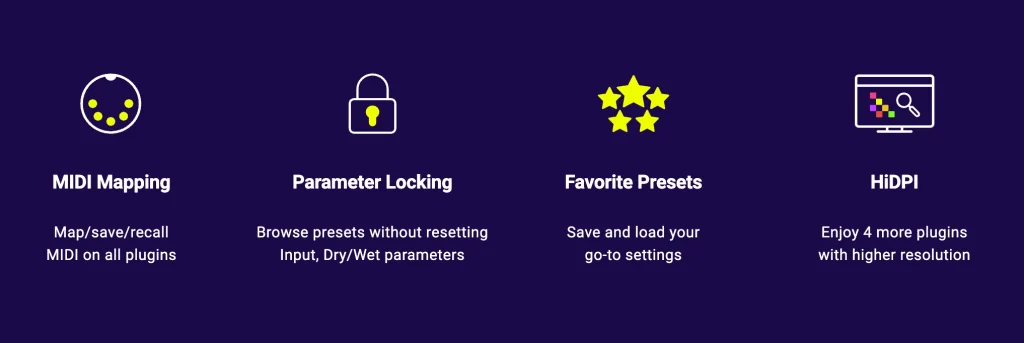
- Expanded MIDI Learn: MIDI Learn has been added to all Waves plug-ins, and MIDI map presets can be saved on a separate layer.
- New parameter lock: specific parameters can be locked when switching presets.
- New Favorites Presets: save and manage your favorite settings and access them easily from the preset browser.
- Plug-ins added to major bundles: several new plug-ins have been added to major bundles such as Mercury, Horizon, Diamond, Platinum and Gold.
- New presets: new presets have been added to popular plug-ins such as the Abbey Road series and CLA Mixhub.
- User interface improvements: HiDPI support has expanded to many plug-ins, improving visibility on high-resolution displays.
- Performance optimization: overall stability and performance have improved, including shorter plug-in load times and better CPU usage.
Steps to Use Waves Products in Your DAW
From here, we explain the flow until you can use Waves V15 in your DAW.
If you are installing a product you have purchased, read on; if you are updating products you already own to V15, refer to "Updating Products You Have Already Purchased" in the table of contents.
Installing a Newly Purchased Product
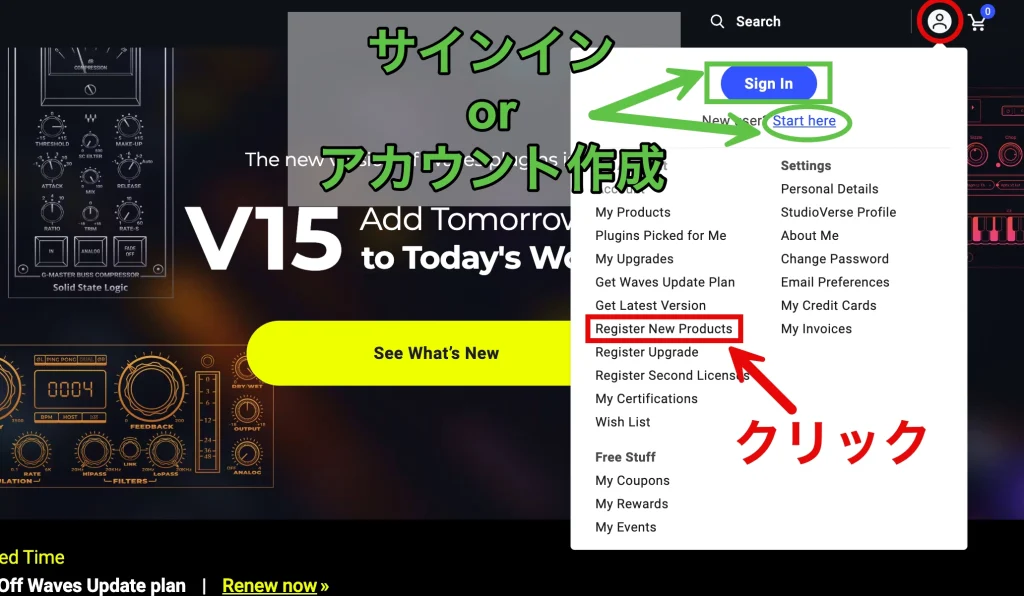
Go to the Waves website and click "Sign in" from the icon at the top right.
If you do not have an account, create one from "Start here."
After signing in to your account, click "Register New Products."
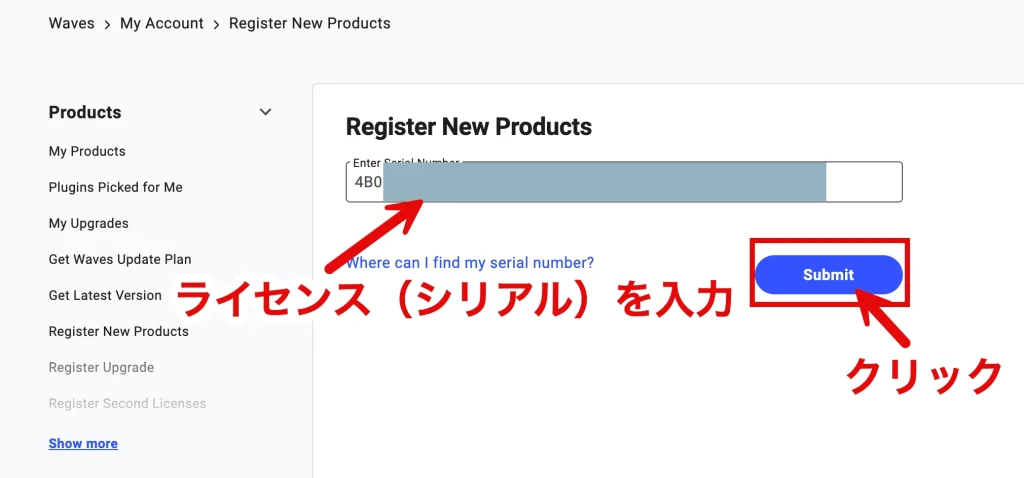
The above is the page for registering new products.
In "Enter Serial Number," copy and paste the license (serial) of the product you purchased.
After entering it, click "Submit."
Downloading Waves Central
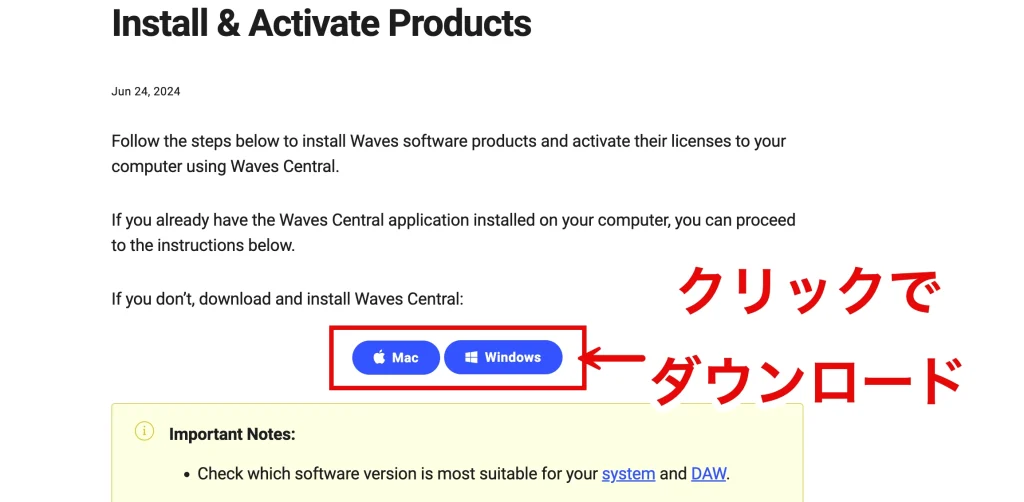
Next, the download page for the "Waves Central" application appears.
Waves Central is an application for installing, activating and managing Waves products.
Its main functions are as follows.
- Installing and activating Waves plug-ins
- Managing licenses
- Updating plug-ins
- Installing demo versions of plug-ins
Waves Central is required for installation and activation, so click "Mac" or "Windows" according to your computer.
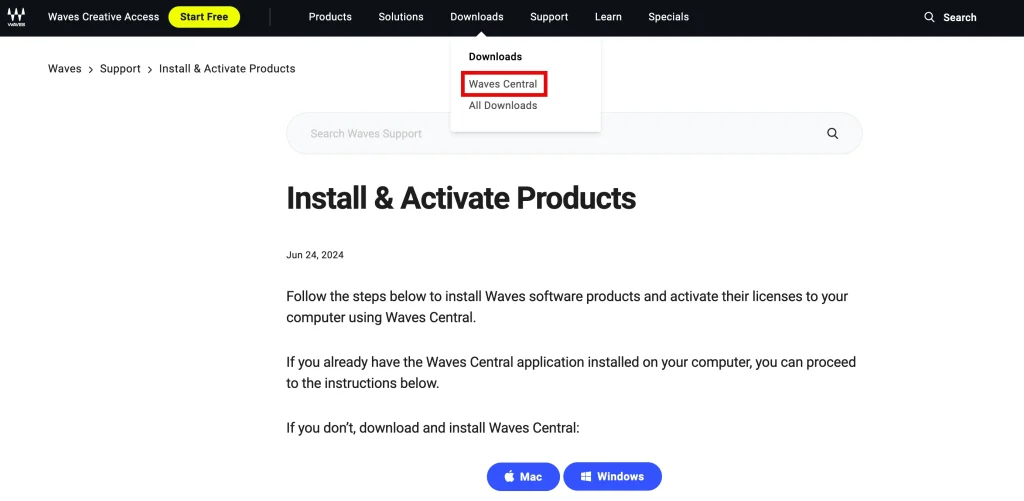
If you closed the page by mistake, you can download it from Waves Central under Downloads at the top of the screen.
- For Mac
- For Windows

Click the installer in your Downloads folder.
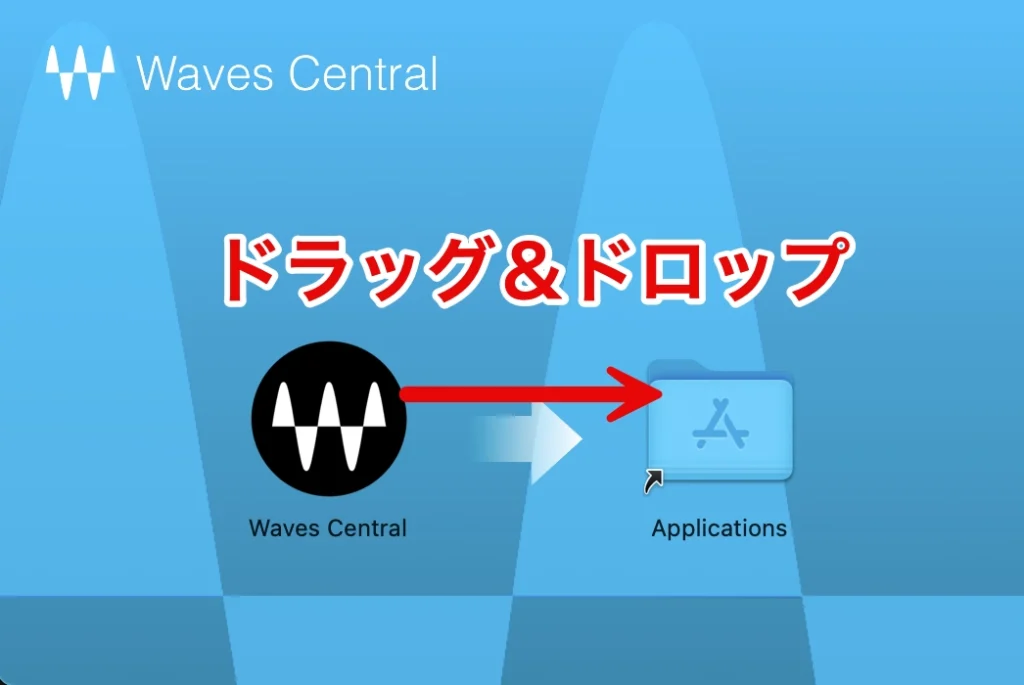
Drag and drop the Waves Central icon into Applications.
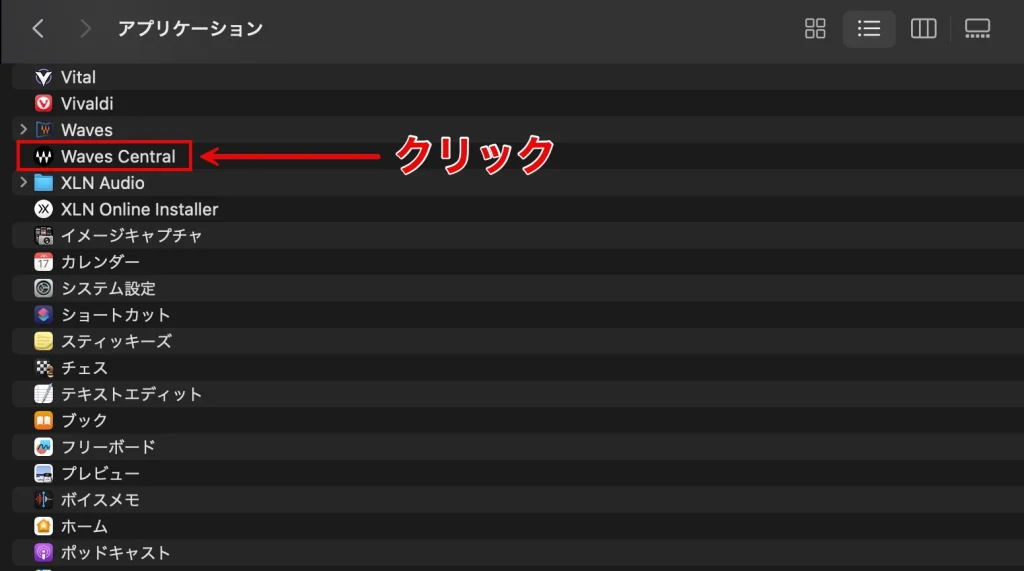
Launch Waves Central from the Applications folder.

Click the installer in your Downloads folder.
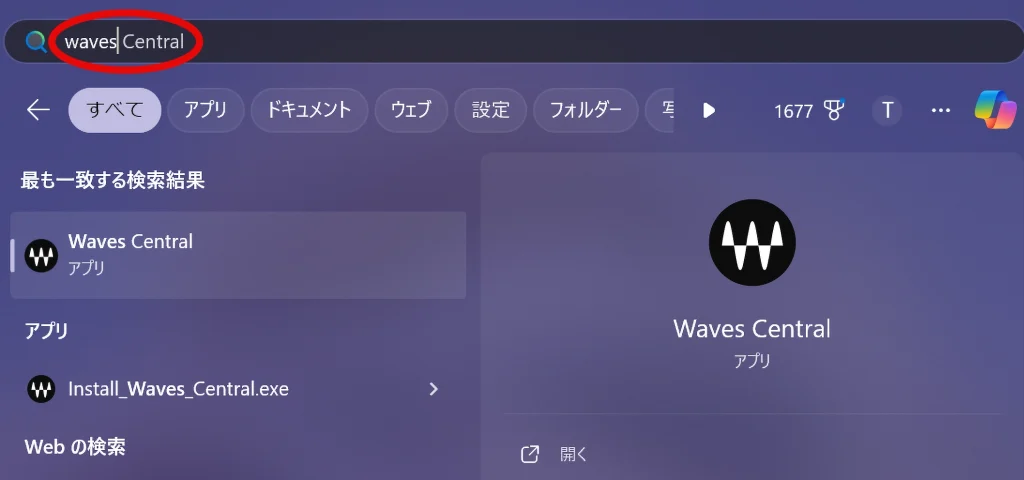
When installation is complete, Waves Central launches automatically.
To launch it manually, click the icon created on the desktop or search for the app in the "Start menu."
- For Mac
- For Windows
Installing and Activating Products
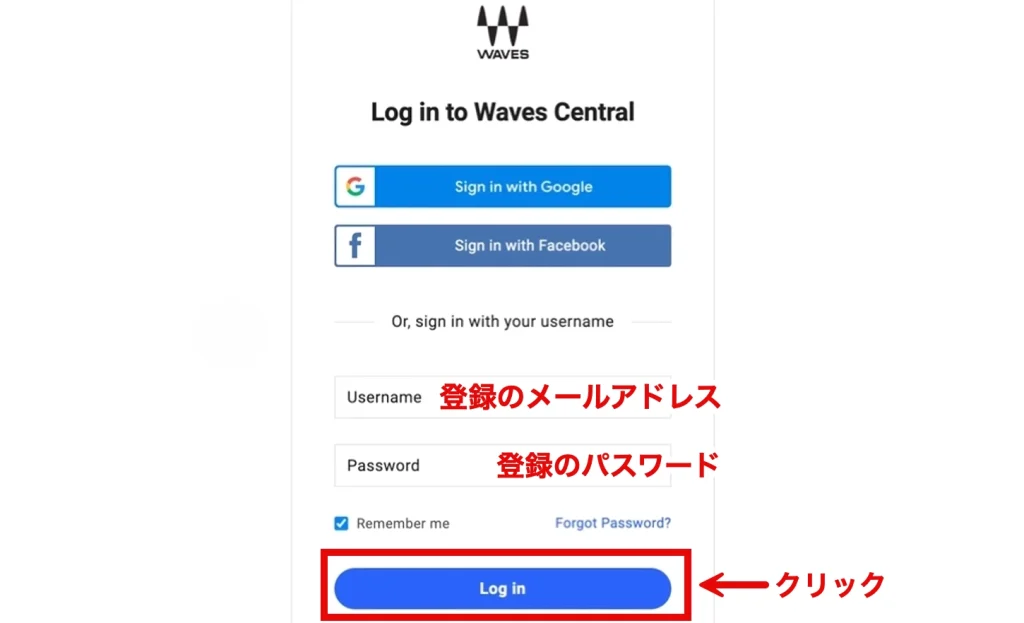
When you launch Waves Central, a login screen appears; enter the email address and password you used when creating your account and click "Log in."
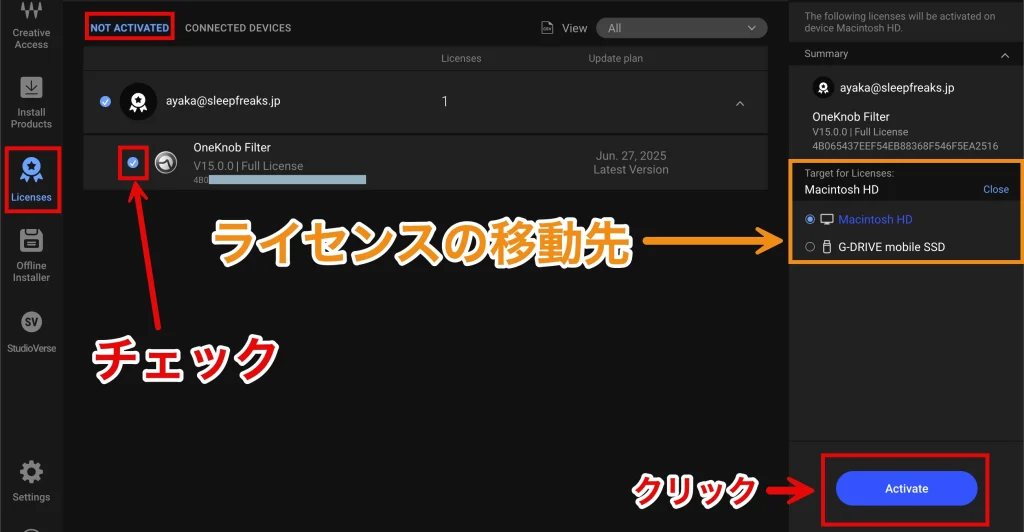
Open the "Not Activated" section under "Licenses" on the left side of the screen.
Check the products you purchased.
Under "Target for Licenses" on the right side of the screen, specify the device on which to activate the licenses.
If you want to install licenses to a USB flash drive or other external storage device, connect the device to your computer and select it from the drop-down list that appears.
When the settings are complete, click "Activate."
Depending on the product you purchased, items about samples may be shown.
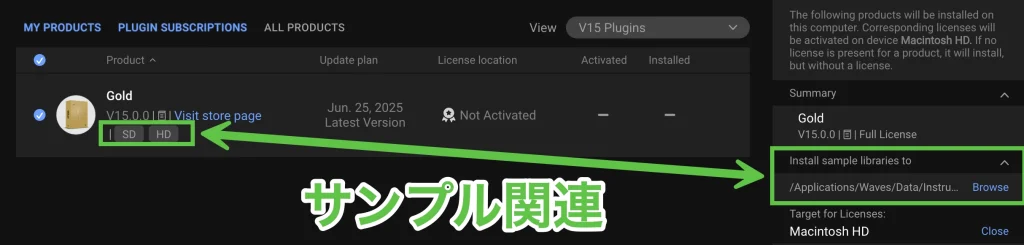
If "SD/HD" is shown at the bottom right of a product, choose the version of the sample library.
Use the following as a guide when choosing.
- SD version: smaller file size and lower CPU load, suitable for computers with modest specs.
- HD version: enables high-quality audio processing, but the file size is larger and CPU load is higher, so it is suitable for high-performance computers.
* You can switch between SD and HD with Waves Central even after installation.
To change the installation location of sample libraries, click "Browse" under "Install sample Libraries to" on the right side of the screen and choose the location.
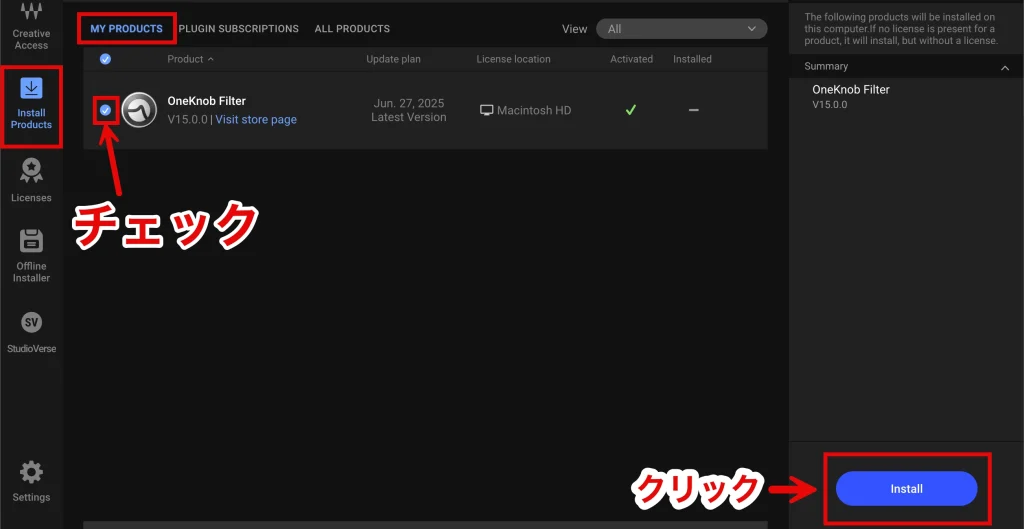
Open the "My Products" section under "Install Products" on the left side of the screen.
Check the products you purchased and click "Install."
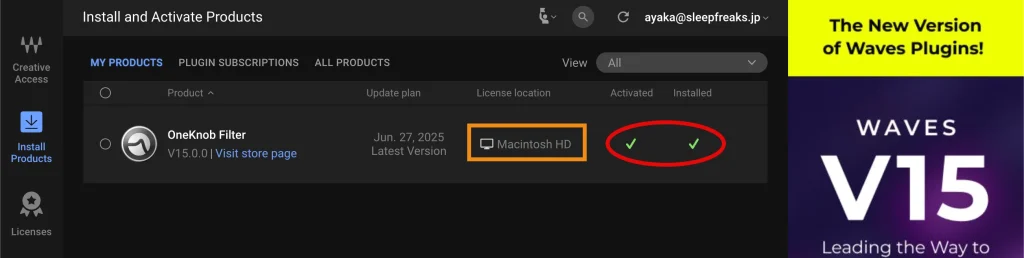
When installation and activation are complete, the destination device is shown under "License location" as above, and "Activated" and "Installed" are checked.
The products can now be used in your DAW.
Updating Products You Have Already Purchased
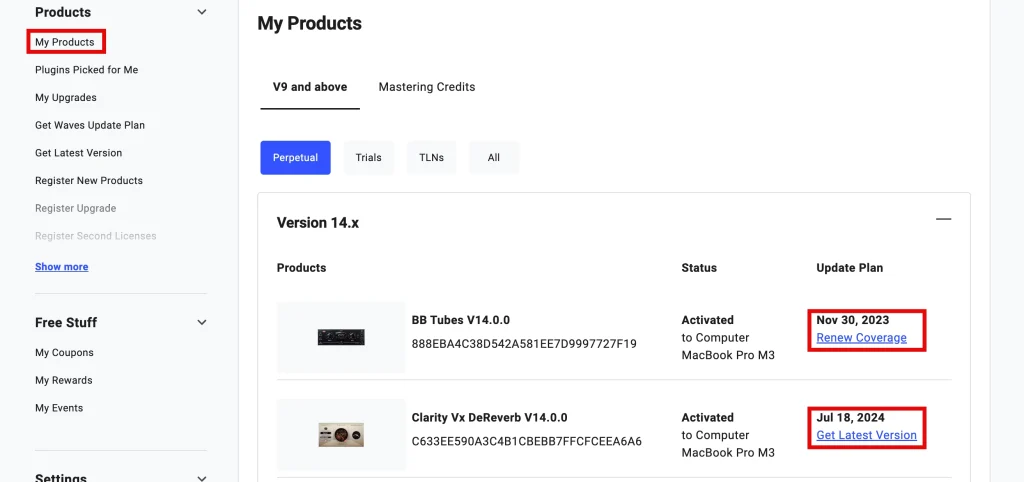
Sign in to the Waves website, first open the "My Products" page and check the "Update Plan."
The Update Plan shows the expiration date of free updates.
- Renew Coverage: the WUP has expired. A purchase is required to update.
- Get Latest Version: the WUP is still valid. You can update to V15 for free.
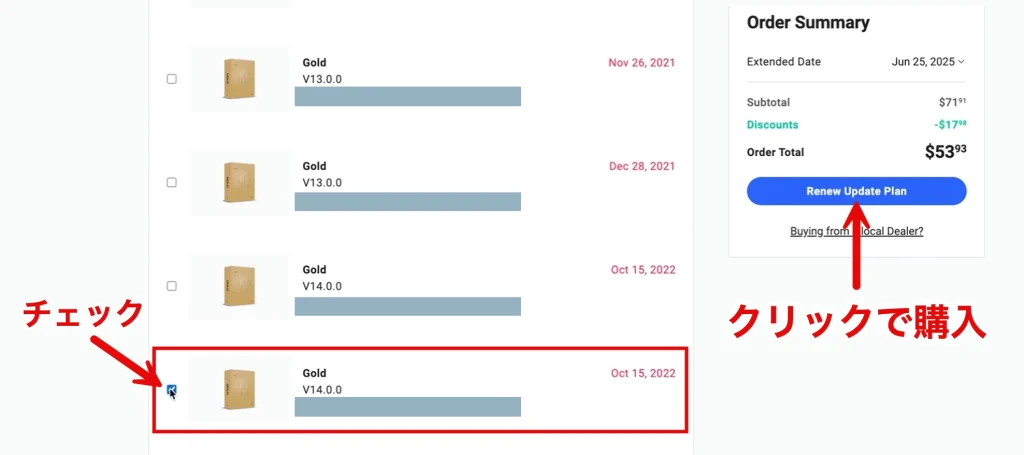
If it has expired, click "Renew Coverage" on the My Products page to show the product purchase page.
Check the products you want to update and click "Renew Update Plan" to purchase.
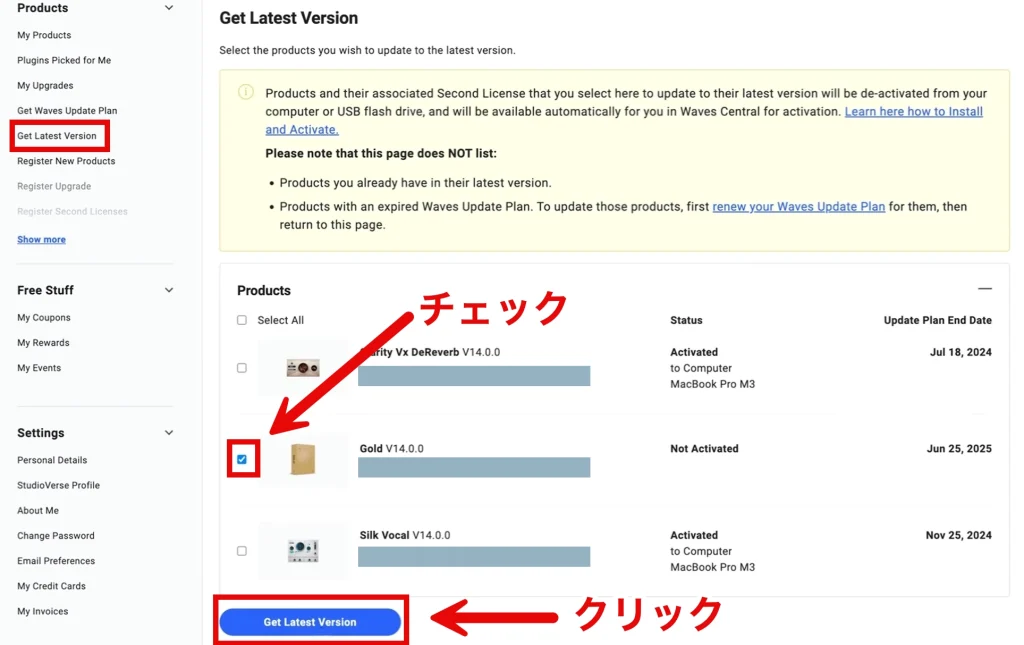
The above is the page for getting the latest version.
If it is still valid, clicking "Get Latest Version" on the My Products page opens this page automatically.
If you purchased a product, open the Get Latest Version page manually.
Check the products you want to update and click "Get Latest Version" to complete the update to V15.
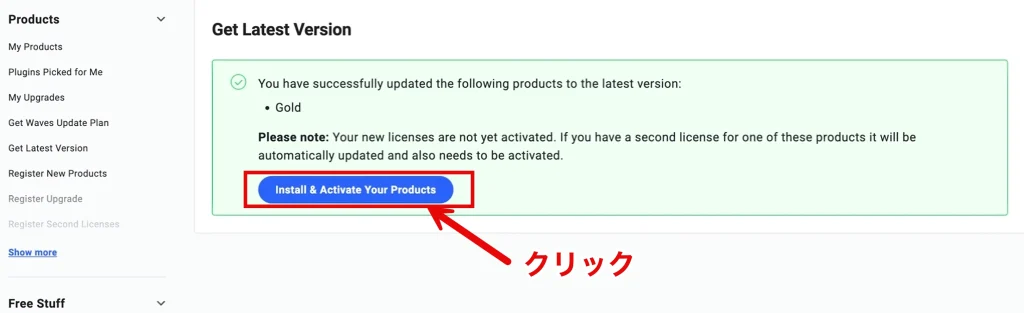
Next, to proceed with installation and activation, click "Install & Activate Your Products."
Downloading Waves Central
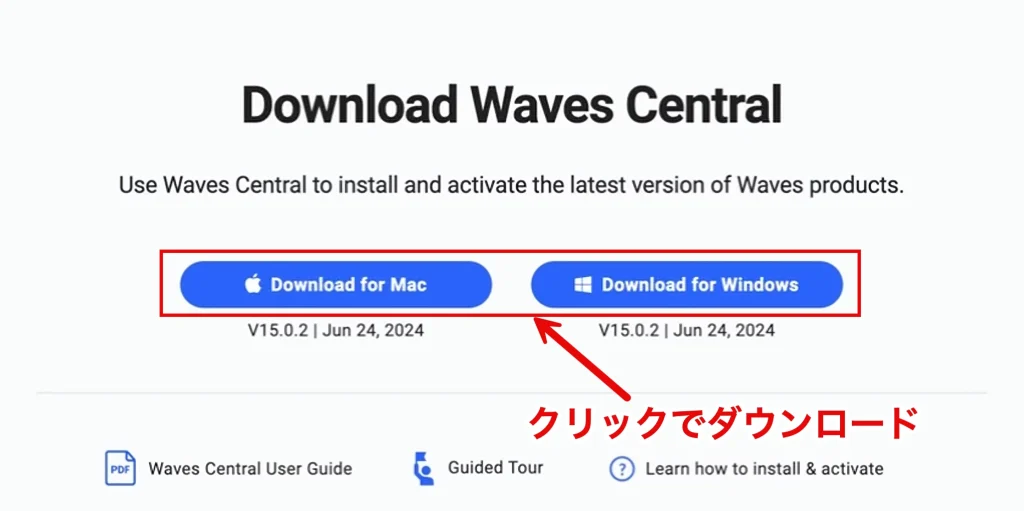
The download page for "Waves Central" opens.
If you are updating products, it is probably already installed, but if needed, click "Mac" or "Windows" according to your computer.
If you closed the page by mistake, you can download it from Waves Central under Downloads at the top of the screen.
* In general, it is strongly recommended to use the latest version of Waves Central.
Installing and Activating Products
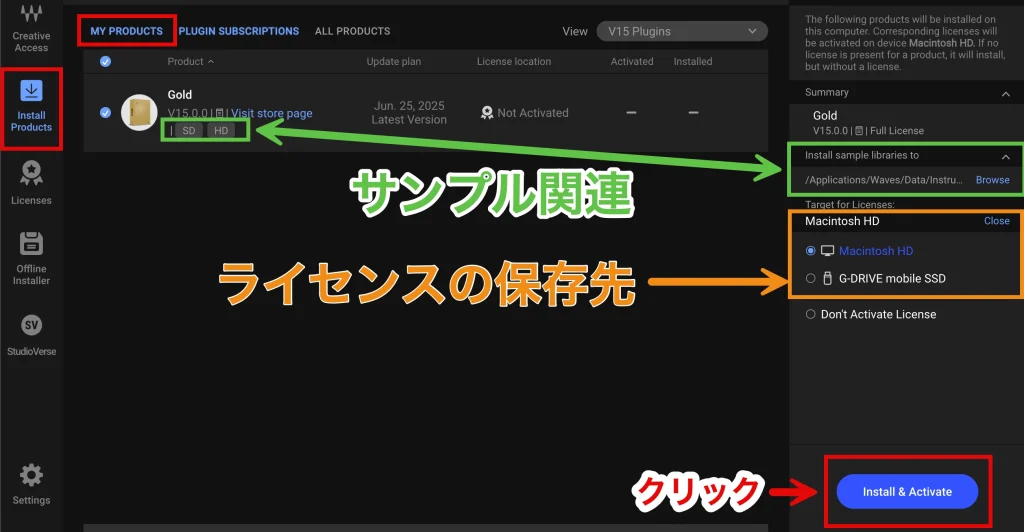
Launch Waves Central and open the "My Products" section under "Install Products."
Check that the products updated to V15 are shown.
If "SD/HD" is shown at the bottom right of a product, choose the version of the sample library.
Use the following as a guide when choosing.
- SD version: smaller file size and lower CPU load, suitable for computers with modest specs.
- HD version: enables high-quality audio processing, but the file size is larger and CPU load is higher, so it is suitable for high-performance computers.
* You can switch between SD and HD with Waves Central even after installation.
To change the installation location of sample libraries, click "Browse" under "Install sample Libraries to" on the right side of the screen and choose the location.
Specify the device on which to activate the licenses under "Target for Licenses."
If you want to install licenses to a USB flash drive or other external storage device, connect the device to your computer and select it from the drop-down list that appears.
When all settings are complete, click "Install & Activate."
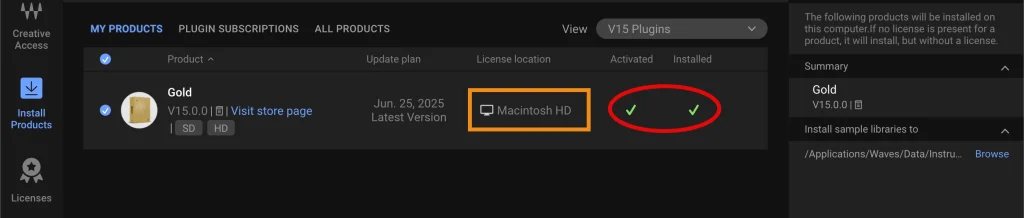
When installation and activation are complete, the destination device is shown under "License location" as above, and "Activated" and "Installed" are checked.
The products can now be used in your DAW.
Steps to Deactivate Waves Products
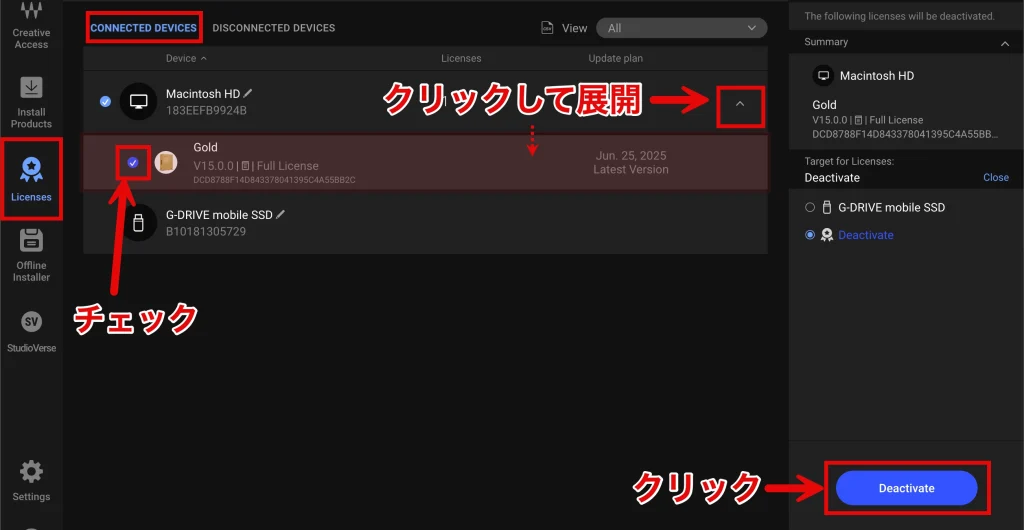
We also explain the steps for deactivating (disabling) a license.
Open the "Connected Device" section under "Licenses" in Waves Central.
Click the "V mark" of the device where products are installed to show the products.
Check the products you want to deactivate and click "Deactivate."
This lets you disable the licenses.
Steps to Install StudioVerse
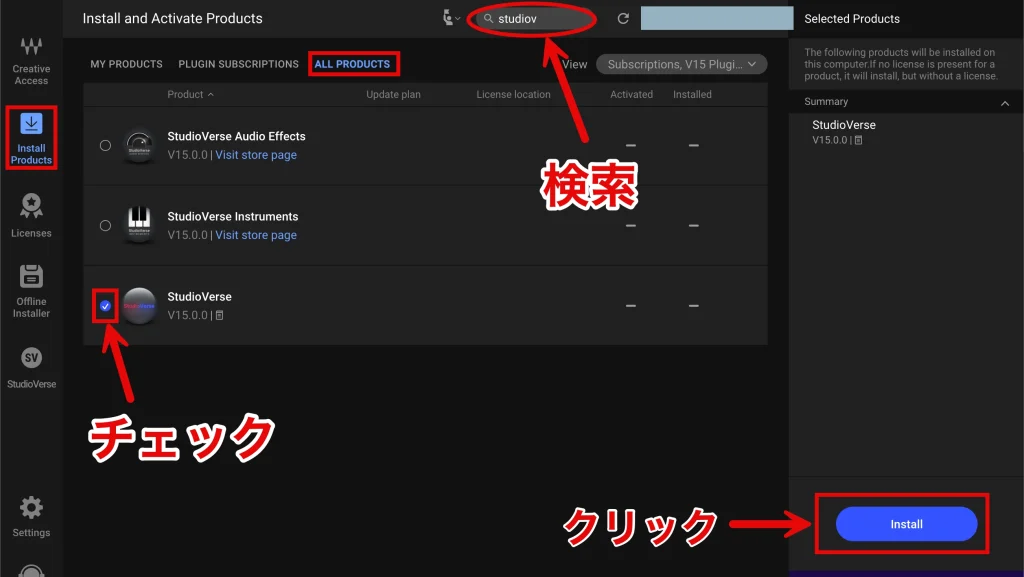
StudioVerse can be installed for free from Waves Central.
Open the "All Products" section under "Install Products" and look for the product.
Typing the product name in the search box at the top of the screen shows only StudioVerse.
Check StudioVerse and click "Install."
It can now be used in your DAW.
* StudioVerse includes StudioVerse Instruments and StudioVerse Audio Effects.
If you want to install them individually, choose the products according to your purpose.
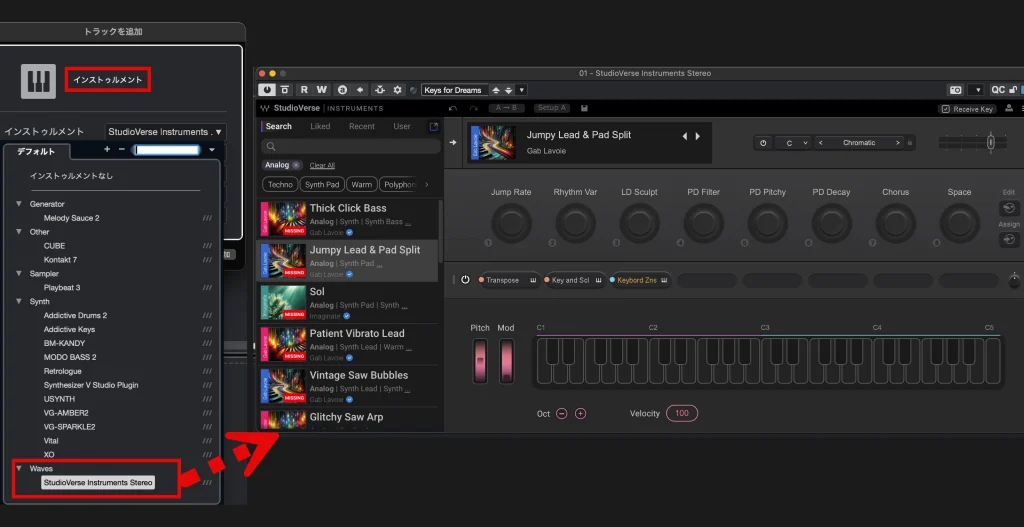
StudioVerse Instruments is launched from an instrument track.
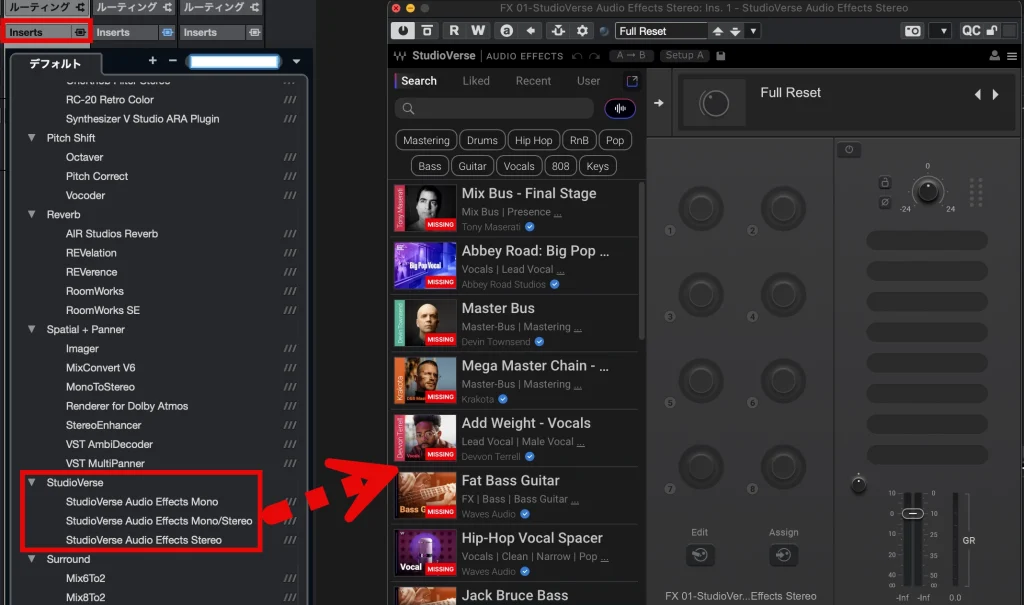
StudioVerse Audio Effects is inserted in an effect slot.
If you do not own a plug-in used in a preset, "Missing" is displayed.
You can load and download the preset, but it cannot fully reproduce the sound.
Waves offers a subscription service, and subscribing lets you make the most of StudioVerse.
There is also a 7-day free trial, so if you are interested, please check it out.
Frequently Asked Questions
Q1. Do I need to buy all the plug-ins to use StudioVerse in Waves V15?
No, you can load presets. However, if you do not own a plug-in used in a preset, "Missing" is displayed and the sound is not fully reproduced. Subscribing to the subscription service lets you make the most of it, and a 7-day free trial is also available.
Q2. What can I do with StudioVerse Instruments?
You can search and audition thousands of custom instrument presets and combine instruments, MIDI effects and audio effects to create your own sounds. Presets you create can also be shared with other users.
Q3. What new features were added to H-Delay?
Dual Mode has been added, letting you adjust the left and right delay times separately. You can also choose the starting direction of ping-pong delay, enabling more creative delay effects.
Q4. I already own Waves products. Can I update to V15?
Yes, purchased products can be updated. You can update easily using the Waves Central application. For the specific steps, see "Updating Products You Have Already Purchased" in the article.
Q5. What is Waves Central?
It is the official application for installing, activating, managing licenses for and updating Waves plug-ins. It is an essential tool for installing V15 and supports both Mac and Windows.
NEW ARTICLES
Latest English Articles











