
FabFilter Pro-Q is a high-performance equalizer plug-in loved by everyone from music production beginners to advanced users. It features an intuitive UI and rich functionality, including everything needed for pro-quality mixes: real-time visual checking with the analyzer, precise frequency adjustment with independent L/R and M/S processing, and phase preservation with linear phase processing. It also offers shortcut keys and point monitoring, enabling efficient and accurate EQ work.
A powerful, all-round EQ: Pro-Q
FabFilter Pro-Q is a high-performance equalizer that is
easy to see, easy to understand, and easy to use.
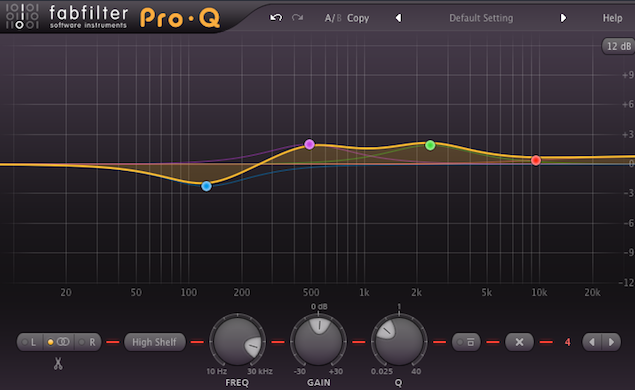
It also includes an "analyzer," so you can check the sound visually,
and "independent L/R and M/S processing" allow fine adjustments.
FabFilter Pro-Q tutorial videos
- 1FabFilter Pro-Q
- 2FabFilter Pro-Q 2 New Features: Auto Gain and More
- 3FabFilter Pro-Q 2 New Features: Spectrum Grab & EQ Match
- 4FabFilter Pro-Q 3 New Feature: Enhanced M/S Mode
- 5FabFilter Pro-Q 3 New Feature: Dynamic EQ
- 6FabFilter Pro-Q 3 New Features: Brickwall Slope / Flat Tilt / Masking Detection
- 7FabFilter Pro-Q 4 Is Finally Here! A Selection of Its Key New Features
Excerpt of a question and answer from the YouTube video

A question: I bought Pro-Q after watching this video. When I insert Pro-Q on a soft synth whose original gain is just under 0 dB and apply a fairly deep low cut (around 450 Hz, 12 dB/oct), the gain value at the far right of Pro-Q (0 to -100) turns red and goes about +3.9 dB. I didn't touch any other EQ bands and only cut the low frequencies, so why does the gain go up? Also, am I right that with this software too, the moment the red meter on the far right lights up, it's clipping and a no-go? It often turns red when I'm trying to raise the loudness, so I'm having trouble.

When you apply a low cut or similar with an equalizer, a phenomenon occurs where the area near the cut rises slightly. This isn't limited to Pro-Q, and it's what causes the red indication. Before the equalizer, lower the volume of the material so it doesn't clip, and then adjust the final level with a limiter/maximizer.
Video key point: operation shortcuts
Shortcuts are provided for operating EQ points.
Adjusting the Q width
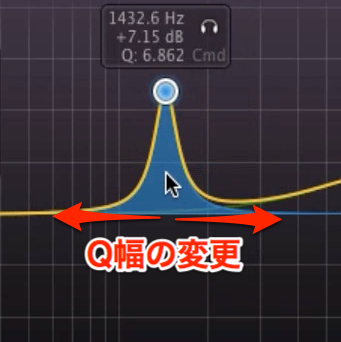
- Mac: Command + drag
- Windows: Control + drag
Fine-tuning the frequency
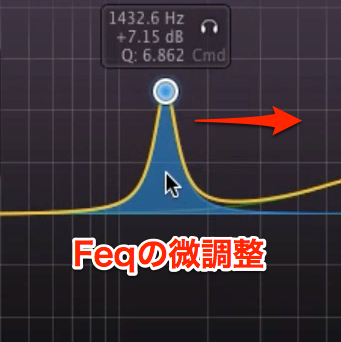
- Both Mac and Windows: Shift + drag
Bypassing a point
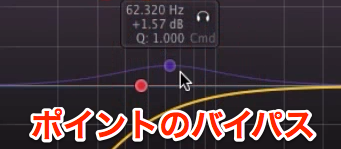
- Mac: Option + click
- Windows: Alt + click
Video key point: monitoring a point
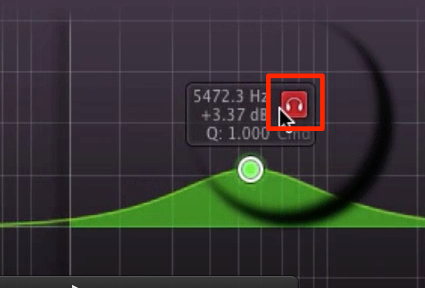
Clicking the "headphone icon" on an EQ point
lets you hear only the sound of that point.
It's useful for "finding peaks," "adjusting the range to cut," and more.
Video key point: changing the EQ type
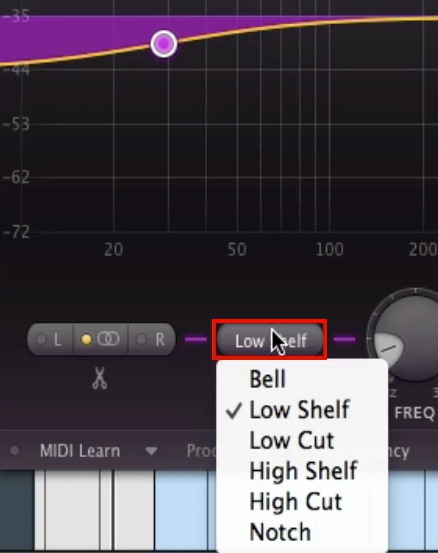
Select the point whose EQ type you want to change,
and you can change the type from the area outlined in red below.
Video key point: using the analyzer
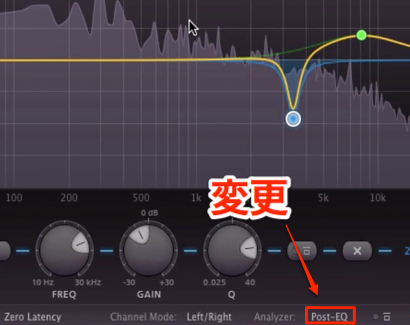
Select a "mode" from the area outlined in red to use the analyzer.
- Pre: the sound before EQ
- Post: the sound after EQ
- Pre + Post: both before and after EQ are displayed
Video key point: applying linear phase
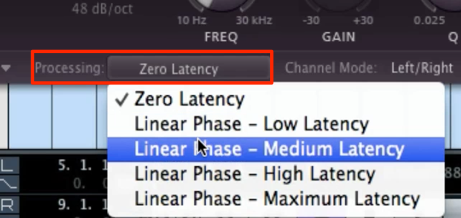
From "Processing" outlined in red, you can select "Linear Phase."
The CPU load is higher, but you can process sound without disturbing phase relationships.
Video key point: independent L/R and M/S processing
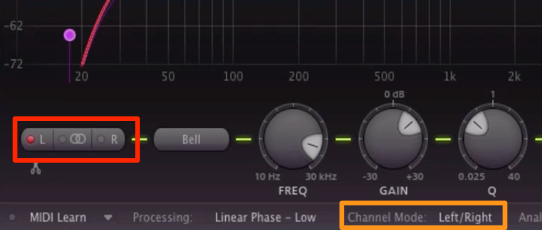
You can apply EQ processing to "L and R" individually.
This lets you finely adjust lopsided frequencies, and
you can also do "M/S processing" from the orange area.
- 1FabFilter Pro-Q
- 2FabFilter Pro-Q 2 New Features: Auto Gain and More
- 3FabFilter Pro-Q 2 New Features: Spectrum Grab & EQ Match
- 4FabFilter Pro-Q 3 New Feature: Enhanced M/S Mode
- 5FabFilter Pro-Q 3 New Feature: Dynamic EQ
- 6FabFilter Pro-Q 3 New Features: Brickwall Slope / Flat Tilt / Masking Detection
- 7FabFilter Pro-Q 4 Is Finally Here! A Selection of Its Key New Features
Frequently asked questions
Q1. What kind of plug-in is FabFilter Pro-Q?
It's a high-performance EQ plug-in with an easy-to-read, easy-to-use UI. With its visual analyzer, you can adjust while checking the frequency response visually, and independent L/R and M/S processing enable fine frequency adjustments.
Q2. What can I check with Pro-Q's analyzer?
By displaying the sound before EQ (Pre), after EQ (Post), or both overlaid (Pre+Post), you can visually check the effect of your EQ processing. It's useful for finding peaks and adjusting the range to cut.
Q3. What is linear phase processing?
Linear phase processing lets you adjust frequencies without disturbing phase relationships. The CPU load is higher, but it enables natural, high-quality audio processing.
NEW ARTICLES
Latest English Articles











