
FL Studio's send/return function is an efficient mixing technique that lets multiple tracks share one effect. By placing spatial effects such as reverb and delay on dedicated send/return tracks (channels 100 to 103), you can reduce CPU usage while giving the whole song a sense of unity. Just follow the basic rule of setting Dry to 0 and Wet to 100, then adjust the amount applied with each track's send, and you can easily achieve a three-dimensional, airy mix.
Share a reverb to give the tracks a sense of unity
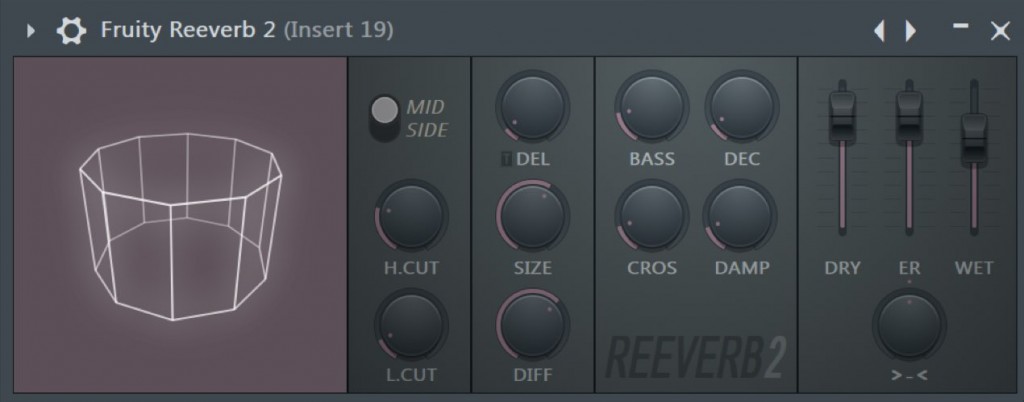
Here we explain
how multiple tracks can share one effect (mainly spatial effects such as Reverb and Delay) using "send/return".
The benefits of using send/return
- Applying one effect to multiple tracks saves CPU
- Sharing the same effect gives the song a sense of unity
- Turning the effect on and off is easy (just mute one reverb or similar)
With so many benefits,
it is a technique you will definitely want to use when mixing.
Send/return explained
How to set up send/return in FL Studio
The setup is very easy.

In FL Studio, mixer channels "100 to 103" are dedicated send/return tracks.

First, apply the effect you like to a dedicated send/return track.
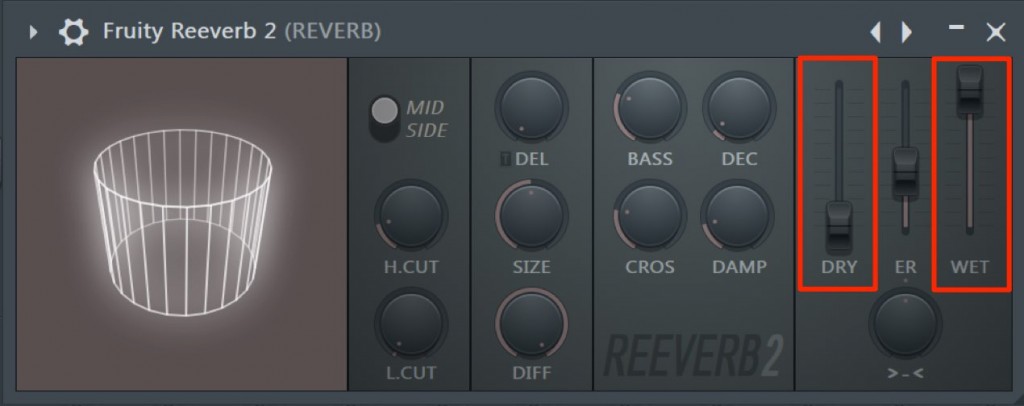
The rules for send/return are as follows:
- Dry (the plain sound without the effect): set to 0
- Wet (the sound with the effect applied): set to 100 in principle (you can change it to suit how strongly it is applied)
Keep these two settings in mind.
This is so that the original track's sound and the send/return sound have completely separate roles.
That is all the preparation you need.
Then select the track you want to apply the effect to,
and decide the amount of effect with each send.

If you load a Delay or similar on another track in the same way,
you can also combine multiple effects.
AUX explained
Here we explain the flow of sound routing with AUX.
Understanding this part will deepen your understanding of send/return.

Frequently Asked Questions
Q1. What is send/return in FL Studio?
It is a function that lets multiple tracks share one effect (mainly reverb or delay). It saves CPU and gives the song a sense of unity, greatly improving mixing efficiency.
Q2. Why is Dry set to 0 for send/return?
So that only the effect sound is processed on the send/return track, and the original track's dry sound and the effect sound have completely separate roles. This optimizes the volume balance.
Q3. Can I use multiple effects at the same time in one project?
Yes. By placing them on different send/return tracks, such as reverb on channel 100 and delay on channel 101, you can combine multiple effects.
Q4. How do I turn send/return on and off?
Simply muting the dedicated send/return track turns off all the effects sent to that track at once.
NEW ARTICLES
Latest English Articles











