
Learning how to change the tempo partway through a song in FL Studio lets you bring dynamic change to dance music. This article explains practical techniques, from creating a tempo clip and setting automation points to choosing between sudden and gradual tempo changes. It also introduces advanced techniques such as making audio files follow the tempo and keeping their pitch, covering the knowledge needed for professional music production. It is a practical guide useful for everyone from beginners to intermediate users.
Add variation by changing the tempo over time
Dance music often keeps the same tempo from the beginning of the song to the end,
but there will also be times when you want to change the tempo within a song.
Here we explain two patterns: a setting where the tempo changes suddenly and a setting where the tempo changes gradually
.
Tempo change tutorial
Preparing a tempo change
First, prepare the tempo change.
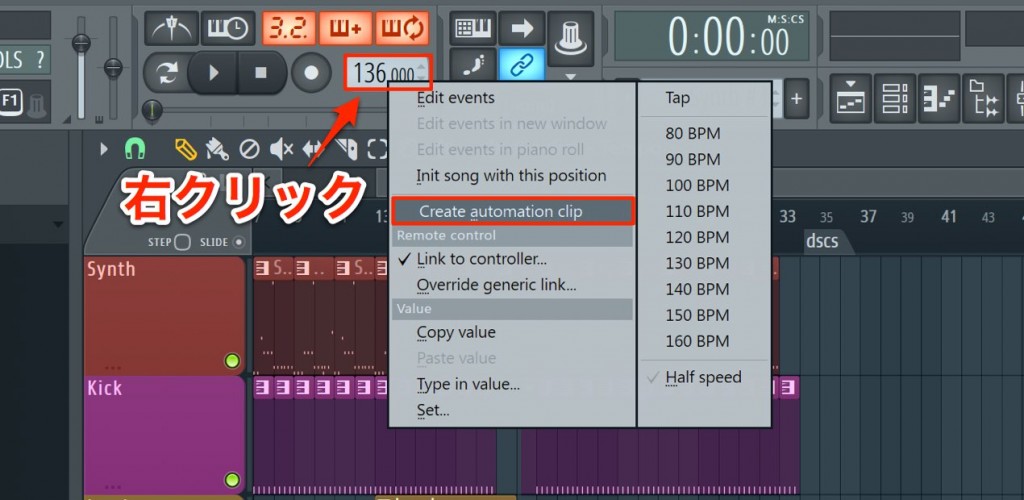
Right-click the tempo display and select "Create automation clip".
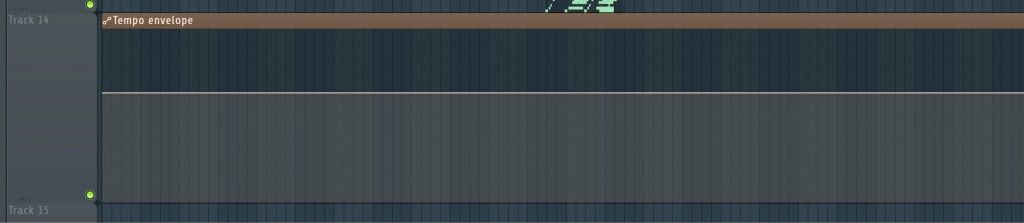
A tempo clip is created like this.
If the tempo clip does not cover enough of the song, drag its edge to extend it just like a normal clip.
Setting up a tempo change
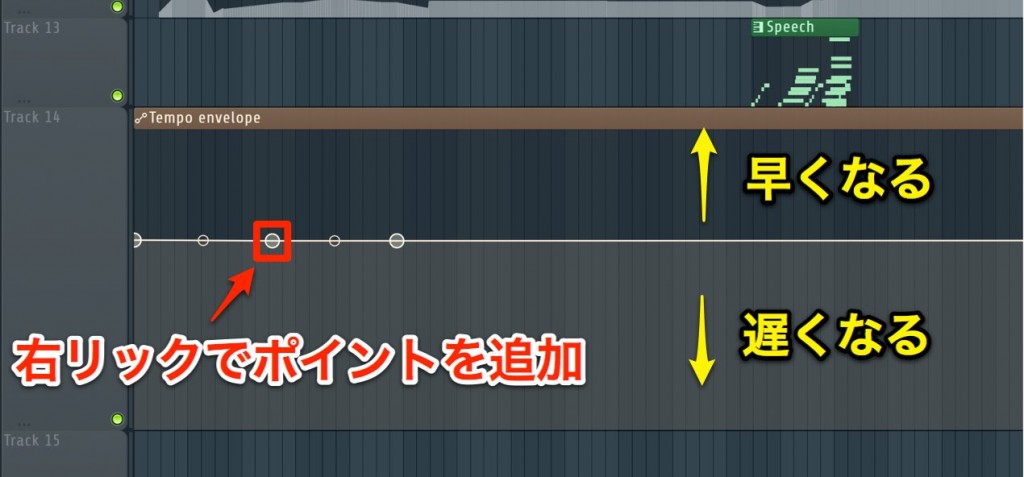
Right-click to add an automation point.
Dragging a point up or down changes the tempo.
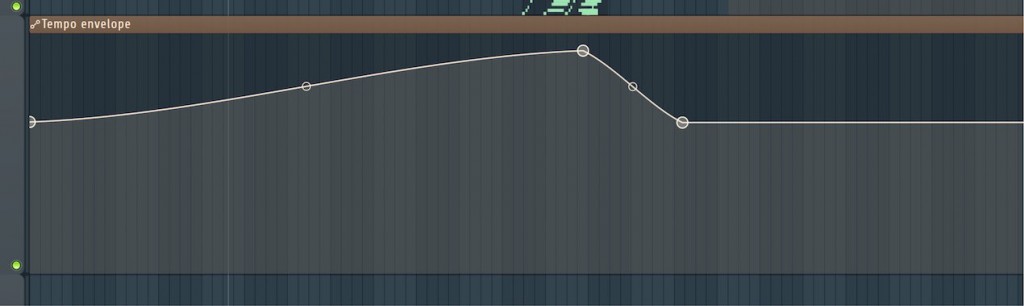
The tempo changes between points (start and end), so edit while adjusting the length.
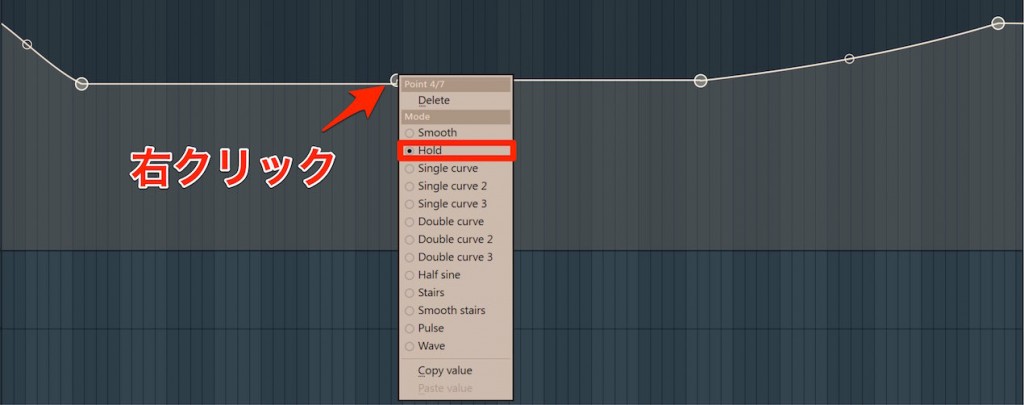
To change the tempo all at once at a specific spot,
right-click the automation point and select "Hold".
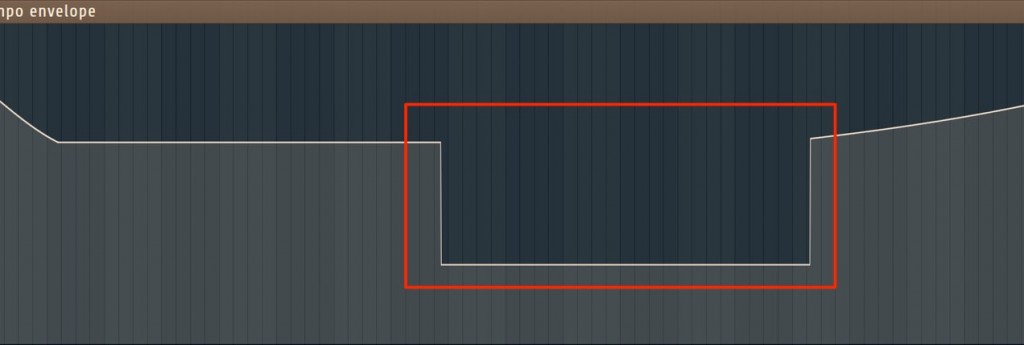
This keeps the tempo until the next automation point.
Using this behavior, you can change the tempo all at once from a specific point.
How do I widen the range of tempo changes?
The default tempo range is 60 to 180.
You can widen this range.
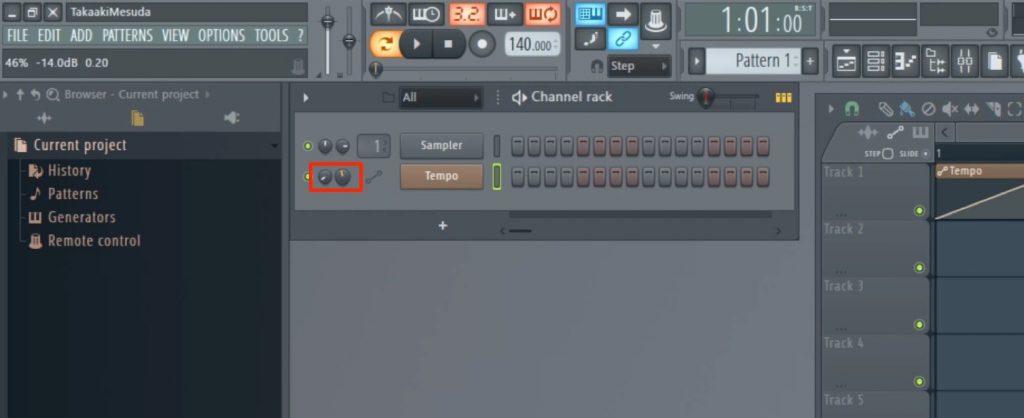
The method is simple.
Just turn the minimum (left knob) and maximum (right knob) to widen the range of target tempos.
What if I want to change the tempo of audio files too?
If you want the speed of audio clips to change along with the song's tempo, you can handle it as follows.
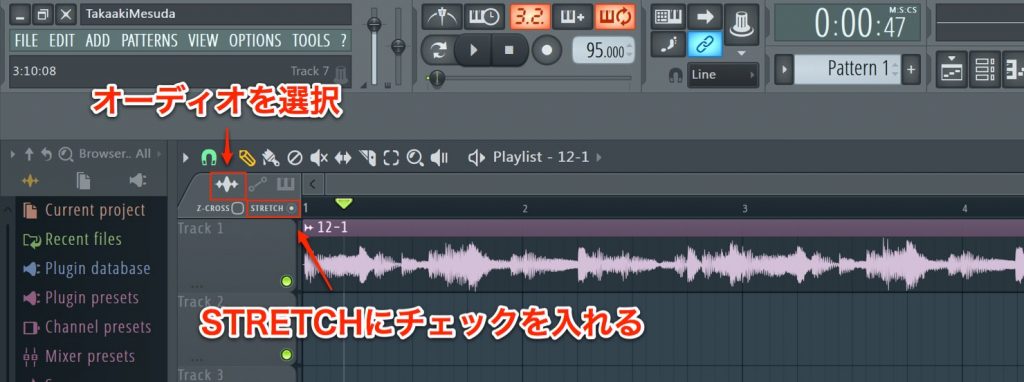
Select the audio icon and check "STRETCH".
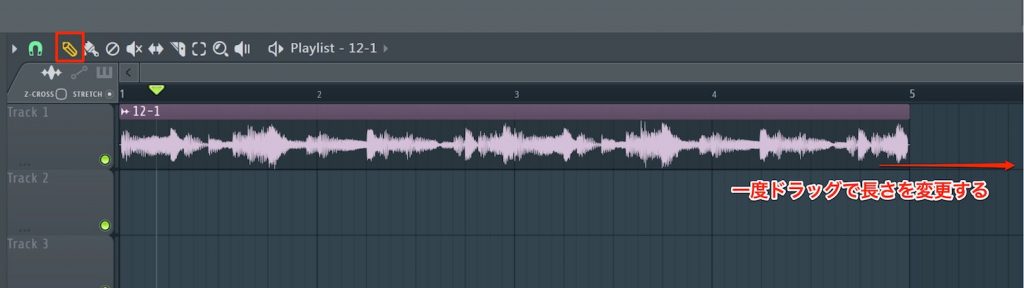
Then change the length of the audio clip.
At this stage, the performance already stretches or shrinks to match the clip length.
Once you have stretched the clip, you can return it to its original length.
The audio clip now follows tempo changes.
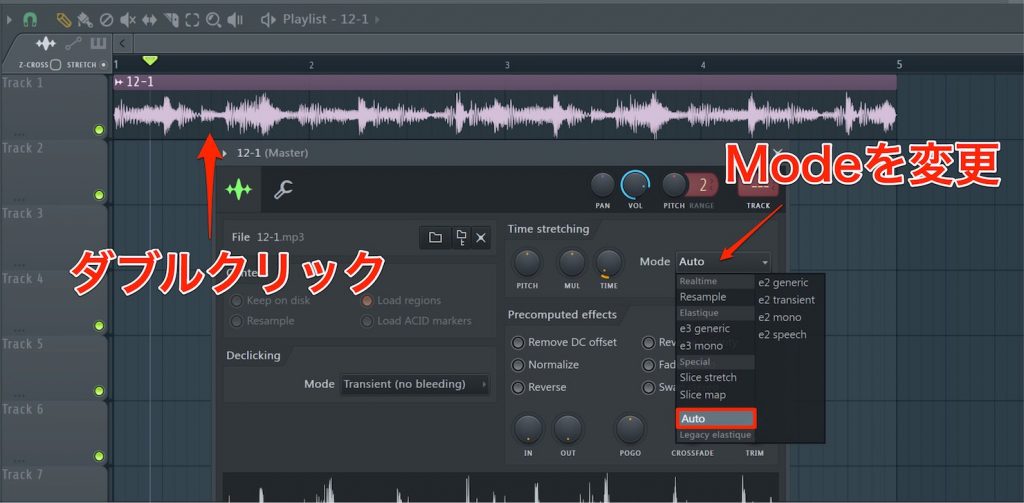
Also, with the default setting, the pitch changes along with the playback speed.
To avoid this, double-click the clip and change "Mode" to "Auto".
This changes only the playback speed without affecting the pitch.

Frequently Asked Questions
Q1. What do I need to do first to change the tempo partway through a song in FL Studio?
Start by right-clicking the tempo display and selecting "Create automation clip" to create a tempo clip. If this clip does not cover enough of the song, you can drag its edge to extend it.
Q2. How do I set up a sudden tempo change at a specific spot?
Right-click the automation point and select "Hold". This keeps the tempo until the next point, after which it changes to the new tempo all at once.
Q3. How do I make audio clips automatically follow the song's tempo changes?
Select the audio icon, check "STRETCH" and change the length of the clip. To avoid pitch changes, we recommend double-clicking the clip and changing "Mode" to "Auto".
Q4. Can I widen the tempo range beyond the default 60 to 180?
Yes, you can. Turning the left knob (minimum) and right knob (maximum) of the tempo clip lets you freely adjust the range of target tempos.
NEW ARTICLES
Latest English Articles











