
Studio One 3's "Arranger Track" is an innovative tool for defining a song's sections and rearranging them freely. Because you can try multiple song structures instantly, you can efficiently explore the best arrangement. Turn it on at the top of the editor, specify ranges with the Paint Tool, and manage the sections in a list from the Inspector. Dragging section names to change their order is reflected in the editor in real time, greatly shortening the production process.
Freely rearrange your song structure
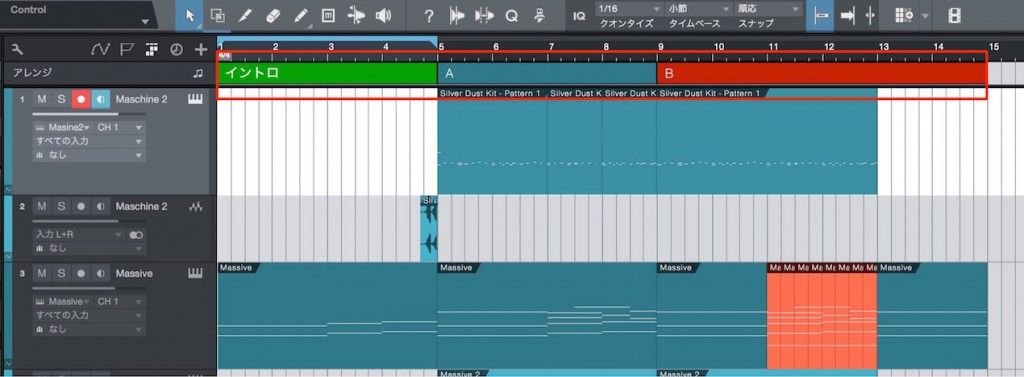
Studio One 3's new "Arranger Track" feature
lets you define the song structure and rearrange it freely.
Because you can instantly try different structure progressions,
you can find the best approach for your song with the fewest steps.
Using the Arranger Track
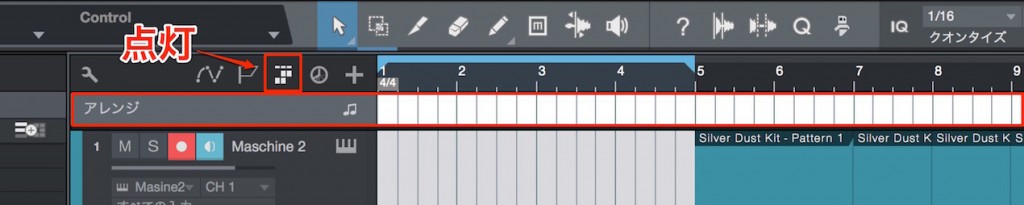
Turn on "Arranger Track" at the top of the editor.
The Arranger Track appears just below it.
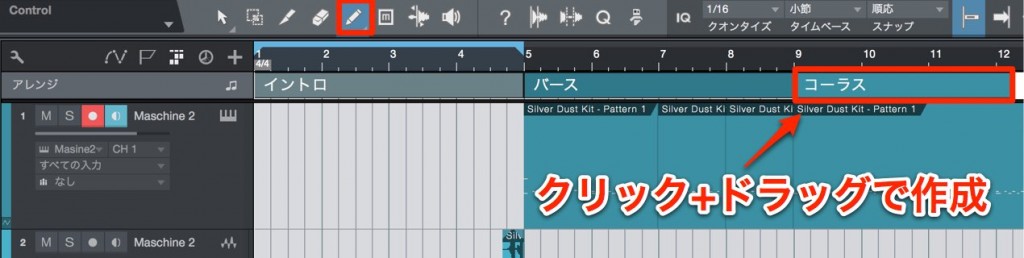
Switch to the "pencil (Paint Tool),"
then "click and drag" to specify ranges matching the song's structure.

Turning on the "Inspector"
lets you see a list of the sections you've created.
You can also double-click a section name to rename it.
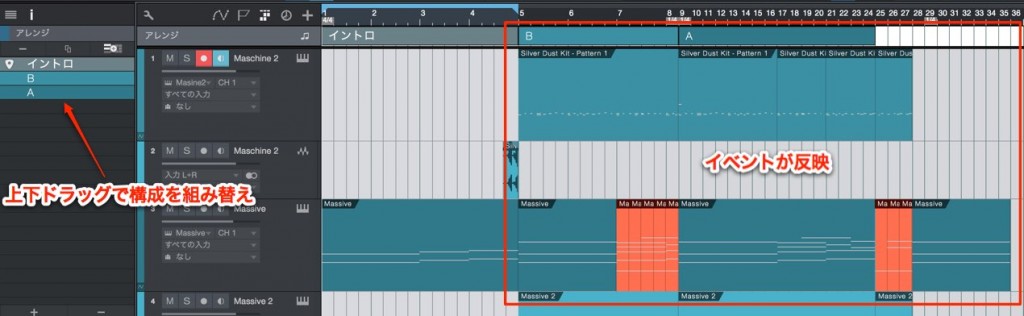
Dragging section names up and down to swap them
applies the result to all events in the editor at once.
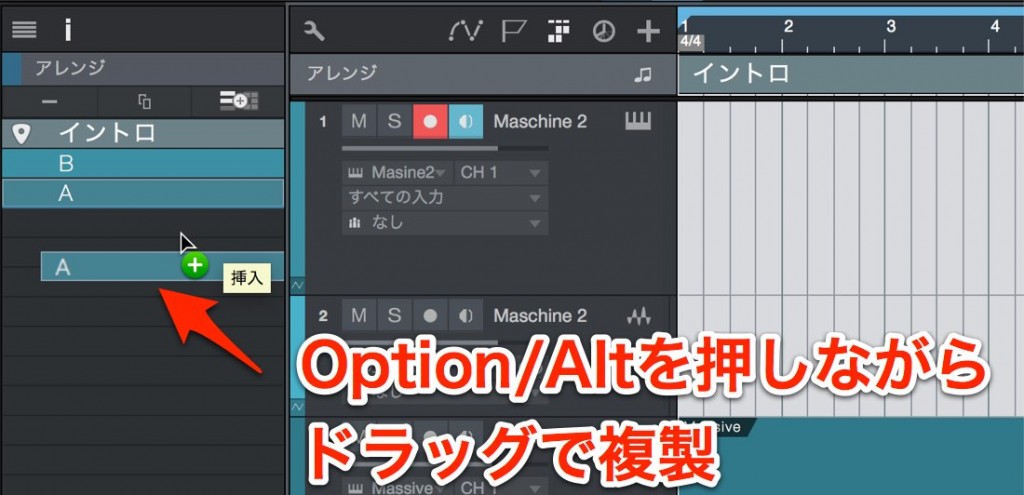
You can also duplicate sections.
Other new features
Studio One 3 New Feature: Scratch Pad
Studio One 3 New Feature: Extended FX Chains
Studio One 3 New Feature: Macro Controls

Frequently asked questions
Q1. What are the main benefits of Studio One 3's Arranger Track?
You can define the song structure and rearrange it instantly by dragging, so you can efficiently compare different arrangement ideas. Trying multiple versions helps you find the best approach in the shortest time.
Q2. Can you briefly explain how to use the Arranger Track?
Turn on the Arranger Track at the top of the editor and switch to the Paint Tool. Click and drag to specify ranges matching the song's structure, then manage and rename sections from the Inspector.
Q3. Can I rename sections or change their order?
Yes. Double-click a section name to rename it. Dragging section names up and down to change their order applies the change to all events in the editor at once.
Q4. Can sections be duplicated?
Yes, the Arranger Track lets you duplicate sections, so you can create new versions based on existing ones.
NEW ARTICLES
Latest English Articles











