
Studio One 3's Extended FX Chains feature branches effect routing to enable more precise and creative sound design. Using Splitters, you can set multiple branch points and apply different effects to each branch independently. You can set split conditions in detail, such as normal, channel, and frequency modes, and the same concept can be applied to instruments, letting you switch the instrument used depending on pitch. This lets you create endless sound variations, such as adding a phaser only to a delay's echoes or adding distortion only to the low end.
Flexible effect routing
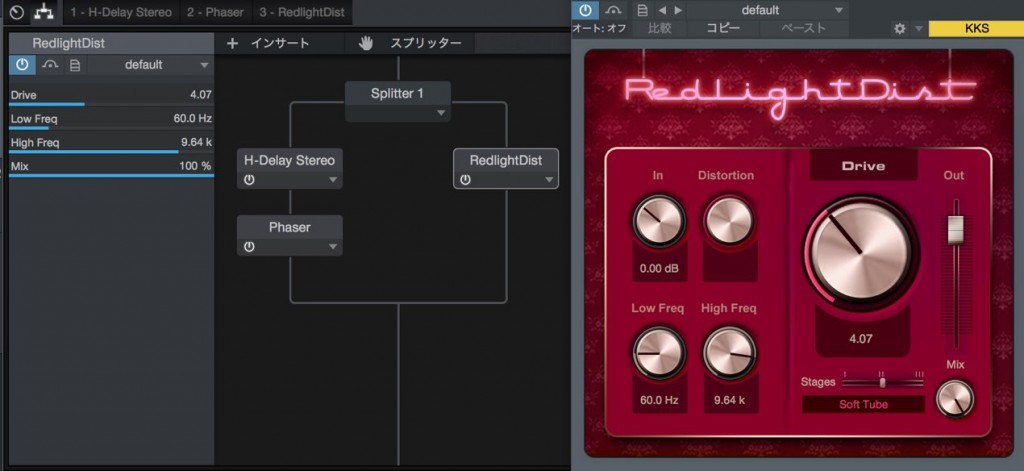
Studio One 3's new "Extended FX Chains" feature
branches the sound routing of effects
so you can do more detailed sound design.
Apply a phaser only to a delay's echoes.
Add distortion only to the low end.
Depending on your ideas, you can create endless sounds like these.
Using Extended FX Chains
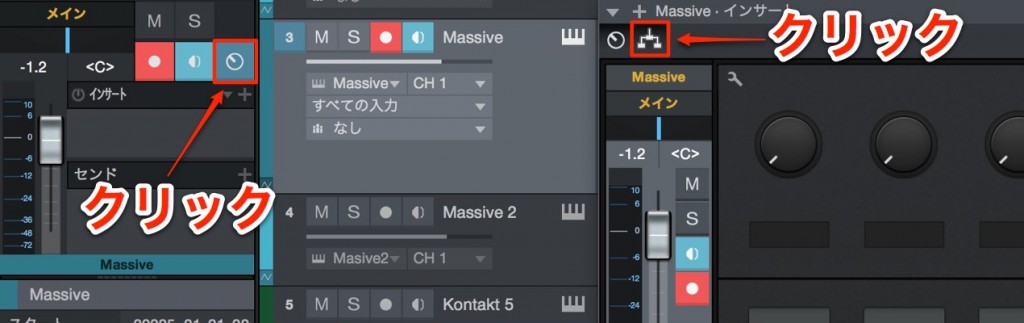
Select the track you want to apply effects to, then select "Channel Editor."
Then click "Routing" in the editor that appears.
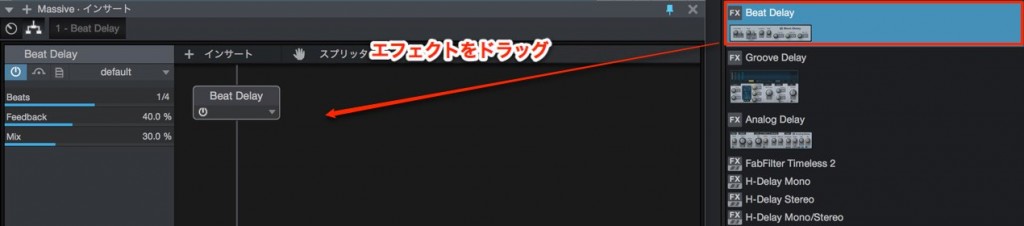
Drag and drop the effect you want to apply from "Browse."
The effect is now applied to the track.
You can branch this effect chain.
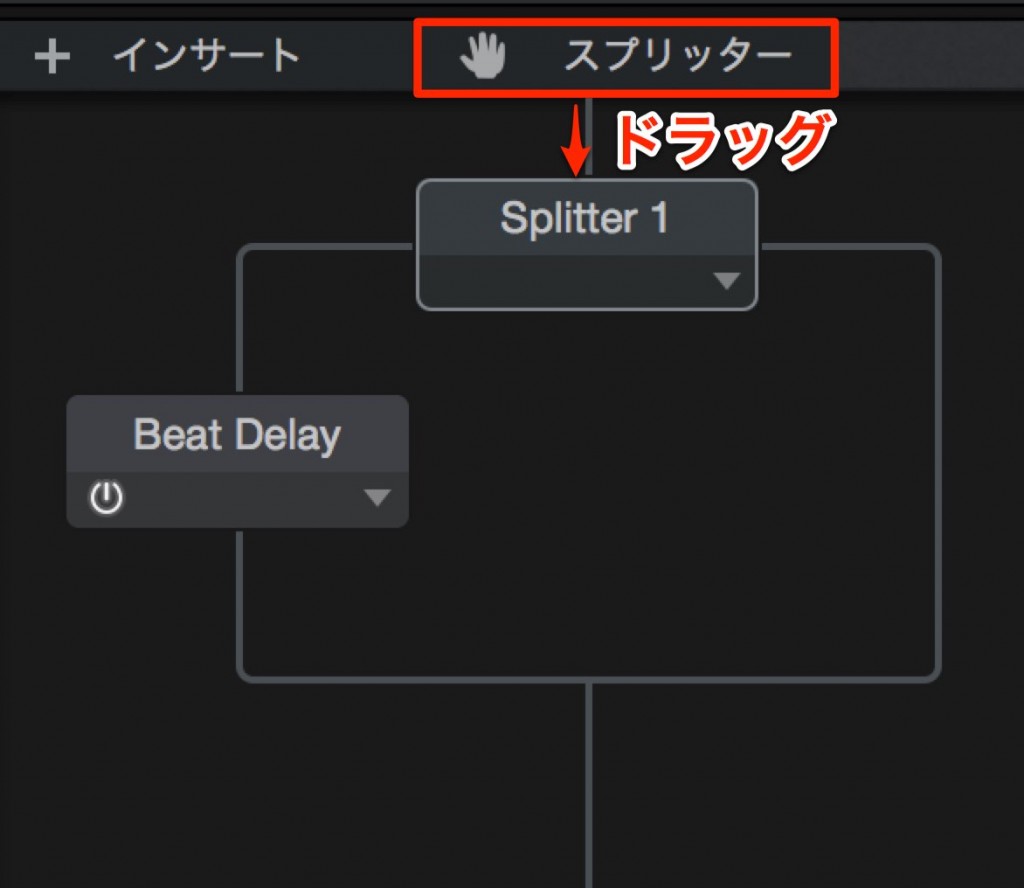
Drag a "Splitter" to the point where you want to branch.
Here, we placed it before the delay.
A branch point is created as shown in the image above.
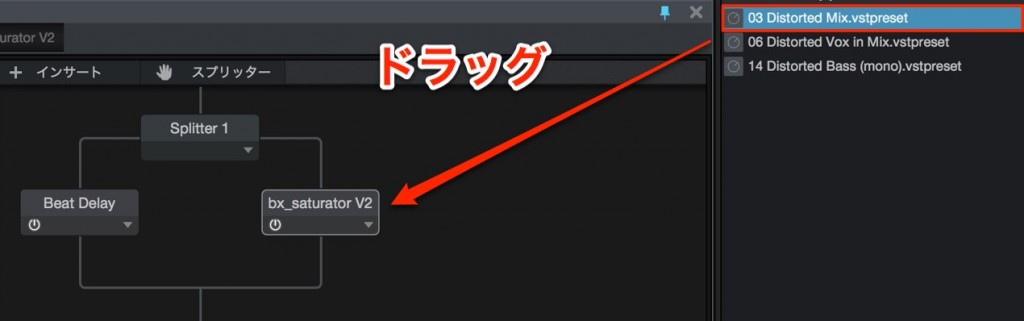
You can apply a different effect (distortion here) to the other branch.
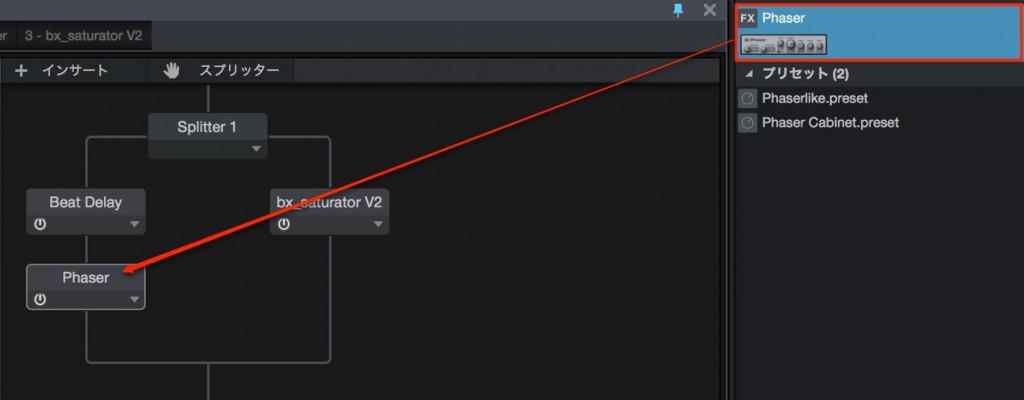
We added a phaser after the delay.
As a result, the phaser is applied only to the delayed sound,
and the distortion effect doesn't interfere with the delay and phaser.
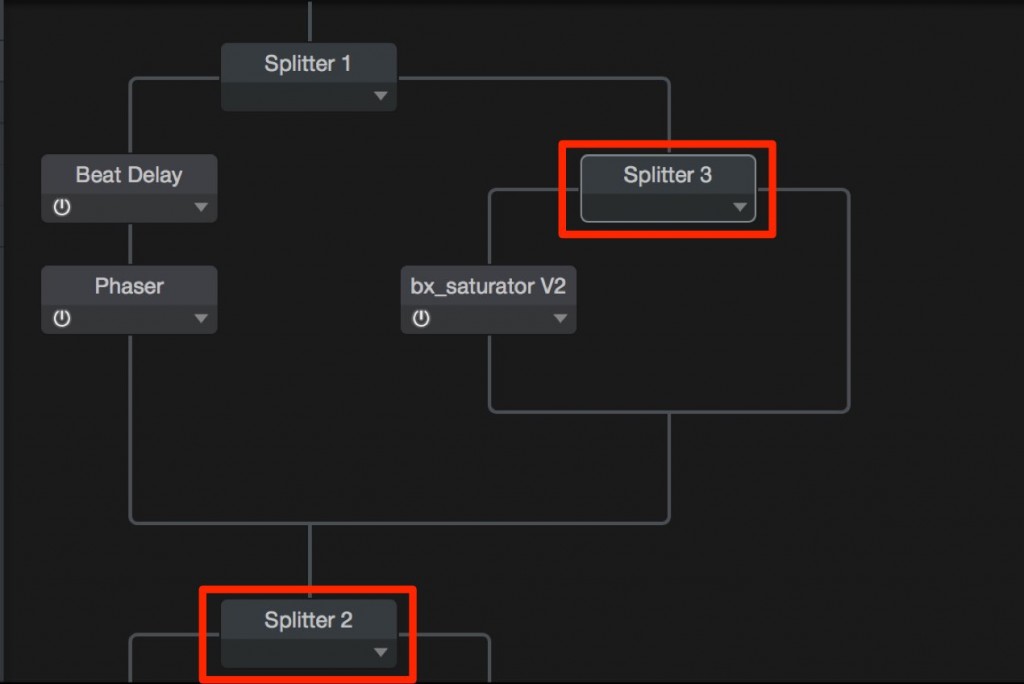
You can set branches at multiple points.
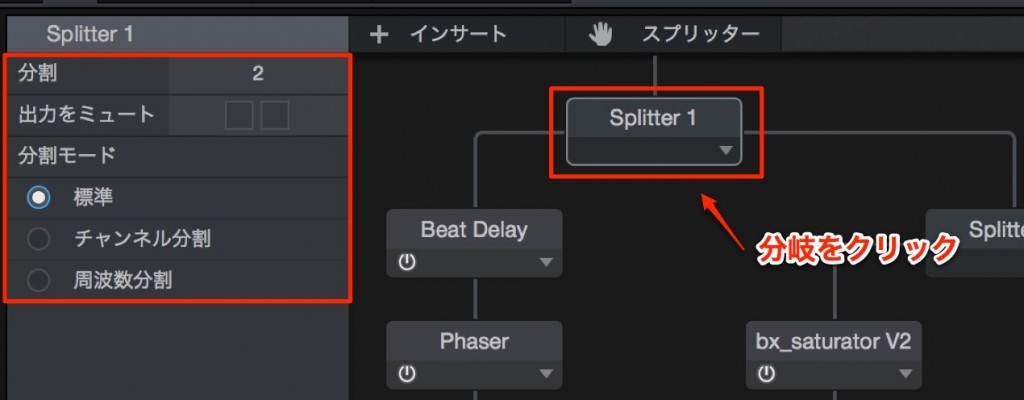
Click the Splitter to make detailed settings for the split conditions.
- Splits: specify from 2 to 5 branches
- Mute output: mute the sound of only the specified branch
- Split mode: specify the condition for splitting
- Normal: splits the sound volume evenly at the branch point
- Channel: splits the left and right of a stereo sound
- Frequency: splits by a specified frequency
Can also be used with instruments
This branching concept can also be applied to instruments.
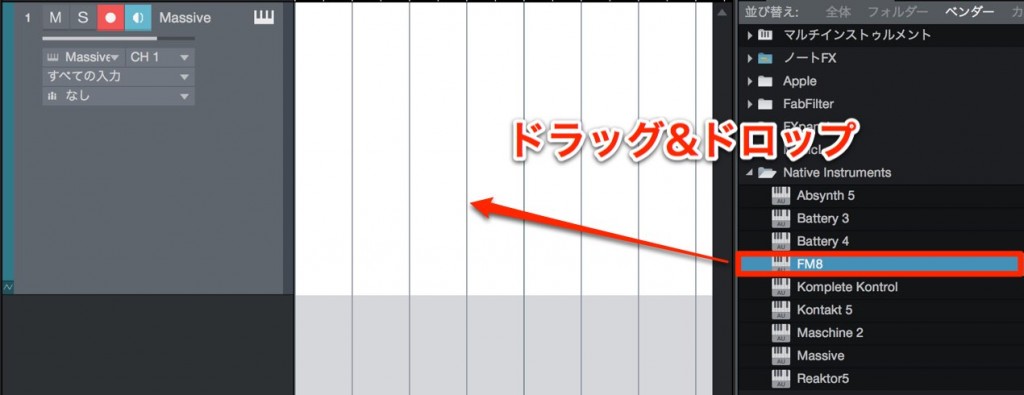
Drag and drop a new instrument onto an instrument track that is already loaded.
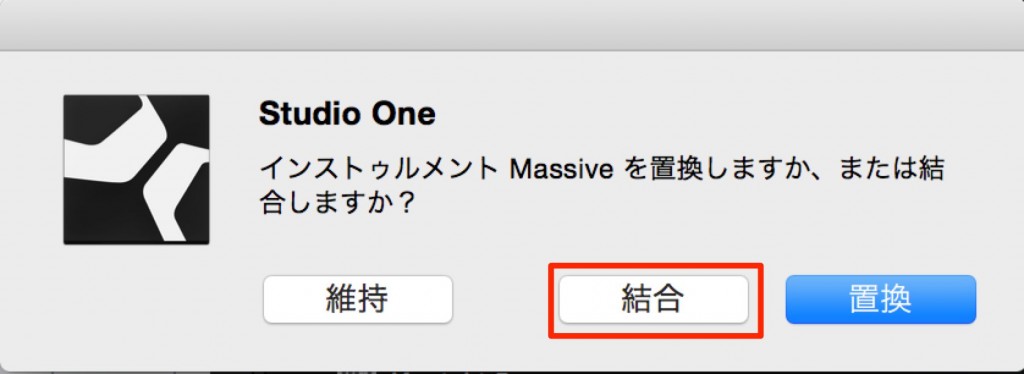
A dialog appears, so select "Combine."
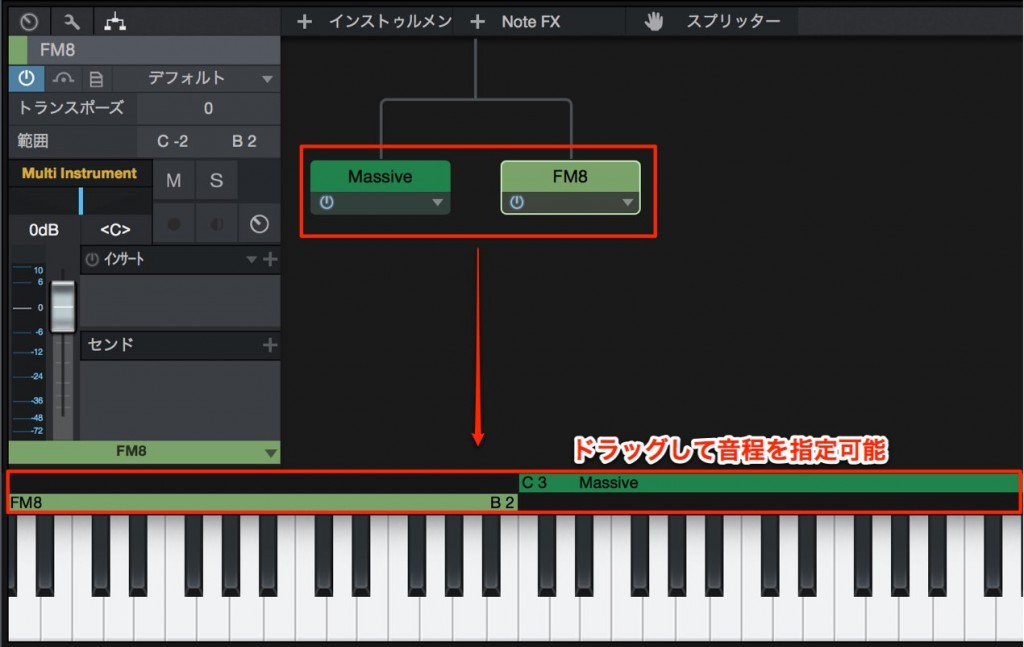
A window appears.
You can also check the keyboard below and define which instrument is used depending on the pitch played.
Other new features
Studio One 3 New Feature: Scratch Pad
Studio One 3 New Feature: Arranger Track
Studio One 3 New Feature: Macro Controls

Frequently asked questions
Q1. How many branch points can I set in Studio One 3's Extended FX Chains?
You can set branch points at multiple locations. In the Splitter's detailed settings you can specify 2 to 5 splits and apply different effects to each branch.
Q2. What can I do with Frequency mode?
By splitting the signal at a specified frequency, you can apply different effects to specific frequency bands only. For example, you can add distortion only to the low end, enabling frequency-specific sound design.
Q3. What are the benefits of using Extended FX Chains with instruments?
You can use different instruments depending on the pitch played, letting you build more natural and expressive instruments and combine multiple instruments efficiently.
NEW ARTICLES
Latest English Articles











