
Mastering Logic Pro's zoom techniques can greatly improve the efficiency of your DTM work. This article introduces shortcuts and drag operations that let you quickly change the zoom level to suit the task, from an overview of the whole song to detailed sample-level editing. Using techniques such as Command + arrow keys and Option + drag cuts the time you spend on sliders so you can focus on production. In addition, zooming to a selection and customizable shortcut settings make complex audio editing and region adjustments more efficient.
- Logic X
- Logic 8/9
Logic: Zoom In and Out to Suit the Task
When working in DTM, such as when viewing the whole song or moving sounds sample by sample,
you need to frequently change the zoom level to suit the task.
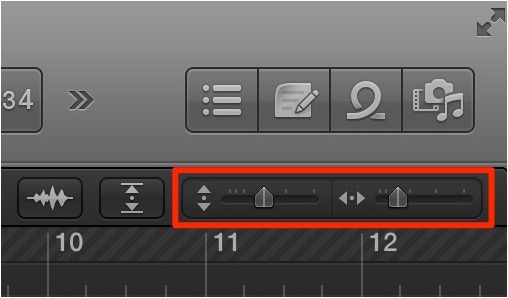
Moving the cursor all the way to the zoom slider every time is inefficient.
So here are some handy techniques for quickly reaching the zoom level you want.
Zooming Out and In Horizontally/Vertically
You can reproduce the same effect as the slider above with a shortcut.
- Command + arrow keys
Or
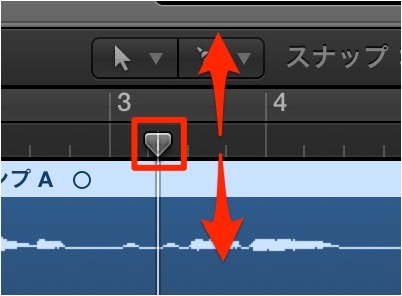
Option + drag in the bar ruler.
- Drag up: zoom out
- Drag down: zoom in
This lets you adjust the zoom quickly.
Shrinking/Enlarging Tracks
This shortcut lets you enlarge the height of a track.
- Control + Z
Zooming In on a Selected Area
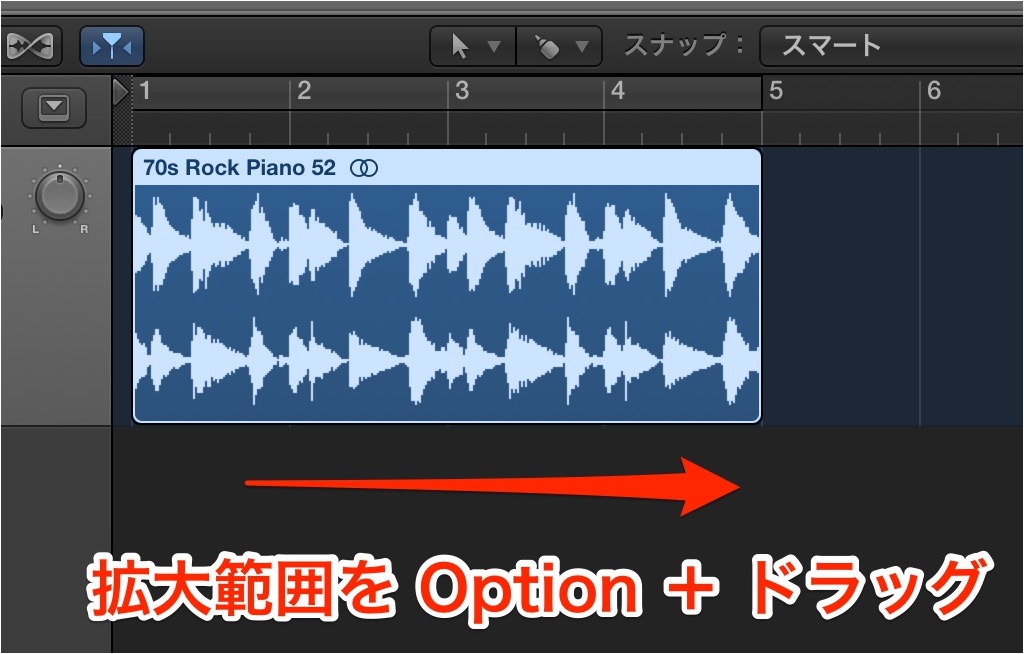
Specify the area you want to zoom in on with Option + drag.
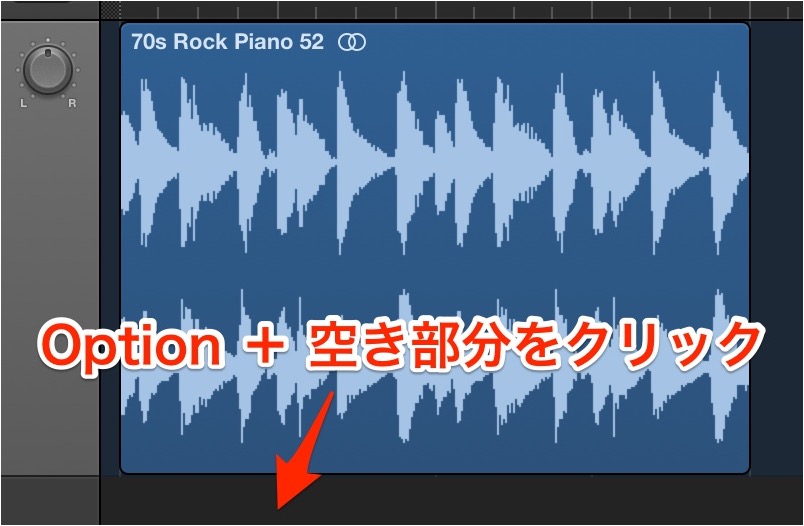
It has been zoomed in like this.
Also, Option + double-click an empty area (anywhere other than a region)
to return to the previous zoom level right away.
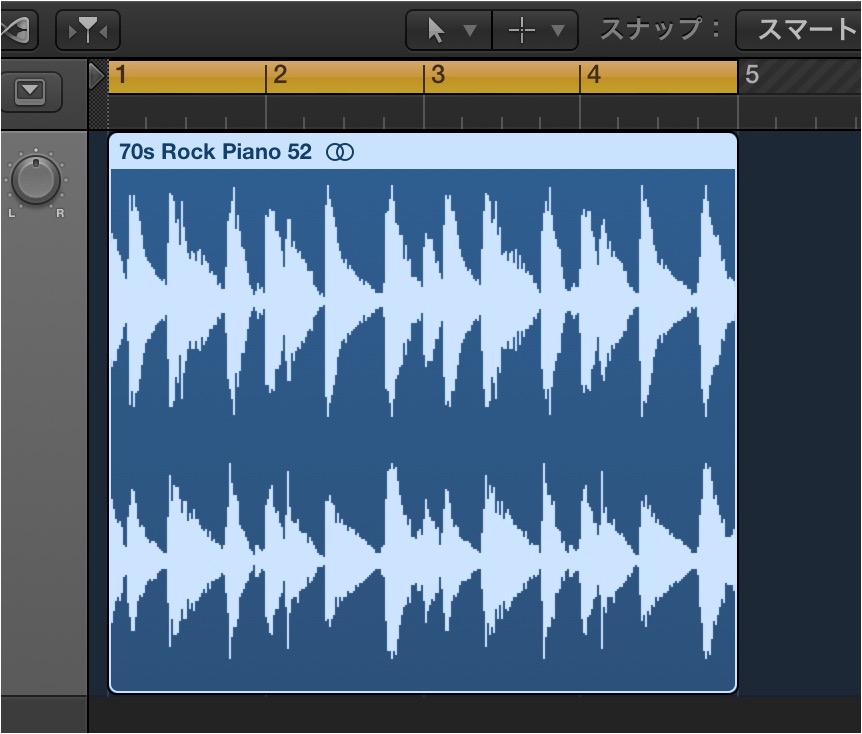
You can also zoom a region selected with the Pointer tool to fit the screen.
This is handy for detailed work.
*By default, no shortcut is assigned to this command,
so you need to assign one yourself.
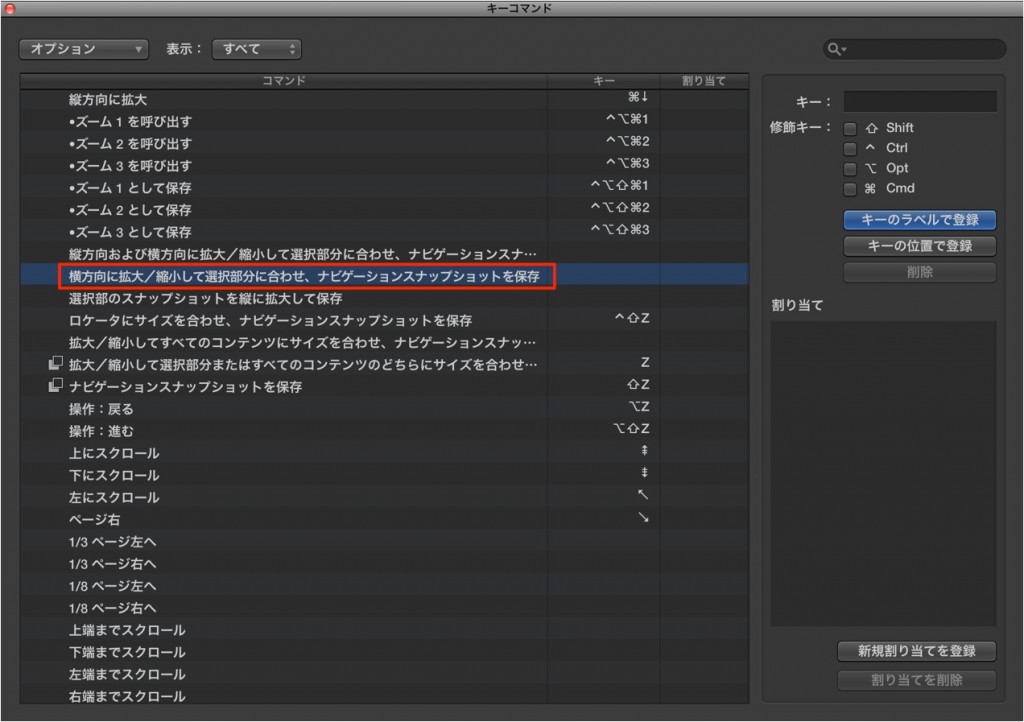
You can find it under "Various Windows" → "Zoom horizontally/vertically to fit selection..."
For details, see "How to Assign Shortcuts."
Logic: Zoom In and Out to Suit the Task
When working in DTM, such as when viewing the whole song or moving sounds sample by sample,
you need to frequently change the zoom level to suit the task.
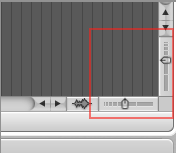
↑ Moving the cursor all the way to the zoom slider every time is inefficient.
So here are some handy techniques for quickly reaching the zoom level you want.
Zooming Out and In Horizontally/Vertically
You can reproduce the same effect as the slider above with a shortcut.
- Option + Control + arrow keys
Or

Drag in the bar ruler.
- Drag up: zoom out
- Drag down: zoom in
This lets you adjust the zoom quickly.
Shrinking/Enlarging Tracks
This shortcut lets you enlarge the height of a track.
- Control + Z
Zooming In on a Selected Area

↑ Take a region selected with the Pointer tool...

↑ ...and zoom it to fit the screen.
This is handy for detailed work.
*By default, no shortcut is assigned to this command,
so you need to assign one yourself.

↑ You can find it under "Various Windows" → "Zoom horizontally/vertically to fit..."
For details, see "How to Assign Shortcuts."
https://sleepfreaks-dtm.com/for-advance-logic/lesson11-4/
- Logic X
- Logic 8/9

Frequently asked questions
Q1. What should I do if the Command + arrow key zoom shortcut does not work in Logic Pro?
Shortcut settings can differ depending on the version. In Logic 8/9, use Option + Control + arrow keys. You can check and customize shortcut settings in the key commands window.
Q2. How can I quickly change the height of a track?
Use Control + Z to enlarge the height of a track. Remembering this shortcut makes it easier to adjust the visibility of multiple tracks and makes detailed editing much easier.
Q3. How do I zoom a selection to fill the entire screen?
By default, no shortcut is assigned, so you need to set one up yourself. You can do this by assigning any shortcut to "Various Windows" → "Zoom horizontally/vertically to fit selection..."
NEW ARTICLES
Latest English Articles











