
Customizing shortcuts in Logic Pro and Logic can greatly improve the efficiency of DTM production. This article explains in detail how to set hard-to-remember shortcuts the way you like, how to unify shortcuts when using multiple DAWs, and how to export your own shortcut settings and import them on another computer. By learning practical techniques such as the setup procedure in the Key Commands window and carrying your lightweight settings file with you, you can work comfortably on any computer.
The benefits of customizing shortcuts
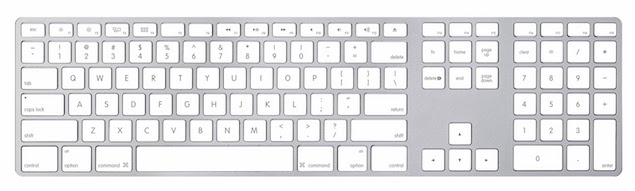
Learning "shortcuts" is essential for working efficiently.
Because they let you execute commands instantly,
you will definitely want to learn the "shortcuts" for the commands you use often.
However, there are probably many "shortcuts" that are hard to remember.
That is when we want you to use "shortcut customization".
You can also use it, for example, if you use two or more DAWs,
to unify your "shortcuts".
Video Tutorial
- Logic X
- Logic 8/9
How to set shortcuts in Logic X
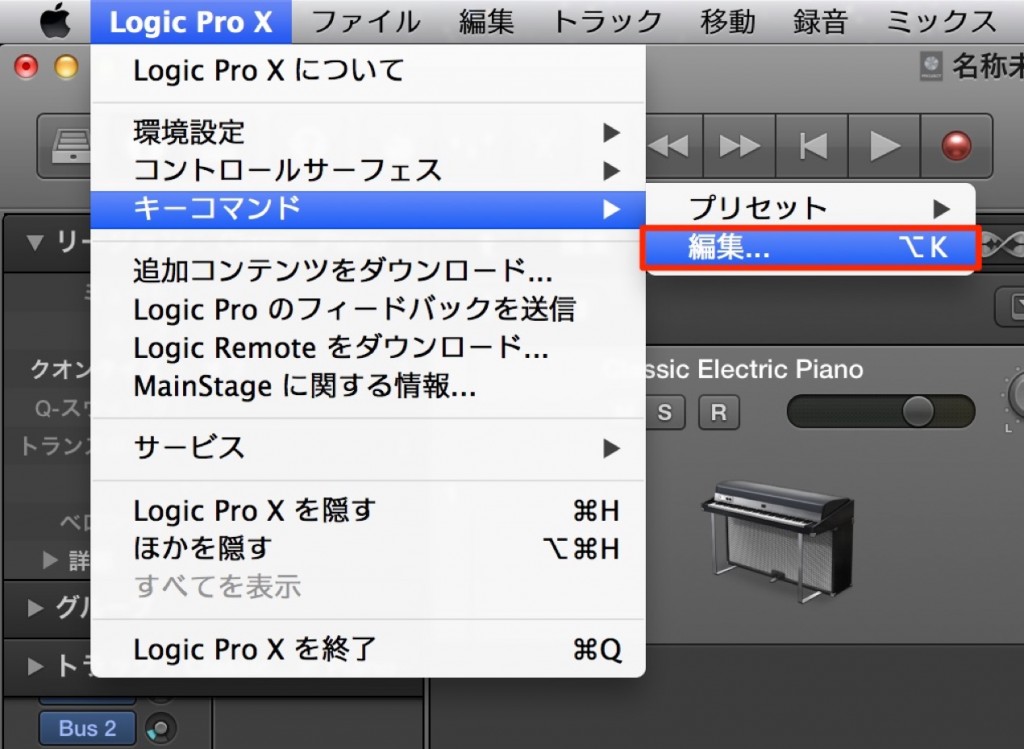
Go to the top menu → "Logic X" → "Key Commands" → "Edit".
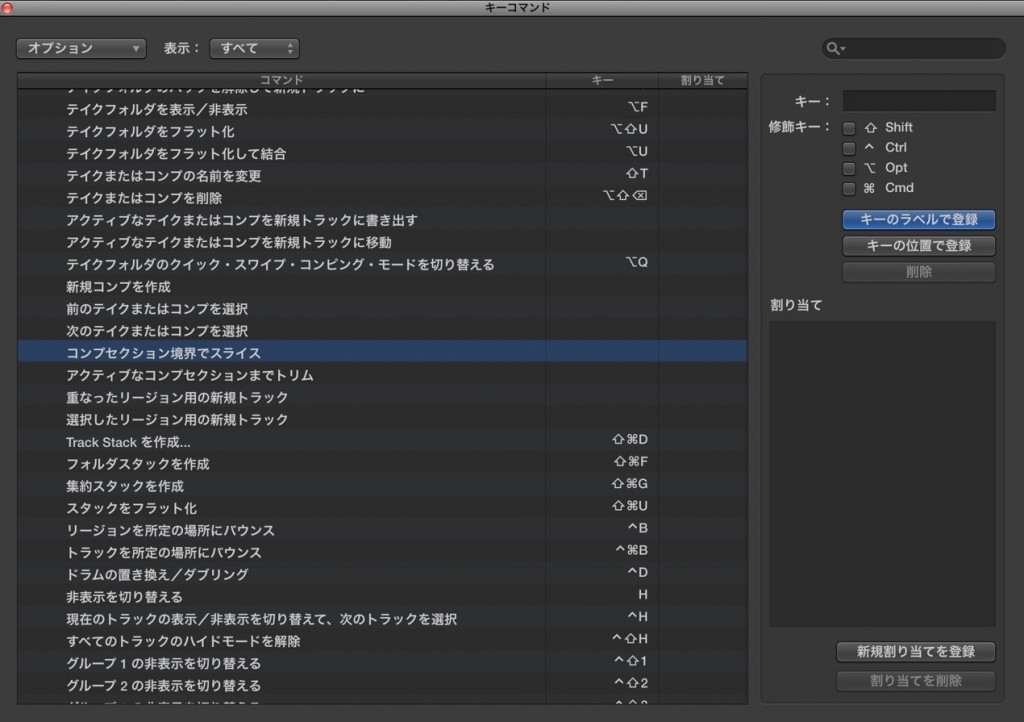
The "Key Commands window" opens.
1_Select the item you want to assign.
2_Click "Learn by Key Label" and press the actual key to register it.
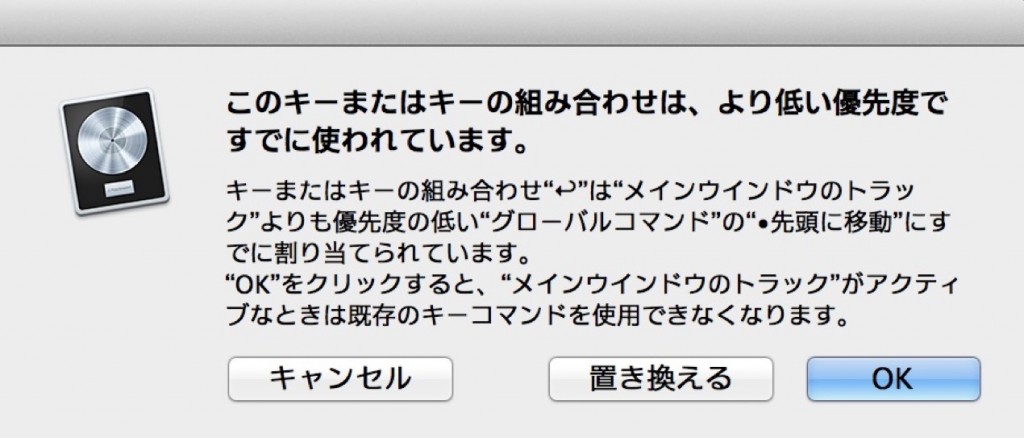
*If that shortcut is already used by another command, a warning appears.
Be careful when registering.
More advanced use
For example, when you use Logic on a friend's computer,
you can't concentrate on your work because the shortcuts are different.
That is when exporting/importing shortcuts is useful
If you export your shortcuts and import them on your friend's computer,
you can work in your usual environment.
The exported shortcut file is also very small,
so you can easily carry it on a USB drive or in online storage.
How to export and import
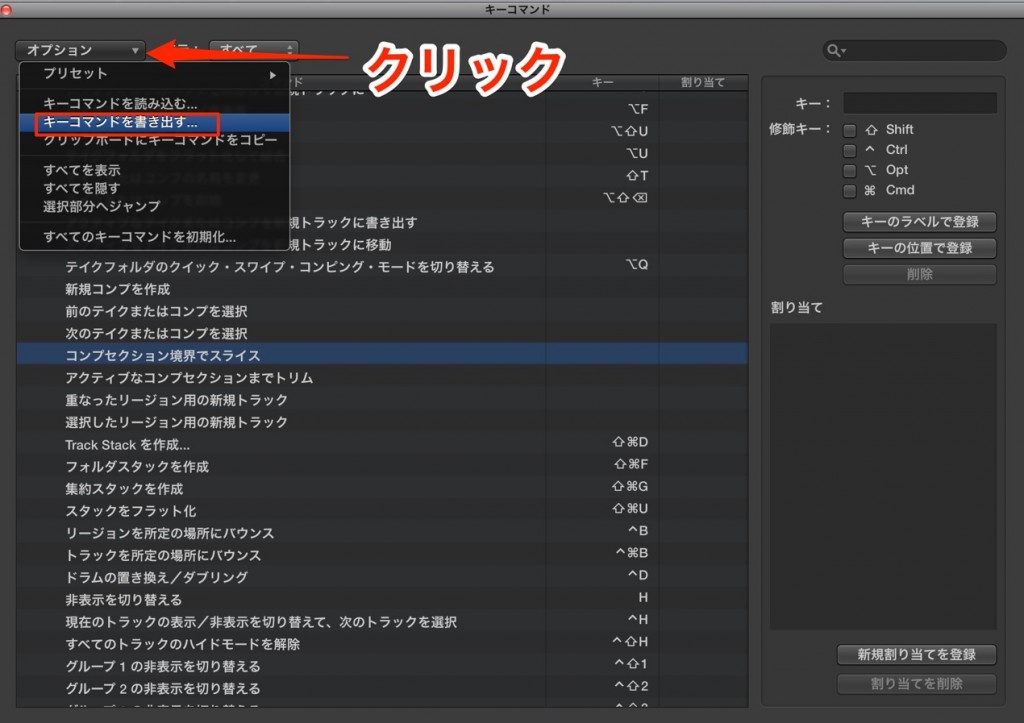
Open the Key Commands window and open "Options" in the top menu.
Export with "Export Key Commands",
and import with "Import Key Commands" just above it.
How to set shortcuts in Logic
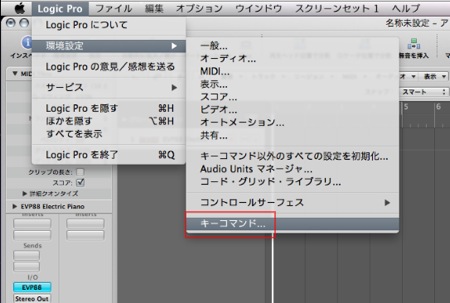
↑ Top menu → "Logic" → "Preferences" → "Key Commands"
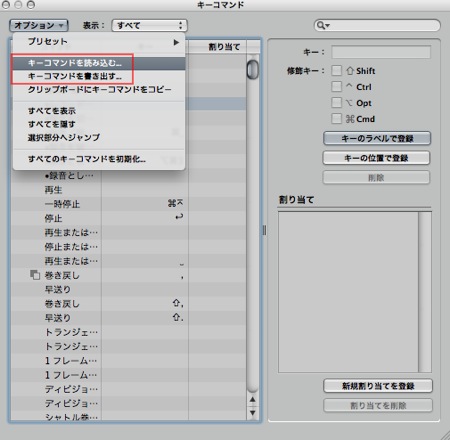
↑ The "shortcut window" opens.
1_Select the item you want to assign.
2_Click "Learn by Key Label" and press the actual key to register it.
*If that shortcut is already used by another command, a warning appears,
so be careful when registering.
More advanced use
For example, when you use Logic on a friend's computer,
you can't concentrate on your work because the shortcuts are different.
That is when "exporting and importing shortcuts" is useful.
If you export your shortcuts and import them on your friend's computer,
you can work in your usual environment.
The exported shortcut file is also very small,
so you can easily carry it on a USB drive or in online storage.
How to export and import
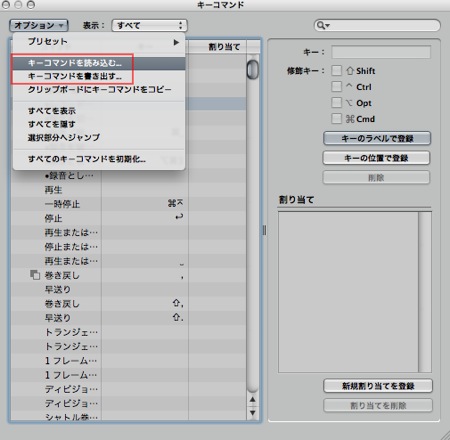
↑ Open the shortcut window and open "Options" in the top menu.
This is where you "Export" and "Import".
Easy, isn't it?
- Logic X
- Logic 8/9

Frequently Asked Questions
Q1. How do I customize shortcuts in Logic Pro?
Open Logic Pro and go to "Logic Pro" → "Key Commands" → "Edit" from the top menu. In the Key Commands window, select the item you want to assign, click "Learn by Key Label" and press the key, and you're done. If the shortcut is already in use, a warning is displayed.
Q2. Can I use the same shortcut settings on multiple computers?
Yes. Export the file with "Export Key Commands" from the Options menu of the Key Commands window, and import it on another computer with "Import Key Commands" to restore the same settings. The file is very small, so it is easy to carry on a USB drive or in cloud storage.
Q3. What should I do if I want to use a shortcut key that is already assigned to another command?
When you try to assign a new key in the Key Commands window, a warning is displayed if the shortcut is already in use. In that case, change the existing assignment to another key or delete the shortcut you no longer need, then assign the new one.
NEW ARTICLES
Latest English Articles











