
Changing the tempo and time signature within a song in Logic Pro is an important way to give your music a variety of expressions. This article explains how to change the tempo and time signature in Logic X and Logic 8/9. By opening the tempo editor from the Global Tracks and adding and adjusting points, you can freely set anything from sudden tempo changes to gradual accelerations and decelerations. Time signature changes can be made with similar steps, so you can handle songs with complex structures.
Give Your Song a Variety of Expressions
Changing the tempo or time signature within a song lets you
create various effects, such as connecting songs
or gradually speeding up or slowing down.
For how to set the tempo normally, see the link below.

- Logic X
- Logic 8/9
Logic X: How to Change the Tempo

Click "Global Tracks," outlined in red.

The tempo editor opens.
Double-click anywhere to add a point.

Drag the point up or down to set the tempo you want.
With the above, the tempo changes instantly, but

by dragging the lower point,

you can also set the tempo to change gradually like this.
How to Change the Time Signature
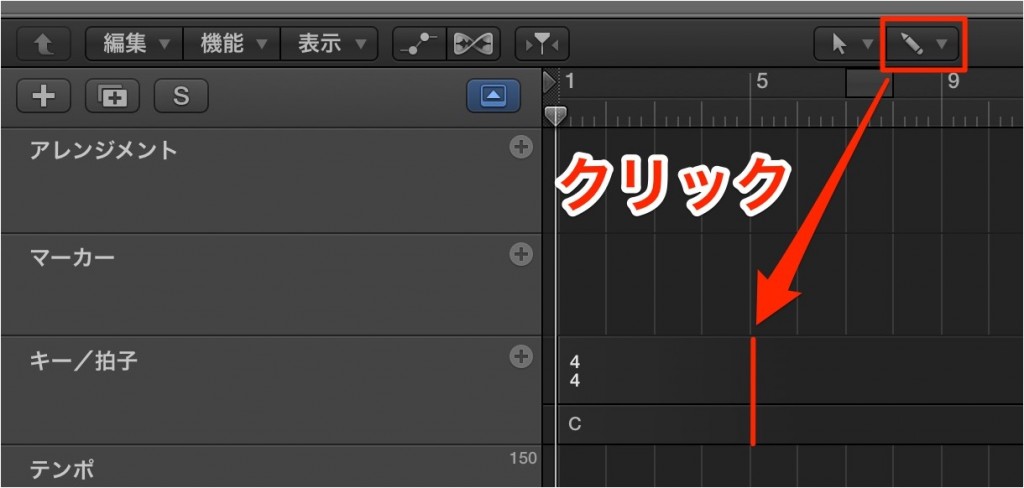
As with the tempo change above, expand the "Global Tracks"
and change the "Signature" in it.
Select the Pencil tool and click the bar where you want to change the time signature.

The time signature editor opens.
Enter the time signature you want and click "OK."

It is recorded like this.
Logic: How to Change the Tempo

↑ Click "Global Tracks," outlined in red.

↑ The tempo editor opens. Switch to the Pencil tool and draw in the changes.

↑
1_Choose the resolution for drawing.
The finer the note value, the finer the tempo change information becomes.
2_You can drag to widen the editor.
3_After drawing points with the Pencil tool,
you can drag with the Pointer tool to give the tempo a curve.
↓ To the article on tempo changes from the Environment
https://sleepfreaks-dtm.com/for-advance-logic/transformer-2/
How to Change the Time Signature

↑ As with the tempo change above, expand the "Global Tracks"
and expand the "Signature" in it.
Select the Pencil tool and click the bar where you want to change the time signature.

↑ The time signature editor opens.
Enter the time signature you want and click "OK."
- Logic X
- Logic 8/9

Frequently asked questions
Q1. How do I create a smooth ritardando in Logic Pro?
Add a point in the Global Tracks tempo editor and drag the lower point to make the tempo change gradually. Placing multiple points to draw a curve lets you create more natural tempo changes.
Q2. Can I change the time signature from 4/4 to 3/4 partway through a song?
Yes. Expand "Signature" in the Global Tracks and click the bar where you want to change the time signature with the Pencil tool to open the time signature editor. Enter the time signature you want and click OK.
Q3. Is there a difference between how Logic X and Logic 8/9 change the tempo?
The basic operation is the same, but Logic X lets you adjust more intuitively by dragging. Logic 8/9, on the other hand, centers on drawing with the Pencil tool, with slight differences in steps such as adding curves with the Pointer tool.
NEW ARTICLES
Latest English Articles











