This article explains how to use Logic Pro's Environment to record fader object and tempo control operations into a song. You can learn practical ways to use the Environment, from the basic process of adding a fader object to a track and recording it, to advanced operation with a MIDI controller and even changing the tempo during a song. It also covers optimizing MIDI CC control with filter settings and seamless cabling, greatly expanding the automation and expressiveness of your DTM production.
Recording Logic Environment operations into a song
We have published several articles in this series on the Environment.
And what you are all thinking is: "So, can I record this into a song?"
Yes, we know (lol).
Of course you can.
This time, we bring you a video that covers that too.
Video Tutorial
- Logic X
- Logic 8/9
Recording Logic Environment operations into a song
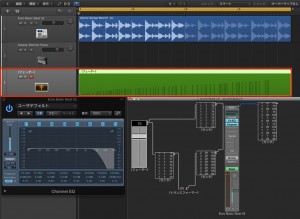
Let's actually record a fader object and incorporate it into a song.
Recording a fader object
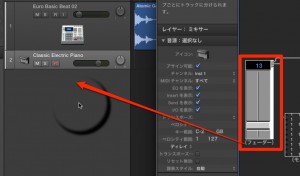
First, as in Logic 9, add the fader object to a track by drag and drop.
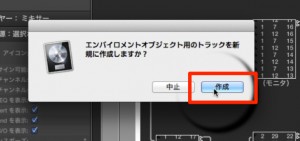
Then click [Create].
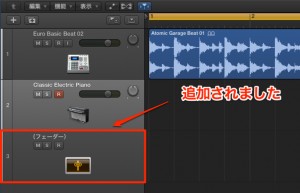
A new track is created like this.
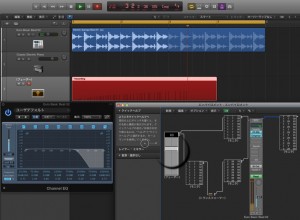
Then select the track and press the Record button.
If you move the fader object now, it is recorded properly!
Using Tempo Control
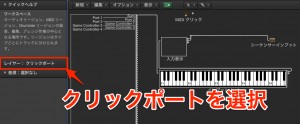
Select [Clicks & Ports] from [Layer].
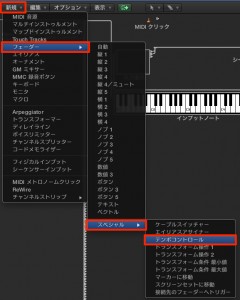
As in Logic 9, create a Tempo Control.
In the Environment, [New] → [Fader] → [Specials] → [Tempo Control]
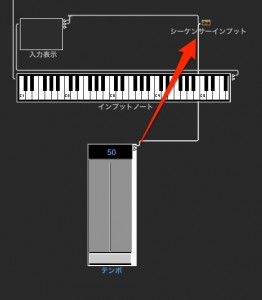
Connect the "Tempo Control" to the Sequencer Input.
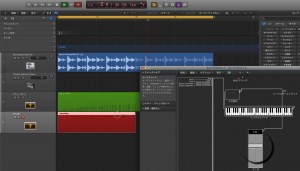
As before, add a tempo track and record.

The tempo has been applied properly.
Please try it in Logic X too.
Video point: Recording a fader object
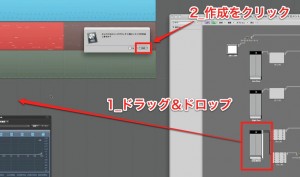
Drag and drop the "fader object" you want to record
into the project.
Then select "Create" in the dialog that appears.
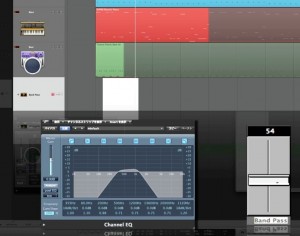
Select the created track,
start "recording" and move the fader by hand.
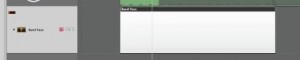
It is recorded like this.
Video point: Recording from a MIDI controller
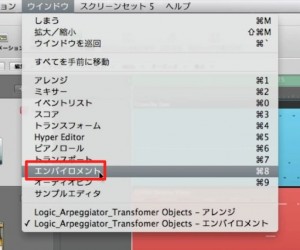
From the top menu → "Window" → "Environment", open a second Environment window.
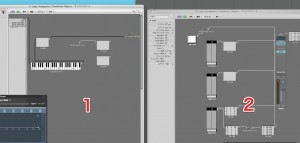
The layout looks like this.
*Change the other Environment window to "Clicks & Ports"
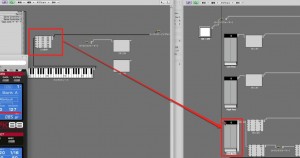
From the "Input View" in "Clicks & Ports",
connect a cable to the fader you want to control.
*Cables can be connected seamlessly between Environment windows
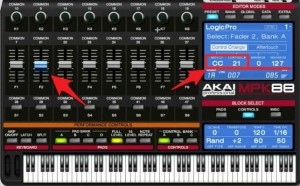
Check the MIDI CC number of the controller.
(In this case it is 21)
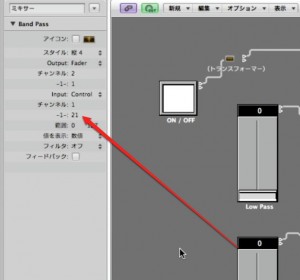
Set the CC of the "fader object" to match the controller's CC.
Now when you move the MIDI controller,
you can control the "fader object".
However,
note information played on the MIDI keyboard is also sent to the "fader object",
which could cause it to malfunction.

As a way to avoid this,
select "Other" from "Filter".
Now only the "MIDI CC" you want to control has an effect.
Video point: Tempo Control
In the Environment, you can also control the song's tempo.
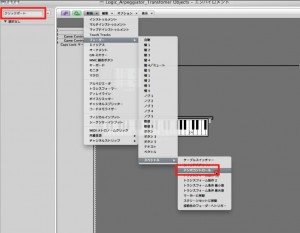
On the "Clicks & Ports" screen,
create the object with "Fader" → "Specials" → "Tempo Control".
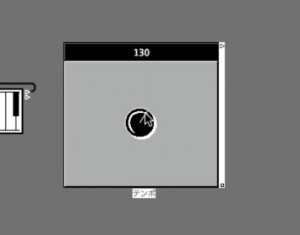
It has been created.
"Tempo Control" does not need to be cabled.
However, when recording tempo into a song as described above,
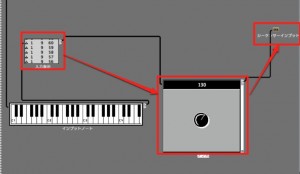
cable it as "Input View" → "Tempo Control" → "Sequencer Input".
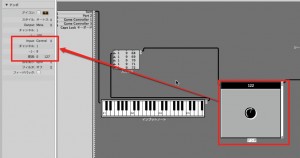
Set the input and channel of the "Tempo Control" to match your MIDI controller.
You can then control the tempo in the same way as the MIDI controller setup above.
- Logic X
- Logic 8/9
Frequently Asked Questions
Q1. How do I record fader operations from Logic Pro's Environment into a song?
Add the fader object to a track by drag and drop and create a new track. Select that track, press the Record button and move the fader by hand, and your operations are recorded.
Q2. How do I prevent malfunctions when controlling the Environment from a MIDI controller?
Select "Other" in the filter settings so that only the specific MIDI CC you want to control is used. This avoids malfunctions caused by unneeded MIDI information.
Q3. Can I control the tempo in the Environment and record it into a song?
Yes. By creating a Tempo Control object and cabling it as "Input View" → "Tempo Control" → "Sequencer Input", you can record the song's tempo from a MIDI controller.
NEW ARTICLES
Latest English Articles