
This article explains how to set up a shortcut in Logic Pro and Logic for easily playing and looping the range of a region. Setting a loop normally means dragging in the ruler, which is tedious, but by assigning a shortcut key to the "Set Locators by Selection and Play" command, you can simply select a region and press the key to set the loop range and start playback automatically. This command is not assigned by default, so you need to assign a key of your choice in the Key Commands settings. It is an essential skill that greatly improves the efficiency of DTM work.
A Handy Operation You Should Definitely Learn
The thing you do most in DTM work is
playing or looping part of a song.
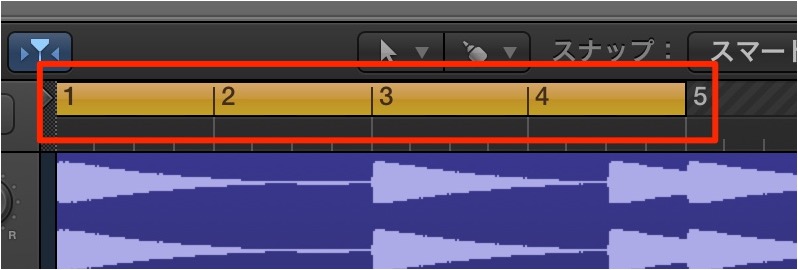
Normally you set a loop by dragging in the ruler, but that is a bit tedious.
What we recommend here is
a shortcut that sets the playback/loop range to the region's range.
This dramatically improves your efficiency.
- Logic X
- Logic 8/9
Logic X: Setting Up Region Range Playback
This handy shortcut is not assigned by default.
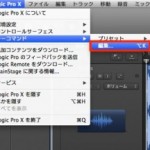
From the menu bar, go to "Logic Pro X" → "Key Commands" → "Edit"
and assign a key of your choice.
For how to assign shortcuts, see the following article.
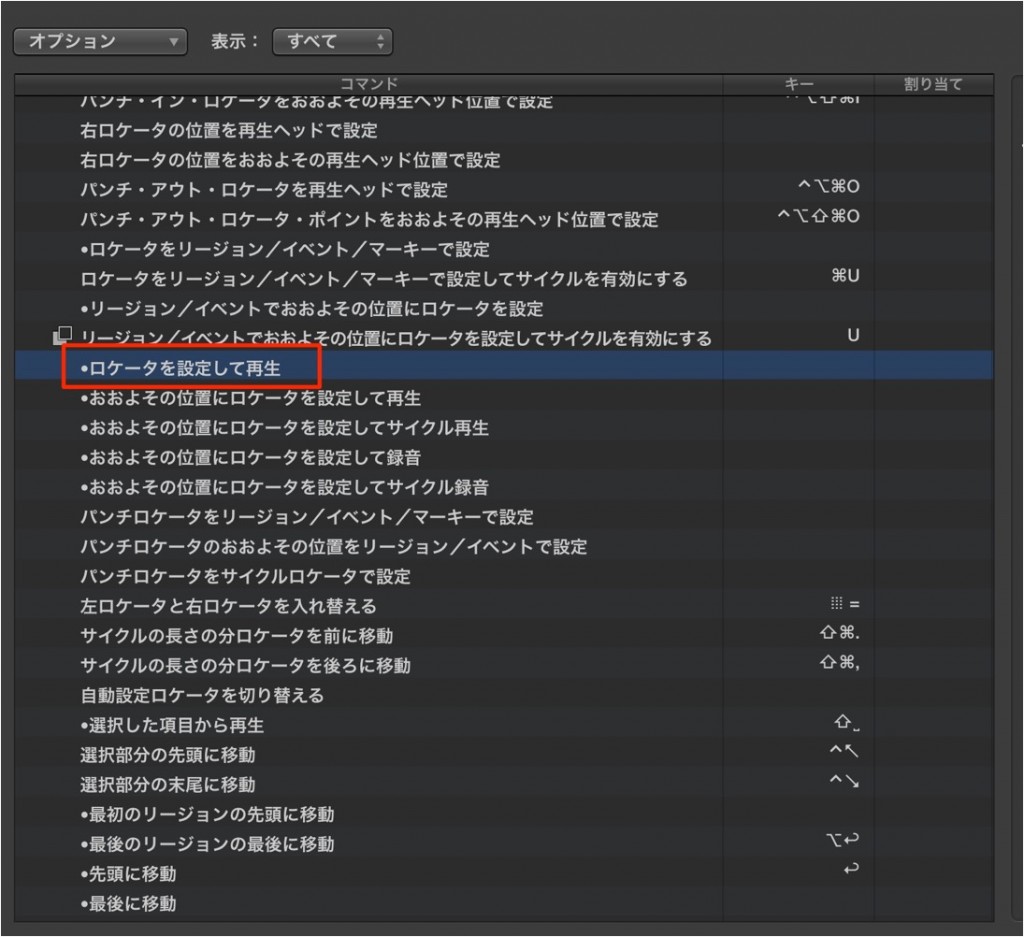
The command you want is "Global" → "Set Locators by Selection and Play".
Assign a shortcut to this command.
Here, we assigned "@."
That completes the setup.
How to Use It
The operation is very simple.
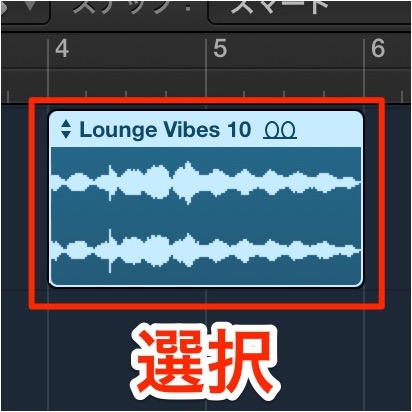
Select the region you want to play or loop
and press the shortcut you set above.
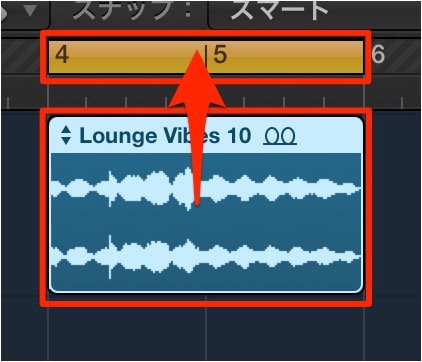
The loop range is set to the region and playback starts automatically.
Logic 8/9: Setting Up Region Range Playback
This handy shortcut is not assigned by default.
From the menu bar, go to "Logic" → "Preferences" → "Key Commands"
and assign a key of your choice.
For how to assign shortcuts, see the following article.
Customizing Shortcuts
Shortcuts let you execute commands instantly and greatly improve your efficiency. Here, we explain how to customize them.

↑ The command you want is "Global" → "Set Locators by Selection and Play".
Assign a shortcut to this command.
Here, we assigned "@."
That completes the setup.
How to Use It
The operation is extremely simple.

↑ Select the region you want to play or loop
and press the shortcut you set above.

↑ The loop range is set to the region and playback starts automatically.
- Logic X
- Logic 8/9

Frequently asked questions
Q1. Is there a default shortcut in Logic Pro for looping a region?
No, this shortcut is not assigned by default. You need to assign a key of your choice to "Global" → "Set Locators by Selection and Play" in the "Key Commands" menu.
Q2. What are the benefits of playing the region range?
It saves you from setting the loop range manually by dragging in the ruler; selecting a region and pressing one shortcut key sets the playback range automatically, greatly improving the efficiency of DTM work.
Q3. Is the setup different in Logic 8/9 and Logic Pro X?
Yes, slightly. In Logic Pro X you go through "Logic Pro X" → "Key Commands," and in Logic 8/9 through "Preferences" → "Key Commands," but the command to assign, "Set Locators by Selection and Play," is the same in both.
NEW ARTICLES
Latest English Articles











