
Logic Pro's Normalize function is an essential tool when an audio waveform is too quiet. It automatically raises the loudest part of the waveform right up to 0 dB, the limit before clipping, efficiently optimizing volume that is still too low even with the track volume at maximum. This article explains how to apply Normalize in Logic X and Logic 8/9, showing that you can adjust a waveform's volume in just a few steps from the menu in the Sample Editor. It is a basic technique that is essential for managing levels when mixing in DTM.
Optimize Quiet Audio Files
Normalize is a function used when an audio waveform is too quiet,
raising the loudest part of the waveform right up to 0, just before the sound clips.
It is handy when the volume is still not loud enough even with the track volume at maximum.

Normalize Explained
- Logic X
- Logic 8/9
Logic X: How to Apply Normalize
Double-click the waveform you want to normalize.
The Sample Editor appears below.
*If the audio Edit tab does not appear, you can solve the problem with the article below.
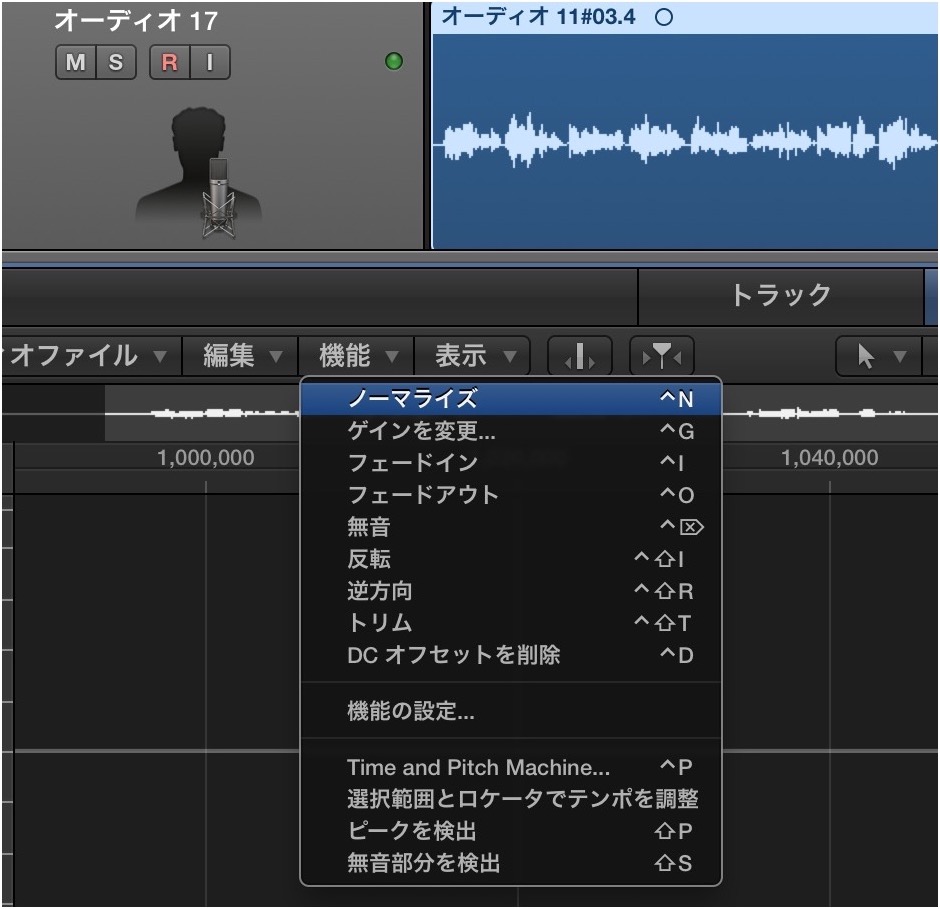
Choose Menu → Functions → Normalize.

After processing, the waveform's volume is raised.
Logic: How to Apply Normalize

↑ Double-click the waveform you want to normalize.
The audio editor appears below,
so choose Functions → Normalize from its top menu.

↑ After processing, the waveform's volume is raised.
- Logic X
- Logic 8/9

Frequently asked questions
Q1. What is the difference between Normalize and adjusting the volume fader?
The volume fader adjusts the perceived playback volume, whereas Normalize optimizes the waveform data of the audio file itself. Normalizing a quiet file gives you more headroom for later processing, leading to a higher-quality mix.
Q2. Can Normalize cause clipping?
No. Normalize sets the peak to 0 dB, so it does not cause clipping by itself. However, be careful, because raising the gain further after normalizing can cause clipping.
Q3. What should I do if the audio Edit tab does not appear?
You can find the solution in the article linked above. In general, it is resolved by checking your window and view settings.
NEW ARTICLES
Latest English Articles











