
Logic Pro's folder track function is a handy way to group and manage multiple instrument tracks visually. In productions where the track count tends to grow, such as drum kits, backing vocals, and guitars, you can organize tracks easily just by selecting regions and choosing "Pack Folder." A folder track not only tidies up the view but also lets you mute multiple tracks together, move regions, and perform edits such as quantizing all at once, greatly improving your efficiency.
Group Tracks Visually for a Neat, Tidy Layout
When producing songs with many instruments, two things inevitably increase: fatigue and tracks.
Especially if you handle drums kit piece by kit piece, you end up with a lot of tracks.
That is where the folder track comes in.
It lets you store tracks just like folders on a Mac.
Benefits of Folder Tracks
- A tidy view
- You can move regions together
- Muting the folder track itself mutes all the tracks inside it
- You can perform edits such as quantizing all at once (handy for unifying the feel of drums)
- Logic X
- Logic 8/9
Logic X: How to Set Up Folder Tracks
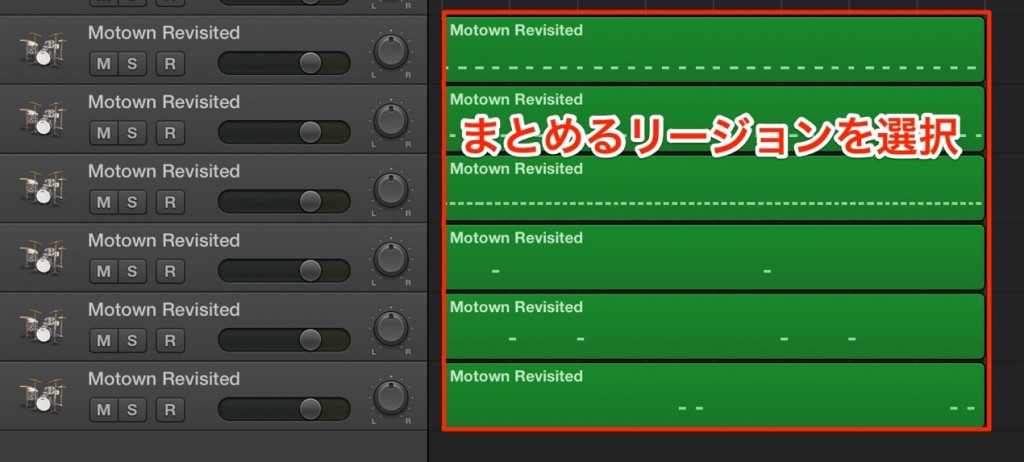
Select the regions you want to store in a folder.
This time, let's put each drum kit piece into a folder track.
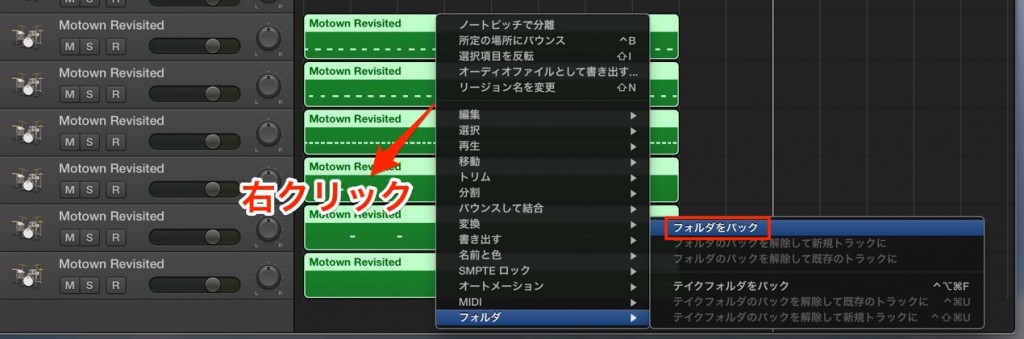
Right-click any of the selected regions.
From the menu that appears, choose "Folder" → "Pack Folder."

A folder track is created like this,
and all the selected regions are now stored in the folder.
You can delete the tracks that are now empty.
By double-clicking the region on this folder track,
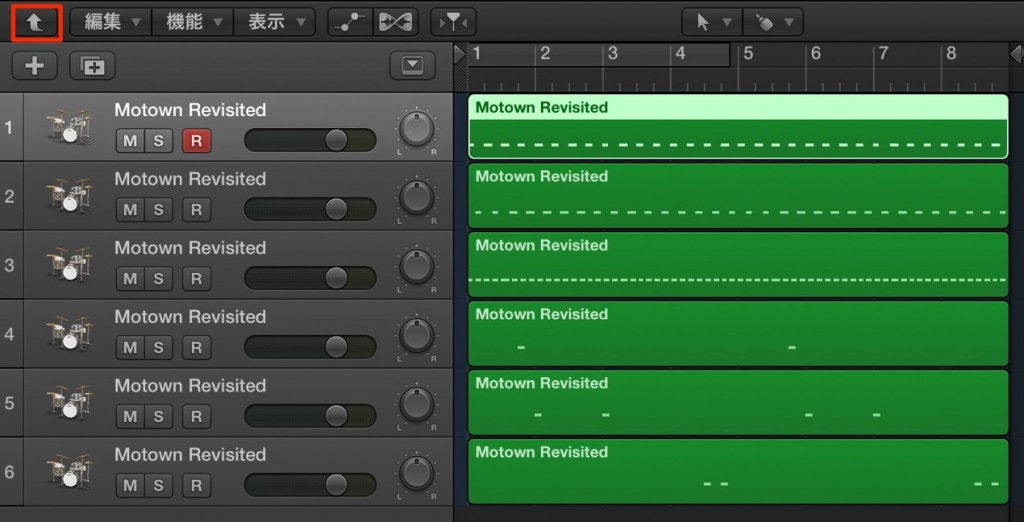
you can go inside the region like this to view and edit each track.
To exit this view, press the arrow button at the upper left.
How Do I Release a Folder Track?
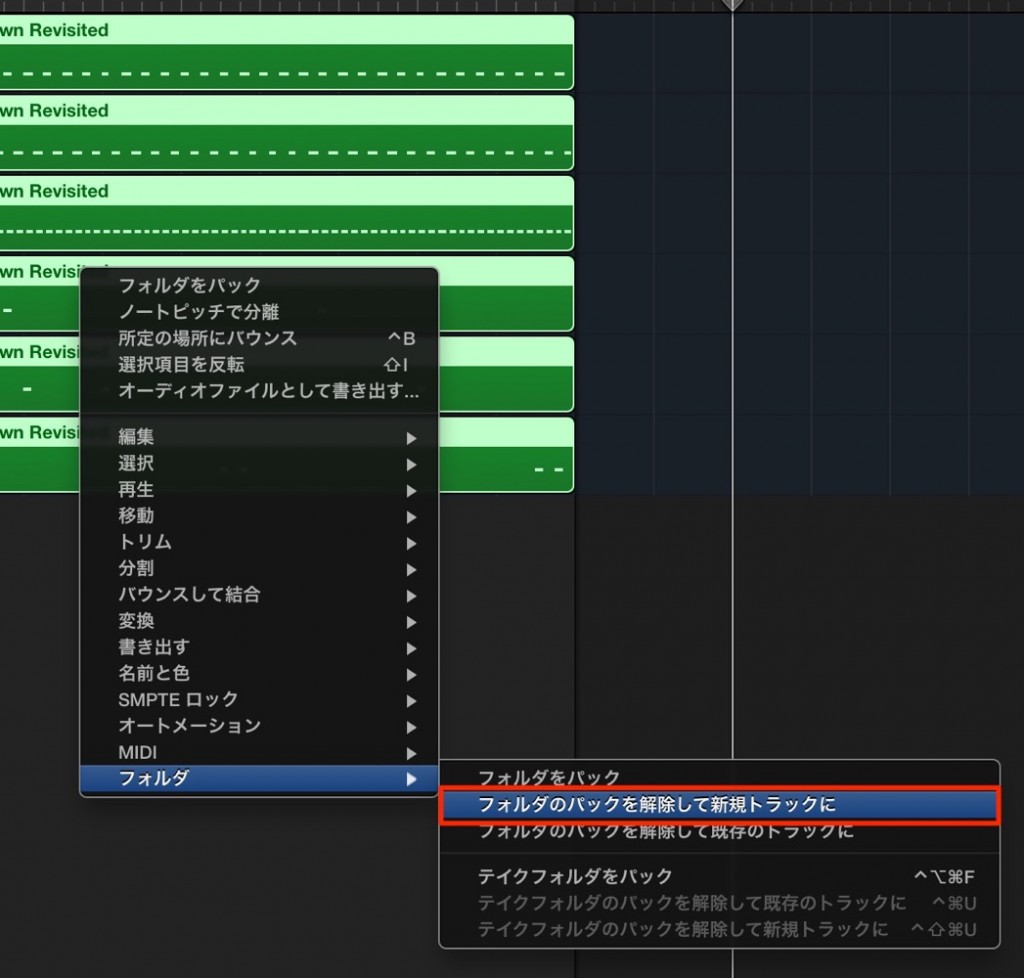
Select the region you want to release and right-click it.
From the menu, choose "Folder" → "Unpack Folder to New Tracks."
This returns the tracks to their original state.
Although we used drums as an example, this is also effective for parts that tend to have many tracks,
such as backing vocals and guitars,
and grouping them more broadly, such as "rhythm" and "top lines," also works.
Try various ways of grouping to find your favorite and work efficiently.
Logic X also has an even more convenient grouping function: Track Stacks.
We Also Recommend This Article

Logic: How to Set Up Folder Tracks
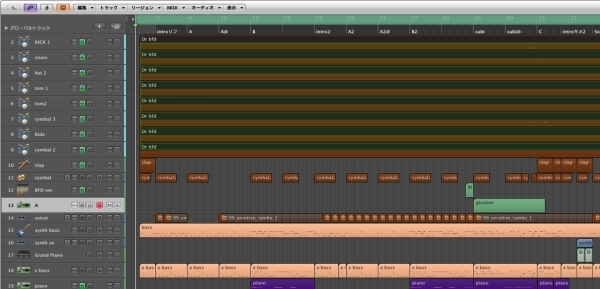
↑ Select the regions you want to store in a folder like this.
This time, let's put each drum kit piece into a folder track.
Right-click any of the selected regions.
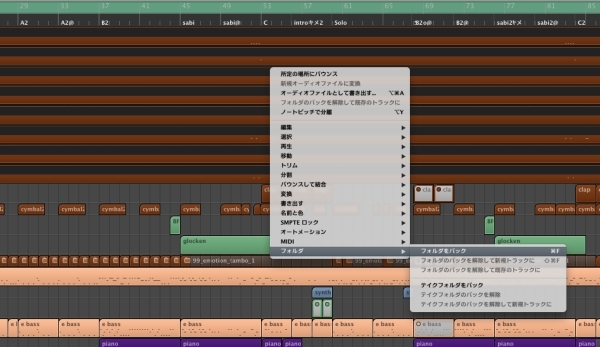
↑ From the menu that appears,
choose "Folder" → "Pack Folder."
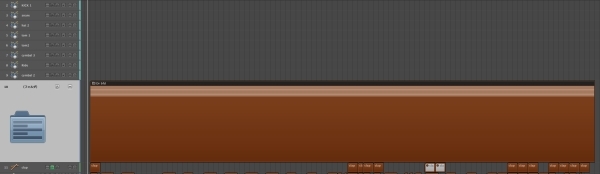
↑ A folder track is created like this,
and all the selected regions are now stored in the folder.
You can delete the tracks that are now empty.
By double-clicking the region on this folder track,
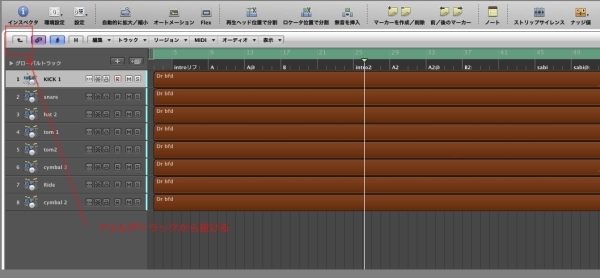
↑ you can go inside the region like this to view and edit each track.
To exit this view, press the arrow button at the upper left.
How Do I Release a Folder Track?
Select the region you want to release and right-click it.
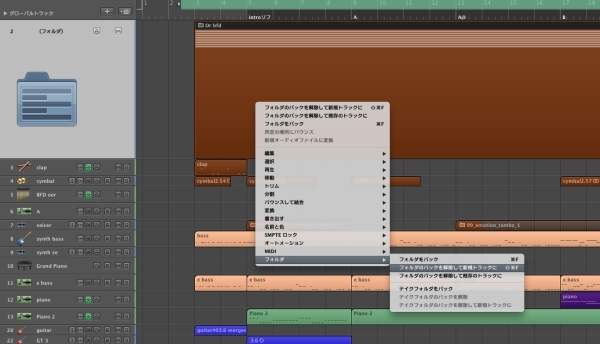
↑ From the menu, choose "Folder" → "Unpack Folder to New Tracks."
This returns the tracks to their original state.
Although we used drums as an example, this is also effective for parts that tend to have many tracks,
such as backing vocals and guitars,
and grouping them more broadly, such as "rhythm" and "top lines," also works.
Try various ways of grouping to find your favorite and work efficiently.
- Logic X
- Logic 8/9

Frequently asked questions
Q1. What is the difference between folder tracks and Track Stacks in Logic Pro?
Folder tracks are a basic track organization function that groups tracks visually. Track Stacks, available from Logic X onward, are a more advanced function with two modes, folder stacks and summing stacks, allowing more flexible audio processing.
Q2. Can I edit drum tracks grouped in a folder track individually?
Yes. Double-click the region in the folder track to go inside the folder and view and edit each track individually. When you finish editing, press the arrow button at the upper left to return.
Q3. How do I return tracks grouped in a folder track to their original state?
Right-click the region you want to release and choose "Folder" → "Unpack Folder to New Tracks" from the menu to return the tracks to their original state.
Q4. Can beginners set up folder tracks easily?
It is very easy. Just select the regions you want to store, right-click, and choose "Pack Folder." No complicated operations or settings are needed.
NEW ARTICLES
Latest English Articles











