
This article explains the whole process of programming with an external synthesizer in Logic Pro, from connection and instrument settings to converting to audio. By understanding the step-by-step procedure (wiring with a MIDI interface, setting the port, channel, and program, and bringing in the sound on an audio track), you can treat a hardware synth inside your DAW just like a software instrument. Converting the external instrument to audio files also lets you apply Logic's effects and use offline bounce, greatly expanding your production options.
Logic: How to Connect an External Synth

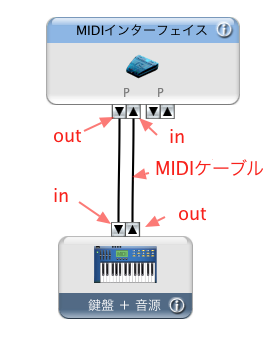
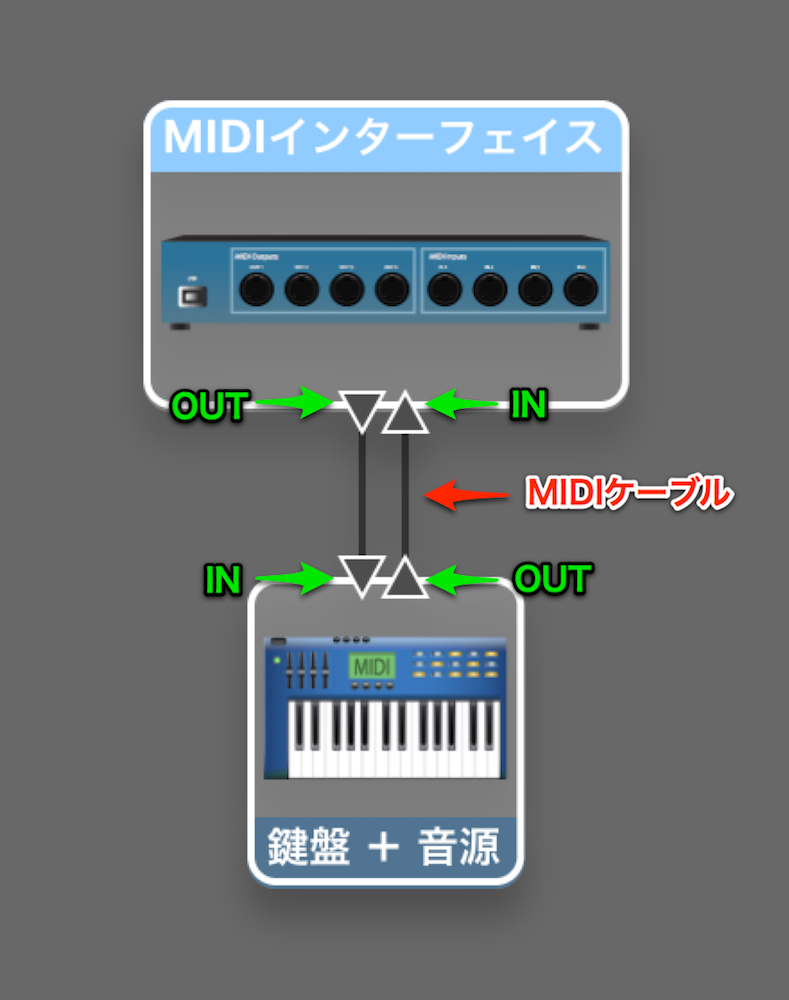
Connect the MIDI IN and MIDI OUT of your MIDI interface and external instrument.
Once you understand this article, also try the article below.
If the External Instrument and Keyboard Are One Unit
If the External Instrument and Keyboard Are Separate
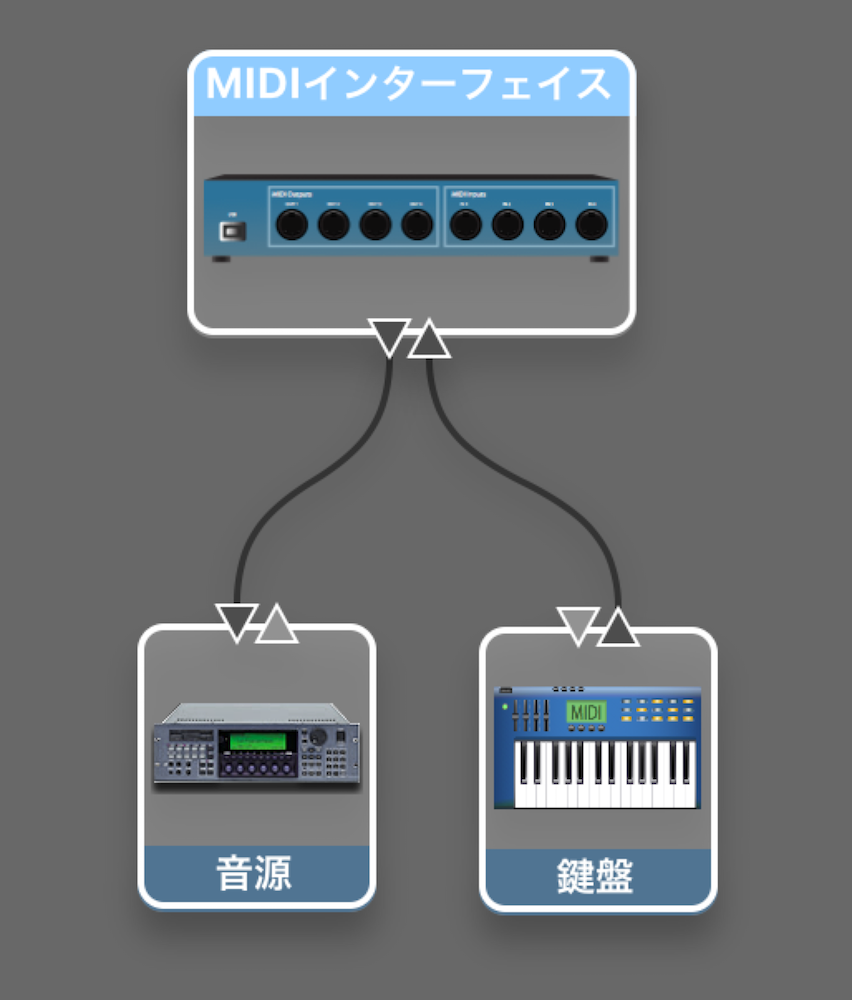
*The wiring is the same as in the image above.
Settings in Logic
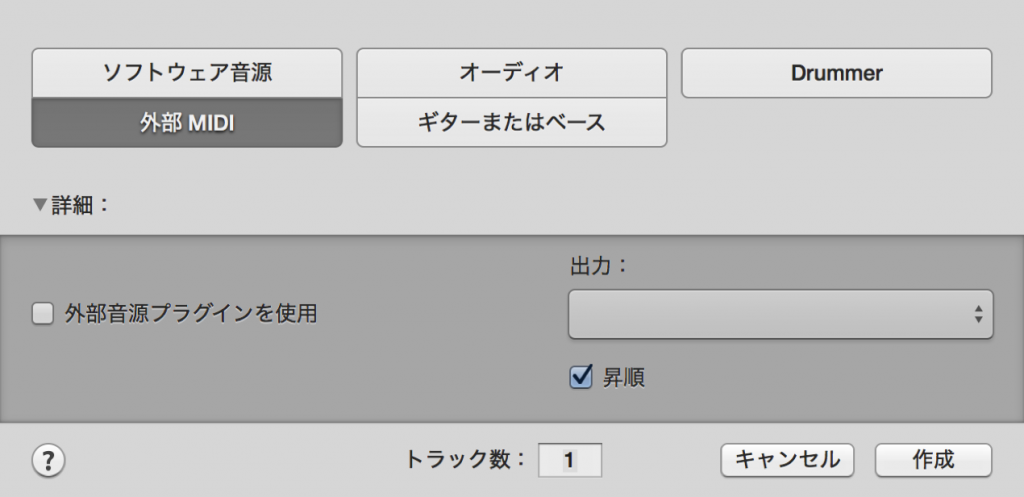
Create a MIDI track
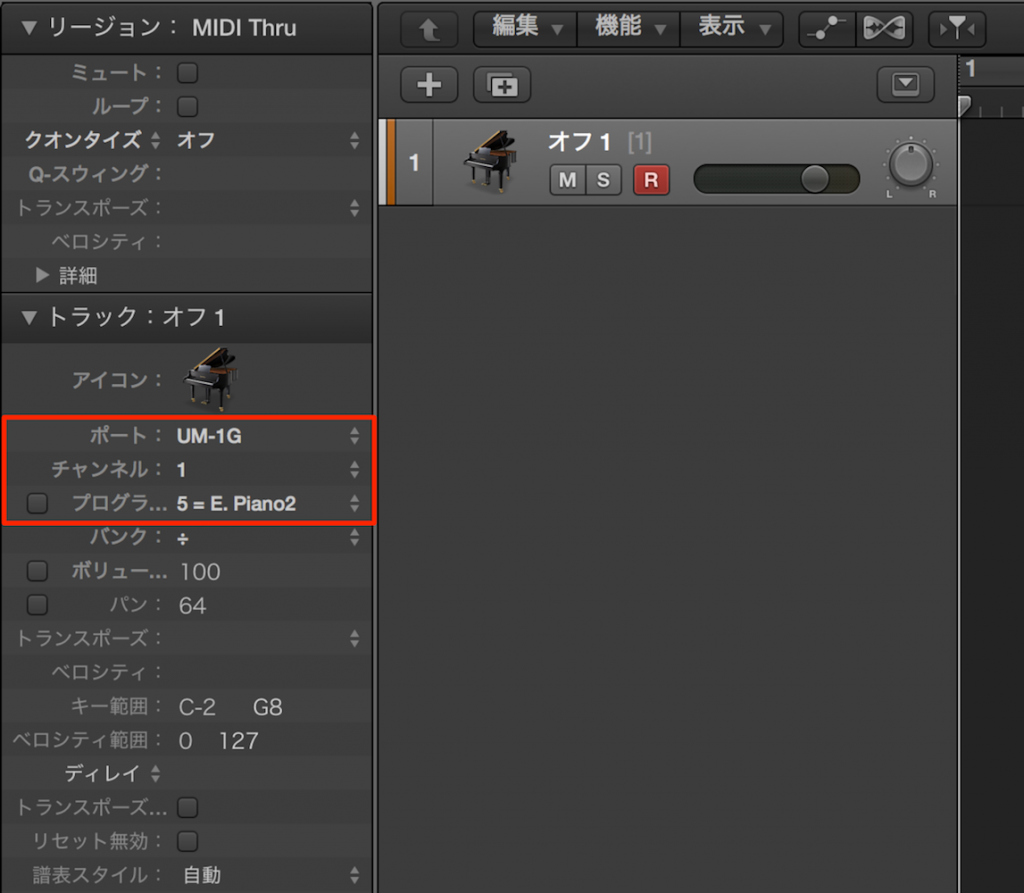
Set the area outlined in red.
Port
The default is "All," so select the external synth's port.
Channel
Most synths can play 16 tracks (sounds) at once.
Here you decide which of those 16 channels to use.
If you want to use multiple sounds, create new MIDI tracks in Logic
and change the channel here.
*If you want to use the external synth's drum sounds, set it to channel 10.
This is defined by the GM standard and is common to most synths.
Program
Here you decide which sound to play on the channel set above;
in other words, you choose the sound.
The numbers correspond to the synth's patch numbers, so assign the sound you like.
After making these settings, bring in the synthesizer's sound.
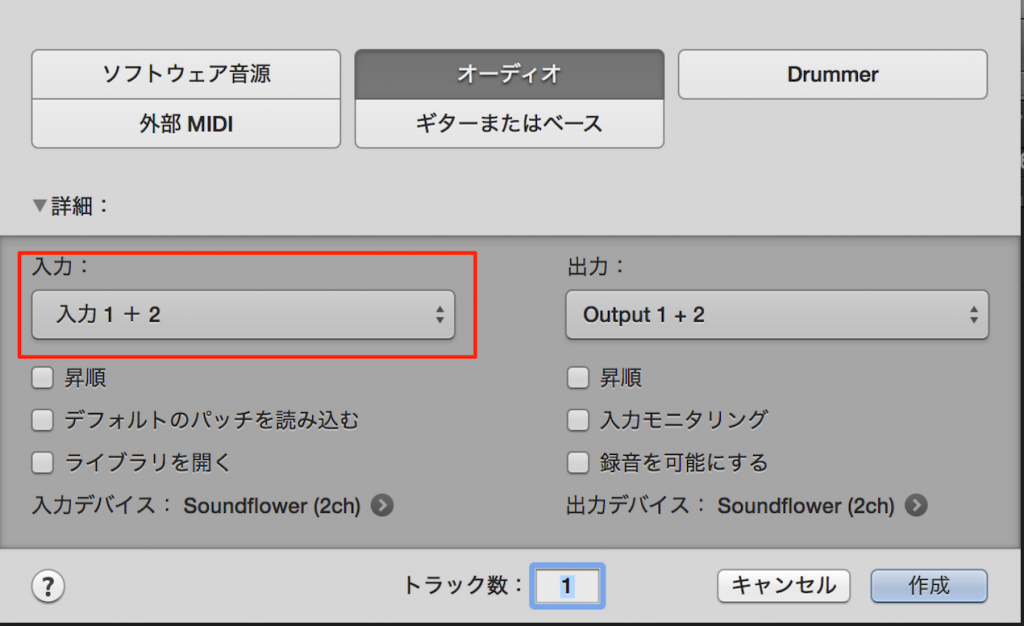
Create a stereo audio track
and connect the synthesizer's output to your audio interface's input with cables.
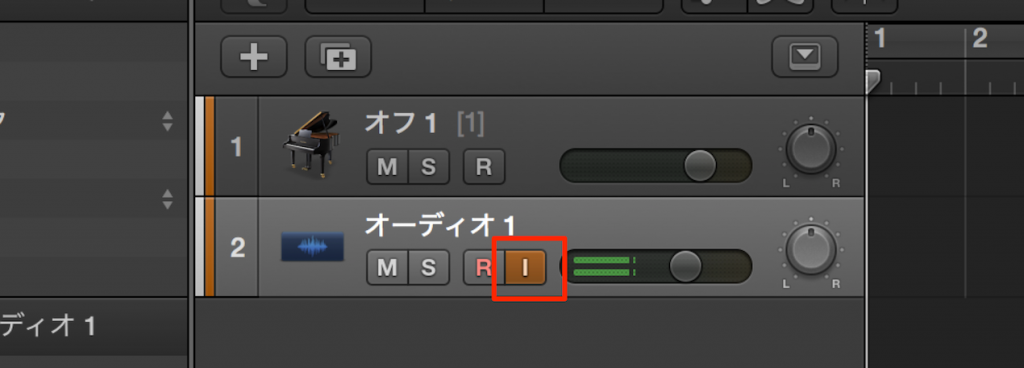
Turn on input monitoring on the audio track, and the synthesizer's sound comes in.
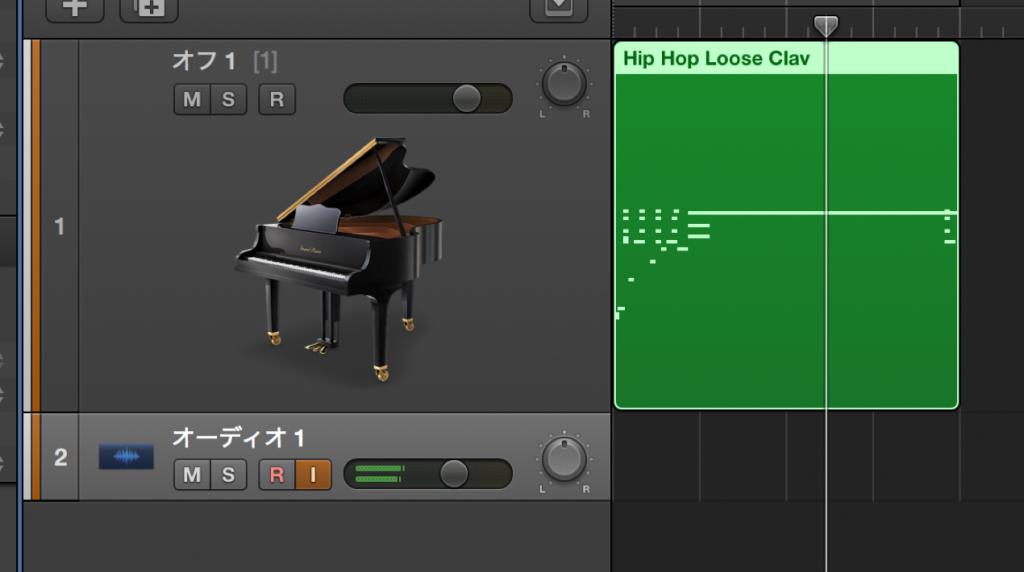
After that, you can program and perform various edits such as quantizing, just as with software synths.
Converting to Audio
You can also record this external synth sound and turn it into an audio file.
This is very convenient, as it also supports applying Logic's effects and offline bounce.

Connect the external instrument's audio output to your audio interface's input.
In exactly the same way as you record vocals or guitar, you can turn your external instrument parts into audio.

Frequently asked questions
Q1. What equipment do I need to connect a hardware synth via MIDI in Logic Pro?
You need a MIDI interface, an external synthesizer, and MIDI cables. Connect the synth's MIDI IN and MIDI OUT to the interface, and connect the synth's audio output to your audio interface's input.
Q2. What should I watch out for in Logic's settings when using drum sounds from an external synth?
Set the channel in Logic Pro to channel 10. This is the drum channel defined by the GM (General MIDI) standard and is common to most synths.
Q3. Can I use multiple sounds from an external synth at the same time?
Yes. By creating new MIDI tracks and setting each track to a different channel number, you can use up to 16 different sounds at once.
Q4. What are the benefits of converting an external synth's sound to an audio file?
Converting it to audio lets you apply Logic's effects and EQ directly and supports offline bounce. You can handle it the same way as vocal or guitar recordings, improving your efficiency.
NEW ARTICLES
Latest English Articles











