
With Cubase's "Channel Batch Export" (multichannel export) function, you can export multiple tracks as individual audio files in one go. This method, known as exporting stems, frees you from the tedious routine of soloing and exporting one track at a time. It is especially useful for reducing CPU load before mixing and when moving data to another DAW, and you can keep different volume and effect settings for each track. Combined with the Render in Place function added in Cubase 8, you can convert audio even more efficiently.
Useful for Many Purposes, Such as Before Mixing or Moving to Another DAW
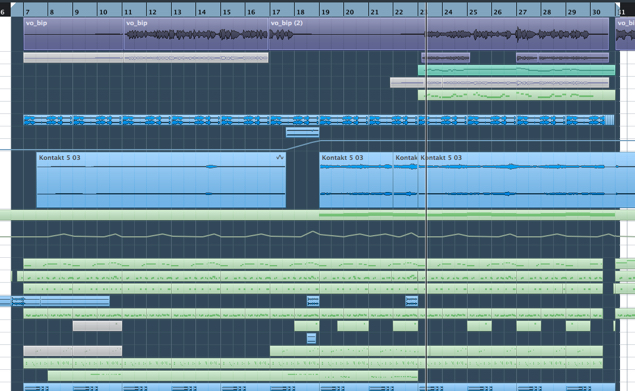
Software synths are invaluable in production, but CPU usage is always a concern.
By the time a song is nearly finished, you are probably using quite a few of them.
To mix comfortably, you will want to convert finished MIDI tracks to audio.
That is where this export function comes in handy.
Using it frees you from the tedious routine of soloing one track at a time and exporting it.
This way of exporting is called "stem export" (parallel out).
Cubase 8 also added the Render in Place function.

Cubase: How to Export Tracks Separately

↑ Drag in the ruler, outlined in red above, to set the length of the export.
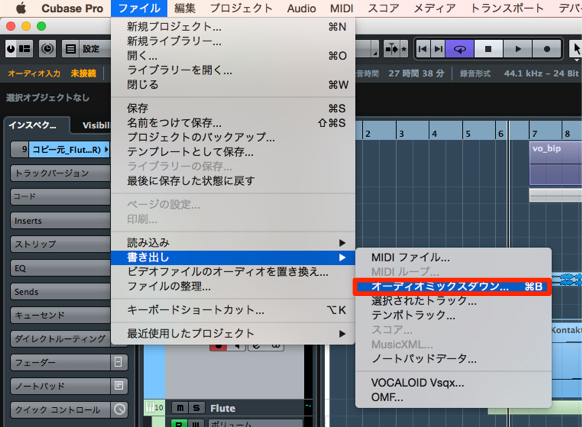
↑ From the top menu, choose "File" → "Export" → "Audio Mixdown."
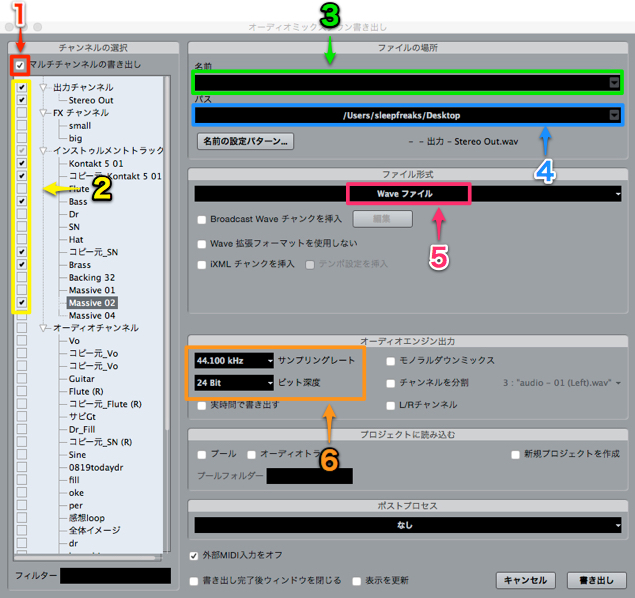
↑ The export dialog above appears.
- 1_Check "Multiple Channel Export" (Channel Batch Export).
- 2_Check the tracks you want to export.
- 3_Set the name.
- 4_Specify where the tracks will be exported.
Since many files will be created, it is a good idea to prepare a dedicated folder. - 5_Choose the file format to export.
- 6_Choose the export quality.
Once these are set, press the "Export" button.
After exporting, audio files for each track are created in the location you specified above.
Notes on Exporting
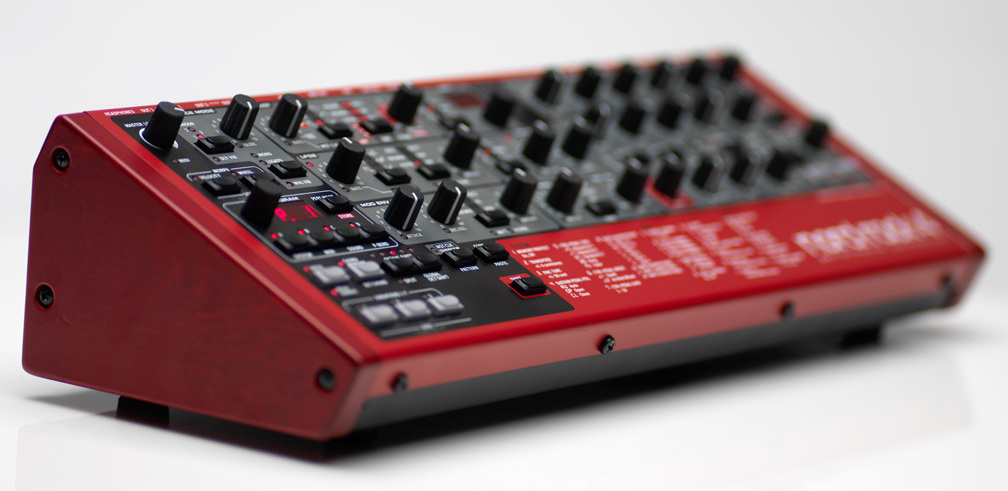
External hardware synths must be exported in real time.

Frequently asked questions
Q1. Can I convert MIDI tracks to audio all at once in Cubase?
Yes. With the multichannel export function, you can convert multiple MIDI tracks into individual audio files at once. Choose "Export" → "Audio Mixdown" from the File menu, check multichannel export, and run it.
Q2. What kind of export method is stem export?
Stem export exports multiple tracks simultaneously as individual files. It saves you from soloing and exporting one track at a time and is well suited to optimizing CPU before mixing or moving to another DAW.
Q3. How do I export when using external hardware synths?
External hardware synths require real-time export. Check "Real-Time Export" in the export dialog before exporting.
NEW ARTICLES
Latest English Articles











