
Cubase's MediaBay is a feature for efficiently managing and searching audio material such as sample CDs. You scan folders on your local disk to register the material, then search in English and preview it. When previewing, syncing to the project tempo lets you check in advance whether a sound fits your song. You can import sounds you like simply by double-clicking or dragging and dropping, greatly streamlining material management and the songwriting process.
Quick access to audio material such as sample CDs
Cubase includes "MediaBay", which lets you manage music material flexibly.
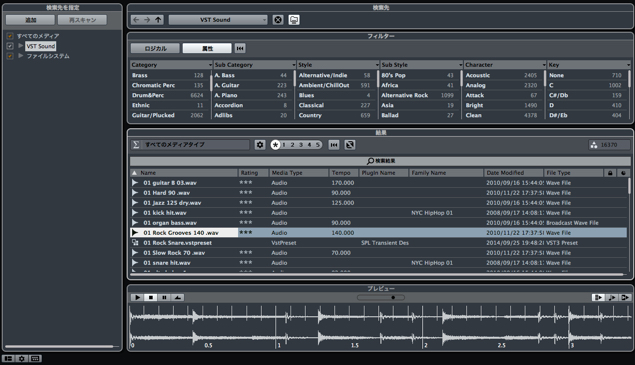
By using "MediaBay,"
you can easily access, preview, and use audio material such as sample CDs you've purchased separately.
It makes handling material very efficient, so be sure to give it a try.
Scanning your sounds
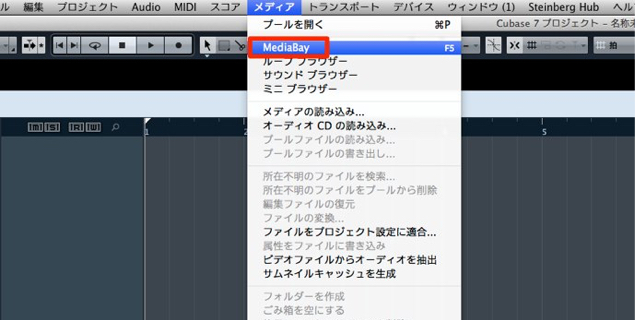
From the top menu, select Media → MediaBay.
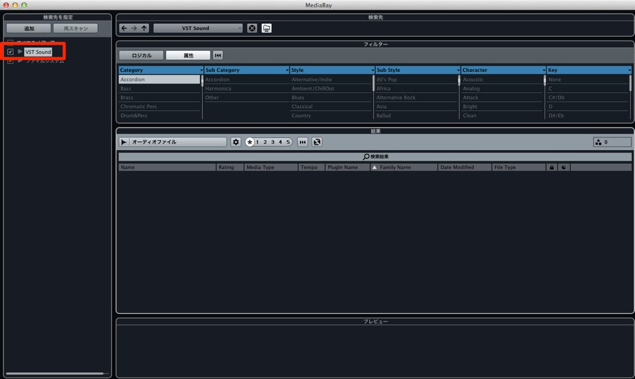
"MediaBay" opens like this.
The area outlined in red on the left is the Cubase factory content currently being scanned.
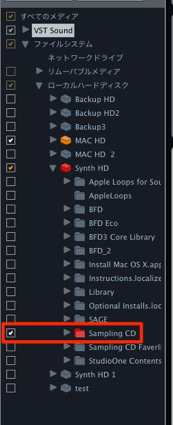
Now scan the material you own.
Under "File System" → "Local Disk,"
check the folder containing your material to start scanning.
*This may take a while depending on the amount of material.
When the folder is "red, it's being scanned; when it turns orange, scanning is complete".
Searching for sounds
Since this article is about audio files, search as follows.
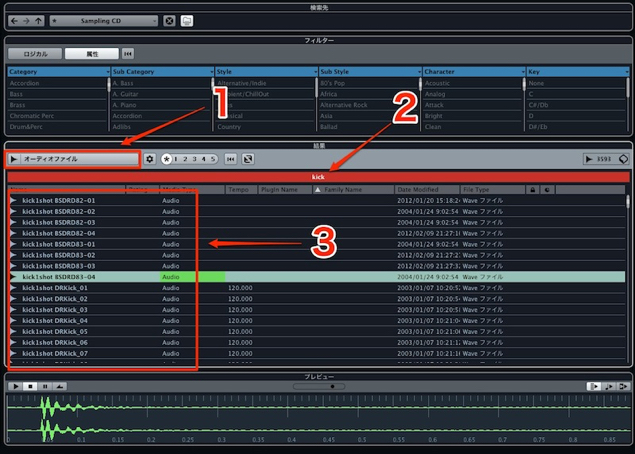
- 1_Limit the search to audio files only
- 2_Enter a name in English as a search clue
- 3_The search results are displayed
Previewing sounds
You can preview the sounds shown in the search above.
First, set up the preview options.

They're small, but here's an explanation of the buttons outlined in red, from the left.
- Left_Clicking a sound plays it automatically
- Middle_Plays in sync with the song's tempo; handy for loops
- Right_If you preview while the song is playing, the preview syncs to the song.
This makes it easy to get a feel for how the sound fits your song.
What if MediaBay can't preview?
Try resetting the preference files.
Importing sounds
Once you've found a sound you like, import it into your song.
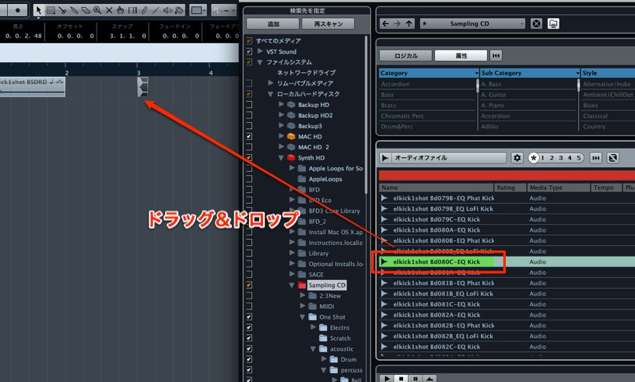
Either double-click the sound or drag and drop it into the song.
That's the workflow for scanning through importing sounds with "MediaBay."
MediaBay in Cubase 8
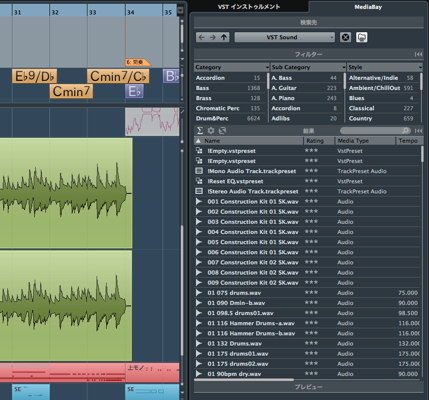
In addition to the above, Cubase 8 lets you display it in the Project window.
Selected questions and answers from the YouTube video

I did it exactly as in the video, but my 7.5 preference presets and shortcuts aren't carried over. Does this not work on Windows?

Thank you for your valuable feedback. We've added a solution to the article, so please take a look. https://sleepfreaks-dtm.com/dtm-materials/cubase7-cubase8/ Thank you.
*The explanation starts at 1:25.
Frequently asked questions
Q1. The material I scanned in MediaBay doesn't appear. What should I do?
Try resetting the preference files. Also, you need to wait until the folder turns orange and the scan is complete. With a large amount of material, this can take some time.
Q2. How do I sync previews to the project tempo?
Select the button on the right of the preview settings, and the preview syncs while the song is playing. This lets you check in advance how well the sound fits your song.
Q3. How do I import a sound I found into my song?
Just double-click the sound or drag and drop it into the song window. In Cubase 8 and later, you can also display MediaBay in the Project window.
NEW ARTICLES
Latest English Articles











