Cubase Pro 9.5 comes with many practical new features that make music production more efficient. Insert effect slots have been expanded to 16, and you can freely set the boundary between pre- and post-fader, allowing more flexible sound design. It is packed with features that directly save editing time and boost creativity, such as a grid mode that automatically adapts to the zoom level, automation that lets you draw curves freely, and the ability to load MIDI directly into a Sampler Track. In addition, the trendy wavetable synth FLUX and new FX chain presets let even beginners achieve advanced sound design.
Packed with Practical New Features That Streamline Editing
Following the previous article, we continue explaining the new features of the evolved Cubase Pro 9.5.
New instruments, more efficient editing, expanded effect slots and more.
It is packed with features you can bring into your production right away and that are extremely useful for editing.
Product URL: https://japan.steinberg.net/jp/products/cubase/what_is_new_95.html
We would also be glad if you followed our Twitter account "@DTM_SALE," where we tweet about DTM-related sales, new products and free offers.
Cubase 9.5 New Features Explained 2
Insert Slots with Full Control over Pre/Post
The insert effects on audio and instrument tracks have been increased to 16 slots.
In addition, you can freely change the boundary between pre-fader and post-fader for each track.
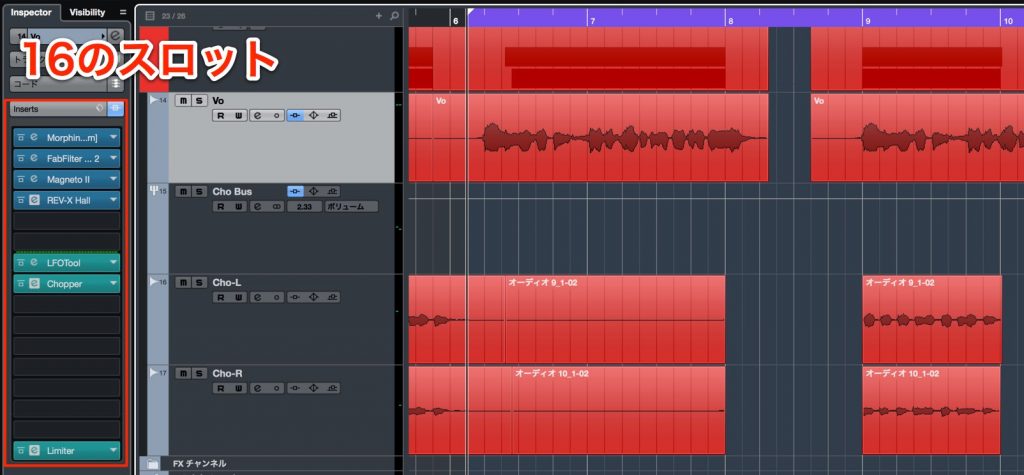
As you can see, the number of insert effects has been expanded.
There were times during production when there weren't enough slots, but that no longer seems to be a concern.

You can also set the boundary between pre-fader and post-fader by dragging.
This greatly expands the possibilities for editing sound with effects.
Pre/Post Explained
Grid Mode with "Adapt to Zoom"
The grid resolution, which you frequently need to switch while editing tracks, is now automatically optimized according to the zoom level.
Since you no longer need to change the grid resolution manually, you can focus on editing.
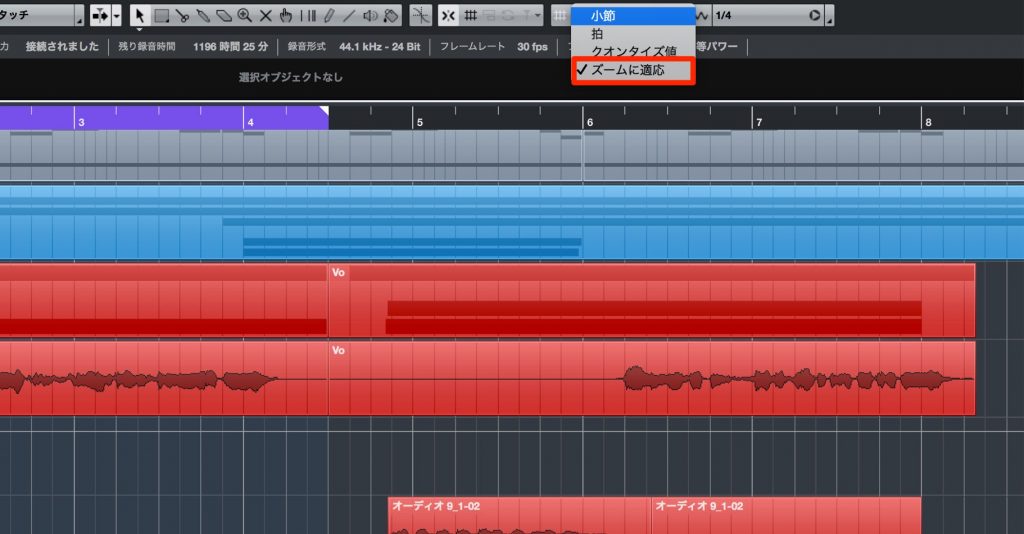
Select "Adapt to Zoom" from the grid type.
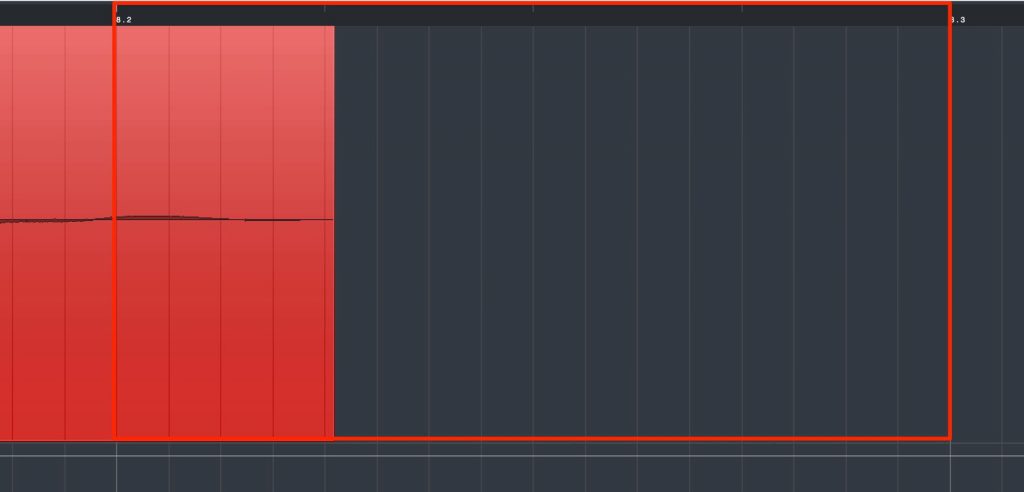
When the editing area is zoomed in, you can make fine edits in 16th- or 32nd-note units,
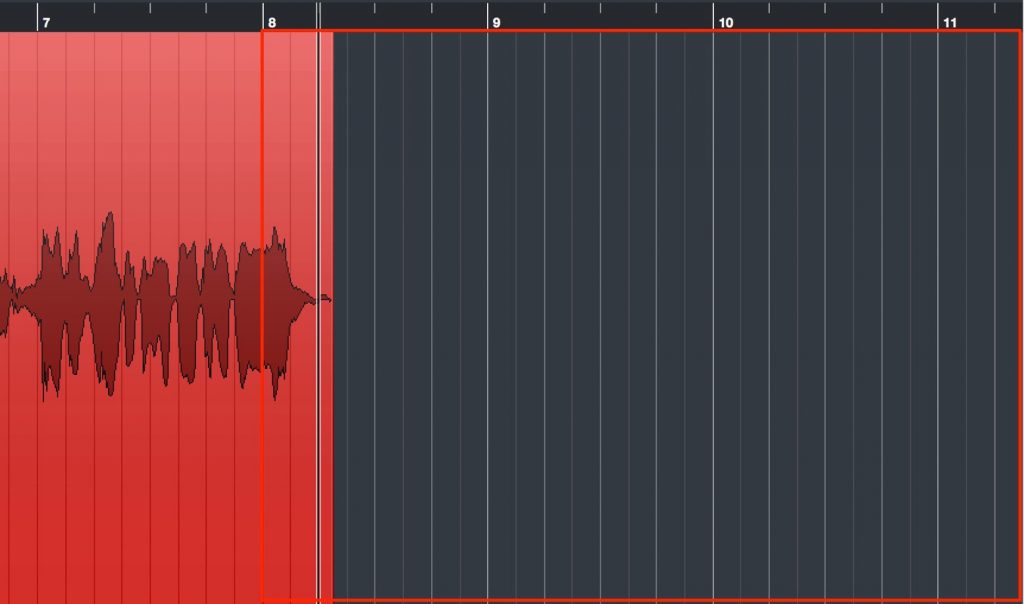
and when zoomed out, it switches to beat or bar units.
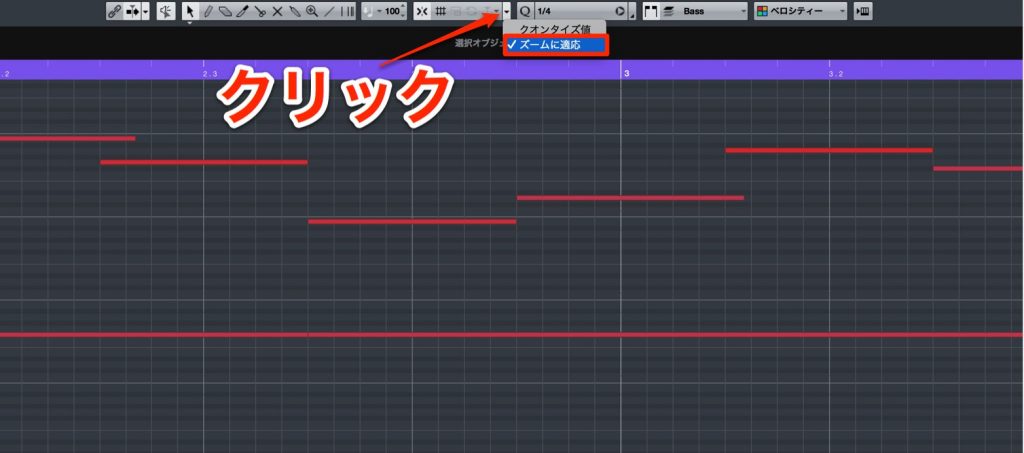
This function can also be used in the Key Editor for editing MIDI.
Click the area outlined in red and select "Adapt to Zoom."
Automation Curves That Allow Flexible Editing
Major improvements have been made to the automation function, which adds dynamics and expression to sounds.
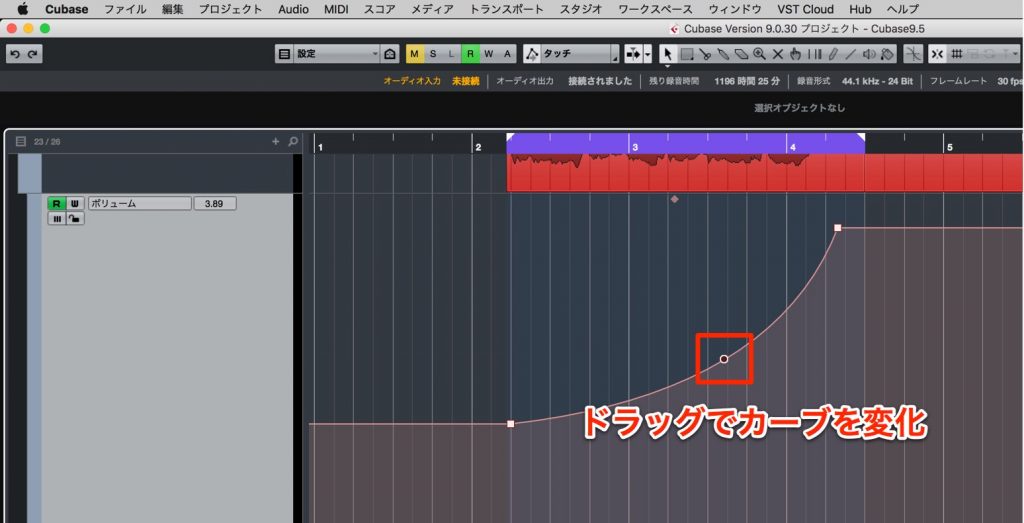
Curve points are displayed between automation points, and by dragging them you can draw automation curves freely.
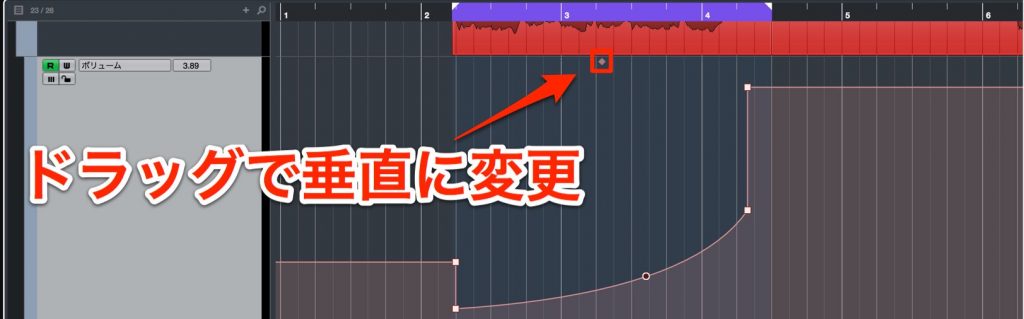
When you move the cursor above the area between automation points, you can change the points vertically.
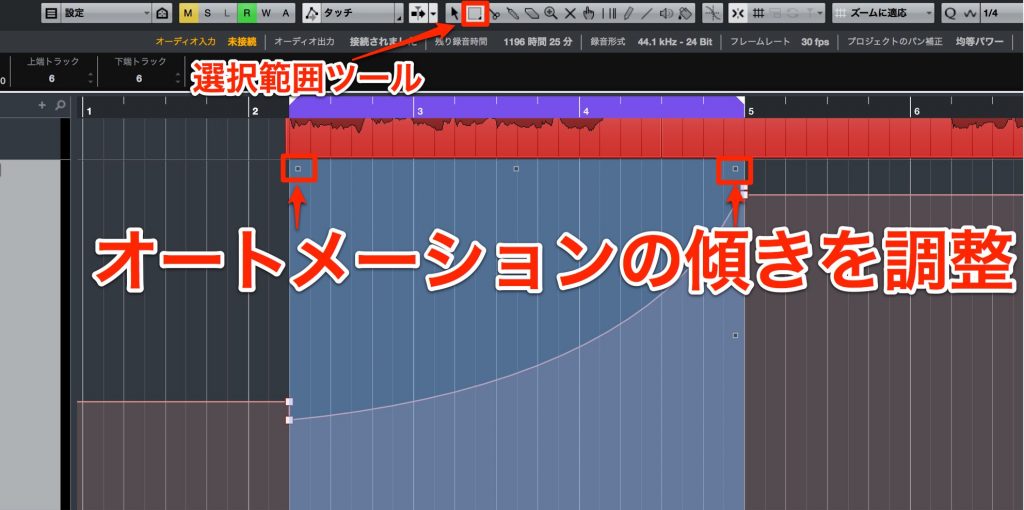
Also, by selecting automation points with the Range Selection tool, you can adjust the slope of the curve on the left and right.
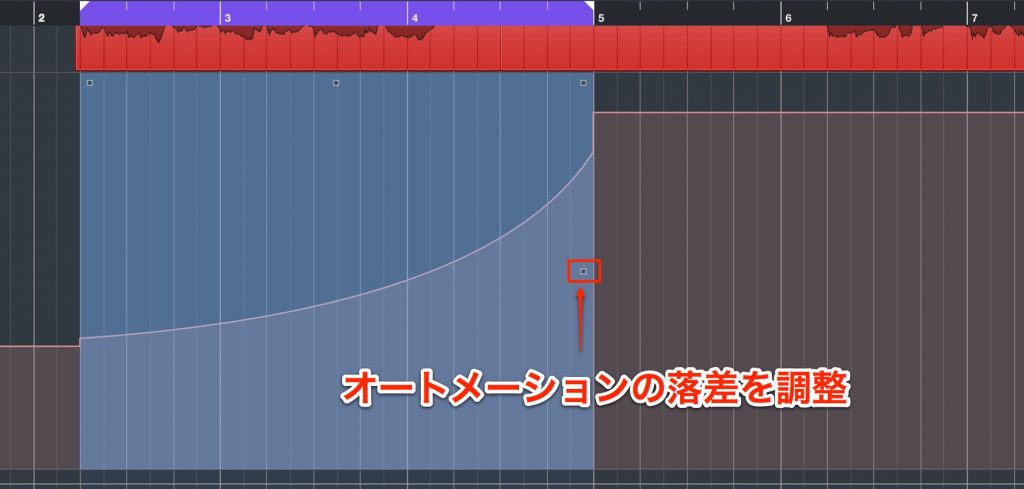
You can change the difference in level between points by scaling around the absolute center of the middle point.
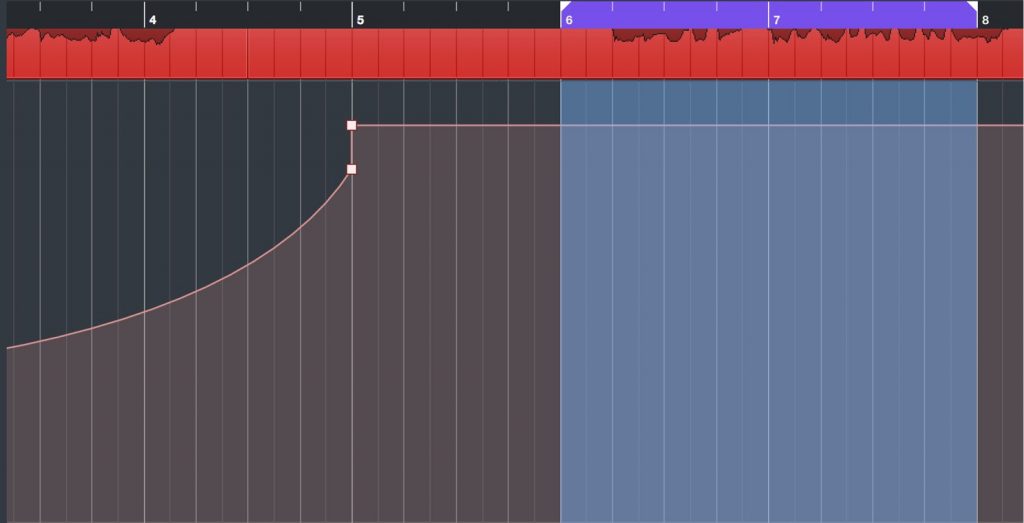
If you select an area where no points have been added yet with the Range Selection tool and perform the above operations,
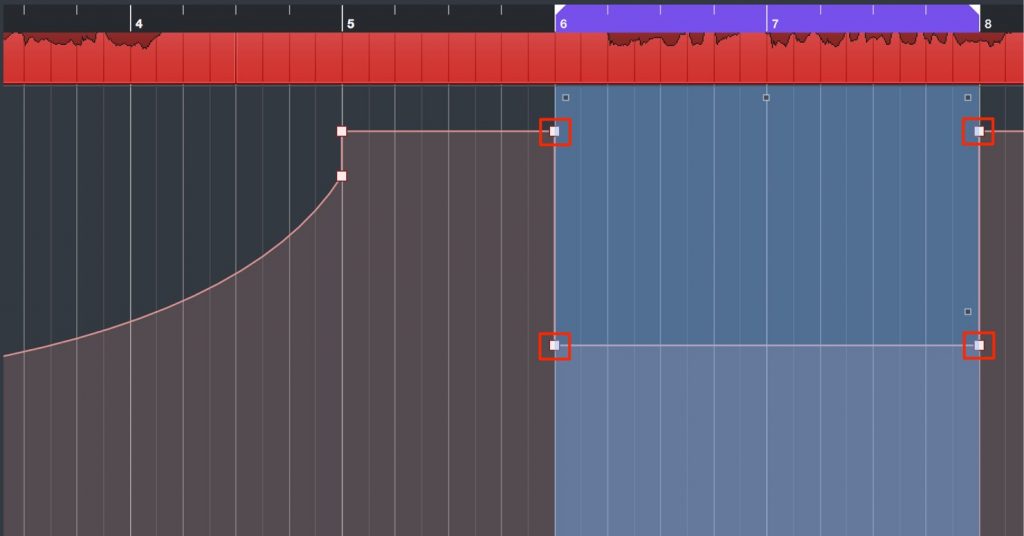
automation points are created automatically, so you can record automation right away.

Send MIDI Instruments Straight to a Sampler Track
The Sampler Track, introduced in Cubase 9, has already evolved.
A function for loading MIDI events directly into a Sampler Track has been added.
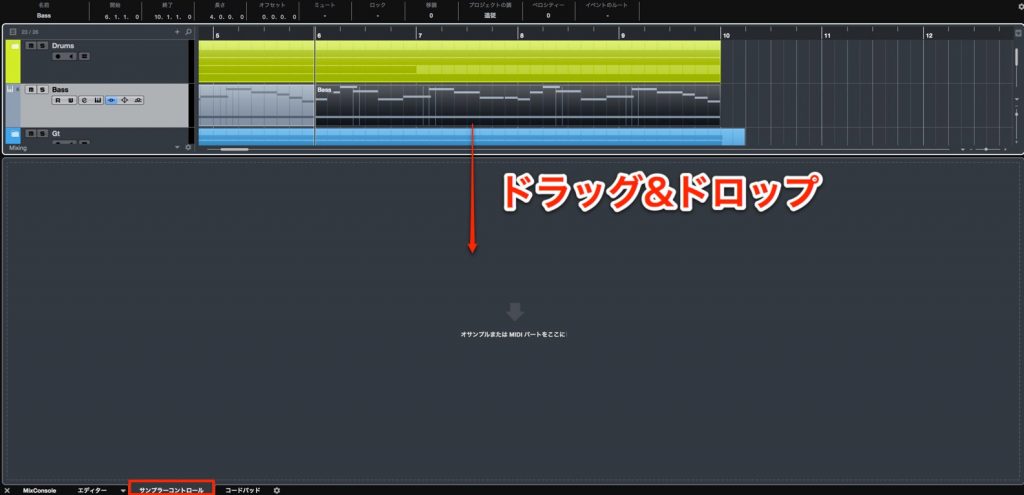
Drag the MIDI event you want to use onto the Sampler Track.
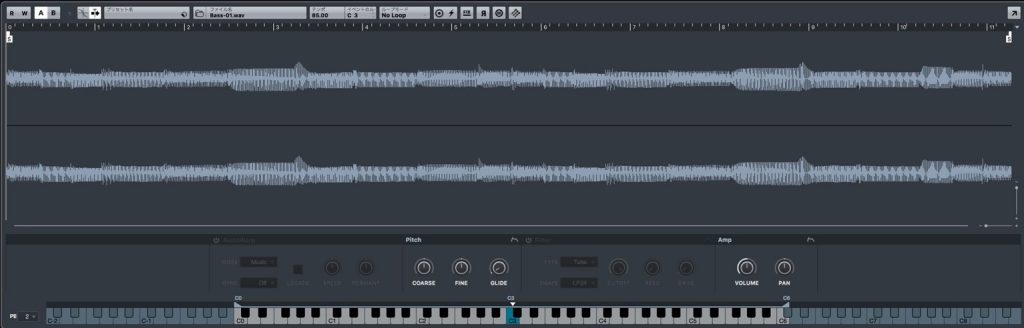
It is converted to audio and placed on the Sampler Track like this.
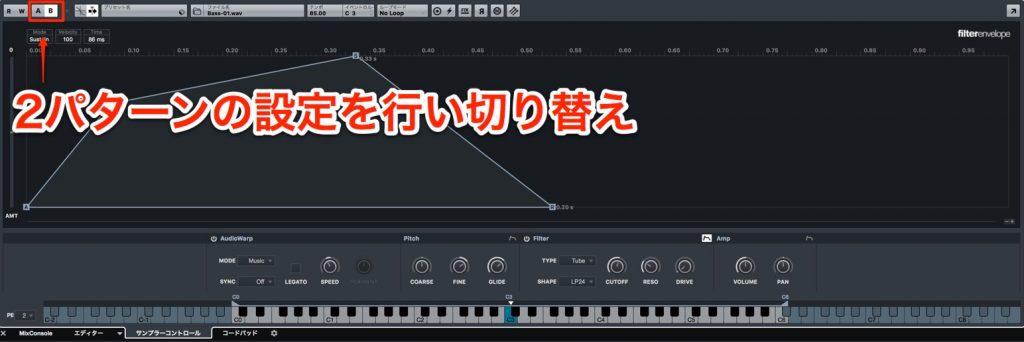
An "A/B" button has also been added, letting you store different settings.
This lets you compare sounds against each other as you refine your sound.

Wavetable Synthesizer Library "FLUX"
The wavetable synth FLUX, a type of synthesizer that has become mainstream recently, has been added to HALion Sonic SE.
This expands your synthesizer sound design and lets you create trendy sounds right away.
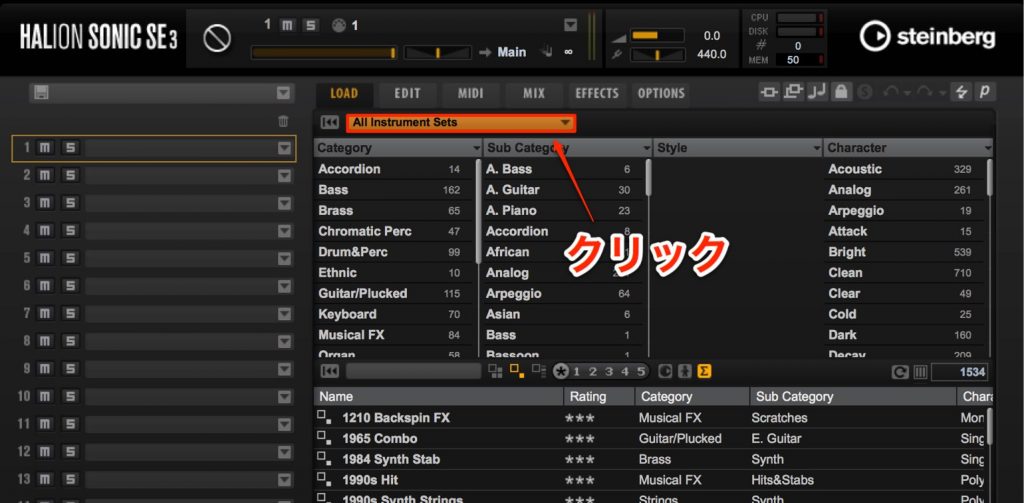
Launch HALion Sonic SE, open the presets and click the preset type.
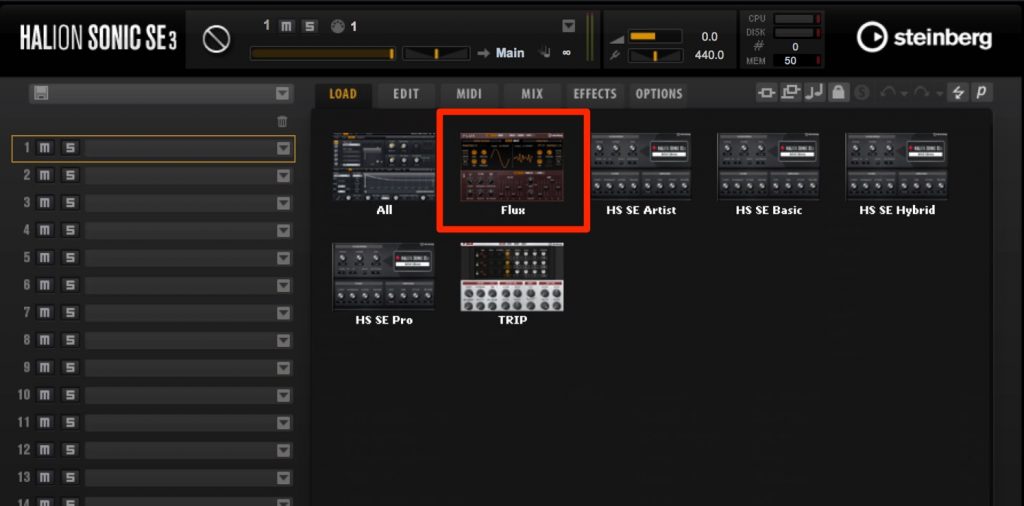
Select "FLUX" from among them.
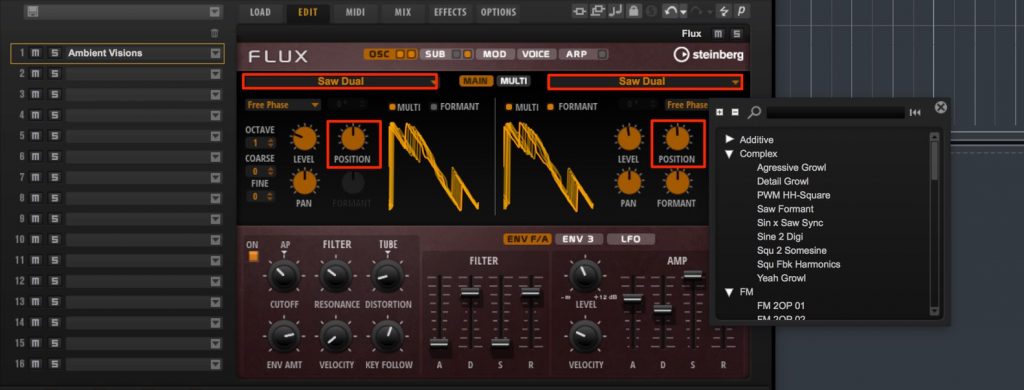
You can specify waveforms and add movement to them to change the sound.
Editing is easy and you can create distinctive sounds with little effort, so be sure to try it.

New FX Chain Presets
Cubase 9.5 includes multiple chain presets for each instrument, storing combinations of effects.
Even if you are not confident about setting up effects, you can easily use excellent effect sounds.
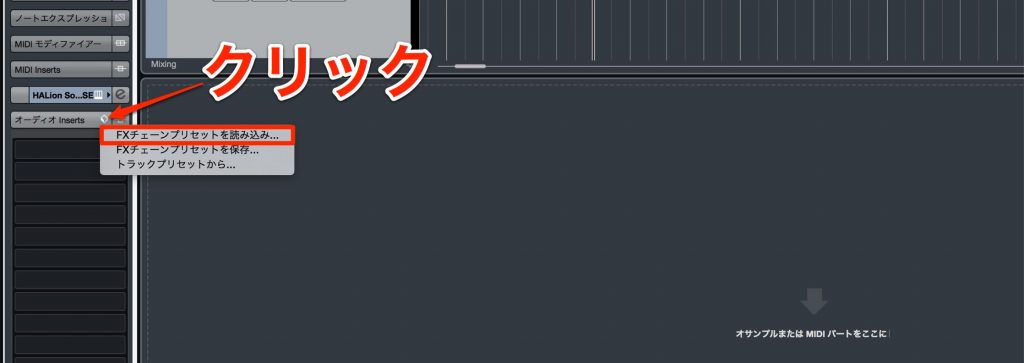
Click the icon to the right of the slot and select "Load FX Chain Preset."
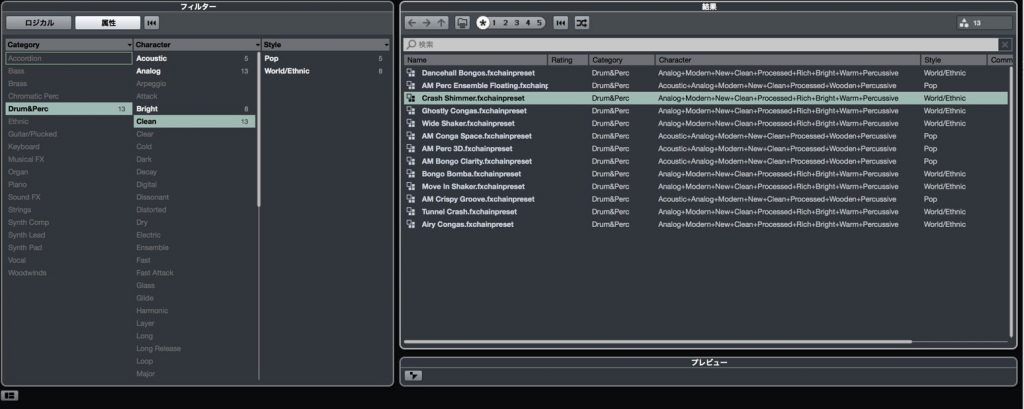
A window like this opens.
Select the target track type from the categories and specify properties and characters, and candidate presets appear on the right.
Try selecting presets while playing back.
The sound switches one after another, giving you sonic inspiration.
That concludes our two-part explanation of the new features in Cubase 9.5.
It is packed with excellent features designed from the user's perspective.
Be sure to bring them into your production and enjoy comfortable music making!
Product URL: https://japan.steinberg.net/jp/products/cubase/what_is_new_95.html
Finally, please also follow our Twitter account "@DTM_SALE," where we tweet about DTM-related sales, new products and free offers.
Frequently Asked Questions
Q1. How many insert slots does Cubase 9.5 have?
Insert effects on audio and instrument tracks have been expanded to 16 slots. Previously there was the issue of not having enough slots, but this expansion greatly improves the situation.
Q2. What is the "Adapt to Zoom" function?
It automatically switches the grid resolution to the optimal display according to the zoom level. It allows fine editing when zoomed in and editing in beat or bar units when zoomed out, helping you concentrate on editing.
Q3. How has the automation function been improved?
Curve points are displayed between automation points, and you can drag them to draw curves freely. Scaling and adjusting the slope between points are also possible, enabling more expressive automation.
Q4. What are the benefits of converting MIDI to a Sampler Track?
Just drag a MIDI instrument part directly onto a Sampler Track, and it is converted to audio and placed there. You can refine your sound while comparing different settings with the A/B button.
Q5. What is the FLUX synth?
It is a wavetable synthesizer, a type that has become mainstream recently, and it was added to HALion Sonic SE. You can specify waveforms and add movement to easily create trendy or distinctive sounds.
NEW ARTICLES
Latest English Articles