Cubase 9.5, announced in November 2017, is an important update to the music production DAW. It brings improved sound quality through support for 64-bit floating-point processing, a file browser and volume meters in the Right Zone, greatly expanded click functions, and the innovative Direct Offline Processing. These features improve the precision of audio processing and the efficiency of your workflow, further strengthening a professional music production environment. Direct Offline Processing in particular enables flexible effect processing while reducing CPU load, and the update includes many practical improvements for DTM producers.
The Evolution Never Stops: Practical New Features That Support Music Production 1
Cubase 9.5 was announced on November 15, 2017.
This update again includes many practical features that address exactly what users wanted.
Product URL: https://japan.steinberg.net/jp/products/cubase/what_is_new_95.html
Some features let you control Cubase even more efficiently and directly affect the sound, so be sure to check them out.
We would also be glad if you followed our Twitter account "@DTM_SALE," where we tweet about DTM-related sales, new products and free offers.
Cubase 9.5 New Features Explained 1
64-Bit Floating-Point Processing Now Available
Up to Cubase 9, the audio engine used 32-bit floating-point processing, but from Cubase 9.5, 64-bit floating-point processing can now be used.
The precision of the various audio processes performed in Cubase (fader work, effect processing and so on) increases, and as a result you can expect better sound quality for the song as a whole.
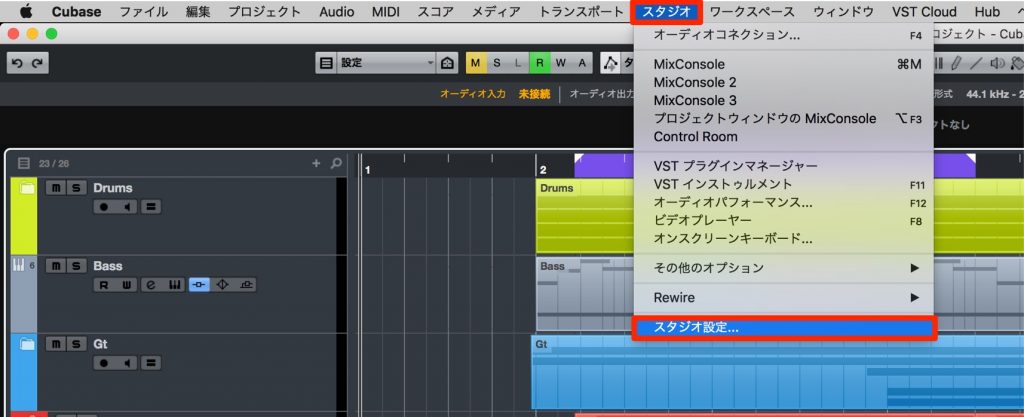
Go to "Studio" > "Studio Setup" in the top menu.
*In Cubase 9 and earlier, this item was called "Devices."

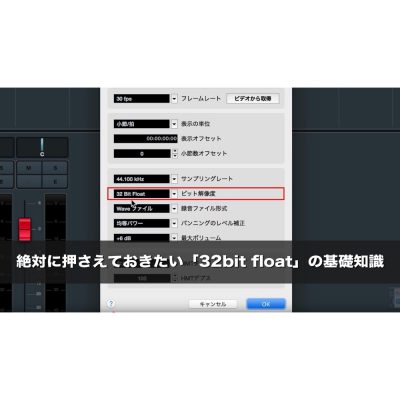
You can change it in the advanced settings of "VST Audio System."
*You need to restart Cubase.
Enhanced Right Zone
The Right Zone, which you access frequently during production, has also been improved.
New File Browser
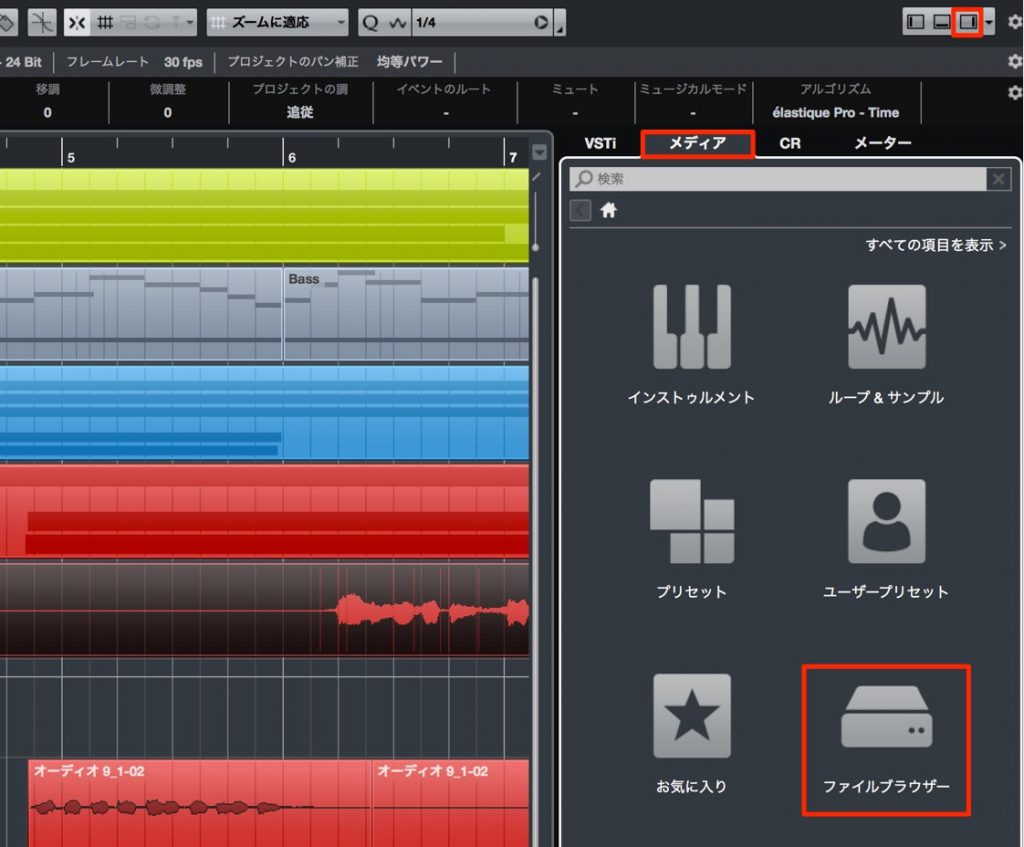
A File Browser item has been added to the Media tab.
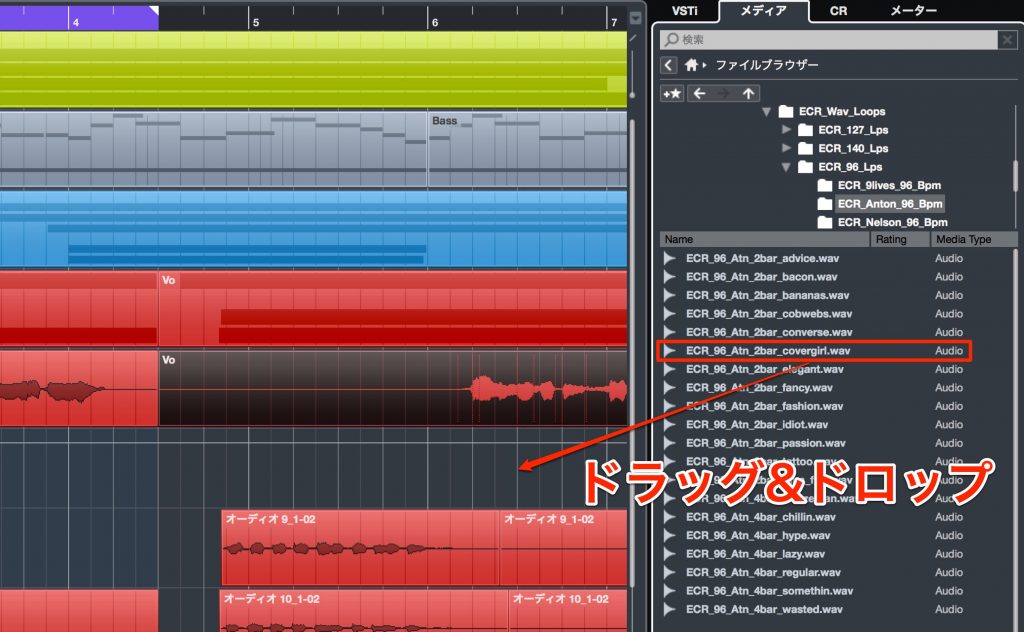
As shown, you can now access folders and files on your computer directly.
You can directly access sampling material, MIDI files and more, and bring files into your project by drag and drop.
New Volume Meters
You can now display the meter of "Stereo Out," the master track of the project.
Combined with the Lower Zone introduced in Cubase 9, you can complete your work within the single screen of the main window.
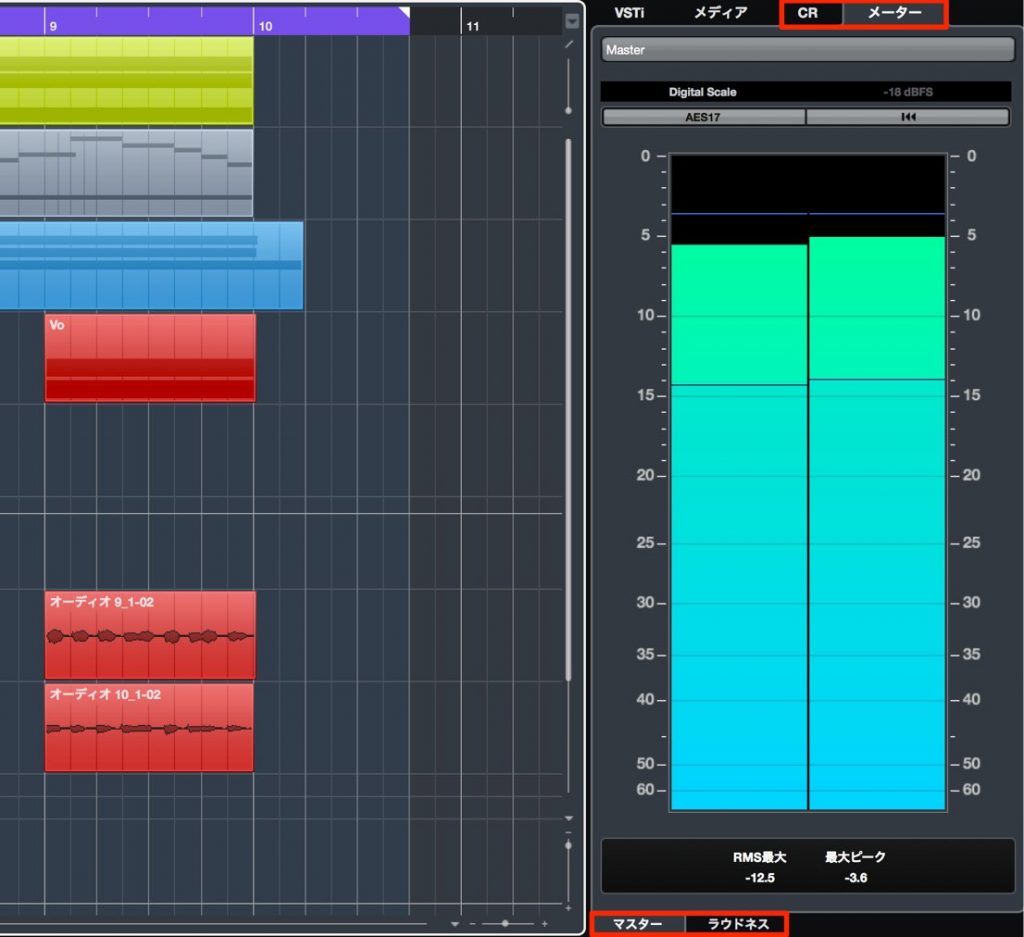
"CR (Control Room)" and "Meter" have been added, and you can switch the display with one click.
In addition to RMS values and maximum peaks, it can also display a loudness meter.

Expanded Click Functions
The click (metronome) used when recording performances to MIDI and audio tracks has evolved greatly.
You can customize the click to make playing easier.
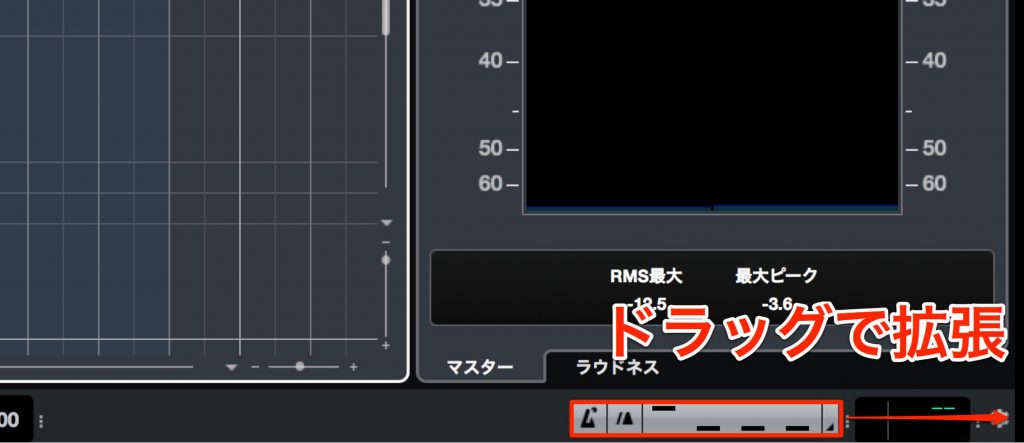
The click settings have moved to the lower right.
Dragging this area to the right expands the click display.
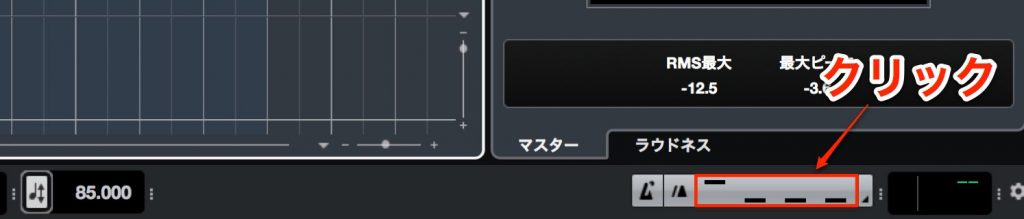
By selecting the click pattern area, you can customize the details of the metronome.
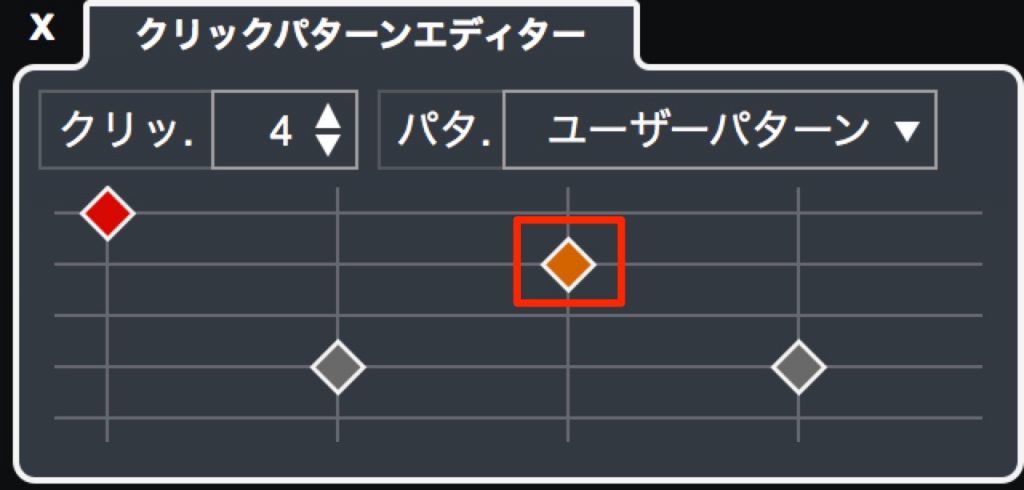
You can click each click point to change its pitch,
and specify how fine the pattern is.
You can also create default patterns for each time signature.
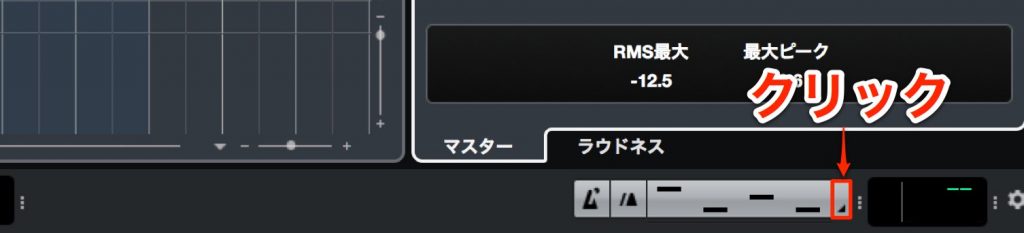
Click the area outlined in red in the image to access the metronome settings.

Simply select "Click Patterns" in the Metronome Setup window and specify a click pattern for each time signature.
Direct Offline Processing
One of the most talked-about features of this update is Direct Offline Processing.
You can apply audio processes such as reverse, gain and normalize, as well as plug-in effect settings, individually to events placed on audio tracks.
The applied processes are rendered immediately and reflected in the waveform, which keeps CPU load down.
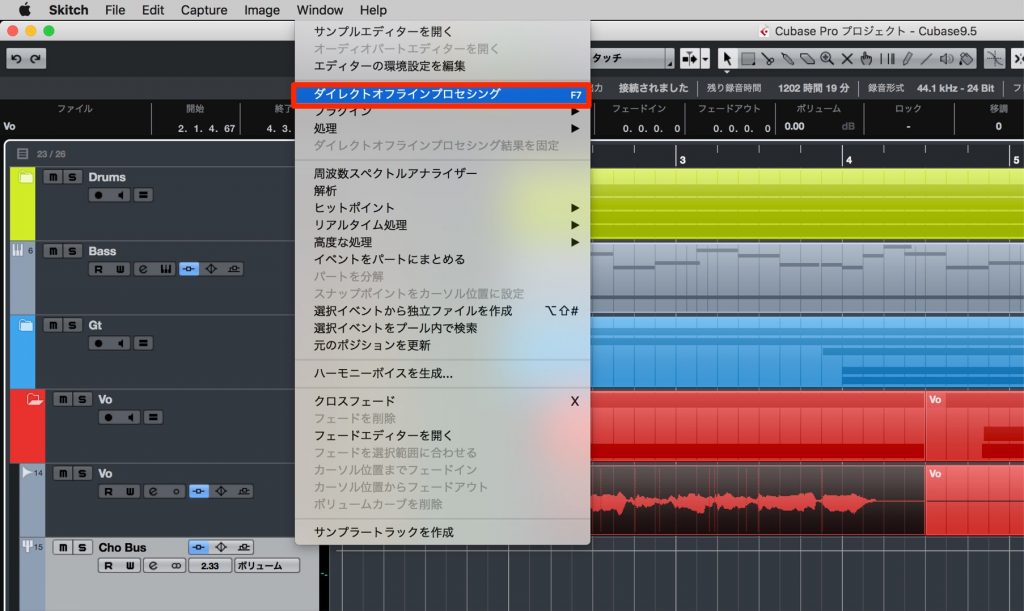
Select the audio clip to which you want to apply Direct Offline Processing.
Then select "Audio" > "Direct Offline Processing" from the top menu.
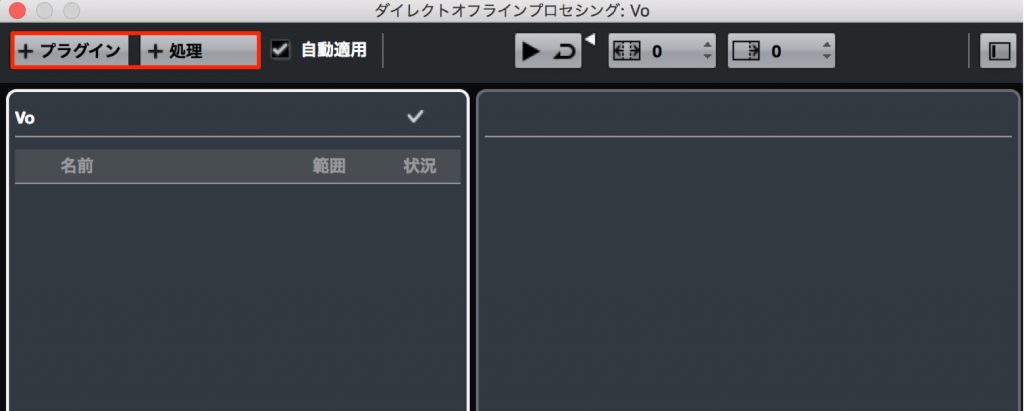
A window opens.
Choose what kind of processing to apply from "Plug-ins" or "Process" at the upper left.
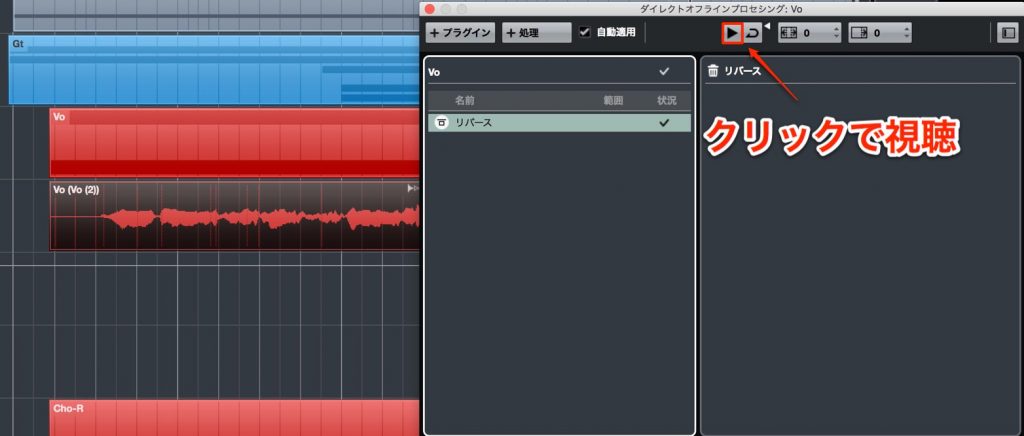
Here, we applied Reverse from "Process."
To listen to the result, click the Play button.
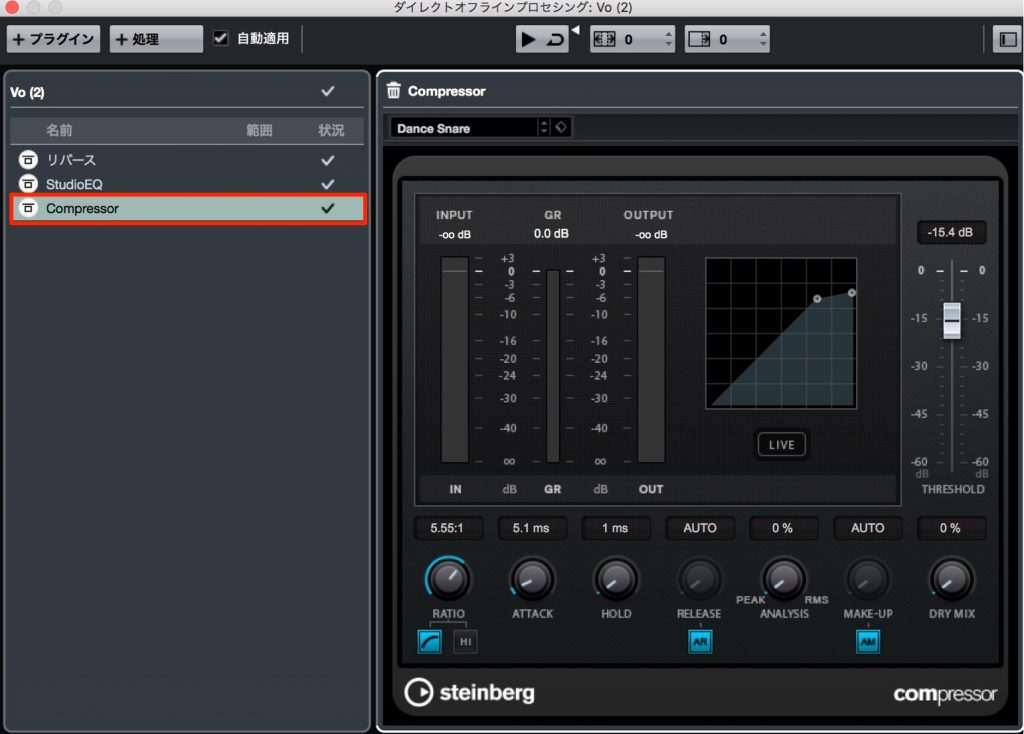
You can apply effects in the same way as "Process."
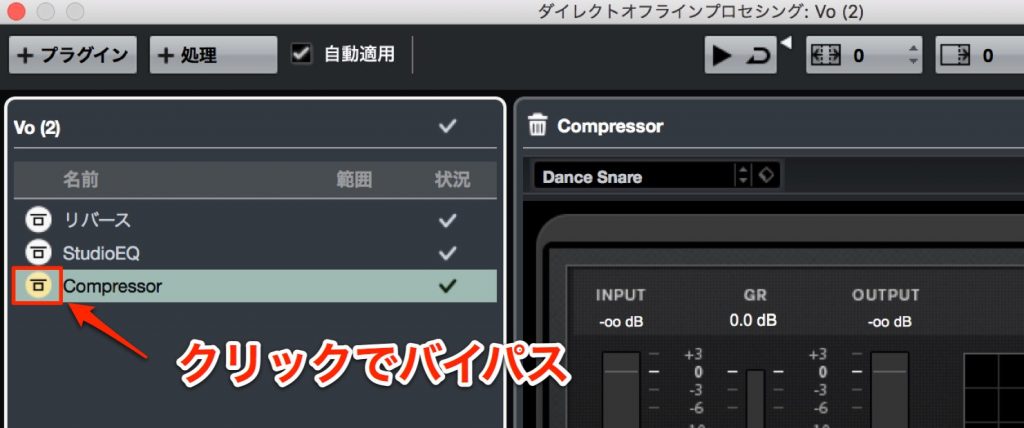
You can use "Bypass" to temporarily disable what you applied,
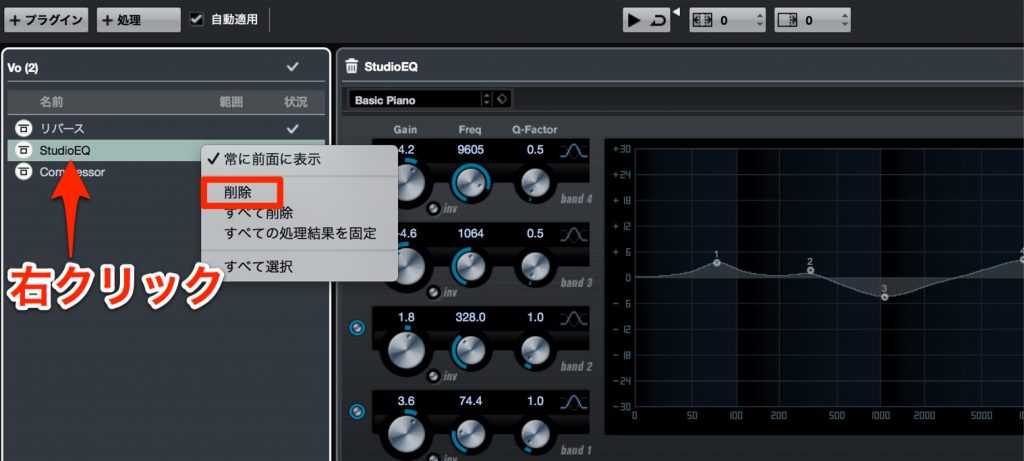
and you can also delete only the items you don't like from the right-click menu.
- Mac: Command + Z
- Windows: Control + Z
These let you undo the last process you applied.
Note on Handling Audio Events
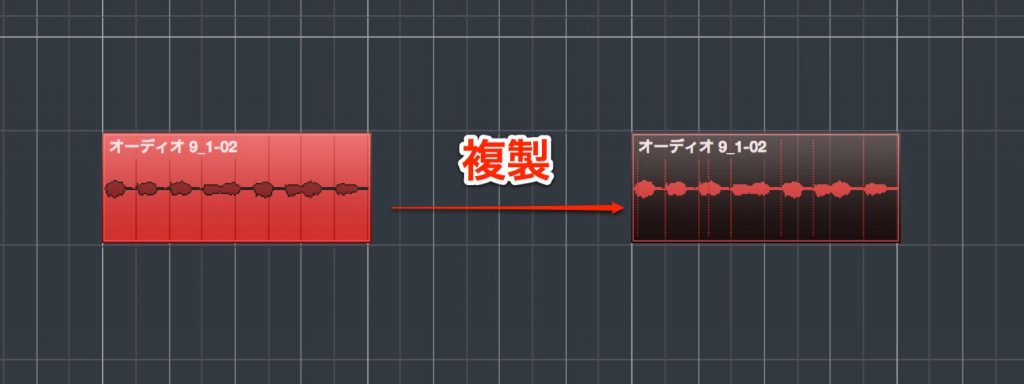
For example, suppose you have two events, one of which is a duplicate of the other.
If you apply Direct Offline Processing to one of them, the result may be applied to all the duplicated events.

We recommend going to "Editing" > "Audio" in Preferences and setting "On Processing Shared Clips" to "Create New Version."
Direct Offline Processing results will then be applied to a newly created event automatically.
What did you think?
Many of you have probably been wanting features like these.
These are not the only new features in Cubase 9.5.
In the next article, we will continue explaining more attractive features.
Product URL: https://japan.steinberg.net/jp/products/cubase/what_is_new_95.html
Finally, please also follow our Twitter account "@DTM_SALE," where we tweet about DTM-related sales, new products and free offers.
Frequently Asked Questions
Q1. What is 64-bit floating-point processing in Cubase 9.5?
By moving from 32-bit to more precise 64-bit processing, the precision of audio calculations such as fader work and effect processing improves, and the sound quality of the song as a whole improves. You can change the setting from VST Audio System in Studio Setup.
Q2. What are the benefits of Direct Offline Processing?
Because effect processing is reflected directly in the waveform, it does not consume CPU resources the way plug-in effects do. Processes such as reverse, gain and normalize are rendered immediately, greatly improving production efficiency.
Q3. What should I watch out for when applying processing to duplicated audio events?
Applying processing to a duplicated event may affect all the events. By setting "On Processing Shared Clips" to "Create New Version" in Preferences, an independent new event is created, allowing processing of each one individually.
Q4. Can I set different click patterns for each time signature?
Yes. Select "Click Patterns" in the Metronome Setup window and specify a pattern for each time signature in advance, and it will switch automatically.
NEW ARTICLES
Latest English Articles