The extensive sound libraries bundled with Cubase take up a lot of space on your main hard disk, so moving them to an external HDD is recommended. With Steinberg Library Manager, you can easily move installed libraries to another storage device and free up space on your system drive. And by specifying a default folder in advance, libraries will be saved automatically to that folder when you install Steinberg products in the future, letting you manage your HDDs efficiently. This gives you a comfortable music production environment without worrying about running out of storage.
Avoid Filling Up Your Main Hard Disk
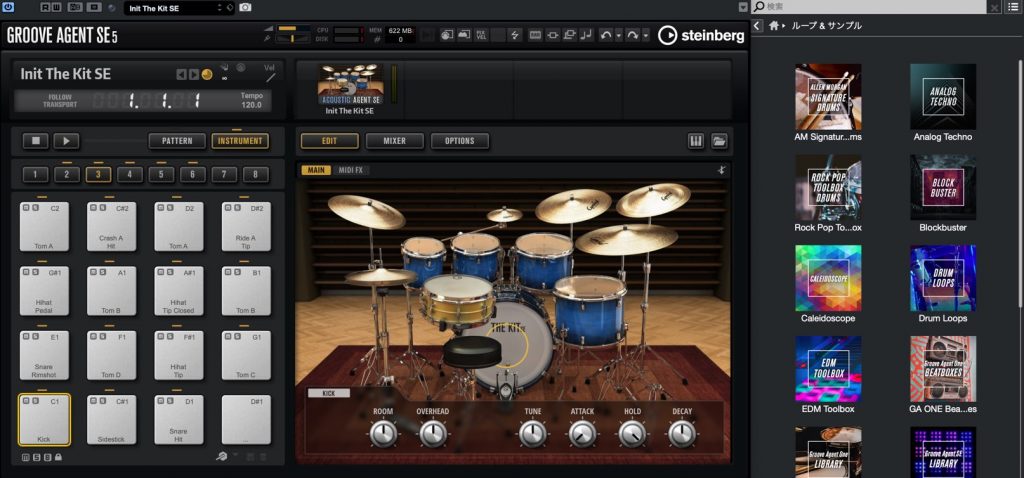
Cubase 10 comes with many instruments and sound materials.
They let you start making music right away, which is very welcome, but with so much material, they also use a lot of hard disk space.

You can specify the location of each sound library when installing Cubase, but you may find that:
- You installed them on your main system HDD
- You want to change the location of the sound libraries later
These situations do happen.
That's when "Steinberg Library Manager" comes in handy.
It lets you move the location of each installed library accurately.

* It is installed together with "Cubase 10," "Groove Agent 5" and the upcoming "HALion 6.2."
Let's look at how to use it.
How to Use Steinberg Library Manager
Steinberg Library Manager is installed in the following location.
- Mac: System HDD → "Applications"
- Windows: "C drive" → "Program Files" → "Steinberg" → "Steinberg Library Manager"
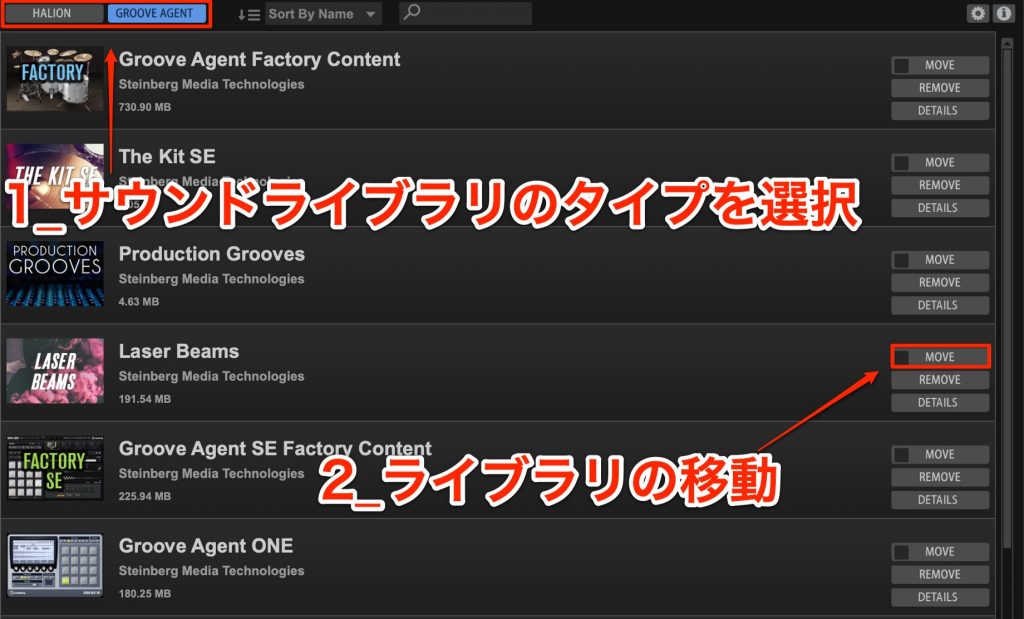
When you launch Steinberg Library Manager, a window like this opens.
Specify the sound type from "HALION" or "GROOVE AGENT" and select "MOVE" for the item you want to move.
You'll be asked where to move it, so specify the destination for the files.
Since there are many sound files, we recommend that you create and specify a folder dedicated to your Cubase libraries.
That completes the file move.
Moving the files can take some time, so wait without launching Cubase until it's finished.
Specifying the Library Location for Future Installations
By specifying a default folder, libraries will be installed automatically to that location whenever new Steinberg product sounds are installed.

Click the preferences icon and specify the folder you want to use as the destination.

Check this box.
That completes the setup.
Avoid running out of HDD space and enjoy a comfortable music production workflow.
Recommended Articles

Cubase 10 New Features (1): VariAudio 3
VariAudio 3 in Cubase 10 is an update that greatly improves the usability and flexibility of pitch editing. The previously separate pitch editing and segment functions have been integrated, and Smart Contro

Komplete Not Showing Up in Cubase (Windows)
This article explains how to fix Komplete plug-ins not showing up in Cubase on Windows. Specifying the VST save location during installation is important, and if already ins

Making Songs Compatible Between Different DAWs 1: Understanding DAW Structure
In DTM, to make songs compatible between DAWs, it is important to first understand the basic structure of a DAW. Every DAW builds songs from two elements, MIDI and audio, and MIDI
Resetting Preference Files to Fix Problems in Cubase
Resetting the preference files is an effective way to solve a variety of problems, such as Cubase not launching or the MediaBay preview not working. This article covers both Mac and Windows O
Frequently Asked Questions
Q1. How do I move Cubase's sound libraries to an external HDD?
Launch Steinberg Library Manager, select the library you want to move and click "MOVE." Specify a folder on your external HDD as the destination, and the files are transferred automatically. Don't launch Cubase until the move is complete.
Q2. Where is Steinberg Library Manager installed?
On Mac, it's in the Applications folder; on Windows, it's installed in C:\Program Files\Steinberg\Steinberg Library Manager. The location differs by OS, so check before accessing it.
Q3. Can libraries I install in the future also be saved to the external HDD automatically?
Yes. If you specify a default folder in the preferences and check the box, libraries for newly installed Steinberg products are saved automatically to that location.
NEW ARTICLES
Latest English Articles