
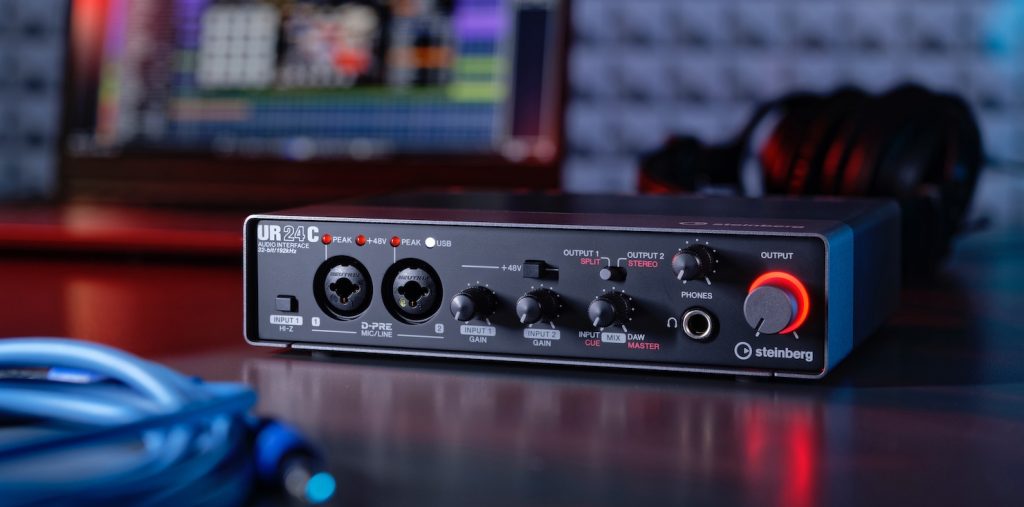
Steinberg's "UR24C," which went on sale on May 22, 2020, is the latest audio interface with excellent specs, including USB 3.1 connectivity, bus power and 32-bit integer support. In particular, its two stereo outputs let you output to different monitor speakers at the same time and build a talkback system. In addition, the "Monitor Mode" feature lets you switch between DAW mode and DJ mode to create the ideal monitoring environment for recording or DJ performance. Achieving this versatility in such a compact size makes it highly attractive to a wide range of users, from professionals to beginners.
The Much-Anticipated UR24C, with Monitor Mode, Goes on Sale May 22!
Product URL: https://new.steinberg.net/ja/audio-interfaces/ur24c/
Recently announced by Steinberg, the "UR24C" goes on sale on May 22, 2020.
The UR24C belongs to the "UR-C series," the successor to the hit "UR series" of audio interfaces, and has the following features.
- USB 3.1 connection (can connect to USB-C ports such as on a MacBook Pro)
- Bus-powered design that needs no adapter
- 32-bit integer support
- Support for dspMixFx, which lets you use effects within the UR24C
- A loopback function that lets you stream the sound of your DAW or computer
We previously interviewed Mr. Matsukuma of Yamaha Music Japan about the specs and details of the "UR-C series."
The video is embedded at the bottom of this article, so please watch it as well.
In addition to these features, the UR24C introduced here has two pairs of stereo outputs (sound outputs).
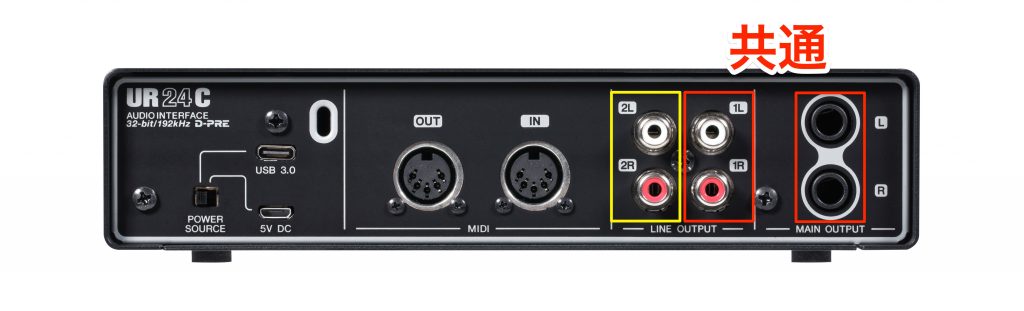
The main sound output is one stereo pair of phone jacks.
There are two pairs of RCA outputs. (One RCA pair is shared with the main output.)
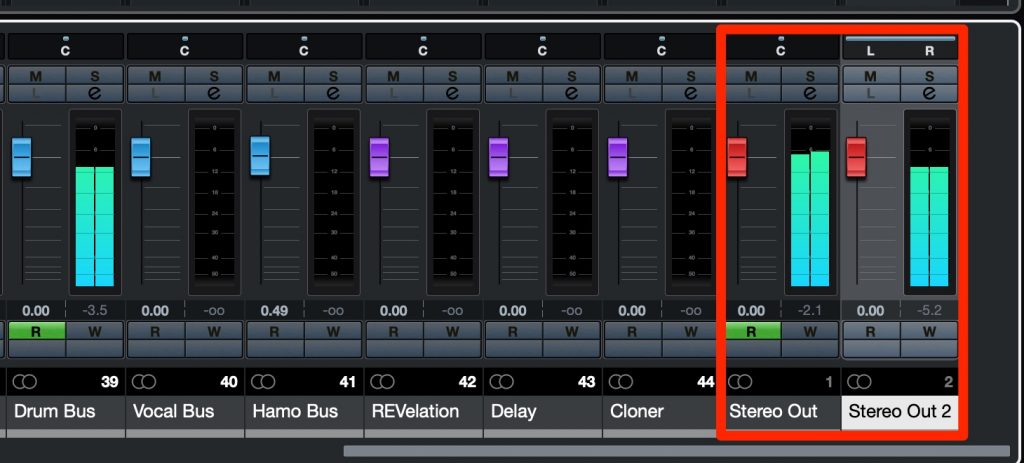
Because you can use "Stereo Out 2" like this,
- Sending your DAW sound to different monitor speakers for sound checks
- Building a talkback system for a vocal booth
and more become possible.
Achieving this at this size and price is very attractive.
How to Set Up the Stereo Outputs (in Cubase)
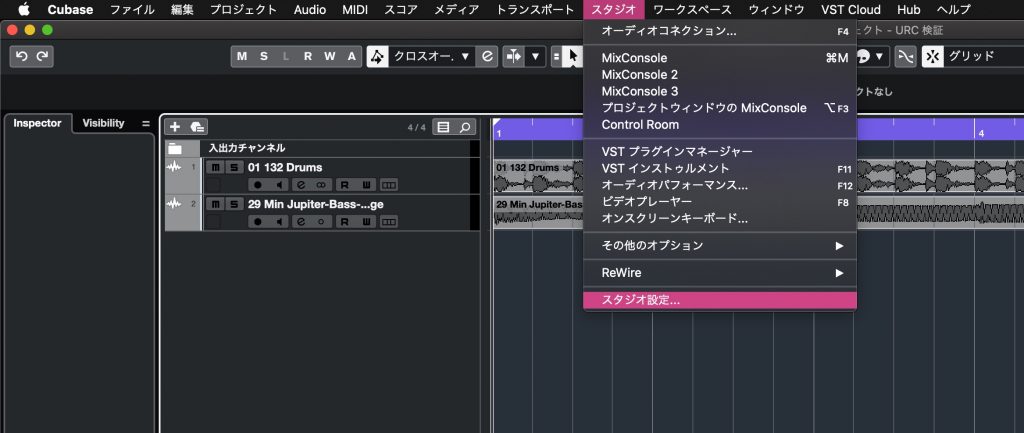
In Cubase, select "Studio" > "Studio Setup" from the top menu.
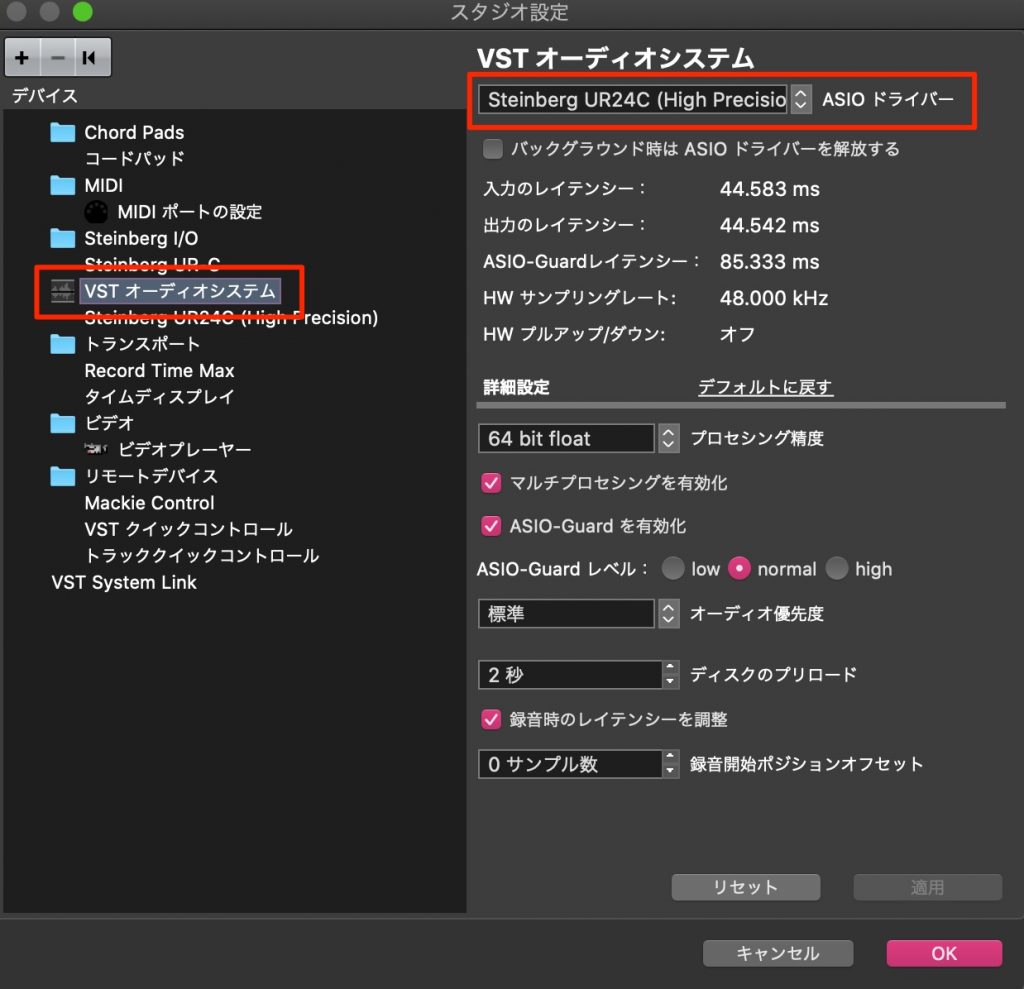
Select "VST Audio System" and choose "UR24C." (High Precision is recommended.)
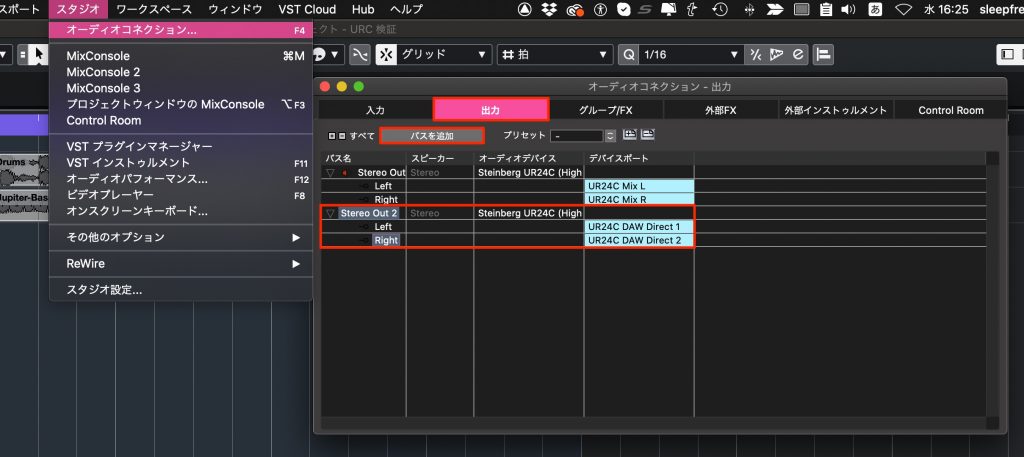
In Cubase, select "Studio" > "Audio Connections" from the top menu.
Select the "Outputs" tab in the window that appears.
Add a stereo output with "Add Bus" and set the Device Port as shown in the image (Out 3/4).
This completes the setup.
Using the two stereo outputs also lets you perform live with synced backing tracks, as in the video below.
Sync Playback Techniques
Features of Monitor Mode
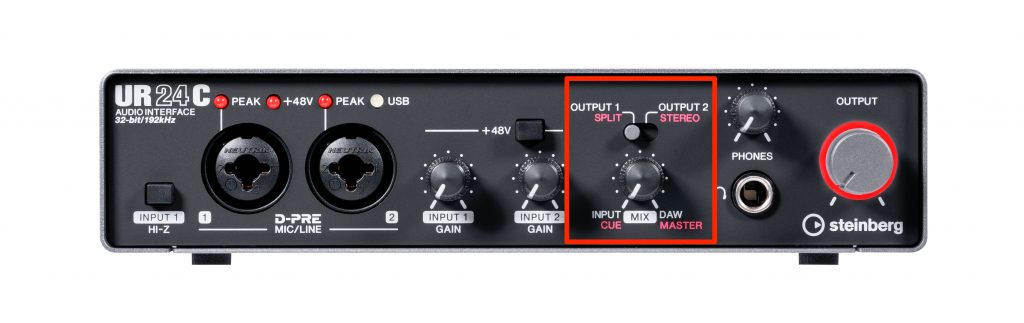
A feature that makes the most of the UR24C's design is "Monitor Mode".
It is a handy feature that lets you specify what is output to the headphones connected to "PHONES."
Monitor Mode offers two modes, "DAW mode" and "DJ mode," which you switch as follows.
When you install the UR24C driver on your computer, "dspMixFx_UR-C" is also installed.
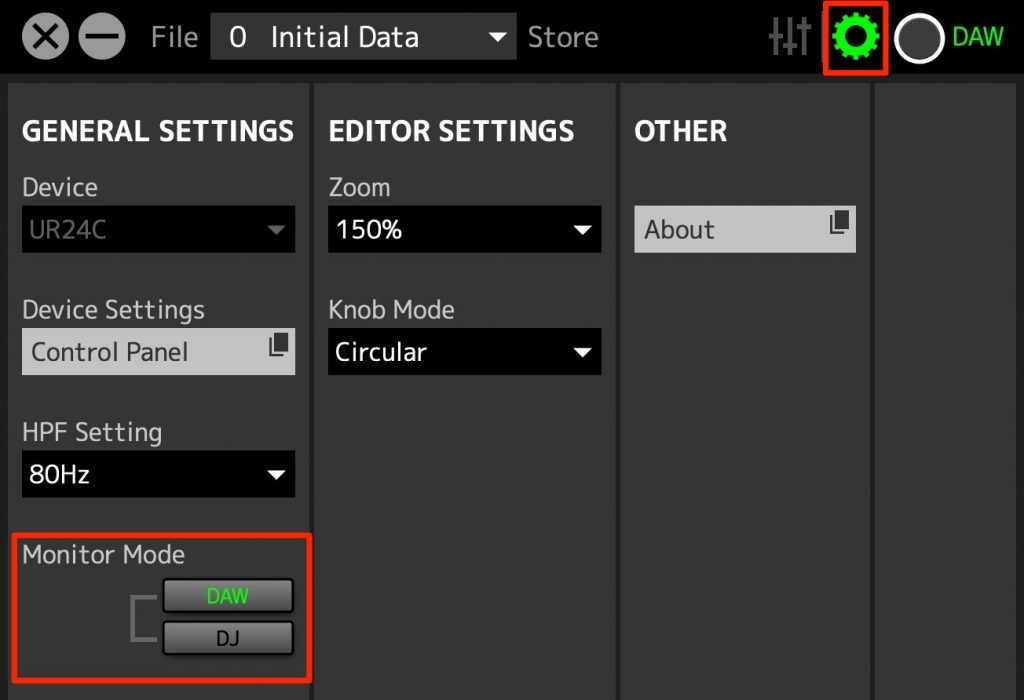
After launching dspMixFx_UR-C, click the settings icon.
Switch the mode from "Monitor Mode" at the bottom left.
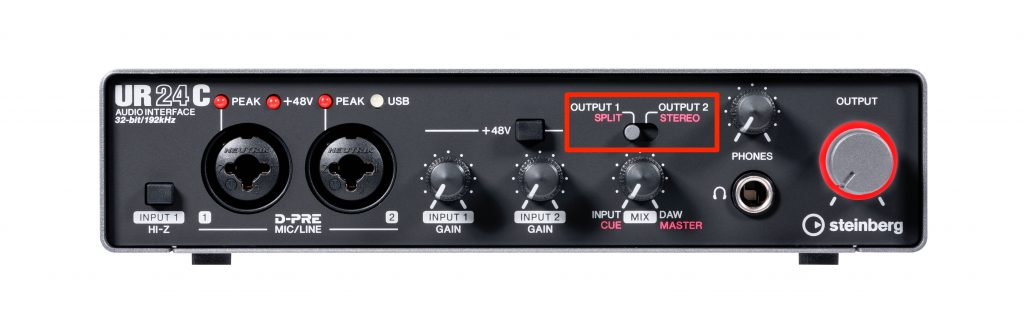
Behavior in DAW Mode
- Switching to "OUTPUT 1" lets you monitor only the sound output from "STEREO OUT 1" in your DAW
- Switching to "OUTPUT 2" lets you monitor only the sound of "STEREO OUT 2"
When "OUTPUT 1" is selected, you can use the "MIX" knob below to balance the volume between the DAW sound and input sounds such as a microphone.
This is very useful when recording.
About DJ Mode
As the name suggests, this mode is for DJ performance.
You can switch the monitoring method for mixing songs together.
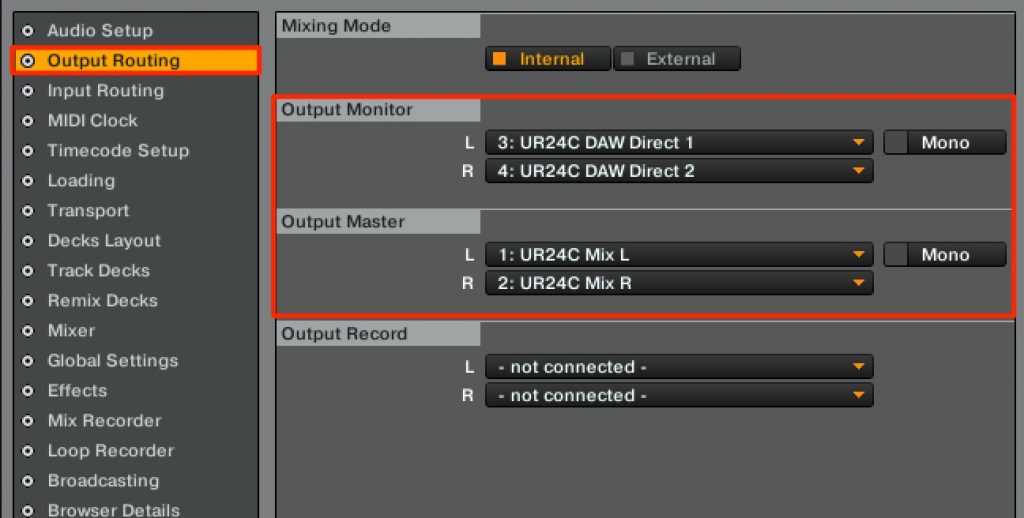
Set your DJ software's master output to "UR24C Mix L/R" and its monitor output to "UR24C DAW 2 Direct."
- Switching to "OUTPUT 1 (SPLIT)" outputs the MASTER in mono from the right side of the headphones and the CUE in mono from the left
You can balance the left and right volumes with the "MIX" knob below - Switching to "OUTPUT 2 (STEREO)" outputs the MASTER and CUE mixed in stereo to both sides
You can adjust the mix balance of the two with the "MIX" knob below
For example, with the switch at "OUTPUT 1 (SPLIT)," you can monitor the song playing on the master from the right side of the headphones and the next song from the left, in mono.
With the switch at "OUTPUT 2 (STEREO)," you can monitor the master and the next song together in stereo through both sides of the headphones.
Celebrating the "UR-C Series" Release! An Exclusive Interview


What did you think of our review of Steinberg's "UR24C"?
It is an audio interface that combines excellent sound quality and features in a compact body.
I found it very easy to handle for those who want to perform live with synced tracks or use it for DJ performance, so be sure to check it out.
Steinberg Audio Interfaces: "UR-C Series"
Frequently Asked Questions
Q1. Can the UR24C connect to a MacBook Pro?
Yes. It supports USB 3.1 Type-C, so it connects directly to devices with USB-C ports such as a MacBook Pro. No adapter is needed, and its bus-powered design requires no external power supply.
Q2. What can the UR24C's two stereo outputs be used for?
You can send your DAW sound to speakers other than the monitor speakers on the main output for sound checks, or build a talkback system for a vocal booth. They can also be used for live performance with synced tracks.
Q3. What is the difference between "DAW mode" and "DJ mode" in Monitor Mode?
DAW mode is suited to balancing the DAW sound and mic input when recording, while DJ mode is optimized for beatmatching during DJ play by flexibly switching how the master output and CUE audio are distributed.
Q4. Is setting up the second stereo output in Cubase complicated?
Just select the UR24C in Studio Setup, add a new bus on the Outputs tab of Audio Connections, and set the Device Port to Out 3/4. It takes only a few steps.
NEW ARTICLES
Latest English Articles











