
Backing up iTunes and moving your music are important data management skills for music producers. This article explains how to back up only the iTunes folder rather than your entire computer, and the steps for moving your music to another hard drive as your library grows. Specific operations are shown for both Mac and Windows, so you can learn how to transfer your library safely, restore your music on another device, and migrate efficiently when expanding your storage.
Also handy when moving your music to another hard drive
In the previous article on backups, we explained how to back up your entire computer.
However, sometimes you don't need a full backup.
Here, with such cases in mind, we explain how to
back up only your "iTunes" settings and music.
We also describe how to move your music to another HDD when it takes up more space.
*Backing up and swapping drives are important tasks that handle valuable data.
Please note that we cannot accept any responsibility
for "problems or losses" arising from the following operations.
- Mac
- Windows
Backing up iTunes
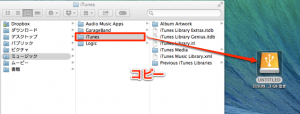
Copy the entire "iTunes" folder stored in "Mac HDD" → "Users" → "username" → "Music"
to another hard drive.
That completes the backup.
How do you restore the backup?
It's very easy.
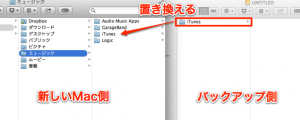
Copy the "iTunes" folder you copied above
to the new Mac.
Moving to another HDD and loading it
As above,
copy the "iTunes" folder to another hard drive.
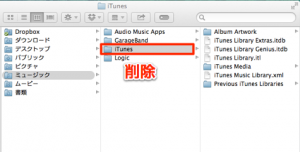
Delete the original "iTunes" folder.
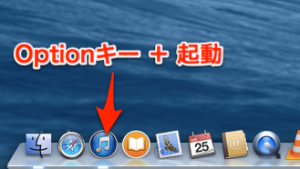
Launch iTunes while holding down the "Option key."
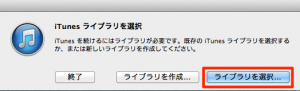
A dialog appears.
Click "Choose Library"
and select the "iTunes" folder on the "backup side (the other hard drive)."
The migration is now complete.
Backing up iTunes
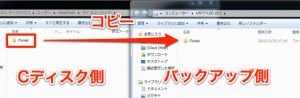
Copy the entire "iTunes" folder stored in "C drive" → "Users" → "username" → "My Music"
to another hard drive.
That completes the backup.
How do you restore the backup?
It's very easy.
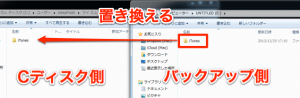
Copy the "iTunes" folder you copied above
to the new Windows computer.
Everything is now restored.
Moving to another HDD and loading it
As above,
copy the "iTunes" folder to another hard drive.
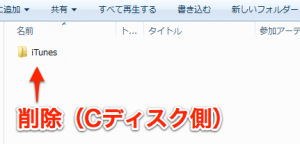
Delete the original "iTunes" folder.
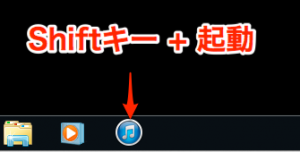
Launch iTunes while holding down the "Shift key."
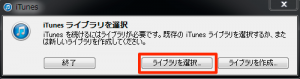
A dialog appears.
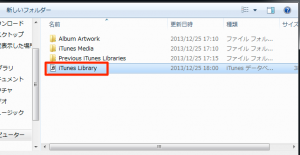
In the "iTunes" folder on the "backup side (the other hard drive),"
"Choose Library."
The migration is now complete.
- Mac
- Windows
Frequently asked questions
Q1. What is the difference between a full backup and backing up only iTunes?
A full computer backup covers all system files, while an iTunes-only backup copies just the iTunes folder in your Music folder. It's useful when you want to save space or protect only specific data.
Q2. Why do I need the Option key (or Shift key) when moving to another hard drive?
Launching iTunes while holding these keys displays a dialog that lets you choose a new library location. It's how you make iTunes load the library on the other HDD correctly, even after the original folder has been deleted.
Q3. Is there a risk of losing data during the move?
Yes. That's why we recommend making a separate backup of important data before you start. The article also clearly states that we accept no responsibility for any problems or losses.
NEW ARTICLES
Latest English Articles











