
Steinberg Electric Bass for HALion is an instrument plug-in that lets you easily program realistic bass. Despite its simple, easy-to-understand interface, it offers rich sound design features, such as combinations of three pickup types (Jazz Bass, Precision and Music Man), six amps, four cabinets and twelve effects. With a variety of playing techniques such as slap and harmonics, and automatic functions such as Auto Legato and Auto Slide, even beginners can easily recreate realistic playing nuances. Furthermore, advanced hand position settings and player selection give it the depth for detailed programming.
Easily Program Realistic Bass

This time, we explain Steinberg's realistic bass instrument, "Electric Bass for HALion."
This product neatly packages just the right amount of sound quality and features, so it enables speedy sound design and programming, and offers excellent value; these are its key features.
Being from the same maker, it pairs perfectly with Cubase, but of course it can also be used in other DAWs.
- 1Launching Electric Bass
- 2Interface overview and loading presets
- 3Editing the sound
- 4Key switches explained
- 5Using a variety of playing techniques
- 6Hand position, Player selection and string assignment
Electric Bass for HALion Explanation Video
Product page: https://www.steinberg.net/ja/vst-instruments/electric-bass/
Launching Electric Bass
It runs on HALion 6 (including HALion Sonic 3 and SE), so after installing it, launch HALion and its sounds are loaded there.
You can use it as is, but let's change the display to make editing easier.
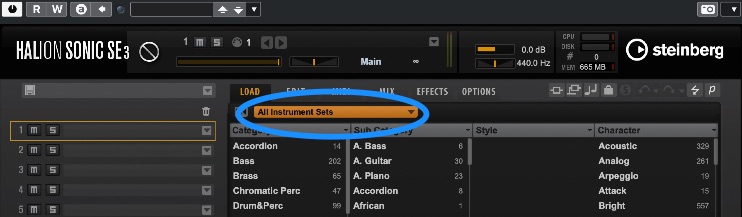
Click the area labeled All Instrument Sets under the LOAD tab.
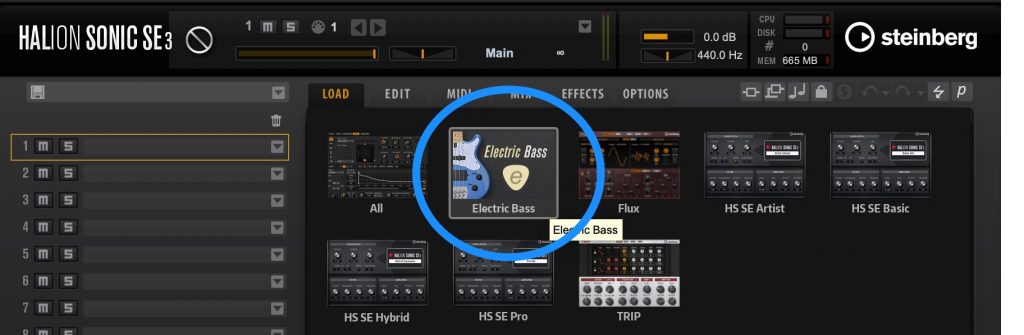
A list of installed products appears; selecting Electric Bass narrows down the sounds.
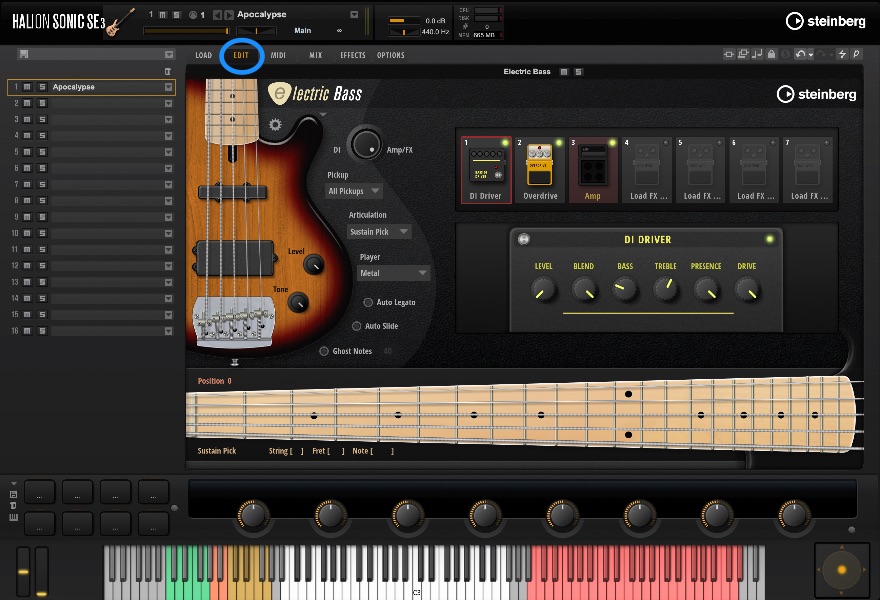
Switching to the EDIT tab then shows its dedicated user interface.
Interface Overview and Loading Presets
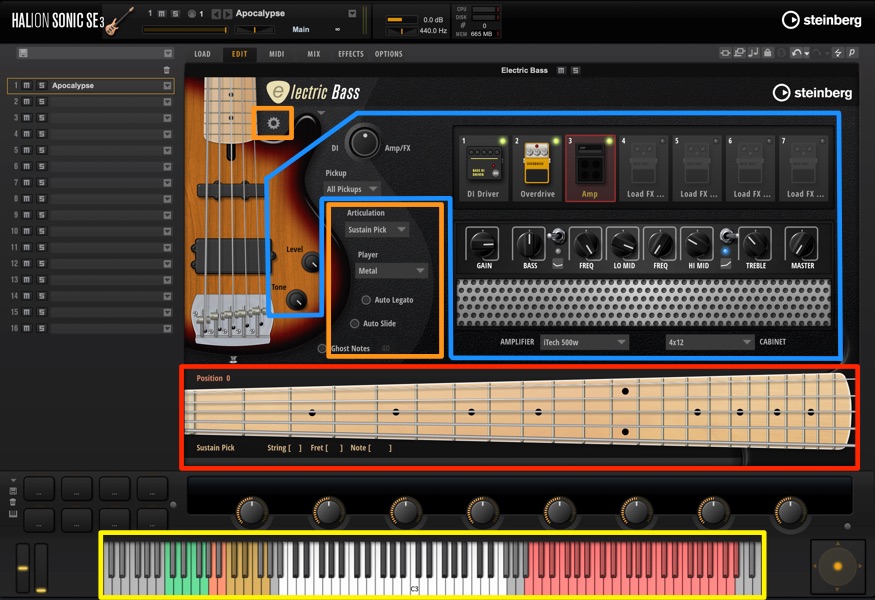
- Blue: the sound section
- Orange: the performance section
- Red: the fretboard section
- Yellow: key switches
The interface is very simply organized, so you can edit smoothly without switching tabs.
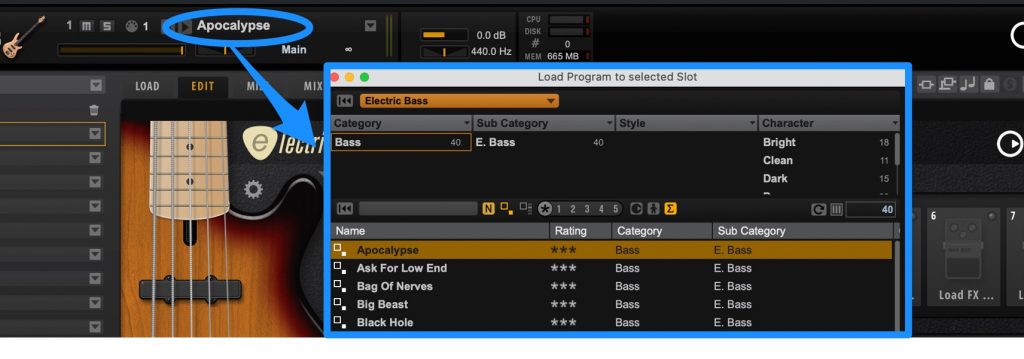
Changing presets works the same as in HALion: click the top area to open program loading.
If you narrowed the sounds down to Electric Bass in the previous step, browsing is easier.
Editing the Sound
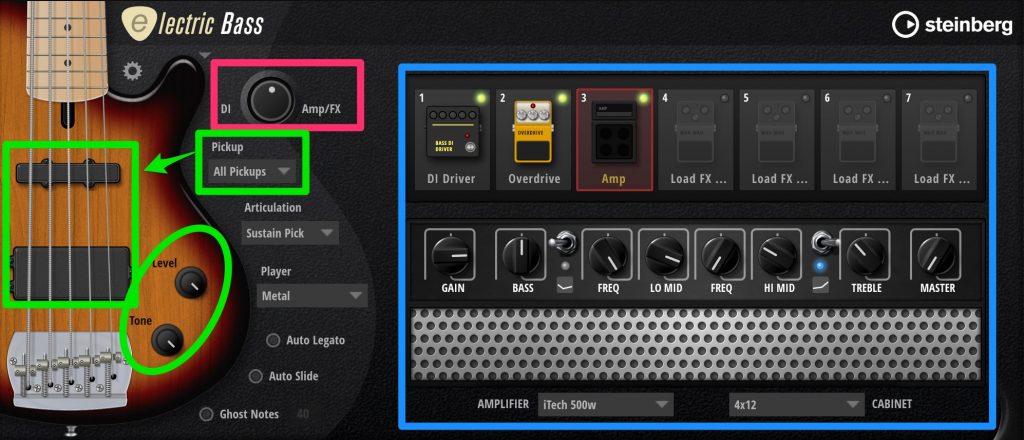
- Green: the bass itself
- Blue: Amp and FX
- Red: the mix of DI and Amp/FX
For the bass itself, you can combine the pickups of three representative models (Jazz Bass type, Precision type and Music Man type). It also changes visually, which makes it easy to understand.
With six amps, four cabinets and twelve FX, which can be freely reordered, you can create a wide variety of sounds.
It is a good idea to first set the air and character with Amp/FX, then blend in the DI (the sound not passed through Amp/FX), whose line is easy to hear, while looking for just the right balance in the mix.
Key Switches Explained

- Green: string assignment
- Red (left): resetting the hand position and forcing slides
- Ocher: articulations
- Red (right): slides, hit effects and fret noise
Above B4, there are many slide ups and downs with various nuances, hit effects and fret noises, letting you build up a realistic sense of performance.
The others are explained in the following sections.
Using a Variety of Playing Techniques
Articulation
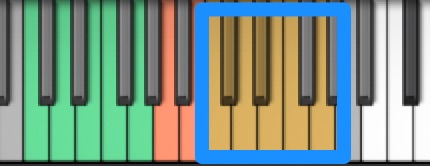
- C0: Sustain
- C#0: Slap
- D0: Sustain Pick
- D#0: Slap-Pull
- E0: Mute
- F0: Artificial Harmonics
- F#0: Natural Harmonics
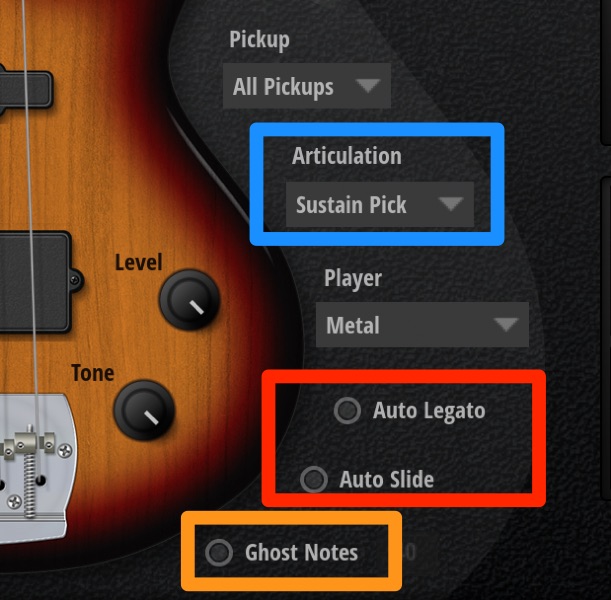
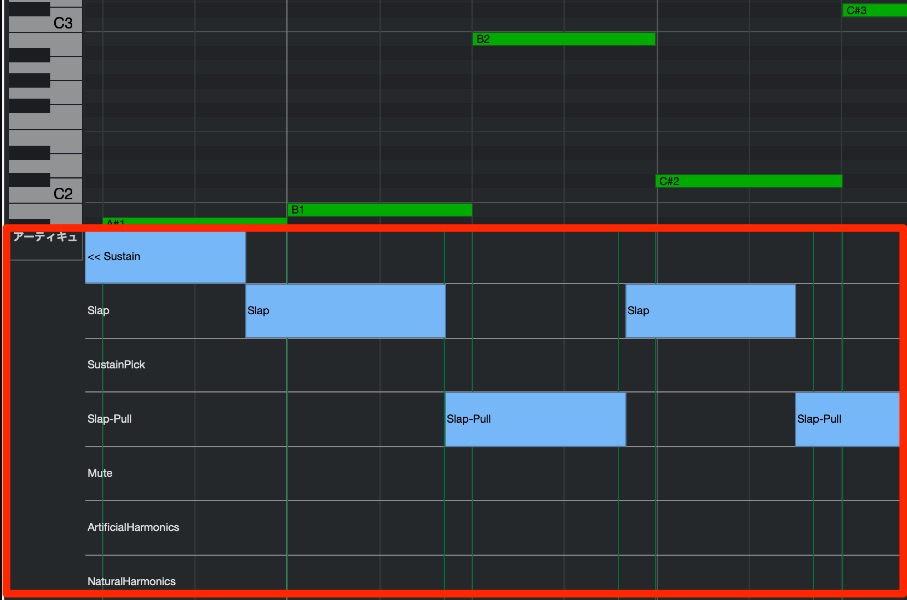
Using Articulation on screen or the key switches, you can switch between a wide range of playing techniques from slap to harmonics.
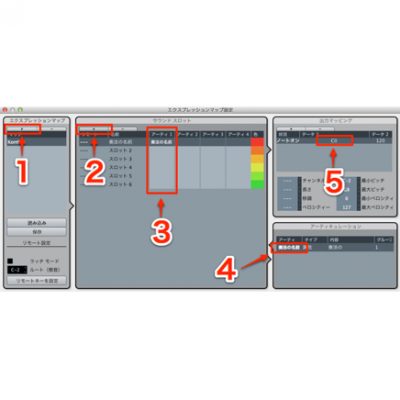
When using Cubase, you can use expression maps, making switching even smoother.
Auto Legato and Auto Slide
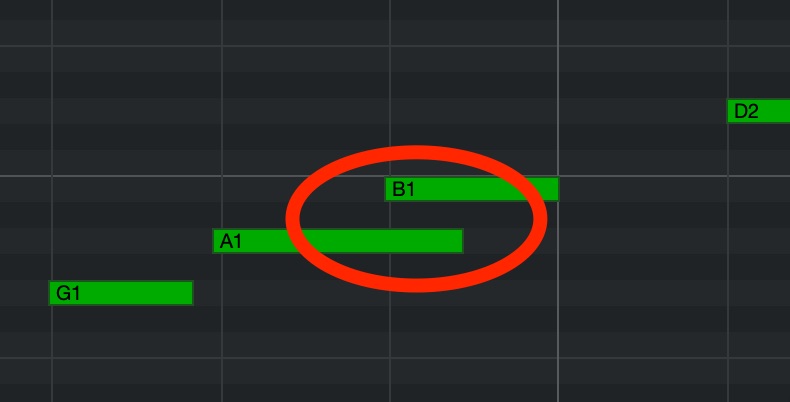
There are two playing techniques applied automatically when you enter notes legato (with no gaps between notes).
- Auto Legato: if the second note is within three semitones, hammer-ons and pull-offs, sounded by the left hand striking the string without picking, are applied automatically.
- Auto Slide: if the second note is four or more semitones away, a slide connecting the notes by sliding the finger is applied. Also, pressing key switch B-1 before the second note sounds lets you force a slide within three semitones.
Note that both Auto functions apply when the second note is within the current hand position, and forced slides are limited to what is physically playable. Hand position is explained in the next section.
Ghost Notes
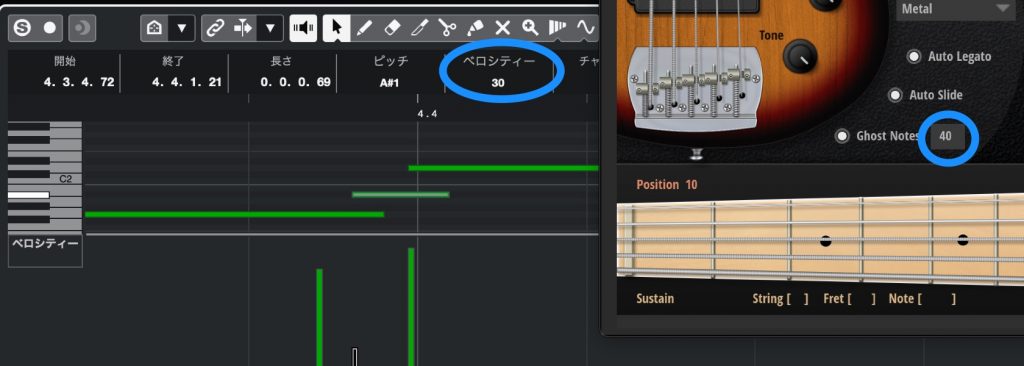
Ghost notes are a technique of adding rhythm with right-hand picking while the left hand mutes the strings, essential for a live-sounding groove. When a note is played with a velocity at or below the value set in the box on the right, it switches to ghost notes.
Hand Position, Player Selection and String Assignment

Unlike a piano, a bass has the same note on multiple strings because of how the instrument is built. (For example, the 10th fret of the 5th string, the 5th fret of the 4th string and the open 3rd string are all A1.)
Also, because of how hands work, notes four or more frets apart are played more naturally on the next string up rather than the same string, avoiding a position shift.
For example, moving from the 5th fret of the 4th string (A1) to the 10th fret of the 4th string (D2) is smoother as the 5th fret of the 3rd string (D2), unless there is a specific intention.
This range that can be fingered smoothly is the hand position, shown in pink in the fretboard section.
Hand position varies with the genre, song, phrasing, player's personality and so on, and it may feel difficult for those with no experience of string instruments.
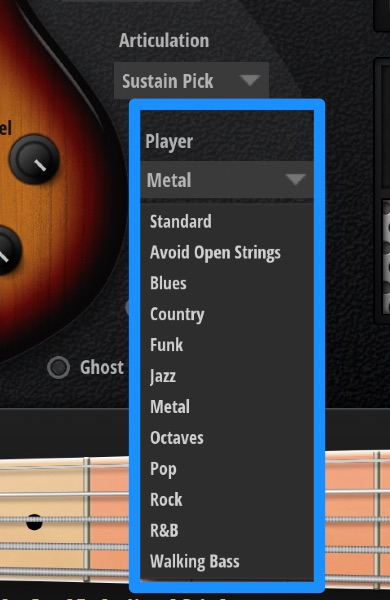
That is where the Player function comes in handy. Specifying the song's style here automatically chooses matching positions and strings.
String Assignment Key Switches
The Player's automatic choices already play quite nicely, but you can also specify the string to sound in more detail to increase accuracy.
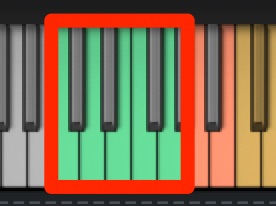
- C-1: 5th (B) string
- D-1: 4th (E) string
- E-1: 3rd (A) string
- F-1: 2nd (D) string
- G-1: 1st (G) string
Pressing these key switches plays the note on the corresponding string and hand position.
Checking and specifying them one by one takes effort, but it lets you recreate realistic nuances worth the effort.
As you have seen, Electric Bass for HALion's biggest feature is that you can quickly bring in realistic sounds and playing techniques, but it also has the depth to allow quite detailed programming if you want to refine it.
If you are aiming to improve the quality of the "bass" sound, which, as the name suggests, forms the foundation of a song's arrangement, why not consider getting it?
Product page: https://www.steinberg.net/ja/vst-instruments/electric-bass/
Ideal for anyone who wants to easily program realistic bass❗️ How to use "Steinberg Electric Bass for HALion"
Its key features are speedy sound design and programming, and excellent value📝
It pairs perfectly with Cubase, but of course it can also be used in other companies' DAWs.Article: https://t.co/9pyQvr2B9J#DTM #Cubase pic.twitter.com/UKlKfyPBdP
— SLEEP FREAKS (@SLEEPFREAKS_DTM) November 24, 2021
Frequently Asked Questions
Q1. Can Electric Bass for HALion be used in DAWs other than Cubase?
Yes. However, it pairs especially well with Cubase, and using expression maps makes switching playing techniques even smoother. It also works without problems in other major DAWs.
Q2. Can beginners recreate realistic bass playing?
Yes. With automatic functions such as Auto Legato and Auto Slide, and the Player function, which automatically chooses strings and positions to suit the song's style, even beginners can easily build a realistic sense of performance.
Q3. Which version of HALion is required?
It runs on HALion 6, HALion Sonic 3 and the SE versions. After installing it, launch HALion and the Electric Bass sounds are loaded automatically.
Q4. How many playing techniques, such as slap and harmonics, are supported?
It supports seven or more techniques, including slap, slap-pull, mute, artificial harmonics, natural harmonics and ghost notes, which you can switch easily with key switches.
NEW ARTICLES
Latest English Articles











