
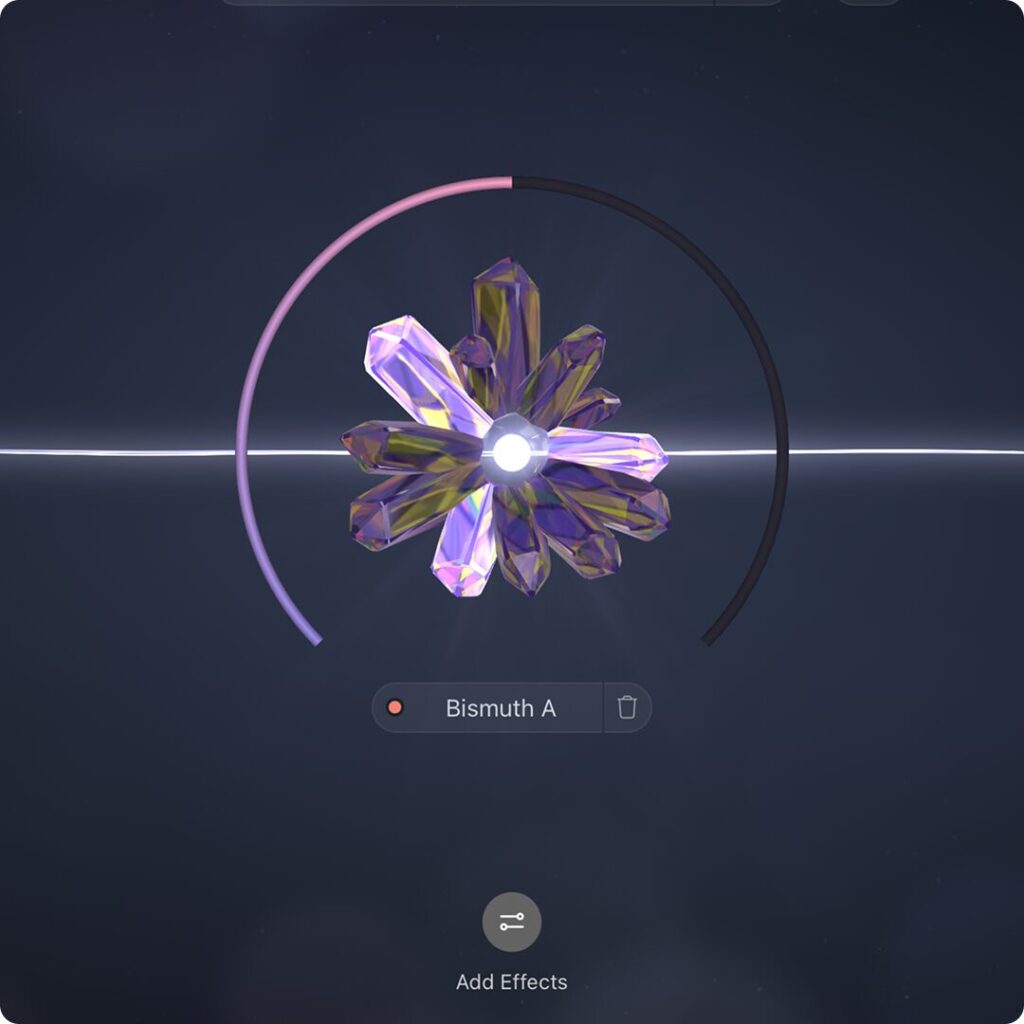
Bismuth is a chord-capable resonant effect developed with dubstep producer Virtual Riot and introduced as a new BEAM node. It adds pitched, melodic resonance to incoming sound, offering creative processing for bass, drums, and other sources. With 30 presets, chord and scale controls, an arpeggiator, and LFO modulation, it can produce complex changes in sound. It works both as a standalone plug-in and as a node inside BEAM, making it a sound-design tool for EDM and bass music.
A new effect that turns input into melodic sounds using chords and scales

Bismuth is a new BEAM node and a chord-capable resonant effect.
Developed in collaboration with dubstep DJ and producer Virtual Riot, it adds pitch and melodic resonance to input sounds, creating distinctive movement and texture.
Presets

Open the Bismuth node in BEAM and click the magnifying glass to browse its node presets.
Bismuth comes with 30 presets.
They provide starting points for sound design across genres.
Listen to these examples to hear what the presets do.
These examples simply apply the included presets to a bass source, adding melodic resonance and distinctive character.
Next, listen to the included presets applied to drums.
Again, the presets alone add colorful resonance to the drum texture.
Use it inside BEAM or on its own

Bismuth is available as a standalone plug-in, so you can use it without owning BEAM.

If you own BEAM, you can also use it as a node, with up to three instances in series or parallel.
Chord and scale panel

The panel for setting chords and scales is at the heart of Bismuth.

Turn on the MIDI toggle to control the resonant pitches with external MIDI.

You can also click the on-screen keyboard directly and adjust settings while listening.

At the top, scroll through and select from a variety of scales and chords.
The resonant frequencies automatically adjust to the selected scale or chord.
Octave / Spread / Root

- Octave: Move the resonant frequency range up or down.
- Spread: Distribute the selected notes across multiple octaves.
- Root: Set the reference note for the scale or chord.
Raising Octave moves the resonant range higher; lowering it moves the range lower.
Combined with Spread, it can create thick layers of harmonics.
Attack / Decay

- Attack: Adjust how quickly the resonance starts.
- Decay: Adjust the decay and length of the resonant tail.
A short Attack produces a sharper onset; a longer one gives a more gradual onset.
A short Decay gives a crisp effect, while a longer Decay leaves a ringing tail.
Arp (arpeggiator)

Turn on Arp to play the resonant notes in sequence and generate rhythmic patterns.

Rate can switch between free and synchronized modes.
In free mode, the rate is set in seconds; in sync mode, it uses note values tied to the DAW tempo.

Pattern changes the order in which arpeggiated notes play.
Alongside classic Up and Down patterns, there are Random and Chord modes.
Chord mode can create harmonic changes over time.
Spacing

The Spacing section adjusts the placement of resonant frequencies and stereo width.
- Warp: Offset the harmonic pattern for a bell-like metallic sound.
- Shift: Apply frequency shifting to the input signal to change its tone.
- Drift: Adjust stereo width; higher values produce a stronger chorus-like effect.
Motion

Motion applies an individual periodic modulation (LFO) to each resonant note to vary its volume.
Whereas Arp switches notes in sequence, Motion continuously and smoothly modulates their volume.
- Strength: Set modulation depth.
- Rate: Set modulation speed, with free and synchronized modes.
- Unison: Offset the timing of the modulation; higher values create a wave-like spreading effect.
- Shape: Blend modulation shapes from sine to square.
Filter

The Filter section lets you fine-tune the frequency balance of the output.
In the following descriptions, dry means the original sound and wet means the effect signal.

Scoop reduces the dry signal slightly only in the frequency bands where resonance occurs.
Increasing it reduces masking between the dry signal and resonance, helping avoid muddiness and improve separation.
Too much, however, can make the sound lose body.
When there is less dry signal due to the Depth setting described below, Scoop has less effect.

Tilt and Q work as follows:
- Tilt: Shift the balance between high and low frequencies to adjust brightness.
- Q: Adjust the width of the resonant filter; narrow is more focused, while wide is rougher.

Band Split normally cuts the low and high frequencies so that the wet effect is applied only to the midrange.
Turn on the icon above the Depth knob to pass the low and high frequencies through dry, while applying the wet effect only to the midrange.

Use Depth to adjust the dry/wet balance.
System requirements
Mac
OS: macOS 10.15 or later
Formats: AU, VST3, AAX
Recommended: M1 or M2 Mac
Windows
OS: Windows 10 or later
Formats: VST3, AAX
Both platforms
Works with major DAWs
Memory: 8 GB required (16 GB recommended)
Storage: at least 250 MB free
Price and conclusion

Bismuth was offered at an introductory price of $39 (regular price $59).
Prices are as of March 2026; check the retailer for current pricing.
Bismuth is useful for adding melodic resonance to many sounds, including unpitched material such as noise and drums.
Selecting a chord or scale activates the resonant filters, making it easy to shape pitch visually.
- Create distinctive sound designs for EDM and bass music
- Add pitch or harmony to existing material
- Expand their sound design by combining it with other BEAM nodes
- Use it as a standalone plug-in
Bismuth is recommended for these uses.
If it interests you, try incorporating it into your productions.
If you would like to try BEAM itself, see the following articles.


Frequently asked questions
Q1. Can beginners use Bismuth?
Yes. It includes 30 presets that provide genre-specific starting points. Selecting a chord or scale activates the resonant filters, so you can create pitched, melodic sounds without advanced knowledge.
Q2. Can I use it without BEAM?
Yes. Bismuth also works as a standalone plug-in. BEAM owners can combine up to three instances as nodes in series or parallel for more complex processing.
Q3. Does it support MIDI control?
Yes. With the MIDI toggle on, an external MIDI keyboard can control resonant pitches in real time. It also supports DAW automation for recording and reproducing dynamic changes.
Q4. Which operating systems and DAWs are supported?
It runs on macOS 10.15 or later and Windows 10 or later, supports AU, VST3, and AAX, and works with major DAWs such as Ableton Live, Logic Pro, and Cubase. It requires 8 GB of memory; 16 GB is recommended.
NEW ARTICLES
Latest English Articles











