
This article explains in detail the LFO-side settings for controlling a filter with an LFO in DTM production. You will gain practical knowledge, such as adjusting the Rate frequency, syncing to the DAW's tempo, and how the choice of waveform changes the sound. By understanding the characteristics of each waveform, from sine to square, you can freely create effects such as tremolo and dubstep basses, greatly improving the expressiveness of your songs.
Controlling Each LFO Parameter
In the previous article, we explained applying an LFO to the filter.
You should have heard how the tone changes periodically.
This time, we explain the settings on the LFO side.
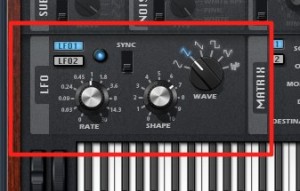
These are fundamentals you can apply when creating all kinds of sounds.
LFO Parameters and Their Effect on the Filter
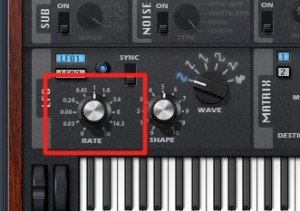
Every LFO has a "Rate" control.
Its unit is Hz (hertz),
and it can be set from 0 to 30.
It sets how many times the LFO cycle repeats per second.
↑ This is the sound as Rate is gradually raised from 0 to 30.
It is a sound you can also hear in sound effects.
Matching the Rate to the Tempo
The feature that lets you easily match the Rate to the DAW's tempo is Sync.
This lets you create tremolo effects that fit the song,
or effects like the bass lines of dubstep, which has become popular recently.
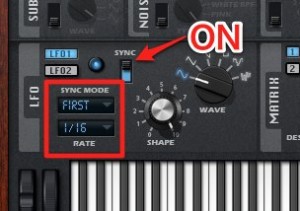
↑ Turn "Sync" on.
The Rate display below changes and now follows the DAW's tempo.
It is currently set to "1/16."
This means one bar divided into sixteenth notes.
The LFO wave repeats 16 times per bar.
In other words, sixteenth notes.
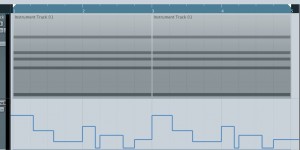
If you move this Rate Sync value with automation,
you can create a sound like this.
Because it plays in note values that match the tempo, it is very easy to work with.
For automation in each DAW, see here.
Changing the LFO Waveform
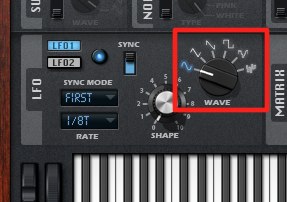
Here you can select the LFO's waveform.
The tonal change differs depending on the waveform you choose.
We explain waveforms here.
Note that the LFO itself has no pitch,
so the waveform affects only the LFO's movement.
For now, just remember the following roughly.
- Sine wave: Characterized by smooth changes
- Sawtooth/triangle wave: The curve is steeper, so the effect is more pronounced
- Square wave: There is no in-between.
Think of it like a light switch. The value is either 0 (off) or 100 (on),
jumping between the minimum and maximum.
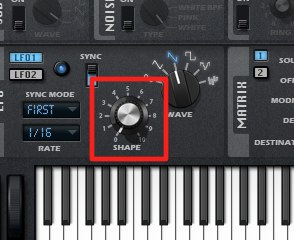
↑ After choosing a waveform,
use "Shape" to adjust the waveform so that it fits the song and its tempo feel.
We recommend moving it while listening to the song to find the best value.
*Some synthesizers do not have this "Shape" control.
Frequently asked questions
Q1. How does the sound change when I raise the LFO Rate?
Raising the Rate increases the number of LFO cycles per second, making the tonal change faster. It can be set from 0 to 30 Hz: low values give gentle changes, and high values give more intense ones.
Q2. Why does the Rate display change when I turn Sync on?
When Sync is on, the LFO automatically syncs to the DAW's tempo. The Rate is shown in note values such as "1/16," so you can easily create effects that match the song's rhythm exactly.
Q3. What difference does the LFO waveform make?
A sine wave gives smooth changes, sawtooth and triangle waves give pronounced effects, and a square wave switches between two states, the minimum and maximum. The waveform you choose greatly changes the character of the tonal change.
Q4. Which LFO waveform do you recommend for beginners?
We recommend the sine wave for beginners. Its smooth, natural changes are easy on the ear and can be applied to all kinds of songs without sounding out of place.
NEW ARTICLES
Latest English Articles











