
Synthesizer V Studio is the latest singing voice synthesis software, in which AI automatically adjusts the singing. The main software comes in three editions, from free to paid, and you can choose voice databases from several lineups, so it is possible to start for 0 yen. Basic operations such as entering melodies, setting the tempo, entering lyrics, choosing the language and setting up the voice are intuitive, and with the AI Retakes feature you can achieve a variety of singing nuances without specialist knowledge, covering everything from guide vocals to full-fledged vocal tracks.
A New Generation of Singing Synthesis Software in Which AI Makes Adjustments Automatically
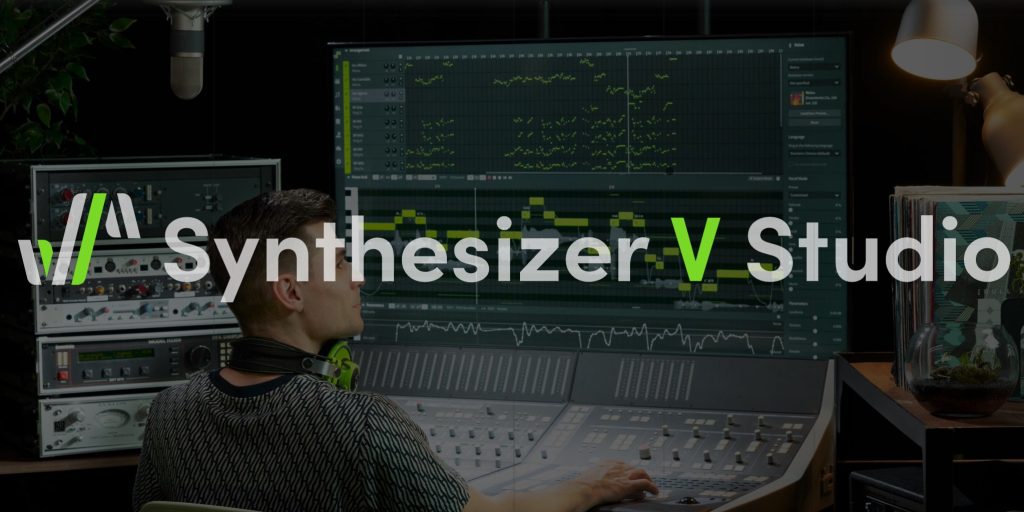
Singing voice synthesis software, often generally called Vocaloid or "Vocaloids."
Various products have now been released.
Among them, "Synthesizer V Studio" is getting attention because its AI singing adjustment is simply excellent, letting you easily create realistic, highly expressive vocal tracks.
Here, we explain how to use Synthesizer V Studio, including a track we actually produced.
How to Use the Latest AI Vocal Software [Synthesizer V Studio]: Video Explanation
Excerpts of Questions and Answers on the YouTube Video

This is my first time seeing this. I'm very interested. I went to the link but couldn't find the trial version. Where is it?

You can try it from here. https://dreamtonics.com/ja/download-free-trials/
It says Gender is an age nuance, but isn't it a gender nuance?
The word "gender" does indeed mean "sex," but it does not switch between male and female voices, and in terms of tone we felt it was closer to an age-related nuance, so we explained it that way.
Synthesizer V Studio 2 Pro Binge-Watch Video: Complete Guide
Song Demo Using Synthesizer V Studio
First, so that you can feel what the product can do, we produced a demo song.
For the voice databases, we used three male voice database products (Yuma / AI Ryo / Kevin).
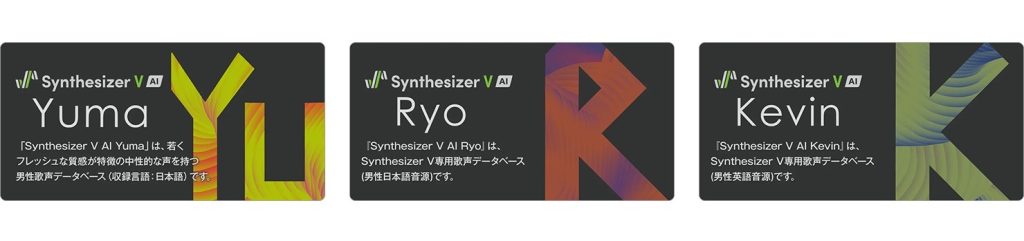
Mixing effects were applied to the sound, but the singing nuances are used exactly as generated by the AI.
The product's biggest feature is that you can easily and quickly create very realistic vocal tracks in which you can even feel the breathing.
About the Differences Between Editions
Synthesizer V Studio is used by combining the main software, where you enter and edit, with a [voice database] for each voice.
There are editions with different features and prices, and voice databases also differ in whether they support AI features.
Main (Editor) Software Lineup
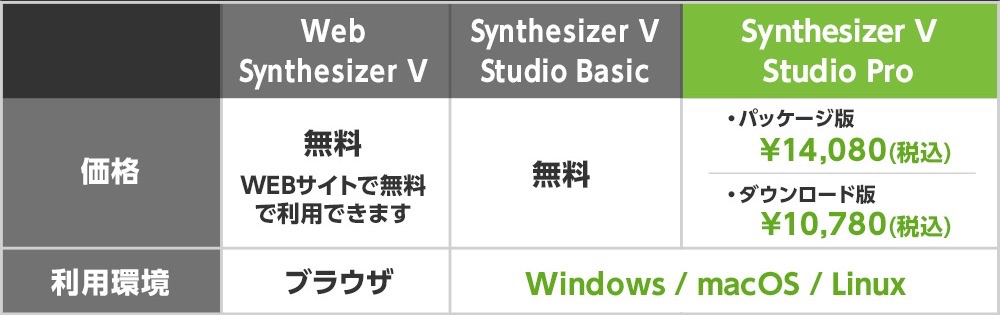
The main software comes in
- 1A web version that runs in the browser (free)
- 2Studio Basic, which can be used for free (free)
- 3Studio Pro, with more features (from 10,780 yen)
these three versions, and only Studio Pro is paid, sold from 10,780 yen.
Voice Database Lineup
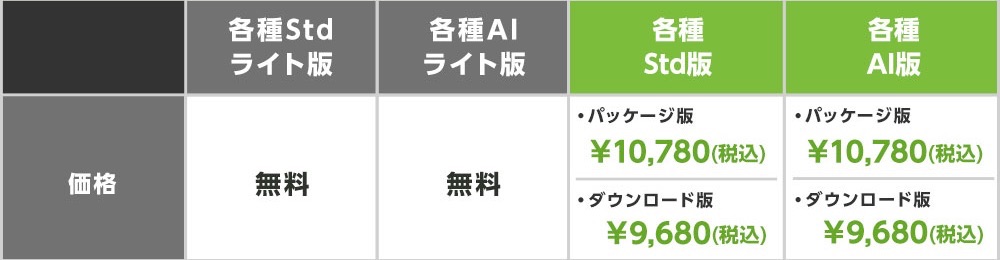
Voice databases also come in several lineups:
- 1AI versions that support AI (from 9,680 yen)
- 2Standard versions that do not support AI (from 9,680 yen)
- 3AI Lite versions with limited features (free)
- 4Standard Lite versions with limited features (free)
There are these four types.
By using the free versions of both the main software and the voice database, you can start for 0 yen.
About the Feature Differences
Synthesizer V Studio can be used for free, but there are feature differences between editions, so before buying you need to choose the product that matches how you will use it.
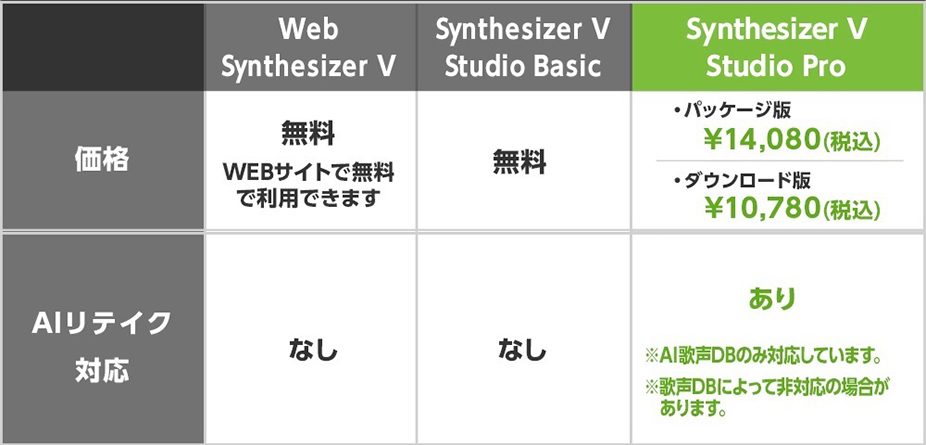
The notable difference in the main software is that the AI Retakes feature is supported only in Studio Pro.
This feature randomly changes how the voice sings; it is a groundbreaking feature that changes to a new singing nuance each time you click.
No specialist knowledge is needed either.
Voice databases also have an AI Retakes feature, and it too is included only in the paid versions.
If you want to use a wider range of features, we recommend combining [Studio Pro] with an [AI version] voice database.
For other detailed feature differences, please see the table below.
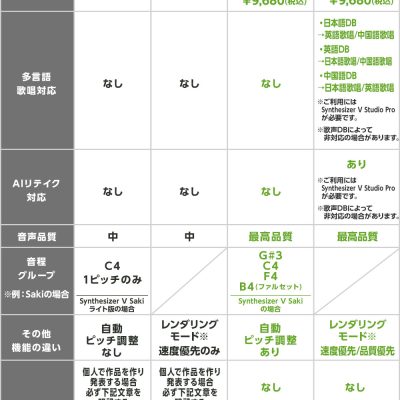
Basic Usage
How do you actually create a vocal track?
We explain step by step.
How to Enter a Melody
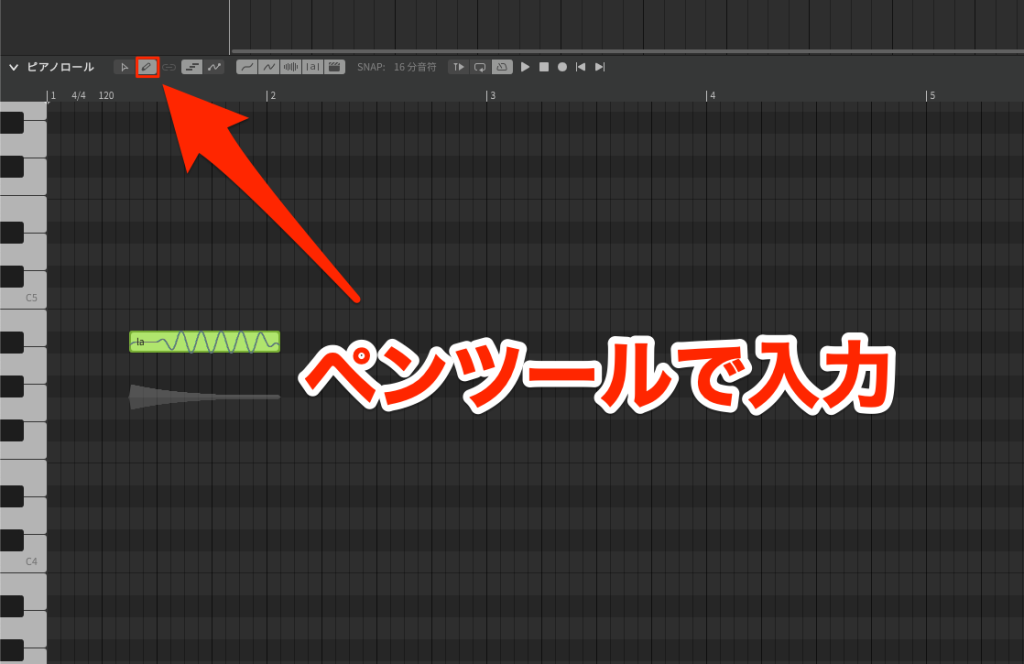
As in a DAW, you can enter notes on the piano roll with the Pen tool.
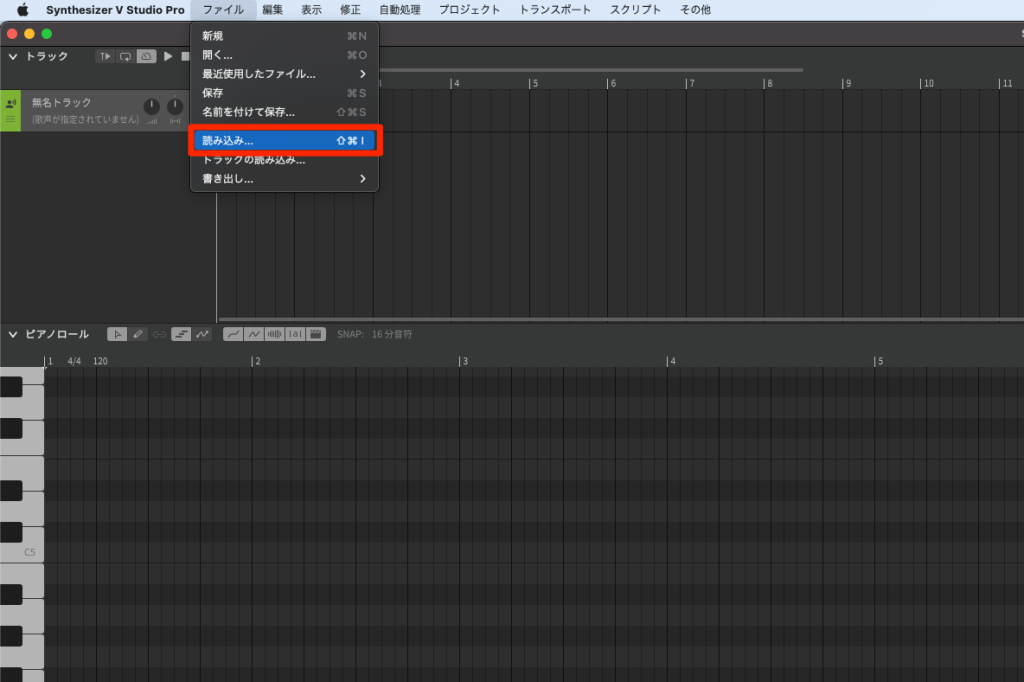
Or you can import a MIDI file from [File ▶︎ Import] in the top menu.
About Tempo Settings
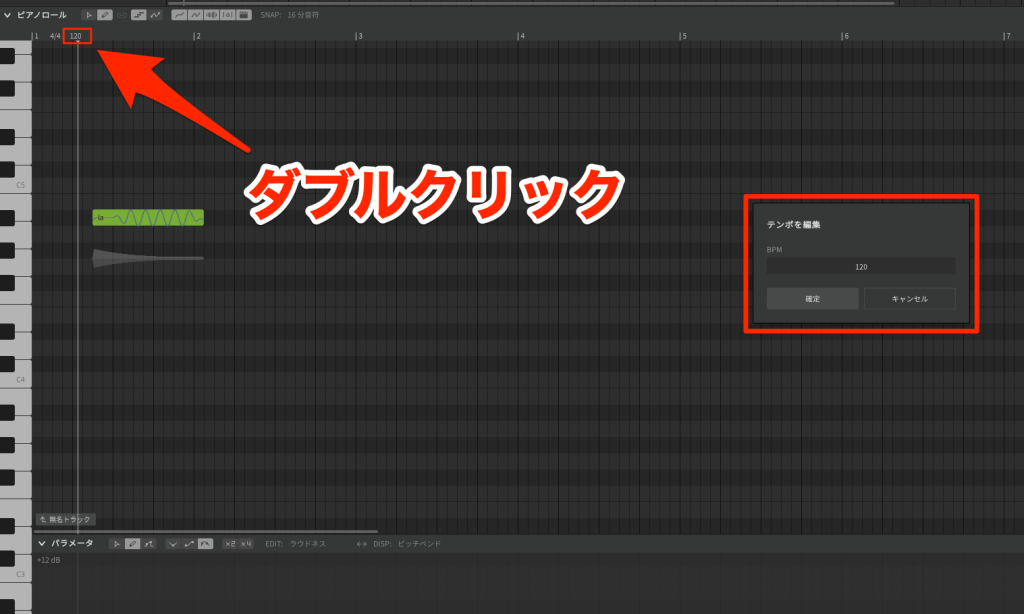
When using it standalone, edit the BPM at the start of the timeline.
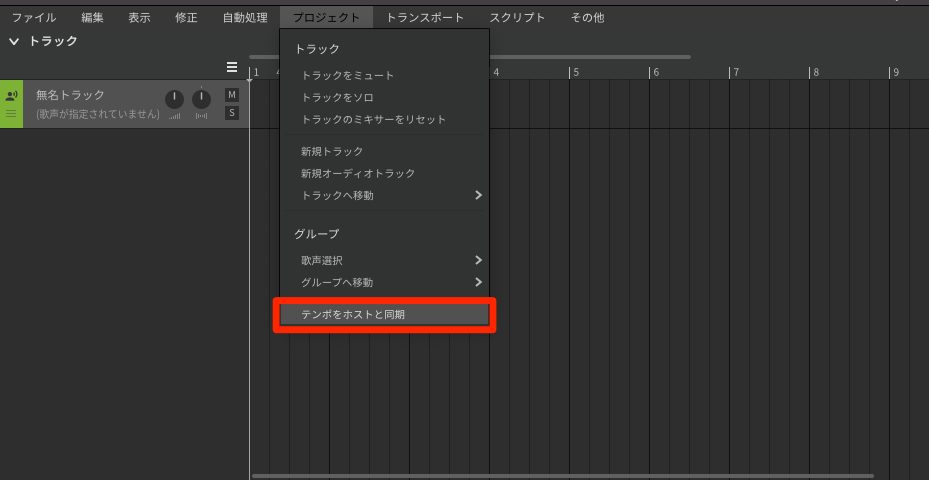
When using it as a plug-in, choosing [Project ▶︎ Sync with Host] automatically syncs the BPM with the DAW.
Entering Lyrics
Double-clicking an entered note switches it to text entry.
For Japanese, use hiragana or katakana; AI voice databases can also use English, in which case you type in the alphabet.
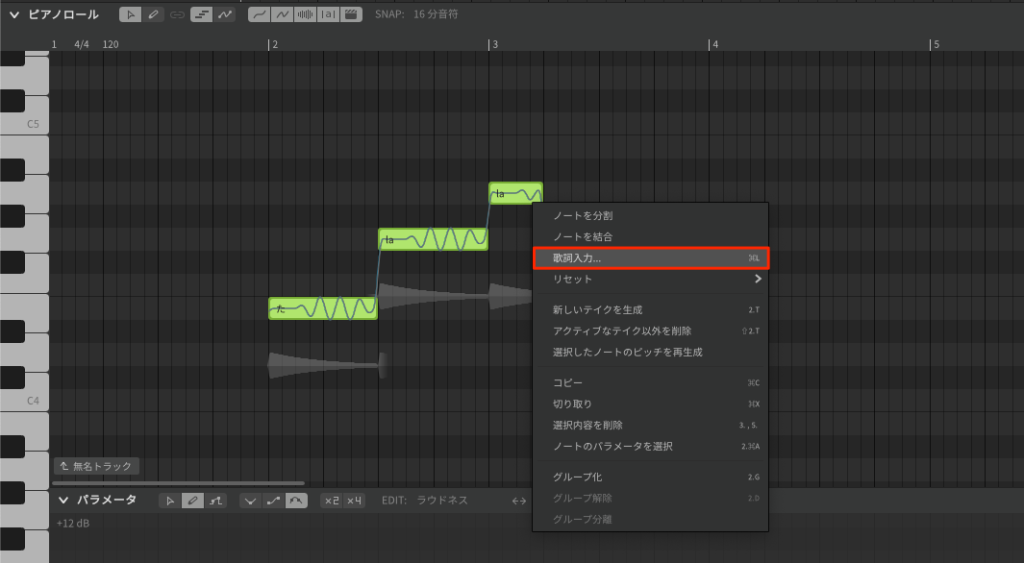
Select multiple notes and open the right-click menu.
Choosing [Insert Lyrics] from it lets you pour lyrics into the selected notes all at once.
Regardless of language, you can also put multiple characters on one note.
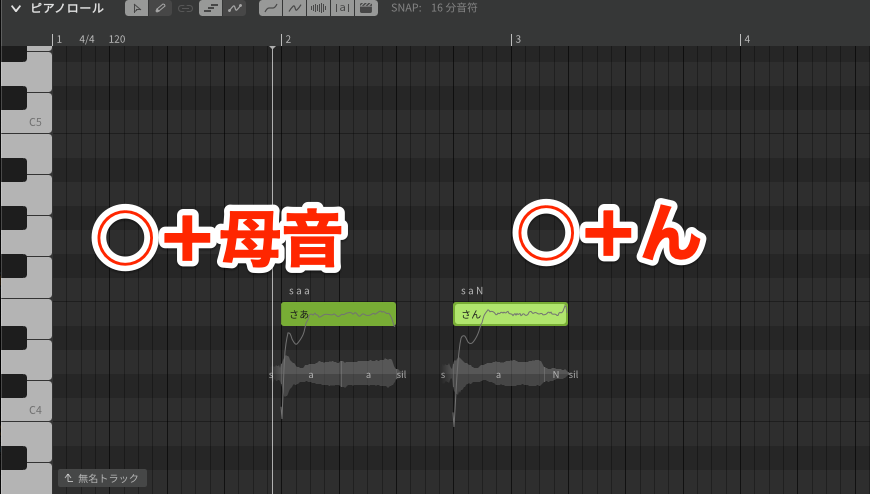
In Japanese, you can expect smooth pronunciation even for words followed by a vowel, such as "consonant + vowel," or followed by "n."
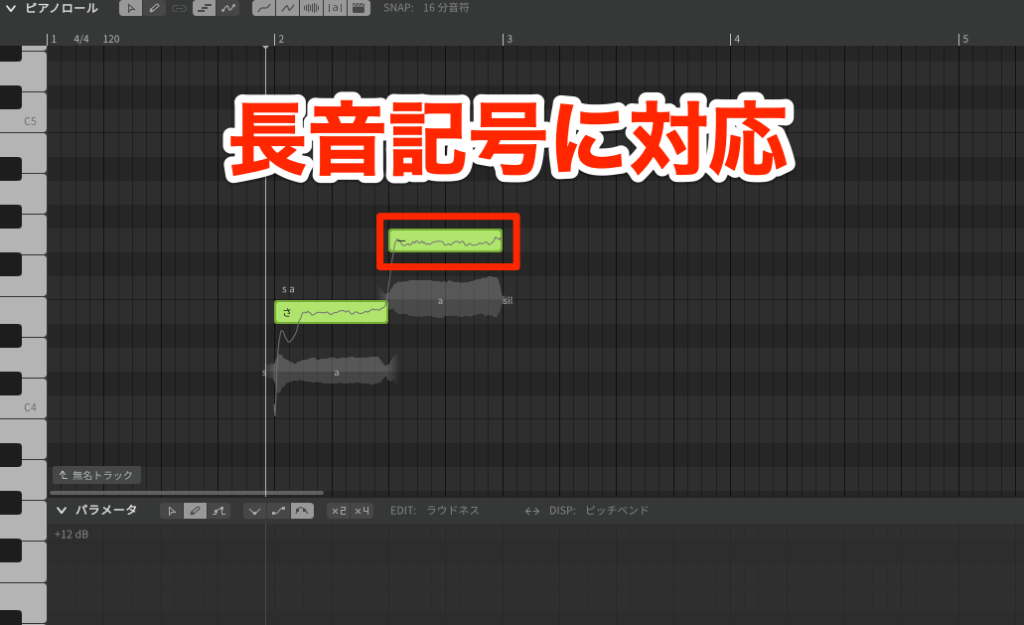
Also, entering a hyphen [-] extends the lyric of the previous note.
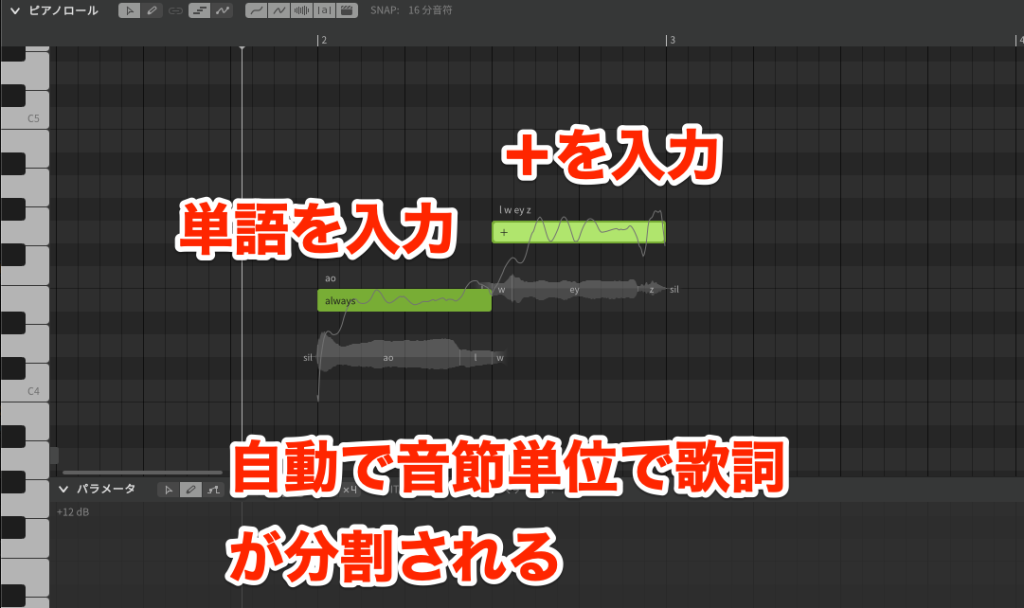
When entering English, type the whole word on one note and enter [+] on the following notes that carry that word.
The lyrics are automatically split by syllable.
Even those who are not familiar with English pronunciation can easily handle English lyrics.
Choosing the Language
AI voice databases offer three languages, Japanese, English and Chinese, and you can specify the main language for each track.
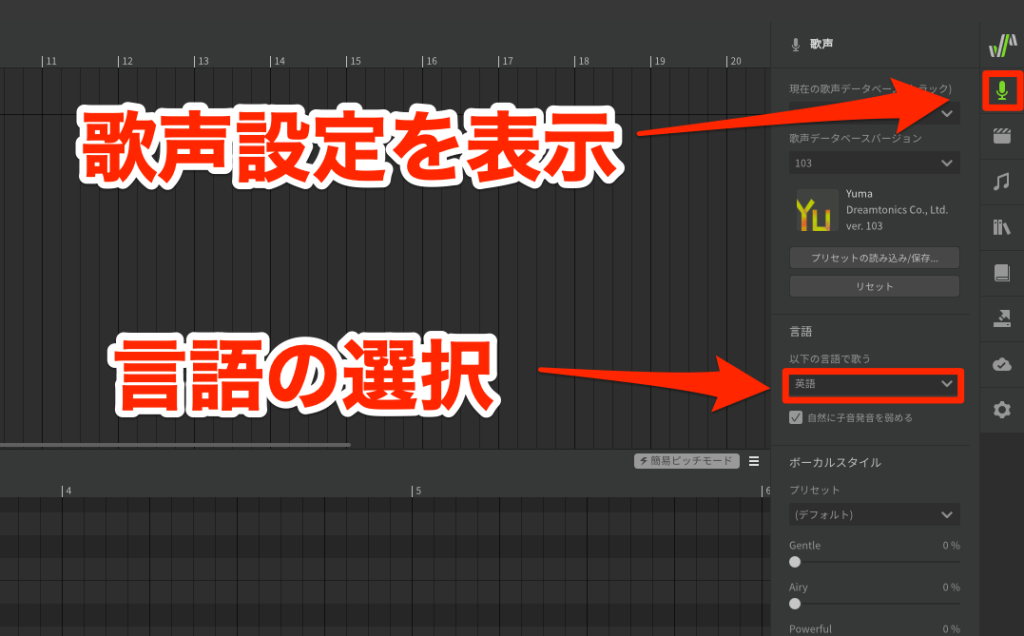
Show [Voice] from the microphone icon at the right edge of the screen and choose any option under Language.
Besides the whole track, you can also set a different language for specific notes only.
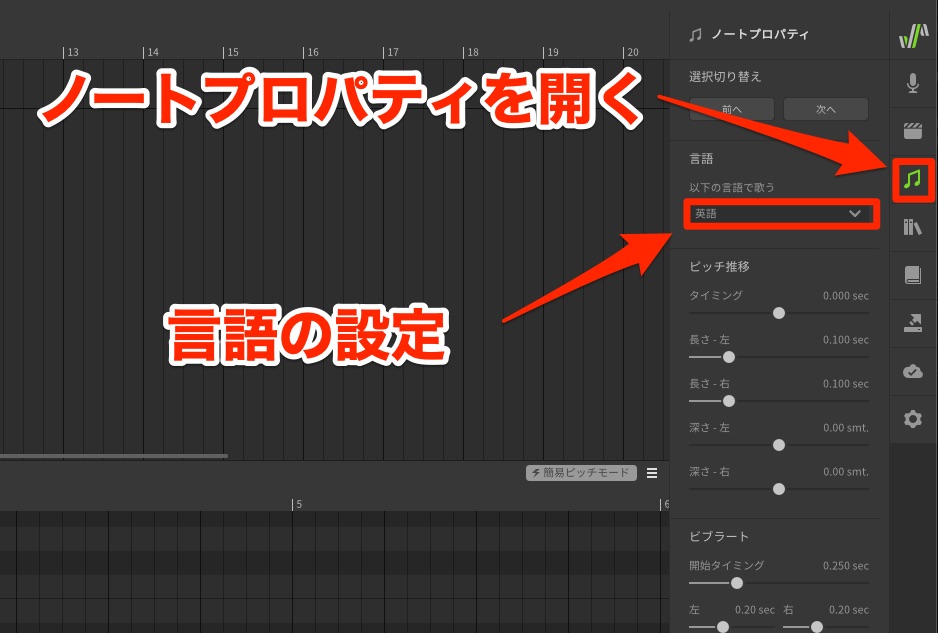
In that case, select the target notes and then show [Note Properties] from the note icon at the right edge.
Then choose any option under Language.
Choosing and Setting Up the Voice
Choose the voice database from below where the track name is shown.
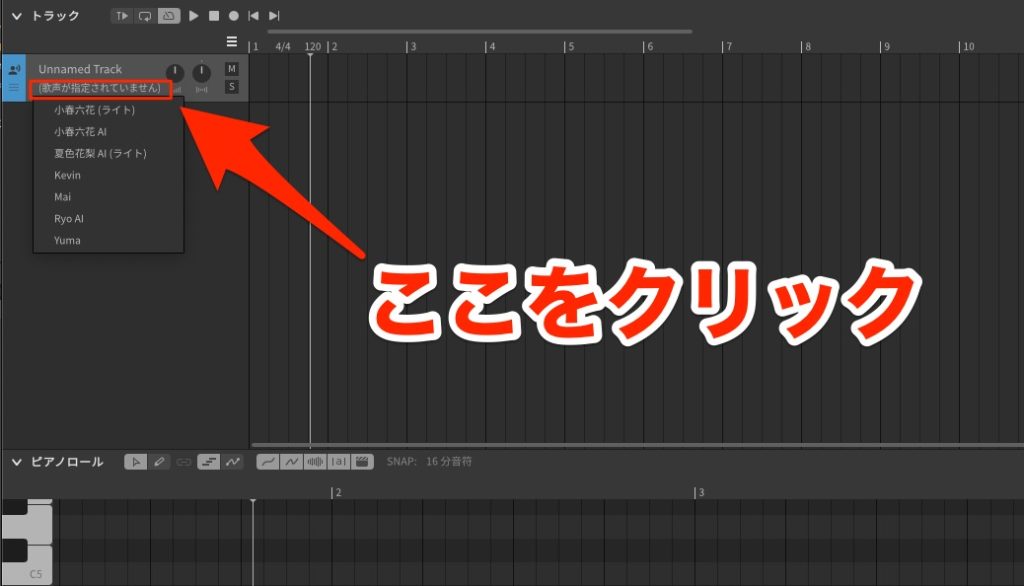
Click the part that says "No voice selected" to show the list of databases you own.
You can also choose the database from the top of the [Voice] settings mentioned earlier.
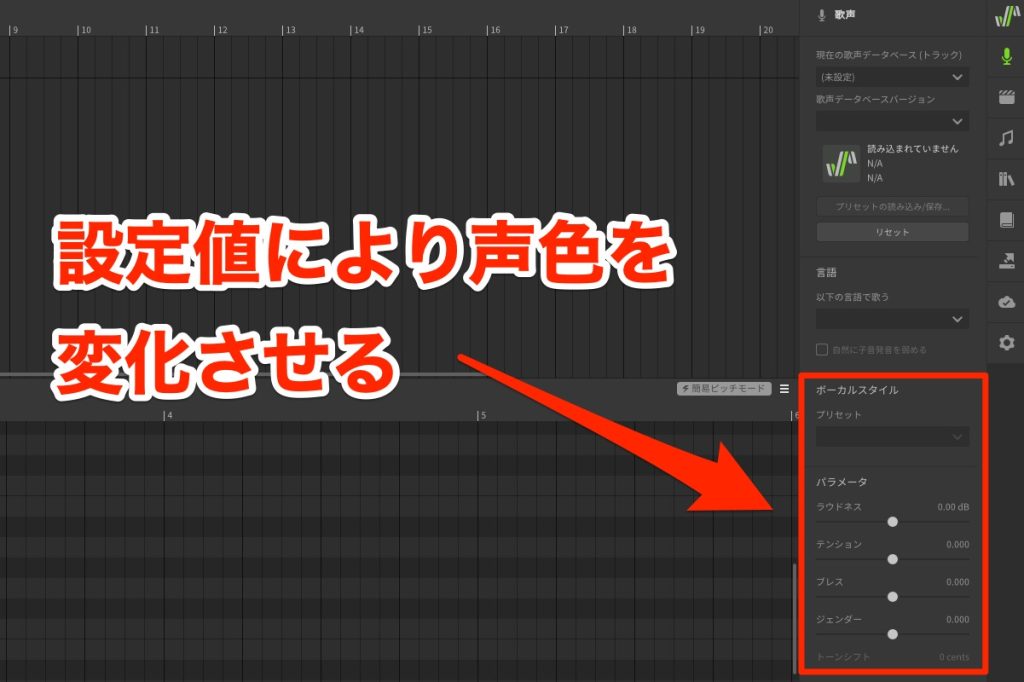
The vocal styles included in a voice show different items for each voice database, letting you change the character of the voice.
You change the voice color by loading presets with multiple settings or by changing the slider values.
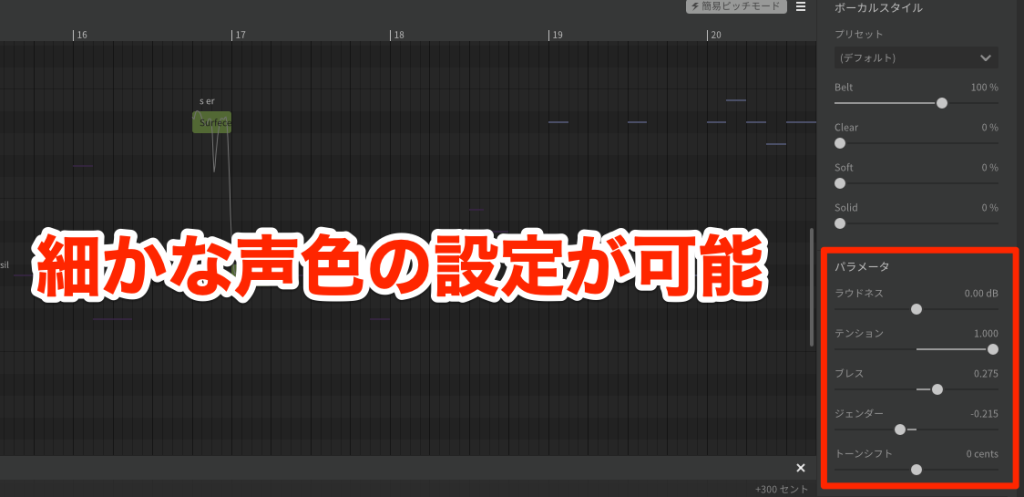
The parameters below are as follows:
- [Loudness]: volume setting
- [Tension]: setting for how tense the voice is
- [Breathiness]: adjusts how much breath is mixed in
- [Gender]: changes the formants that determine age- and gender-like nuances
- [Tone Shift]: changes the range between falsetto and chest voice
These can be adjusted for all voice databases.
Even with only the basic features introduced so far, you can create a realistic vocal track like this.
The singing nuances created by AI voice tuning and the character of voice color changes through vocal styles differ for each voice database.
If you want to easily get vocal tracks to your liking, carefully check and understand the products you like in terms of both voice and singing nuance before buying.
About Editing
Next, we explain convenient editing features that improve work efficiency.
Duplicating Tracks and Notes
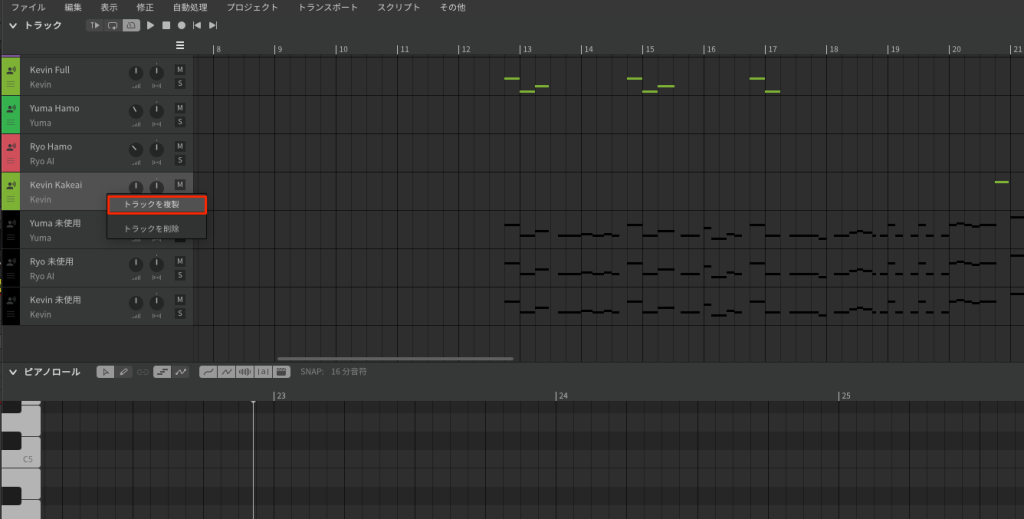
Open the right-click menu on the track name and choose [Duplicate Track].
To duplicate notes, select the notes and
- Windows: Control+C
- Mac: Command+C
copy them with this shortcut.
To paste, move the mouse cursor to where you want to paste and choose [Paste] from the right-click menu, and they are pasted at the specified point.
About the Group Feature
Synthesizer V Studio has no concept of regions (events or clips).
To copy or move blocks of notes such as a verse or pre-chorus, you need to use the [Group] feature.
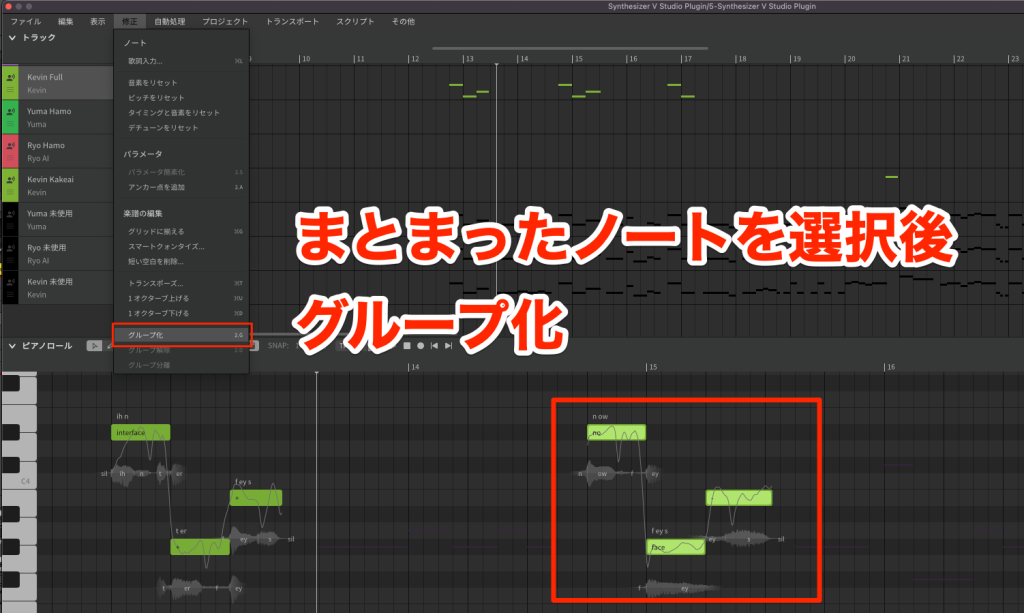
After selecting notes, choose [Modify] ▶︎ [Group] from the top menu to group them.
Besides the menu, you can also choose it from the right-click menu on the piano roll.
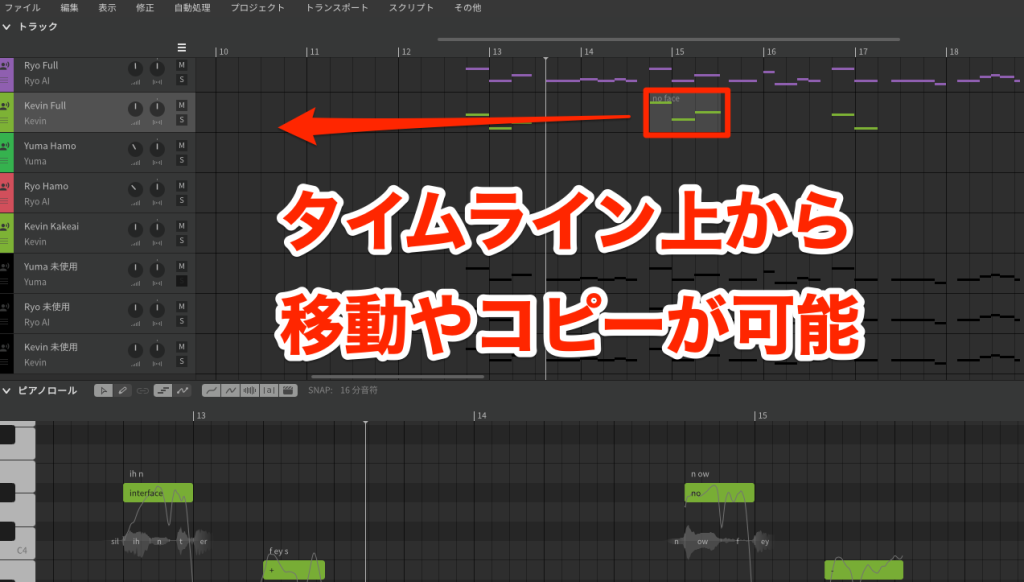
Creating a group lets you move or duplicate multiple notes at once from the timeline.
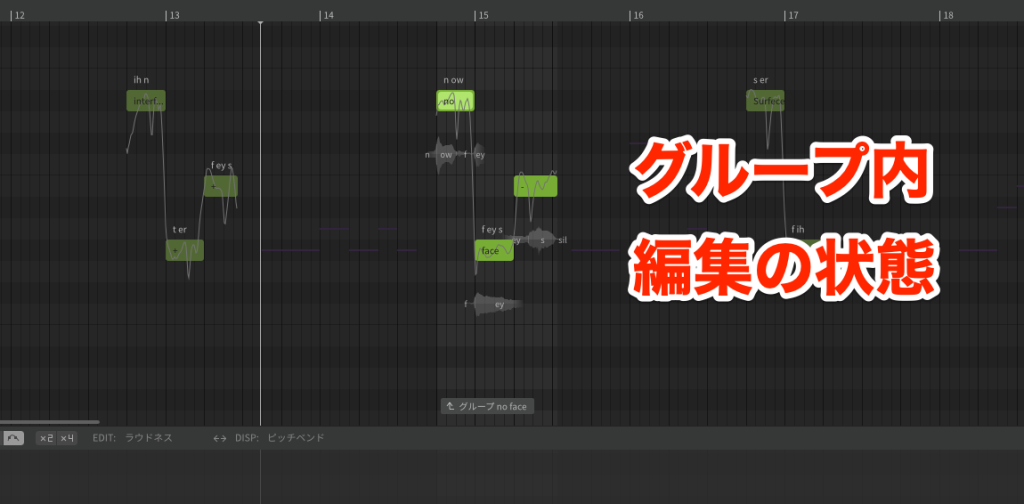
To edit individual notes in a group, double-click the target note to switch to in-group editing and work there.
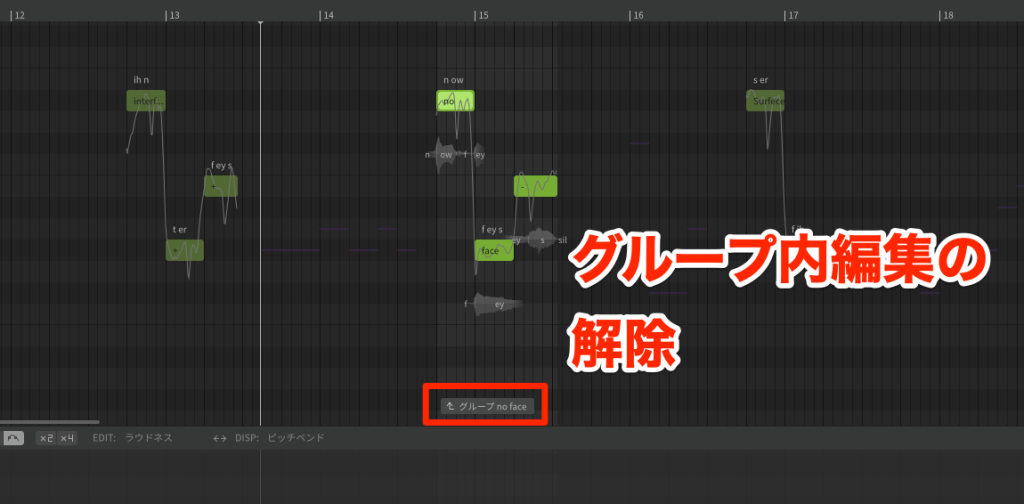
To exit in-group editing, click the button at the bottom labeled [↑ Group "..."].
About AI Retakes
Next, we look at one of the product's features, [AI Retakes].
It is a groundbreaking feature that changes the singing nuance at the press of a button.
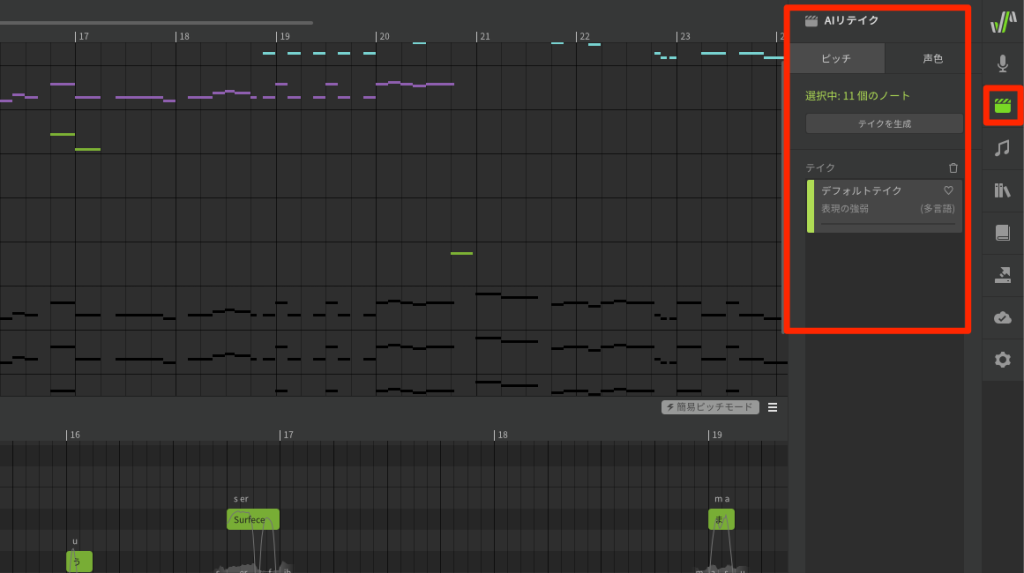
It is very easy to use: click the clapperboard icon on the right of the screen to show AI Retakes.
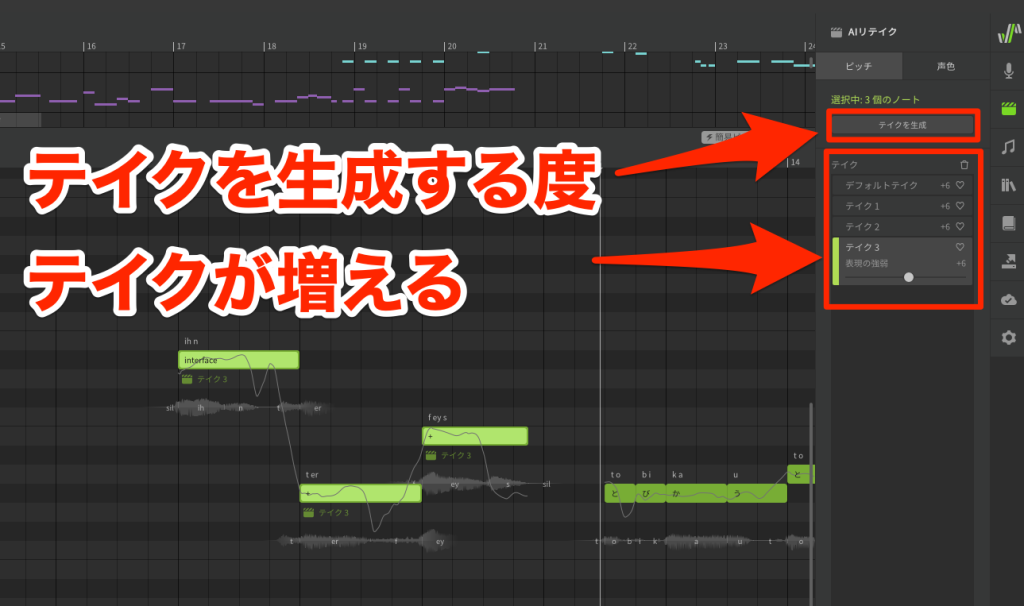
Next, select the notes and press the [Generate Takes] button, and new takes are generated and the singing nuance changes.
Created takes accumulate rather than being replaced, so you can choose a different take later.
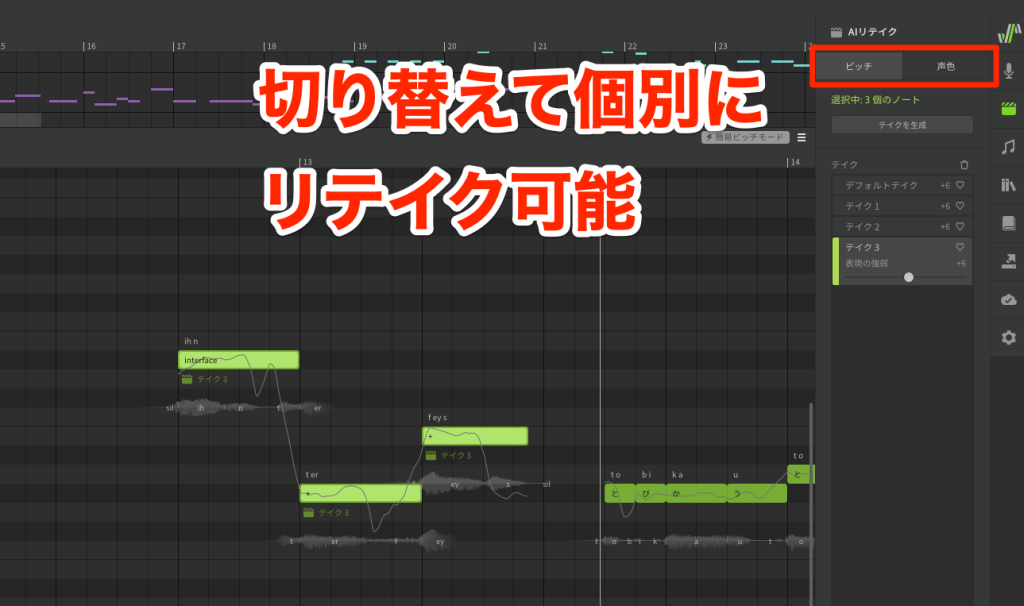
Retakes can target two things, [Pitch] and [Timbre], and each can be created separately.
Also, the [Expressiveness] slider shown on a take lets you change the nuance afterward.
Setting Staccato Expression
AI Retakes can generate various nuances, but when you want staccato singing, you need to tune it manually.
Adding an apostrophe ['] at the start of the target note's lyric changes it to a crisp pronunciation.
A long time has passed since singing synthesis software first went on sale.
With the arrival of Synthesizer V Studio, I feel it has made a dramatic leap in creating human-like singing.
I feel the day is near when commercial use, including guide vocals, becomes commonplace as a substitute for live vocalists, which was previously difficult with singing synthesis.
If you are interested in the product, please check it out.
The answer for guide vocals!? How to use the new-generation AI singing synthesis software [Synthesizer V]
Its AI singing adjustment is simply excellent, letting you easily create highly expressive vocal tracks. We explain it including a track we actually produced.
Video: https://t.co/hkvn4nKI9WArticle: https://t.co/q1MFU6vNVh#DTM pic.twitter.com/VmiE2JGZ5g
— SLEEP FREAKS (@SLEEPFREAKS_DTM) March 24, 2023
Frequently Asked Questions
Q1. Can you really start Synthesizer V Studio for free?
Yes. By combining the Studio Basic main software with a free voice database (Standard Lite or AI Lite), you can use it for 0 yen. However, features are limited, so the Pro version is recommended for serious production.
Q2. What is the AI Retakes feature?
It is a feature in Studio Pro and paid voice databases that randomly changes the singing nuance each time you click. You can easily change how it sings and choose the best expression.
Q3. Which languages are supported?
AI voice databases support three languages, Japanese, English and Chinese, and you can switch the language for the whole track or for specific notes.
Q4. How is Synthesizer V Studio different from Vocaloid?
Synthesizer V Studio has excellent AI singing adjustment, letting you easily create realistic, highly expressive vocal tracks. Breathing and similar details are reproduced naturally, giving it a more human-like singing voice.
Q5. Can it work with a DAW?
When used as a plug-in, choosing [Project ▶︎ Sync with Host] automatically syncs the BPM with the DAW. It can also be used standalone.
NEW ARTICLES
Latest English Articles











