ADSR "Sample Manager" is a free sample management plug-in that runs in your DAW. This article thoroughly explains how to use it in practice, from adding samples to searching, playback settings and MIDI integration. By making use of its many features, such as automatic tagging, multiple search methods, BPM adjustment and flexible playback via MIDI mode, you can manage samples efficiently and produce music creatively. You can also drag and drop samples into your DAW, making it a tool that can greatly improve your DTM workflow.
How to use ADSR "Sample Manager"

This time, we'll introduce how to use "Sample Manager," a powerful free sample management plug-in.
How to download and install the product is covered in this article.

How to add samples

When you launch the plug-in in your DAW, a screen like this appears.
First, let's add some samples.

To add samples to "Sample Manager," click the display icon at the bottom left.

When you click it, a screen like this appears.
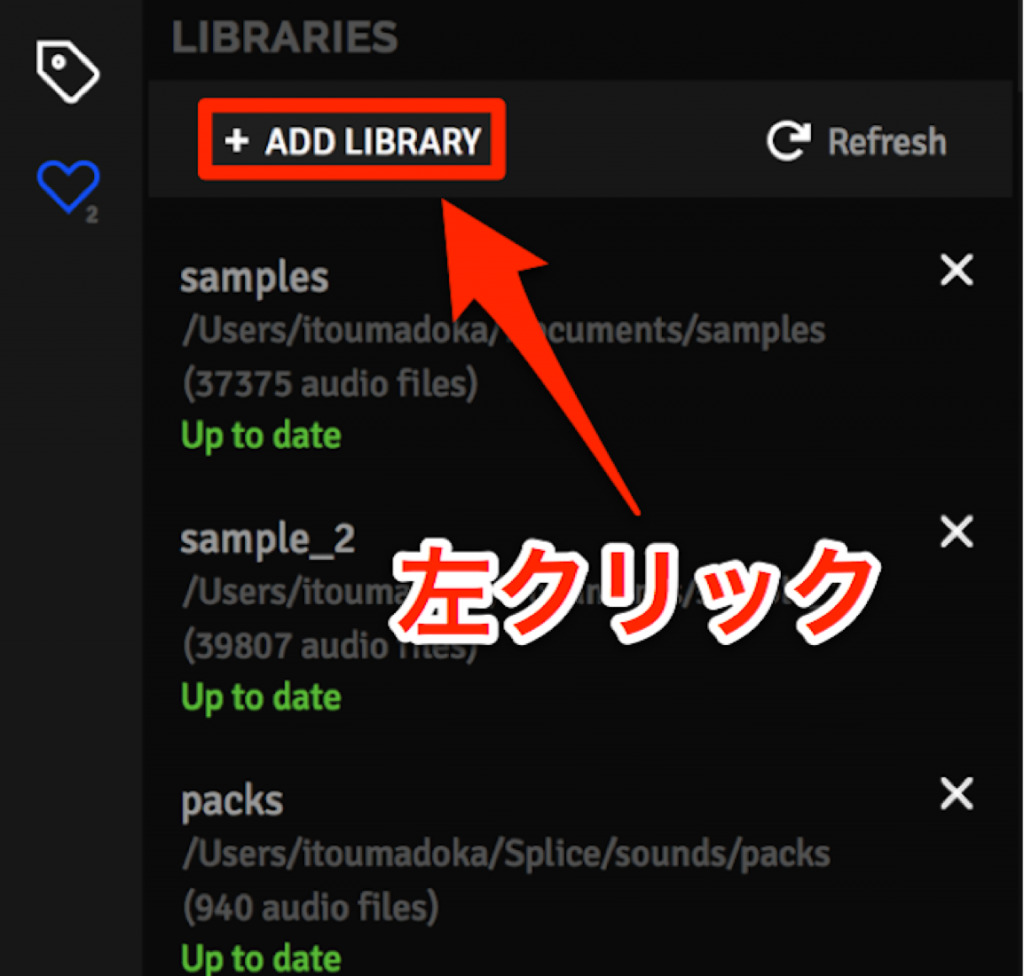
To add samples, click "+ ADD LIBRARY" at the top left.

When you click it, you'll be asked where on your computer to load samples from, so select the folder containing the samples you want to add and then click "Open" at the bottom right.
✴︎ Please note that samples currently can't be added by drag and drop.

Once they've been added successfully, the number of files and the tags added are displayed.
Now you're ready to use Sample Manager.
How to search the samples you've added

Now click the pencil-like icon at the top left.
Tags are shown on the left, and the samples matching your search are shown on the right.
There are four ways to search for samples:
(1) Select the mood or part you want right now from the tags on the left
(2) Type any words into "What sounds are you looking for?" at the top to search for samples
(3) Click "RANDOM" at the top right and leave it to Sample Manager
(4) Click the heart at the top left to search the samples you've marked as favorites
To add a sample to your favorites, just click the heart to the left of a sample you like.
It can be fun to change the search method depending on your mood at the time.
It might also be fun to make a song using only sounds chosen by "RANDOM"!
Sample settings and playback

Let's look at the samples in the search results.
How to read them is shown in the image.

The icon shown in the Type column has two variants: "one-shot" and "loop."
This icon is set automatically when you add samples.
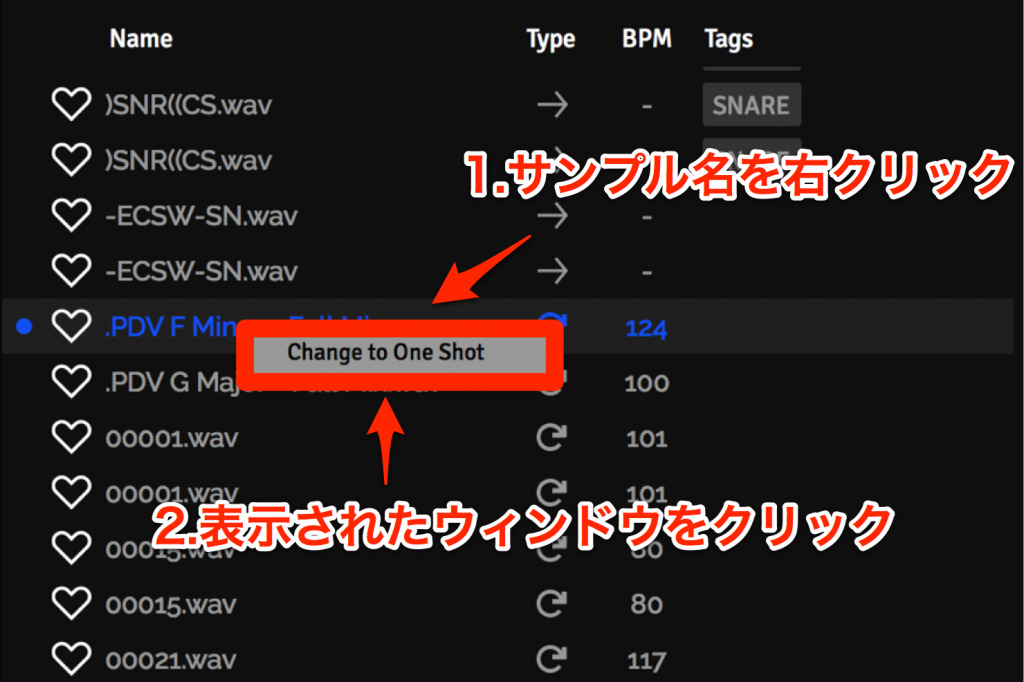
If you want to change it, you can do so by right-clicking the icon.
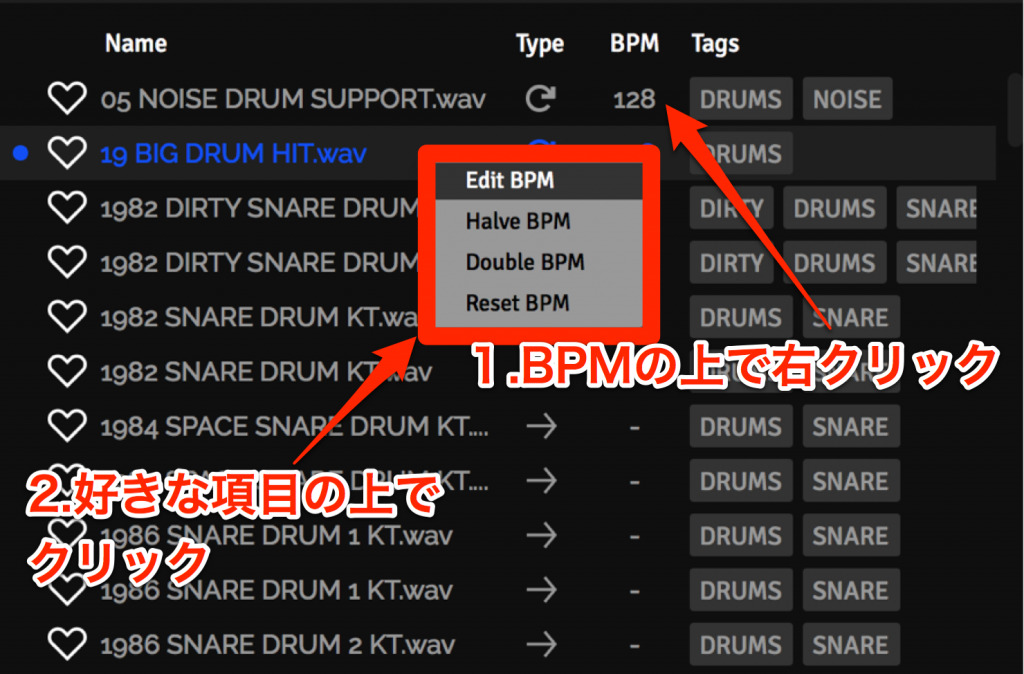
Also, right-clicking on the BPM lets you make the following settings:
- Edit BPM: set any BPM you like.
- Halve BPM: set the BPM to half the current BPM.
- Double BPM: set the BPM to twice the current BPM.
- Reset BPM: return to the BPM originally shown.
This is very handy when, for example, you want to play a synth sample at double speed within a song.
Now you needn't fear writing a song at any BPM!
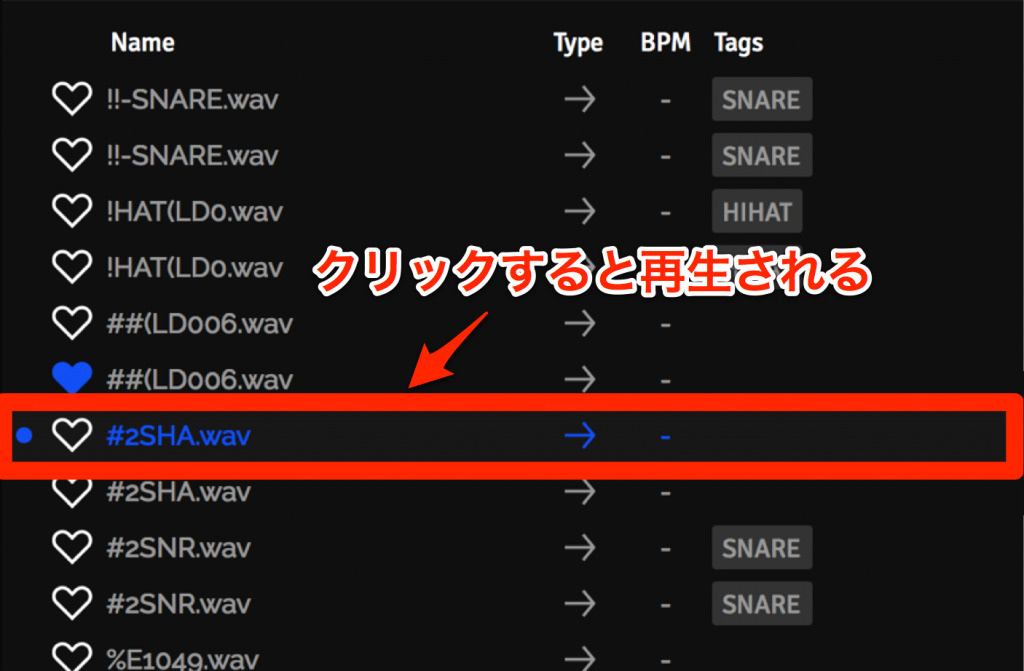
Also, clicking a sample you're interested in highlights it in blue and plays it.
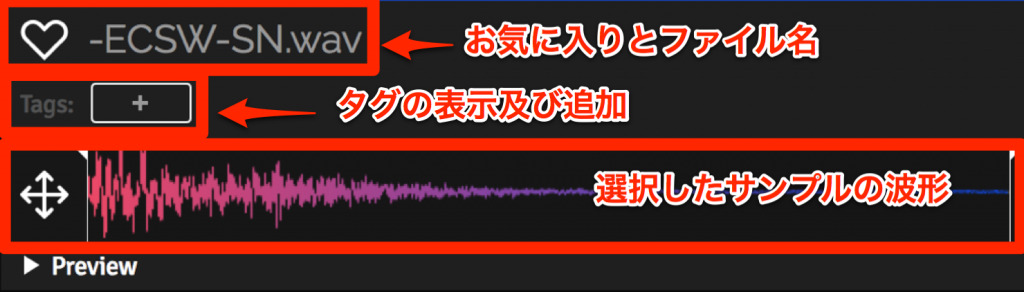
How to read the sample playback window shown at the bottom right is shown in the image.
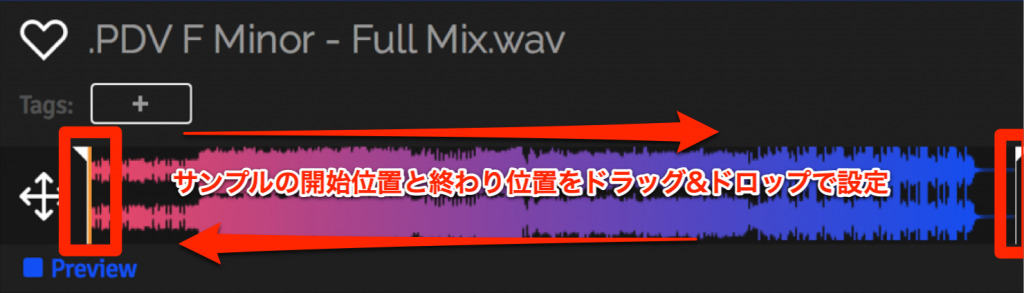
You can also set which part of the selected sample you want to play.

Also, if you set the playback range and then drag and drop the sample into your DAW, that setting is carried over as is.
This is very convenient!
Playing samples with MIDI
Sample Manager can also be played with a MIDI keyboard or sequencer.
In this case the samples are pitched, so you can easily make phrases such as the vocal chops popular these days.

What comes in handy then is "MIDI mode" at the bottom right.
It lets you set how samples play back when used with MIDI.
There are three playback methods:
- Full: plays the entire sample when a MIDI signal is received.
- Stop: plays the sample only while a MIDI signal is being received.
- Loop: plays the sample repeatedly while a MIDI signal is being received.
You can use them differently depending on the sample, for example playing pad samples with Full and drum samples with Loop.

The setting that decides the character of the sample is to the right of MIDI mode.
There are three Types in all:
- Normal: plays the sample.
- Drums: makes the attack and release of drum samples more defined.
- Smooth: plays the sample with a softer sound.
For example, you can use Smooth for samples such as drones and the Drums type for drum loops.
If you master [Type] and [MIDI mode], you can even create unexpected sounds!

Also, the MIDI connector icon at the bottom left lets you check whether Sample Manager is receiving MIDI signals.
When it's receiving, the circle at the top right of the icon lights up green.
Other settings

Next, let's introduce Settings at the bottom left.
Clicking it displays a screen like this.
Here's what's shown there:
In GENERAL
- Auto play samples: when checked, samples play automatically when you select them.
- Show Tooltips: when checked, a description appears when you hover the cursor over each icon or sample.
- Send anonymous usage data: when checked, usage data is sent to ADSR, the developer of this plug-in.
- RESET EVERYTHING: deletes all samples, tags and settings.
In UPDATES
- Automatically check for updates: when checked, a bell icon appears on the left when a Sample Manager update is released.
- CHECK NOW: lets you check whether a Sample Manager update has been released.

In HELP&SUPPORT
- Watch Tutorial Videos Online: takes you to the tutorial videos published by ADSR.
- About this plugin: lets you view the current version of Sample Manager and the credits.
- Contact ADSR Support: lets you ask ADSR questions or report problems about Sample Manager.
- Version 1.0.○ ~ AU/VST: shows the version currently in use and the plug-in format being used.
What did you think?
It's hard to believe this is a free sample management plug-in.
Let's use this plug-in to make the most of all kinds of samples!
Of all my plug-ins, this is the one I use the most, lol
Well then, I'll keep bringing you more great plug-in deals!
Stay tuned!
be-bee (Shun Ito)
Born in 1987. A Logic Pro X and Ableton Live user.
After returning from studying in the US, graduated from music school and made a debut as a composer.
Composes and arranges mainly EDM and pop, and also works as an engineer.
Twitter ID: @bebee330
Instagram ID: https://www.instagram.com/bu_e_bu/
YouTube channel: https://www.youtube.com/user/murmur330
Frequently asked questions
Q1. How do I add samples to Sample Manager?
Click the display icon at the bottom left, select "+ADD LIBRARY" and specify your sample folder. Adding by drag and drop is not currently supported. After you specify the folder, the number of files and tags are displayed automatically.
Q2. Are there ways to find samples other than searching by tag?
There are four search methods: selecting from tags, typing freely into "What sounds are you looking for?", automatic selection with the "RANDOM" button, or searching the samples you've added to your favorites. It's handy to switch between them to match your mood or production style.
Q3. What settings should I use when playing samples with a MIDI keyboard?
In MIDI mode you can choose the playback method from "Full," "Stop" and "Loop," and in Type you can choose the character from "Normal," "Drums" and "Smooth." By choosing according to the sample, such as Smooth for pads and Drums for drum loops, you can achieve a wide range of expression.
Q4. What if I need to change the BPM?
Right-click on the sample's BPM to set any value with "Edit BPM," halve it with "Halve BPM" or double it with "Double BPM." You can also return to the original value with "Reset BPM," so you can handle songs at any tempo.
Q5. Can I specify a playback range and insert it into my DAW?
Yes. If you set the playback range in the playback window and then drag and drop that sample into your DAW, the setting is carried over as is. It helps save time on detailed editing.
NEW ARTICLES
Latest English Articles