Native Instruments' Razor synthesizer shines when producing Future Bass bass tracks. Razor is an additive synthesizer that, by adding together multiple sine waves, allows sound design with freer, more complex harmonics than conventional synths. This article explains practical techniques for building a thick bass that supports the low end of Future Bass, from Razor's basic operation and preset management to setting up the voicing and oscillator sections. Even beginners can learn professional sound design step by step.
Programming and sound design for the Future Bass bass

Last time, we explained an overview of the Future Bass genre and how to create the drum track.
In this article, we'll program the bass and design its sound.
But first, a little about "Razor," which we'll use this time.
What is Razor?
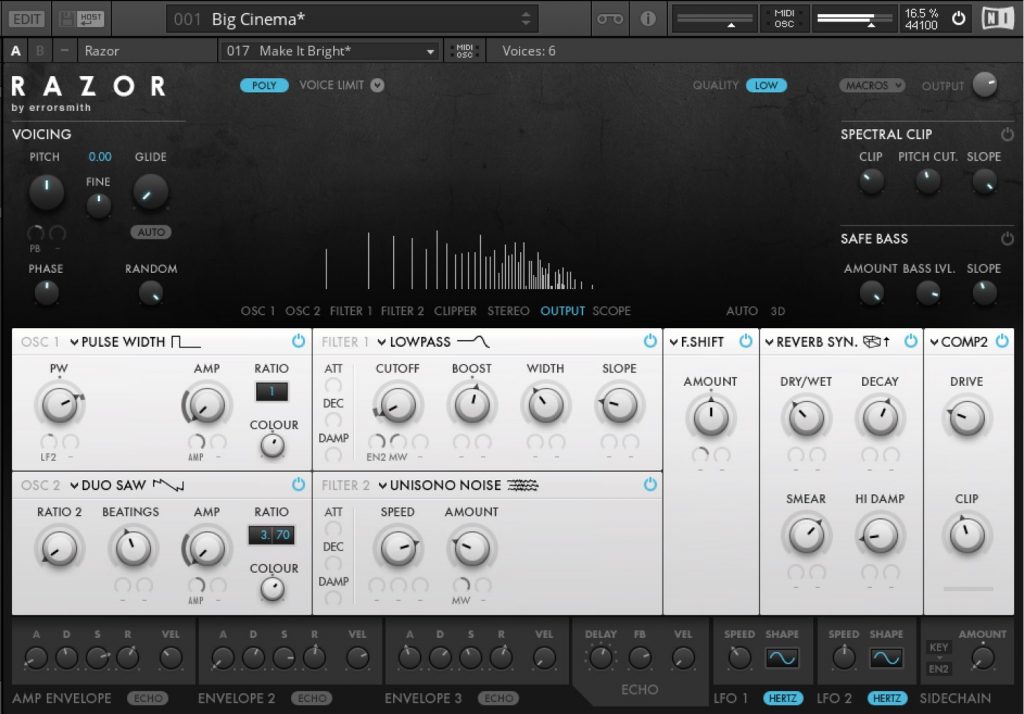
"Razor" is a synthesizer developed by Native Instruments.
As a type of synthesizer, it's what's called an "additive synthesizer".
"Additive" means "adding," and it creates sound by "adding together" multiple sine waves.
Conventional synthesizers generate rich harmonics with square or triangle waves and carve them with filters to create sounds, but this synthesizer uses a method of "adding up" harmonics with each parameter, allowing sound design with freer, more complex harmonics than conventional synthesizers.
Programming the bass and loading Razor
Now let's program the bass.
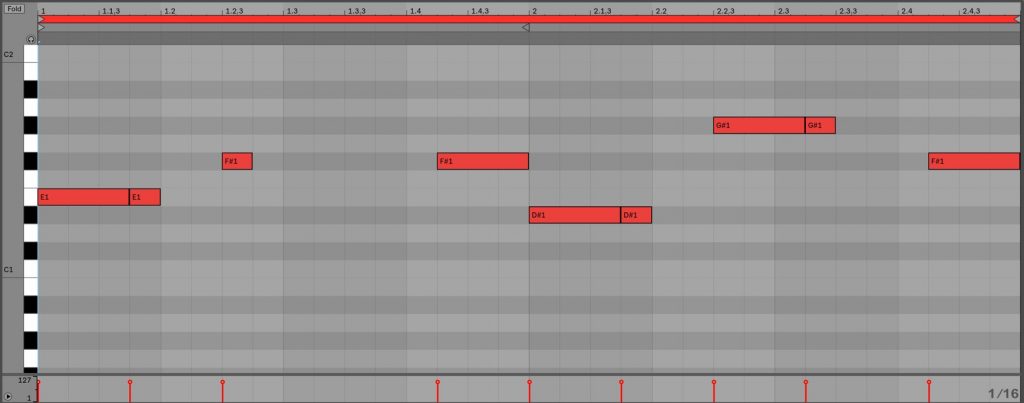
I programmed the "chorus" section explained in the previous article as shown in the figure above.
It repeats two bars twice, and the image shows two bars.
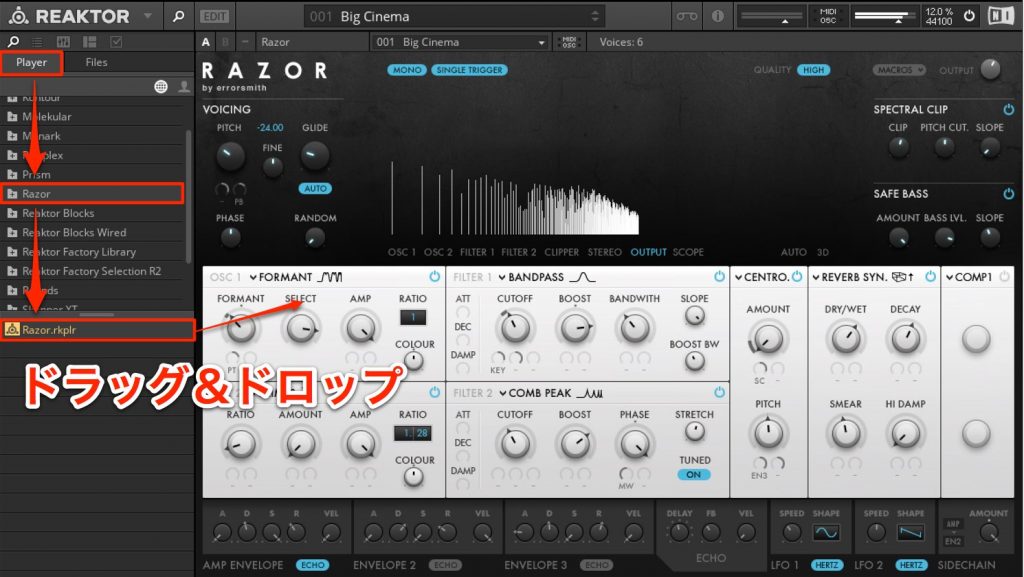
Next, let's load Razor. Launch REAKTOR, then double-click "Player" → "Razor" → "Razor.rkplr" at the top left, or drag and drop it into the right window.
That completes launching Razor.
How to select and change Razor presets
Razor comes with many preset sounds already set up.
To change the preset sound, follow these steps.
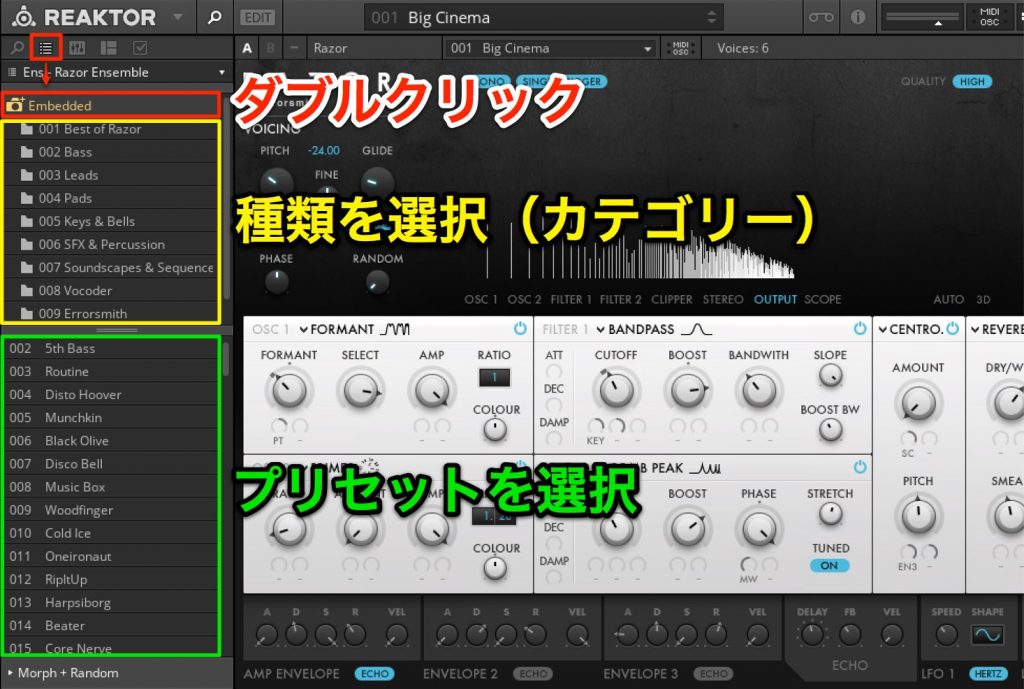
- 1_Select "Preset Browser" at the top left and double-click the camera icon "Embedded."
- 2_Choose the item you want from categories such as bass, lead and pad.
- 3_Selecting a displayed preset name loads the preset.
Among the preset categories is "002 Bass," the bass category, but here we'll explain an example of making a bass sound from the initial state (all parameters at their defaults).
Preparing a Razor user preset
Not just Razor: when creating sounds from scratch with instruments that run on REAKTOR, such as "Prism" and "Polyplex," the premise is to save a preset in advance.
If you accidentally select another preset, all the parameters you've set up to that point will be overwritten, so save frequently.
First, create preset data just for you.
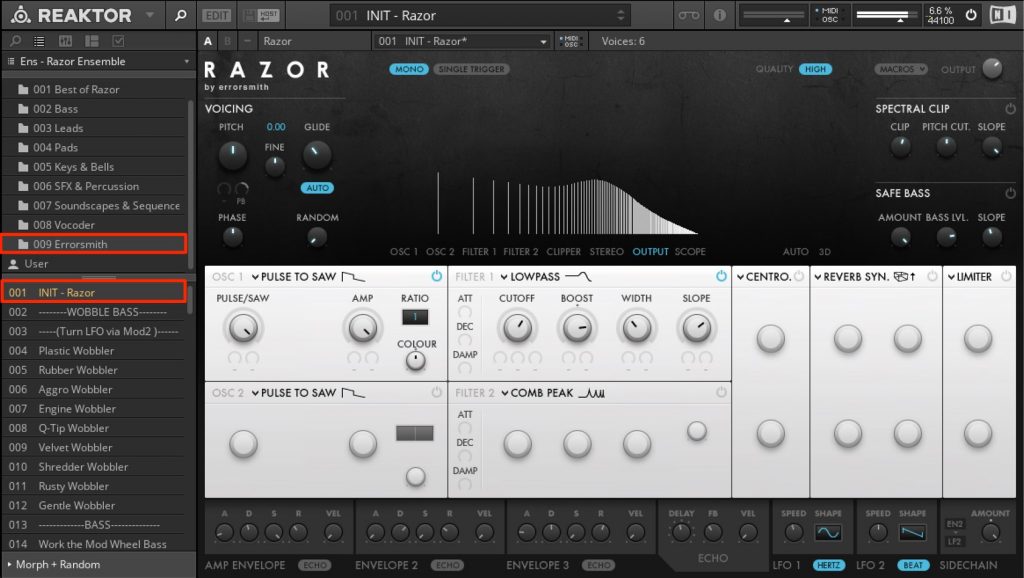
Razor comes with an initial preset.
In the upper part of the preset window, select "009 Errorsmith," then select "INIT – Razor" shown in the lower part.
*Note: As an aside, "Errorsmith" is the name of Razor's developer, who is still active at the forefront of the club scene today. You might find the music useful as a reference for your own track-making.
Now, first, let's create the preset to save and a folder to store it in.
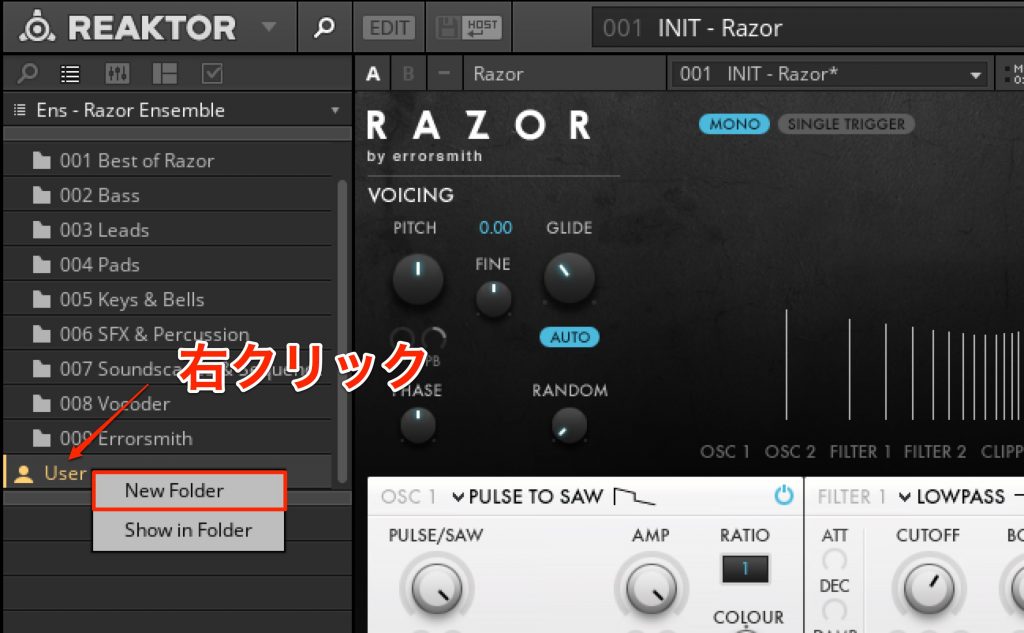
Right-click "User" and select "New Folder."
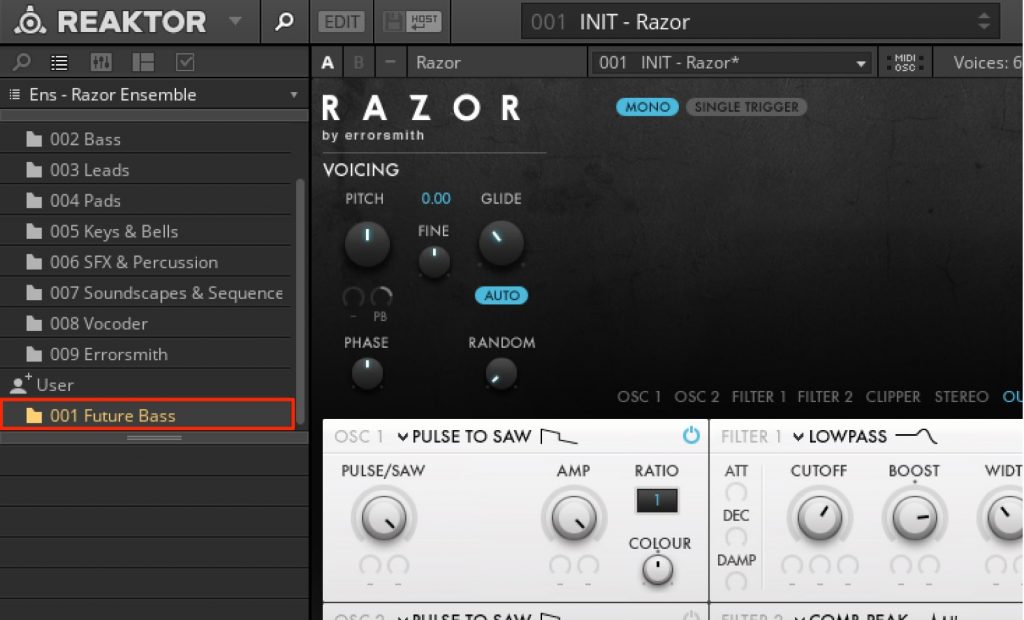
You'll be asked for a folder name, so enter any name.
Here I used "001 Future Bass."
Next, create the preset.
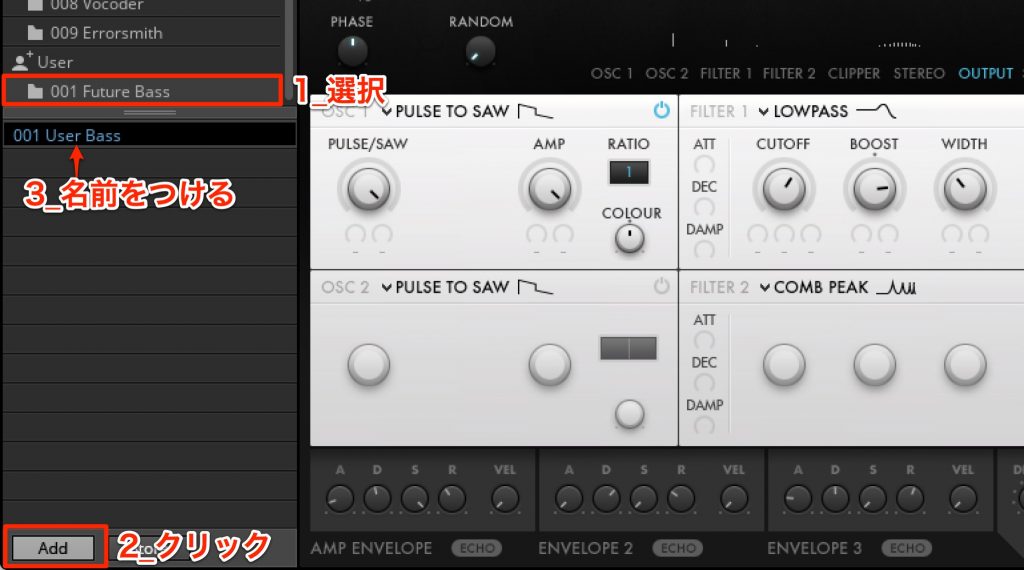
After selecting the "001 Future Bass" folder, click "Add" at the bottom left of the window.
You'll be asked for a preset name, so enter any name.
Here I used "001 User Bass."
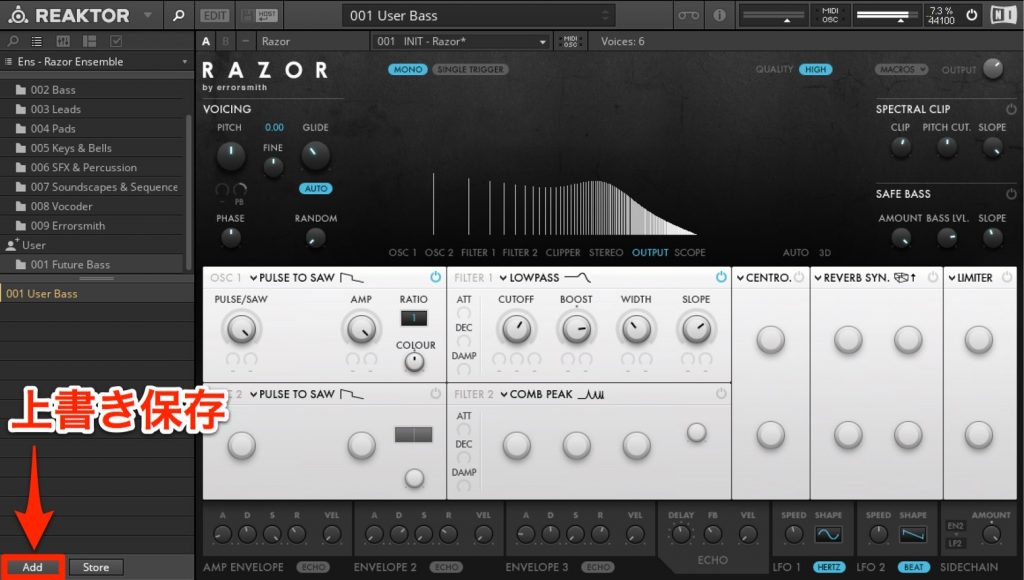
That completes preparing your own preset.
You can overwrite the preset with the "Store" button at the bottom left of the screen.
About bass sound design
Now let's set the parameters.
As in Future Bass characteristic 4 in the previous article, the upper parts have a flashy image, so we'll make a bass whose low end extends solidly and whose harmonics decay over time from note-on (to make the upper parts stand out).
This time we'll adjust Razor's sections "1 to 2," outlined in color.
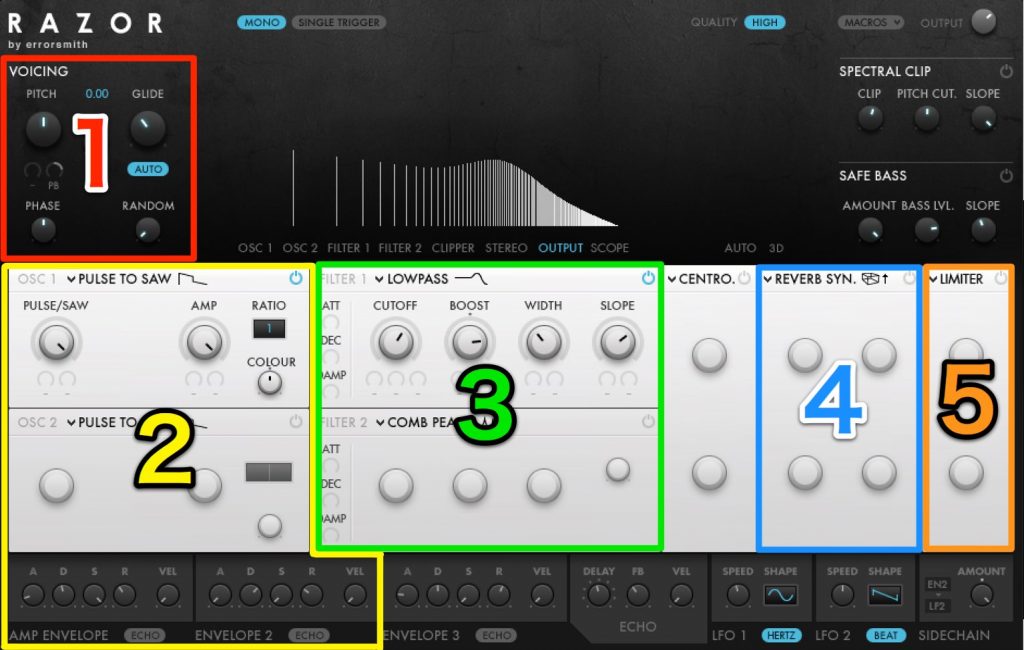
1_Voicing section
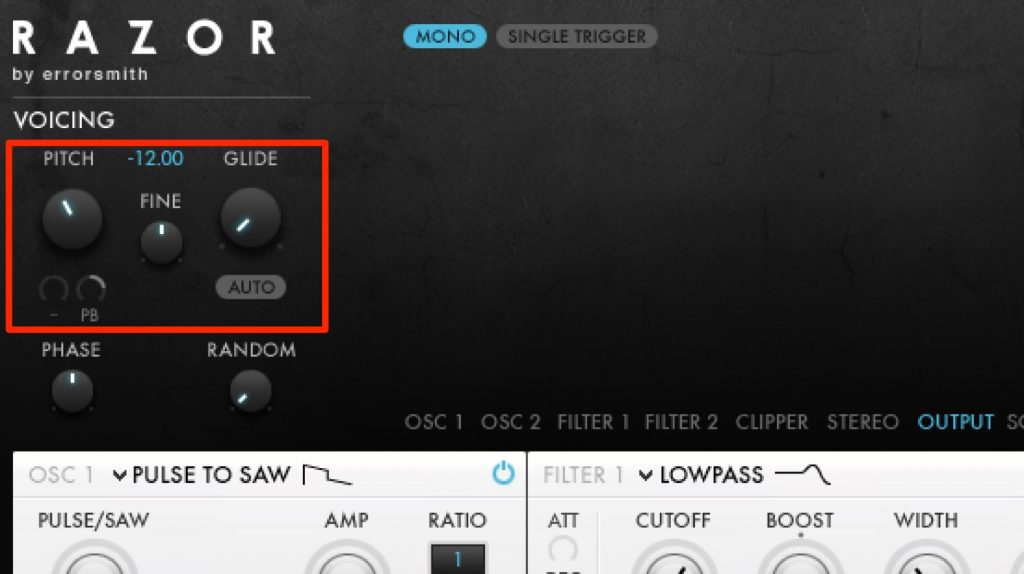
Set the pitch "PITCH" to "-12.00" to drop it one octave.
I want it to sound straight with the kick, so set "GLIDE" to "0" and turn the "AUTO" button off.
*GLIDE is what's called portamento: a parameter that determines how much sweep effect is applied when shifting from one key to the next.

The sound is like this.
2_Oscillator section
In the OSC section, we'll select the waveform to use.
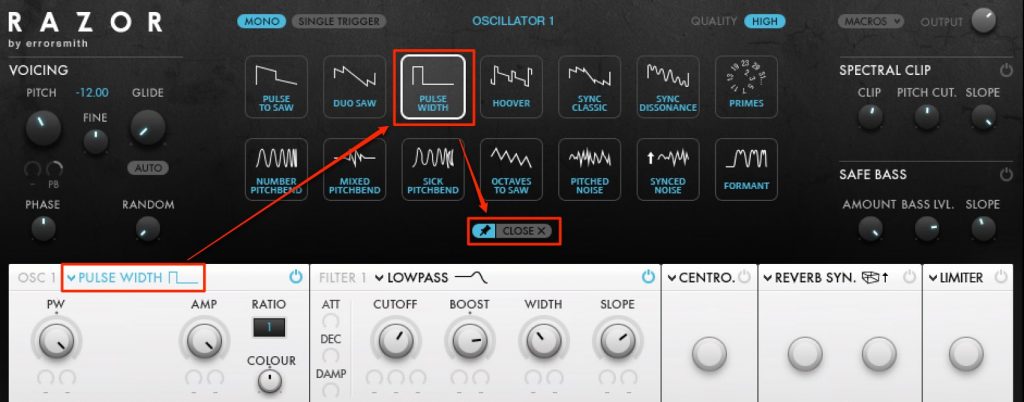
Click "PULSE TO SAW" next to "OSC 1" to change the oscillator.
Here, let's select "PULSE WIDTH."
The sound has stopped.
That's because the "PULSE WIDTH" parameter "PW" is set to "1."
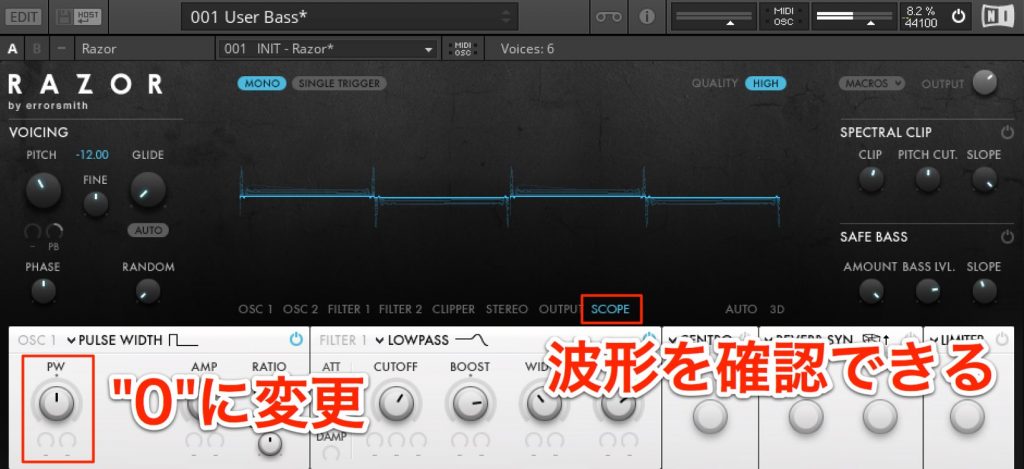
Set "PW" to "0." You should hear sound again.
Note that you can check the current waveform with the "SCOPE" button in the center.
Here's the sound so far.
Let's add "OSC 2" to this sound.
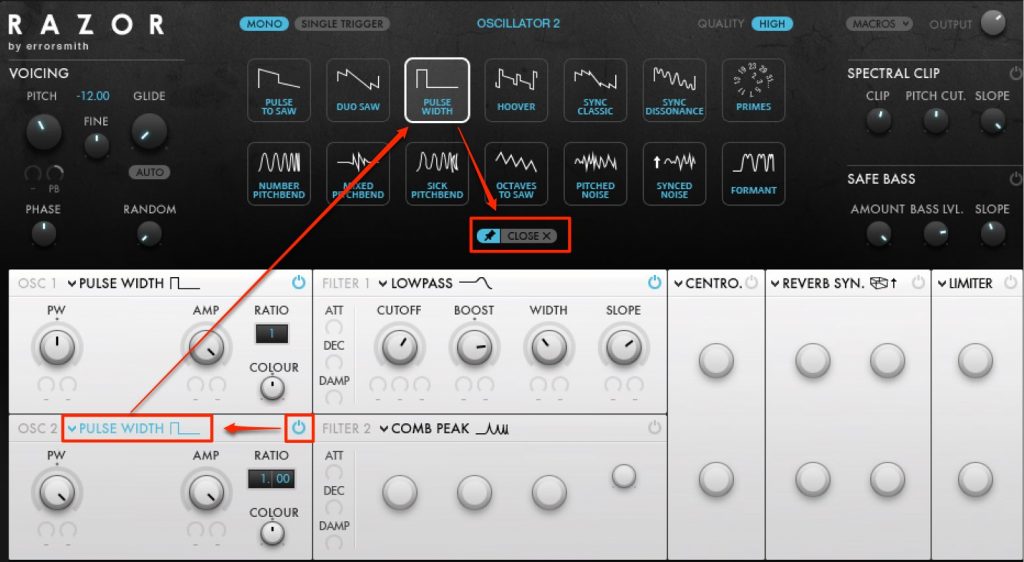
Click the power button at the top right of the "OSC 2" frame to activate it.
I selected "PULSE WIDTH" for "OSC 2" too.
As with "OSC 1," set the parameter "PW" to "0."
To thicken the sound, let's modulate "OSC 2"'s "PW" with an envelope.
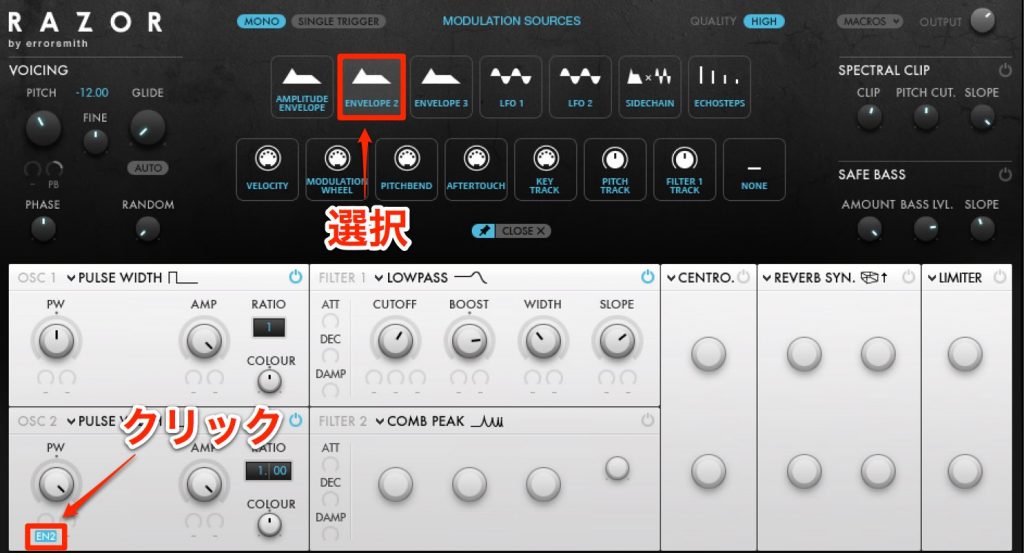
Below "OSC 2"'s "PW," in the gray circle, there's a "-." Let's click it.
The upper screen changes to show a list of modulation sources.
"NONE" means nothing, so it's currently not doing anything.
Assign this to "ENVELOPE 2."
Let's set how much "PW" is affected by "ENVELOPE 2".
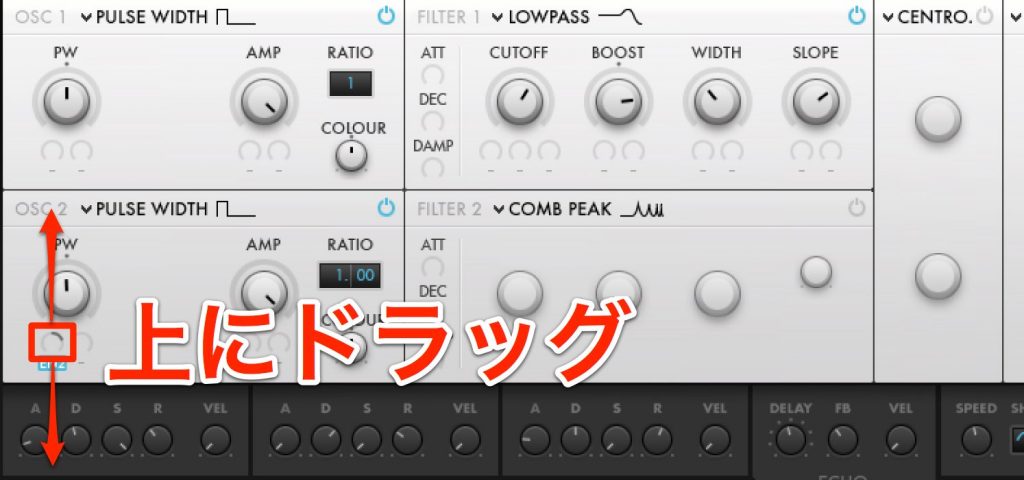
Click the gray round area above "EN2" and drag up, and part of the light gray line turns darker.
This is the range over which "PW" moves by "ENVELOPE 2."
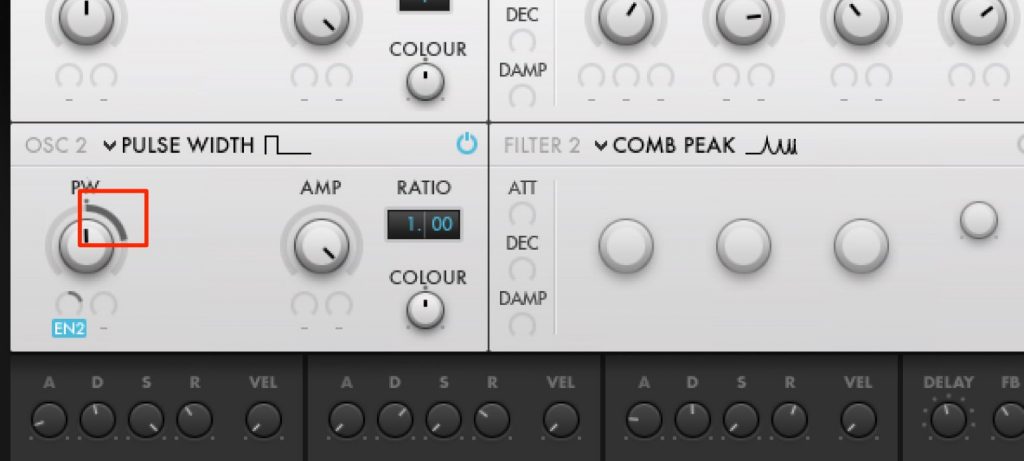
When you play the sound, the actual movement is shown on the "PW" knob.
In this way, Razor lets you add movement to any parameter.
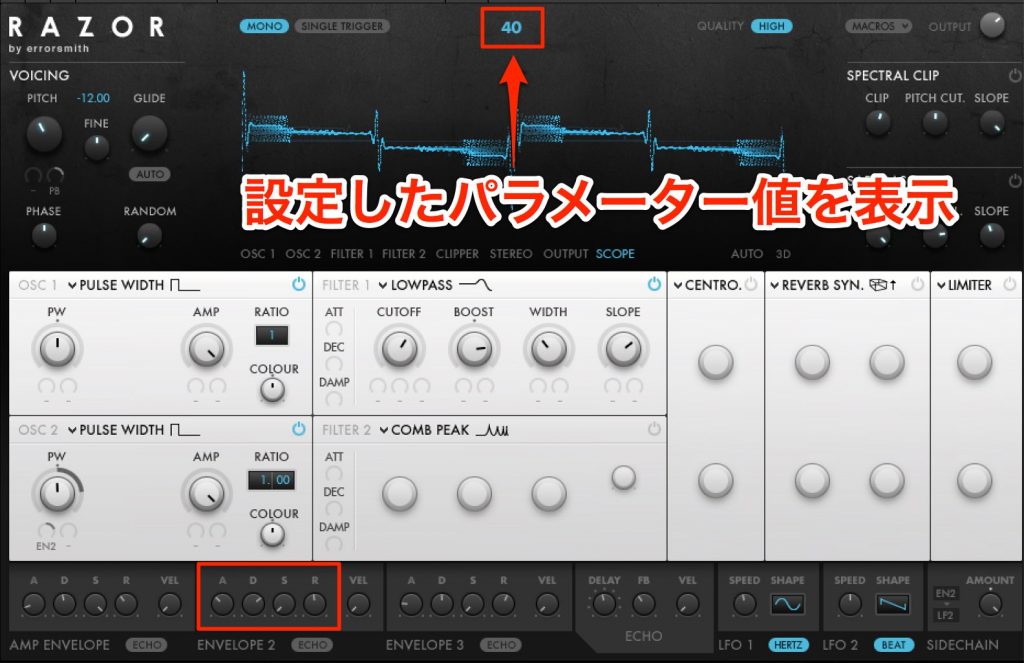
Let's change the "ENVELOPE 2" parameters.
There are no strict rules, but here I set "A=28/D=57/S=0/R=40/VEL=0.3."
ADSR explainer video
Let's check the sound with the settings so far.
Let's also check "OSC 2"'s other parameters.
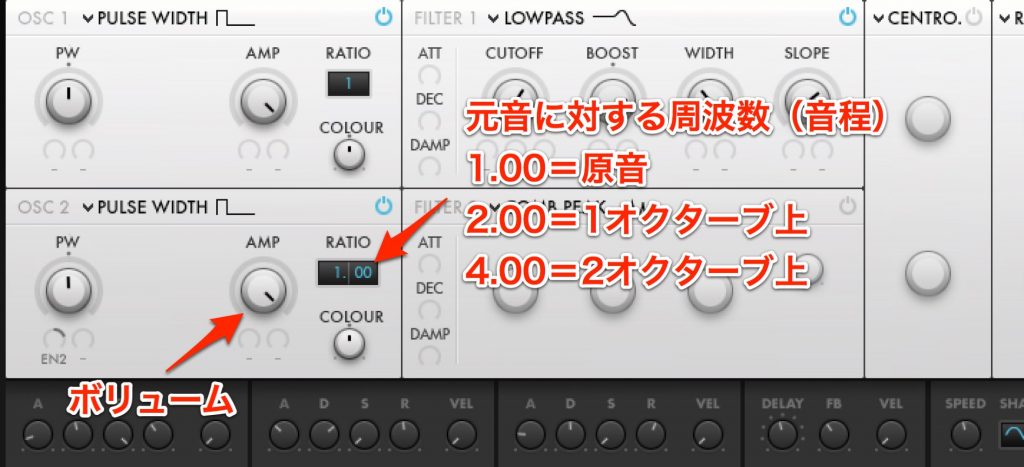
"AMP" represents the oscillator's volume.
"RATIO" is the frequency ratio relative to the original sound, adjusting the pitch in octaves.
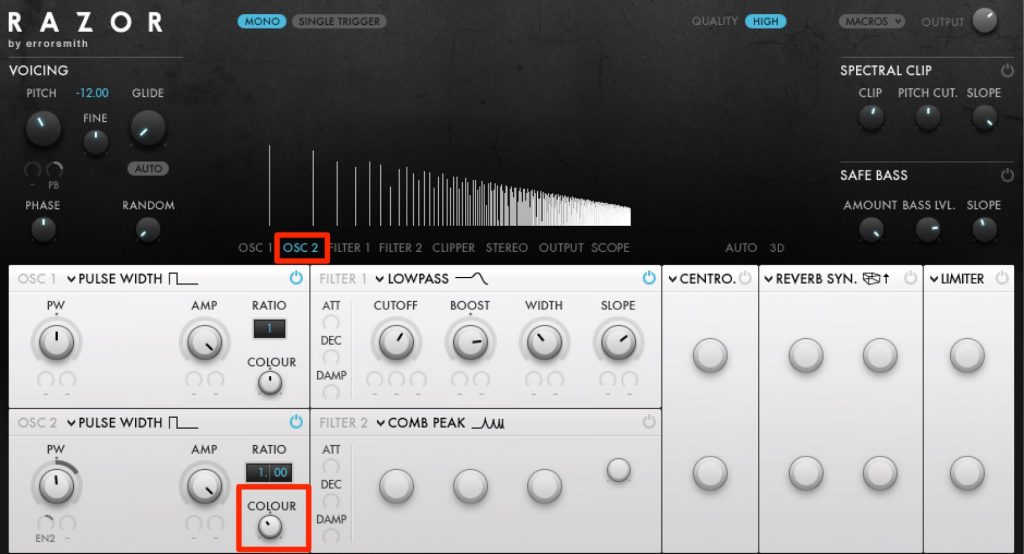
"COLOUR" is a parameter that determines how steeply high-frequency sounds are compensated.
It changes the character of the sound a lot, so adjust it while listening.
Here I set it a little restrained, to "-1.3."
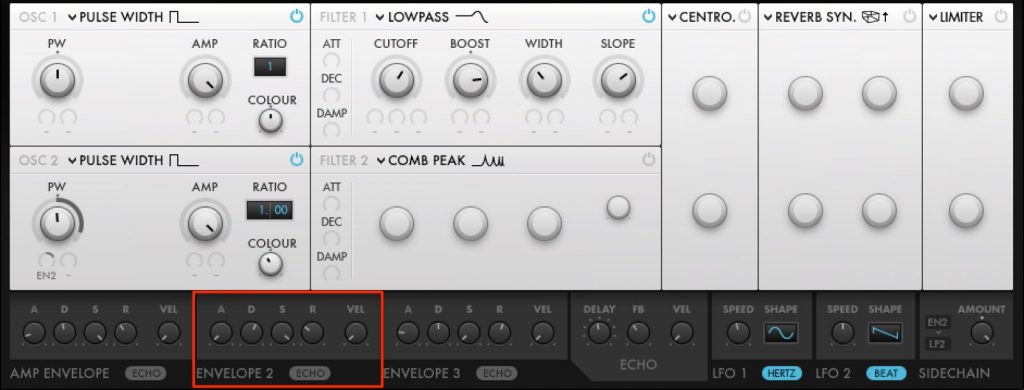
Finally, let's adjust the amp envelope.
It's a very important parameter that determines the overall volume curve.
Here I set "A=0/D=50/S=1/R=26/VEL=0."
This time we explained the basics of Razor and sound design.
As mentioned at the start of the article, Razor, an "additive synthesizer," can be said to create quite complex, distinctive sounds even compared with conventional plug-in synths.
Next time we'll complete the bass sound through the remaining sections "3 to 5."
Thank you for reading.
About the author

Takumi Kadode
A track maker, VJ and audiovisual artist from Osaka.
Got into music after making noise/tape collage pieces with cassette tapes and MiniDiscs in high school.
While later majoring in architectural acoustics in graduate school, began making dance music influenced by acid house, ambient, breakcore and more.
Live performances center on "audiovisual" expression, with the linking and fusion of sound and visuals as a motif.
Uses self-programmed software in REAKTOR, Pure Data, TouchDesigner and more.
Administrator of the REAKTOR fan site "Native Instruments REAKTOR Users Japan" (www.niru.jp).
Website: http://stereotypeone.com/
Frequently asked questions
Q1. What kind of synthesizer is Razor?
Razor is an additive synthesizer developed by Native Instruments that creates sound by adding together multiple sine waves. Unlike conventional synthesizers, it adds harmonics rather than carving them away, allowing freer, more complex sound design.
Q2. How do I change Razor's presets?
Double-click "Embedded" from the "Preset Browser" at the top left and choose the item you want from categories such as bass, lead and pad. Then click the displayed preset name to load it.
Q3. What characteristics does a Future Bass bass sound need?
A Future Bass bass is characterized by a solidly extended low end, and since the upper parts are flashy, it's important to design the harmonics to decay over time from note-on.
Q4. How do I save a user preset?
Right-click "User," select "New Folder" to create a folder, then click the "Add" button inside it to create a preset. After making settings, you can overwrite and save with the "Store" button at the bottom left.
NEW ARTICLES
Latest English Articles