
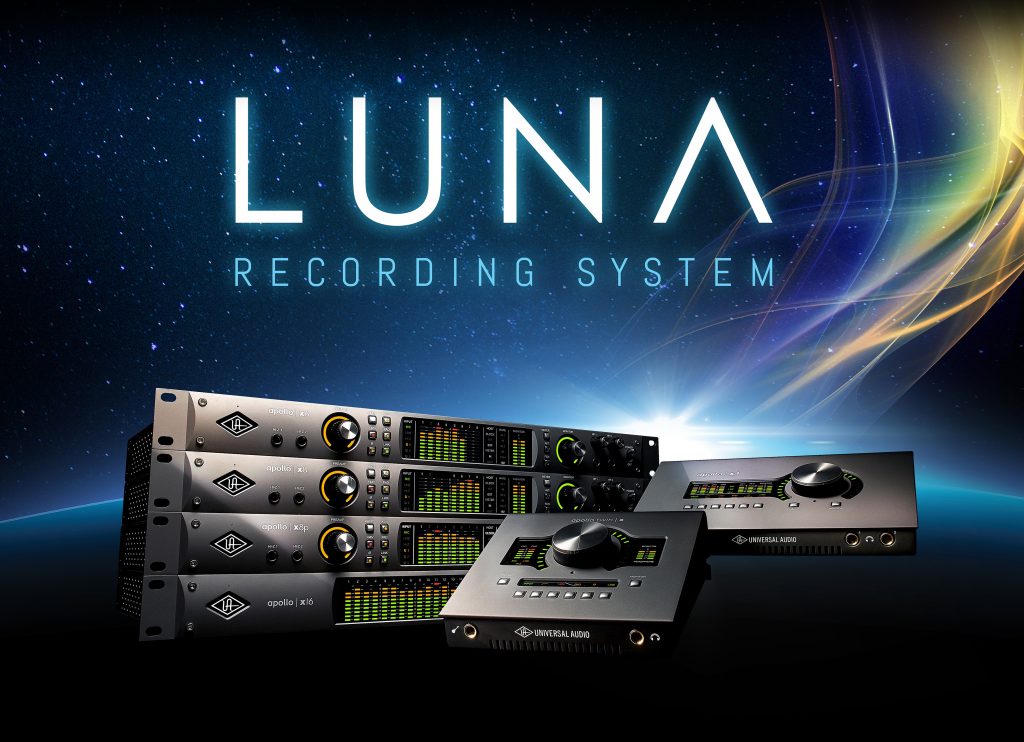
LUNA, released by Universal Audio, is an innovative recording system that Apollo and Arrow audio interface users can use free of charge. It supports macOS Catalina and is designed around the workflow and sound quality of analog recording. This article explains LUNA in detail, from downloading, installing and initial setup to MIDI programming and audio recording. Because DSP processing lets you apply UAD effects in real time while reducing CPU load, you can build a professional music production environment.
Free Software That Runs on Apollo/Arrow
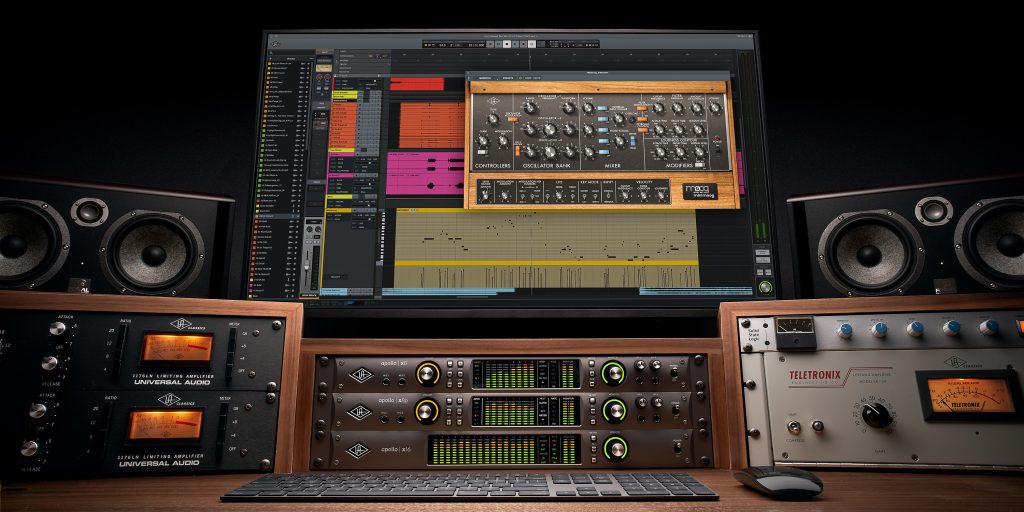
Universal Audio's recording system "LUNA", which was recently announced and generated a lot of buzz, has now been released.
"UAD Software v9.11.1 (Mac)" was released at the same time as LUNA, and it officially supports macOS Catalina 10.15.
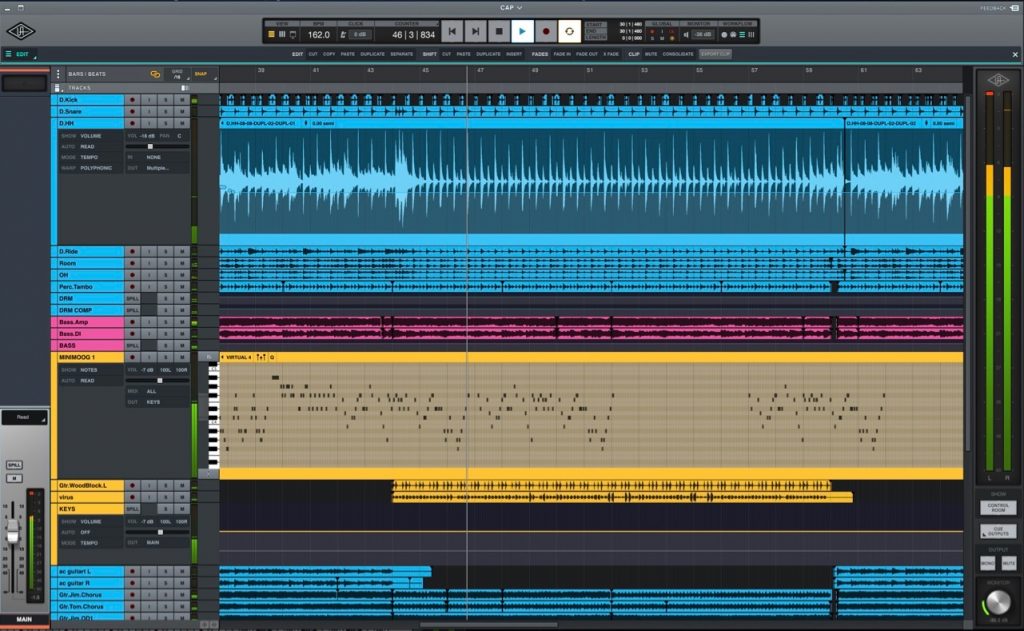
LUNA Recording System is a music production/recording system newly developed by Universal Audio. (Currently Mac only)
It is very beautifully designed.
Through this integration of hardware and software, the concept is the workflow and sound quality of analog recording.
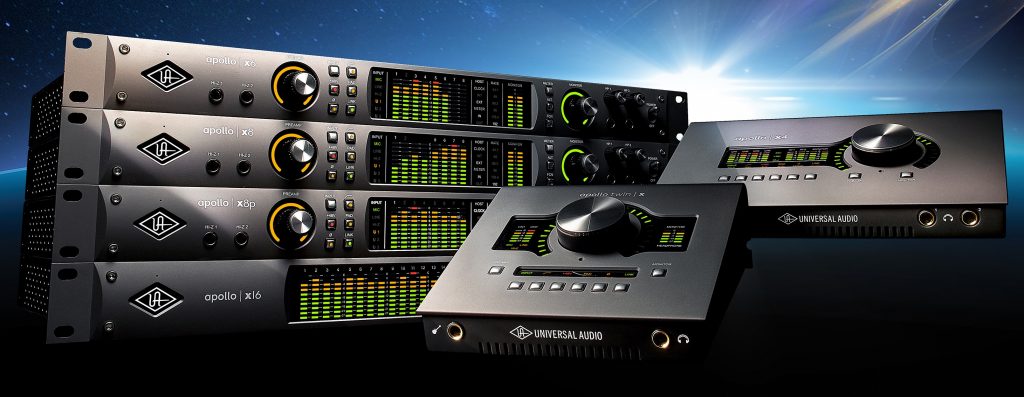
If you own the company's audio interface "Apollo" or "Arrow" (Thunderbolt connection only), you can use it free of charge.
Now let's look at how to set up and use LUNA.
Steps for Using LUNA
As mentioned above, Apollo/Arrow users can use the LUNA Application free of charge.
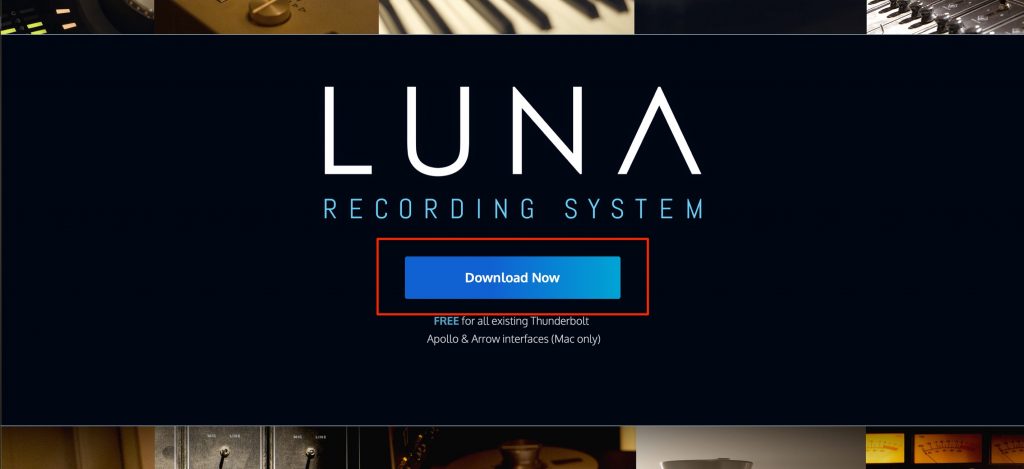
Go to the UAD website and click the "Download Now" button at the bottom of the page.
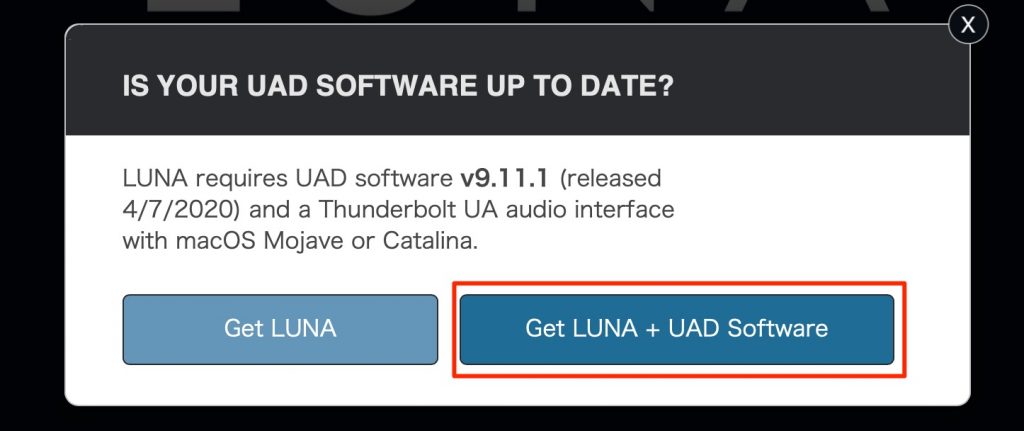
Download and install "Get LUNA + UAD Software".
The firmware of your product (audio interface) is also updated during installation.
The LUNA license is authorized with "iLok Cloud".
For use in environments without an internet connection, a license that can be used with an "iLok USB key (2nd generation or later)" is also available.
If you don't have an iLok account yet, please see the article below on creating and using an iLok account.


Launch LUNA after installing it.
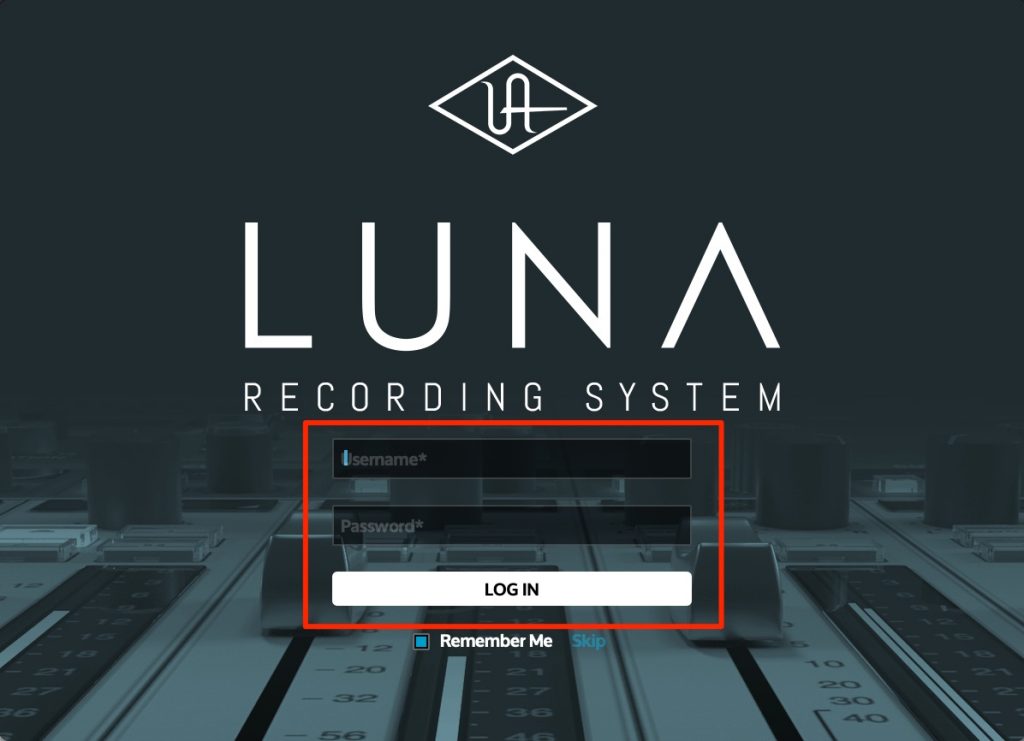
A window appears, so log in using your UAD account.
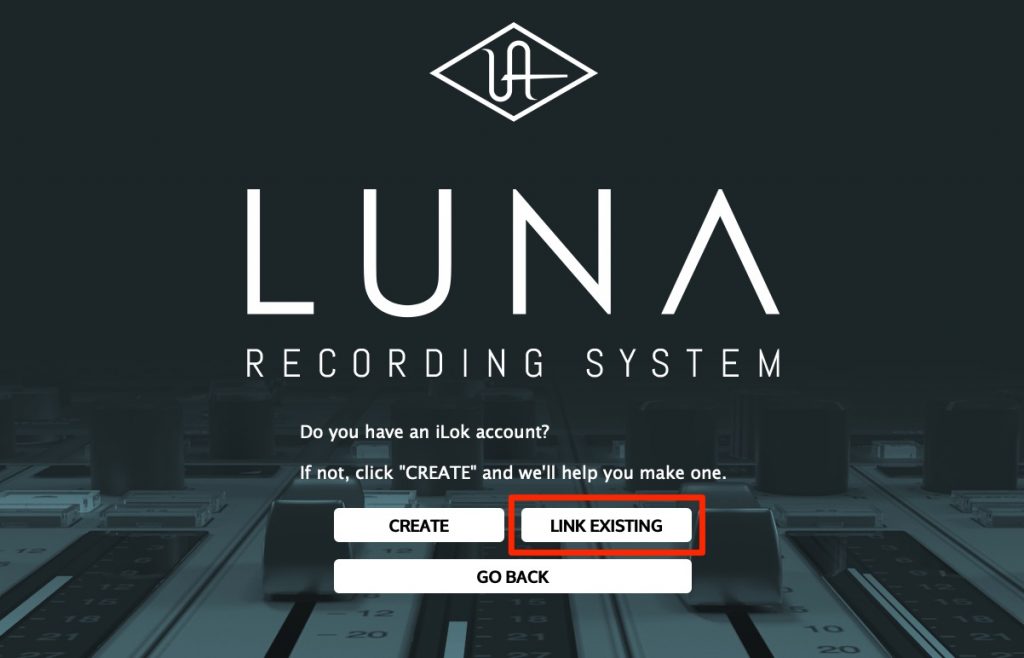
Select "LINK EXISTING" to link your iLok account to LUNA.
What If LUNA Doesn't Launch Properly?
If LUNA doesn't launch properly after iLok authorization, try the following.
First, quit LUNA.
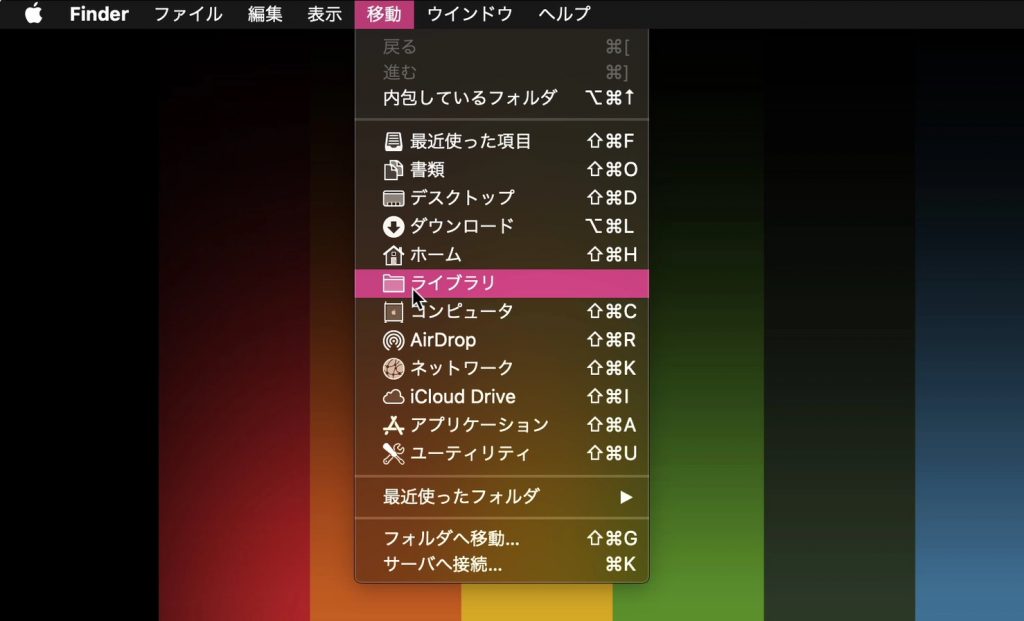
Open "Go" in the top menu and select "Library", which appears while you hold down the Option key on your keyboard.
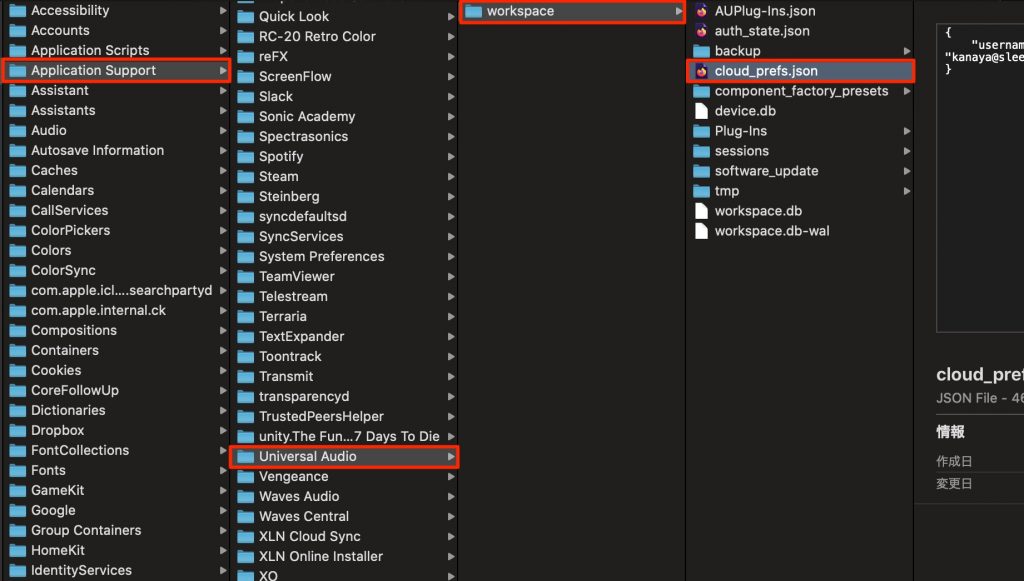
Move the file "Application Support" → "Universal Audio" → "workspace" → "cloud_prefs.json" to the Trash.
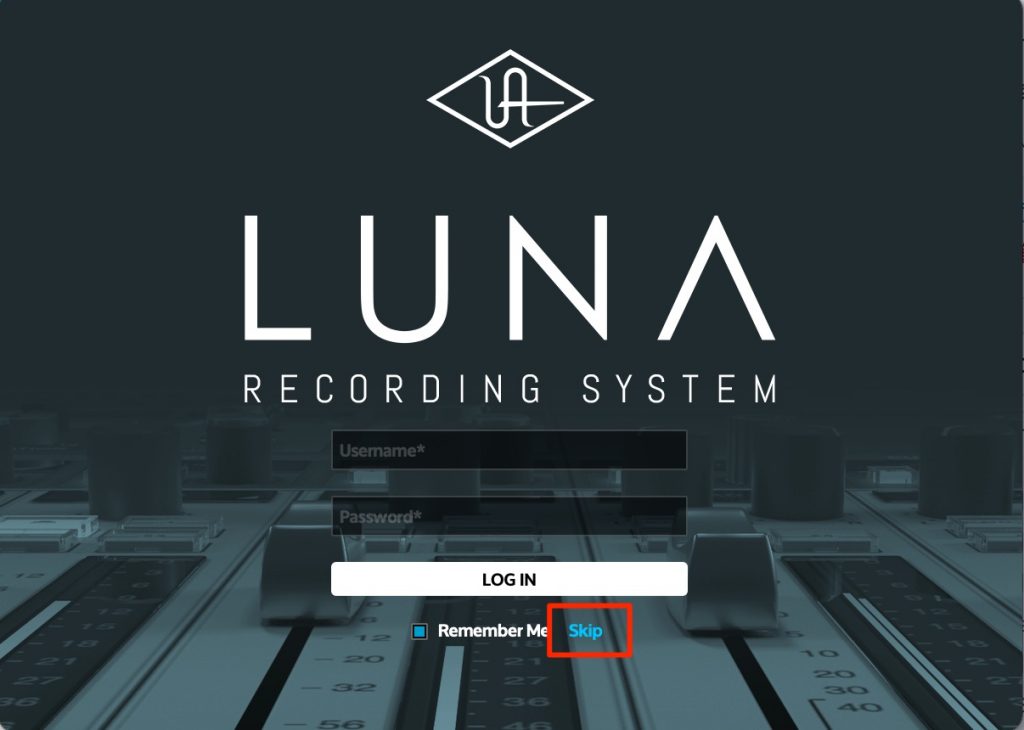
When you launch LUNA, the login screen appears; selecting "Skip" should let it start.
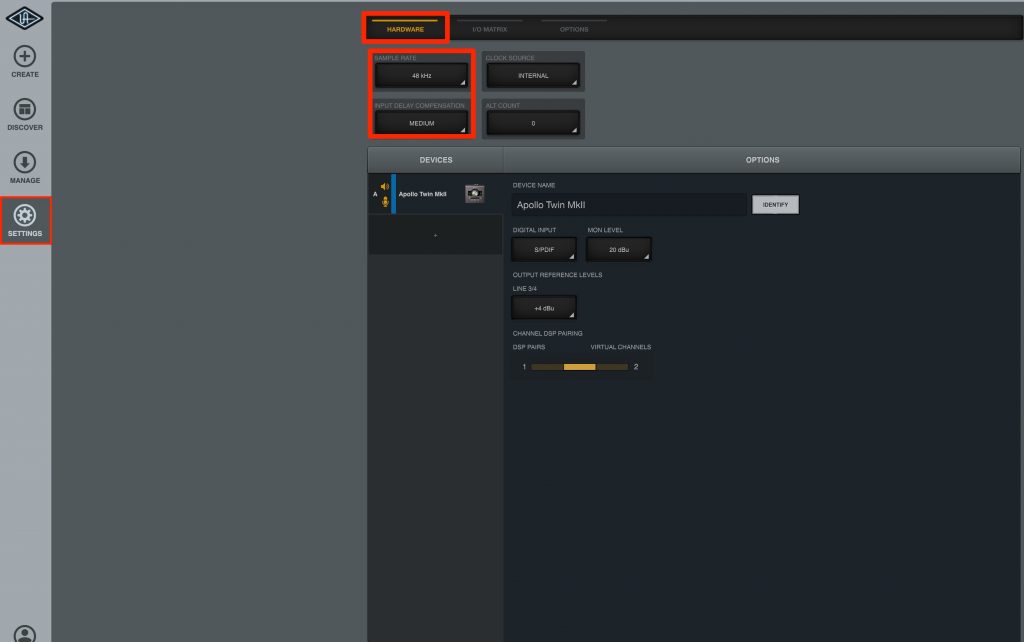
When LUNA starts, a window like this is displayed.
First, set the sampling rate and latency from "HARDWARE" in the "SETTINGS" section.

The audio settings are automatically optimized for the connected UAD device, but
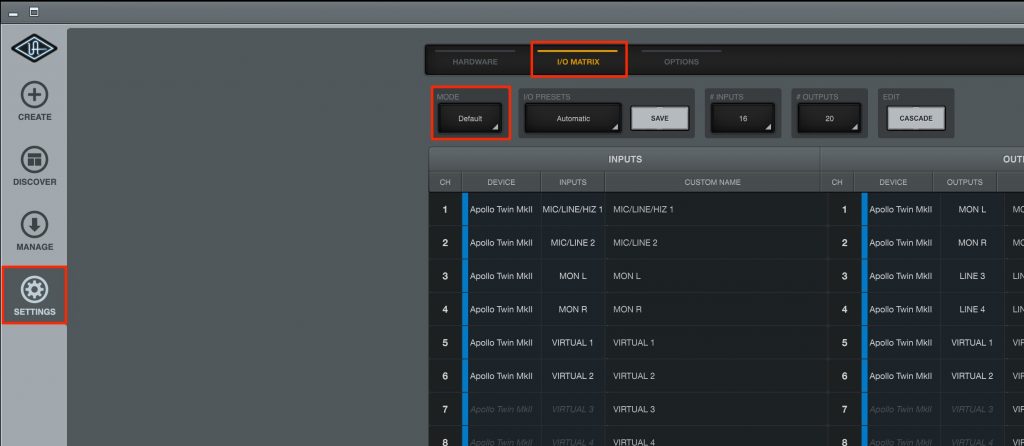
if there is no sound or you can't record, select "Default" from "I/O MATRIX" in the "SETTINGS" section.
This completes the basic setup.
How to Use LUNA and Its Features
Create a "session" (song file) for making music in LUNA.
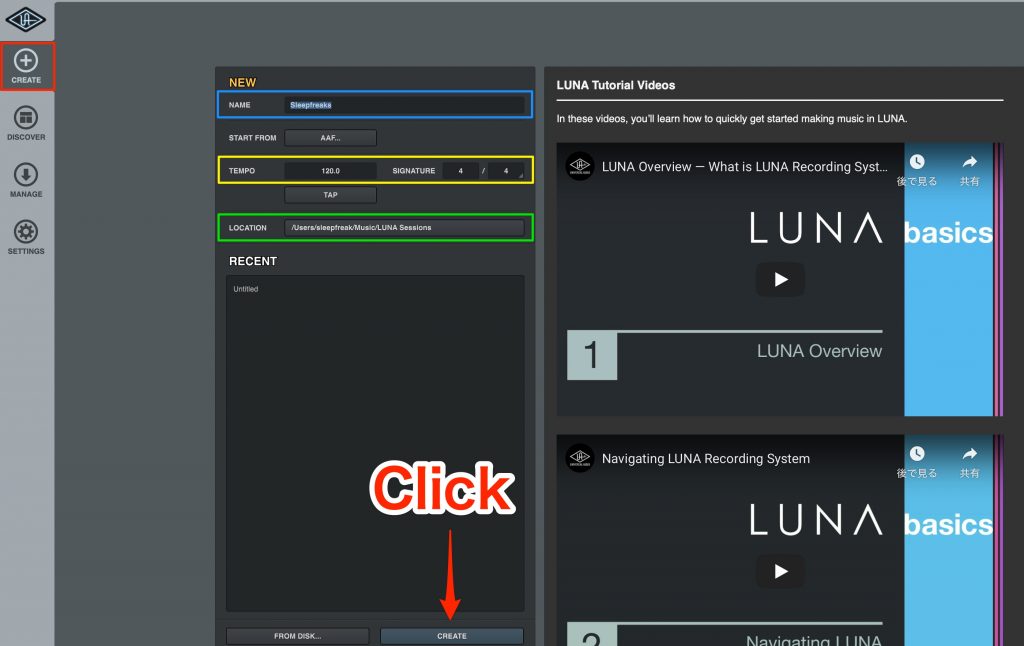
Select the "CREATE" tab.
- Blue: Set the session name (song name)
- Yellow: Specify the tempo/time signature
- Green: Specify where the session (song file) will be saved
After setting these, click "CREATE".
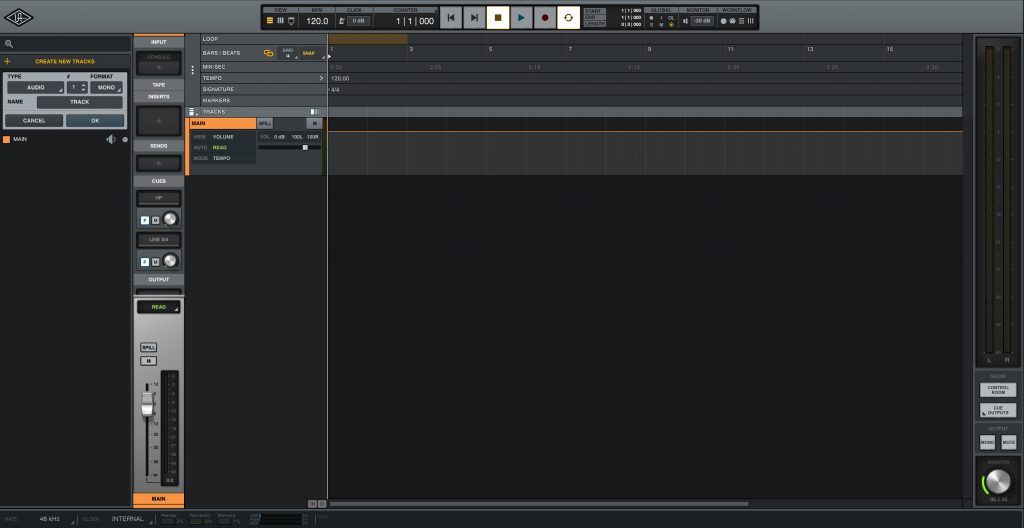
A new session is set up like this.
Programming Tracks: Using MIDI Instruments
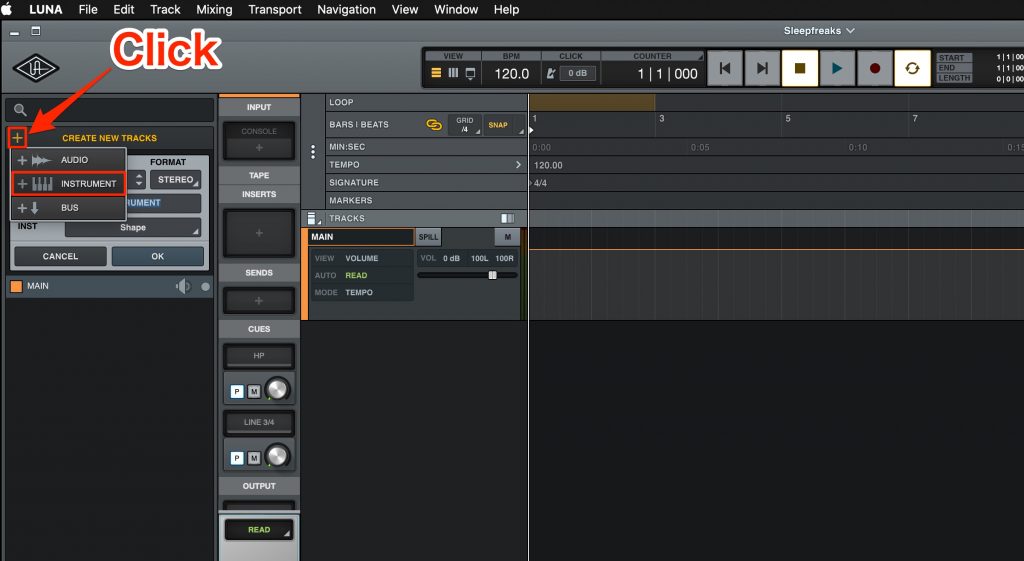
Click the "+" button at the top left and select "INSTRUMENT".
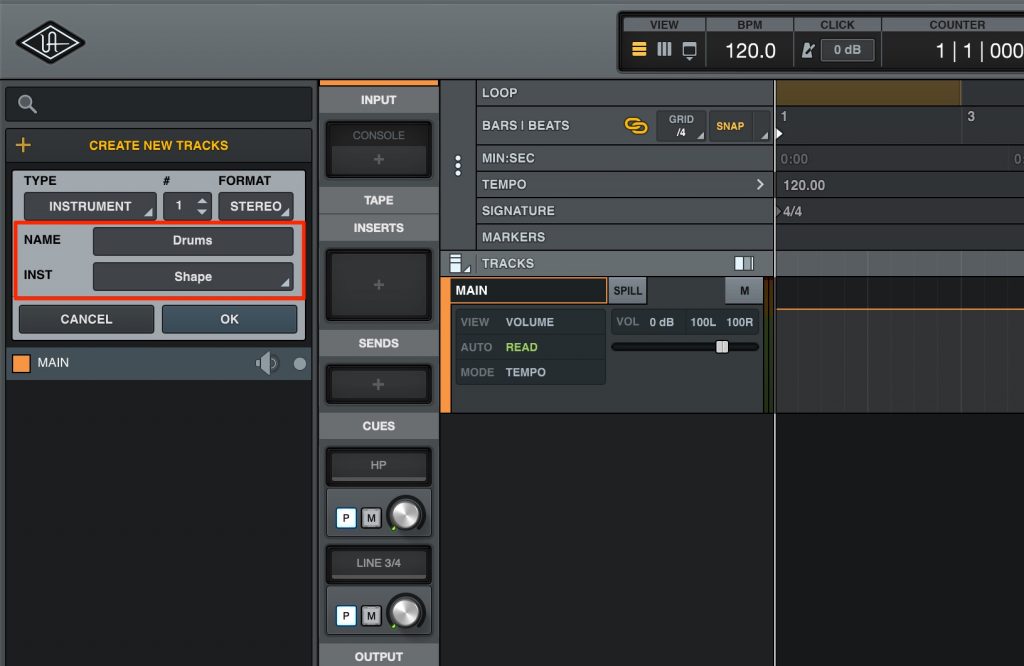
Specify the track name and instrument.
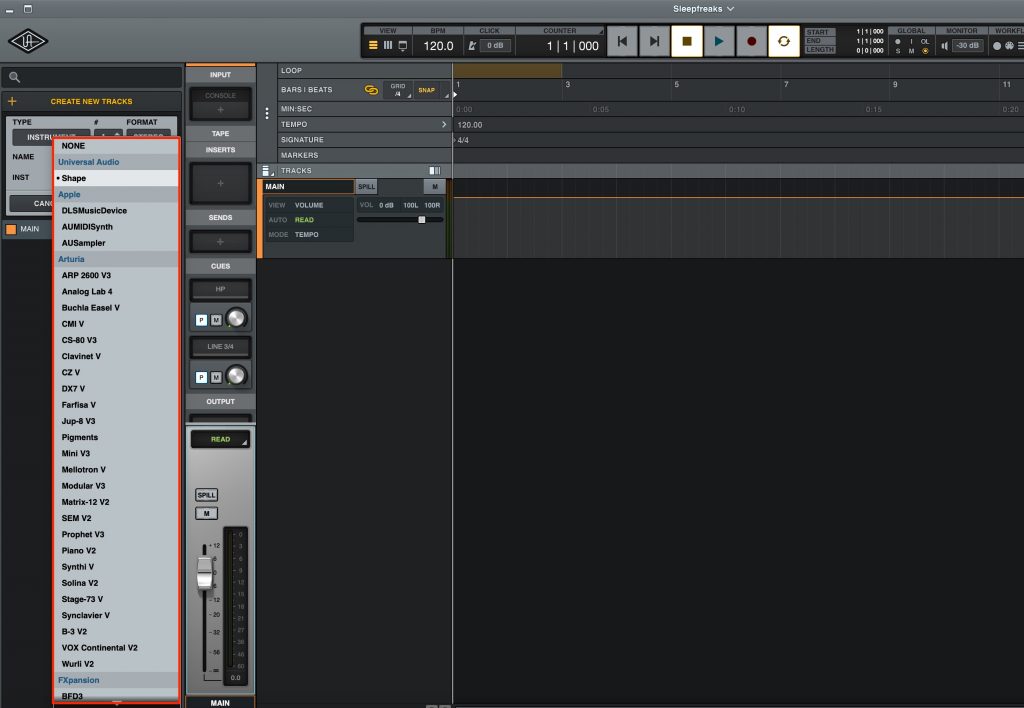
As shown here, plug-ins that support the "Audio Units" format used by Logic Pro can be used.
UAD has also released its own instruments.
Shape (Free)
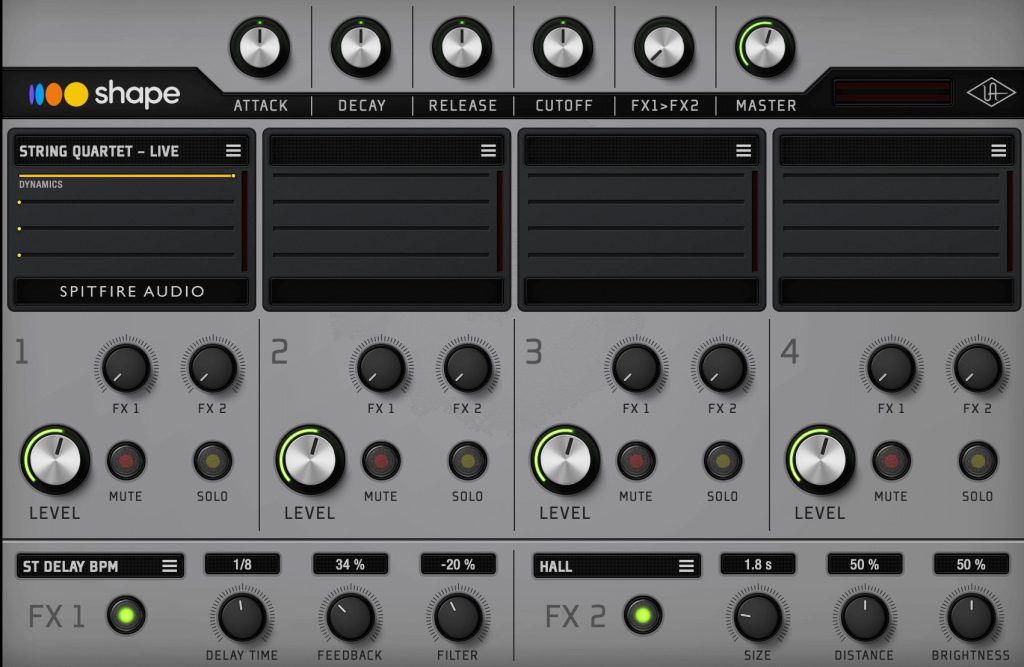
This is an instrument included free with LUNA.
It is a multi-instrument with ready-to-use sound presets for piano, drums, guitar, bass, synths, orchestral instruments and more.
You can also expand the presets by purchasing additional sounds (Shape Expansions) from "DISCOVER", described below.
Besides Shape, the instruments released by UAD can be viewed and purchased under "Instruments and Extensions" in "DISCOVER".
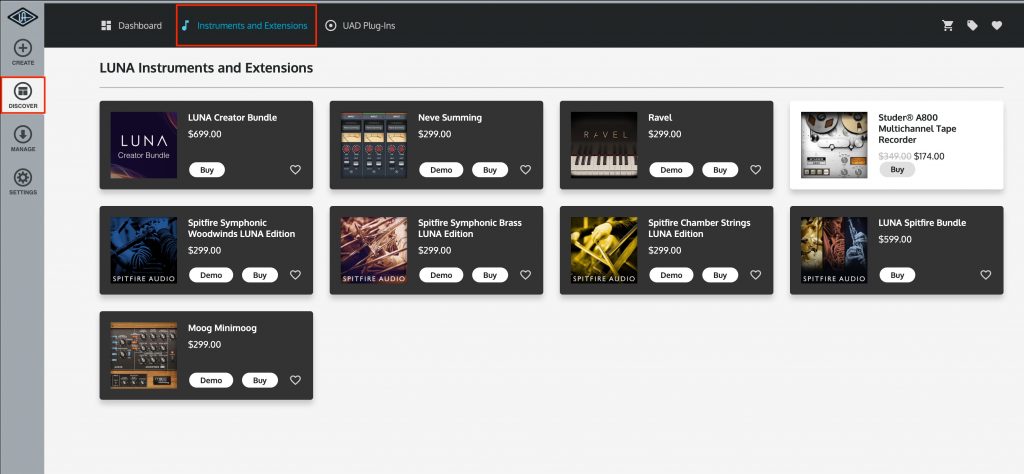
Synth, piano and string instruments are available, and more are expected to be added in the future.
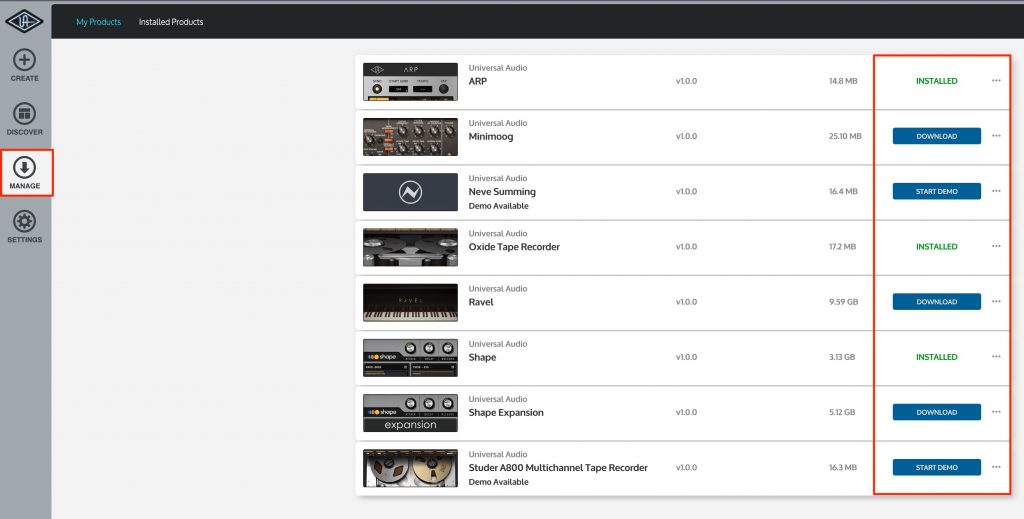
Install purchased products from "MANAGE".
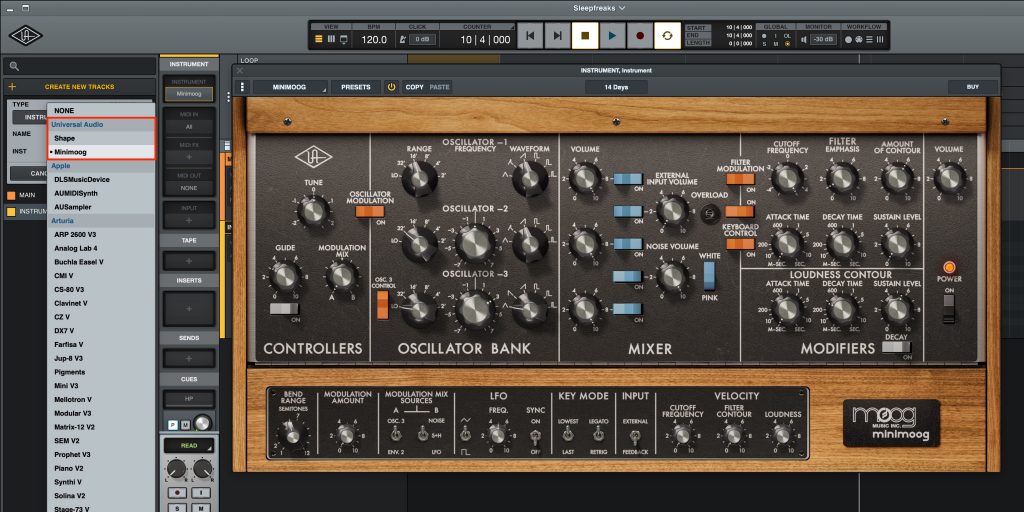
Installed instruments appear like this and can be used right away.
MIDI Programming in LUNA
Since it is a newly released product, my impression is that the features essential for music production have been carefully selected.
The buttons and menus are also simple, so anyone who already has DAW experience should be able to work very smoothly.
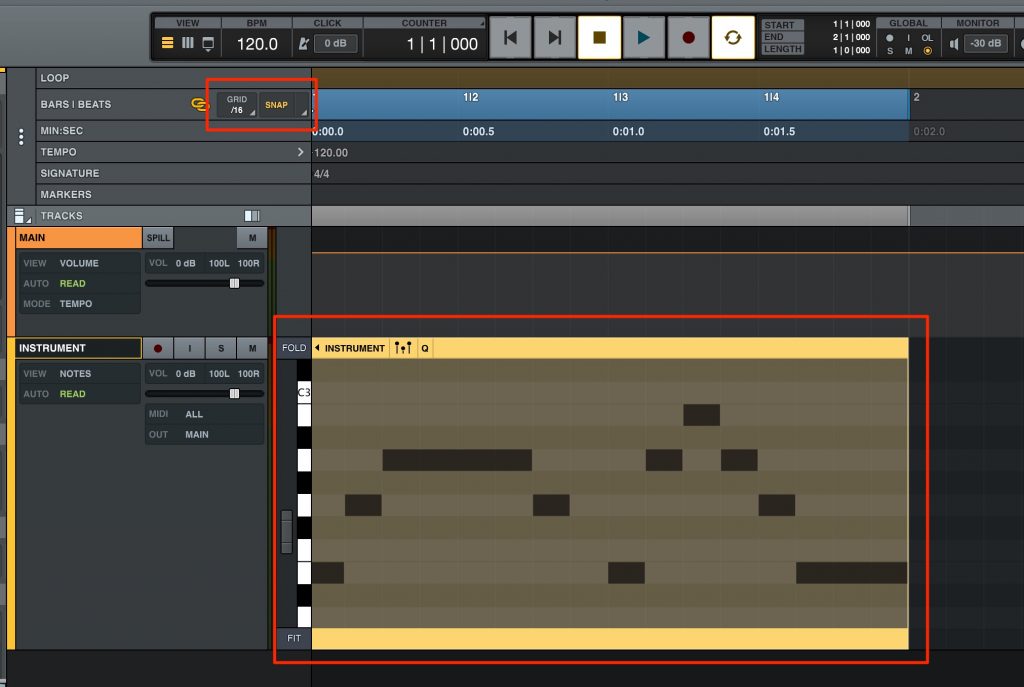
Specify the note value for programming and editing from "SNAP", then double-click to enter notes.
Double-clicking an existing note deletes it.
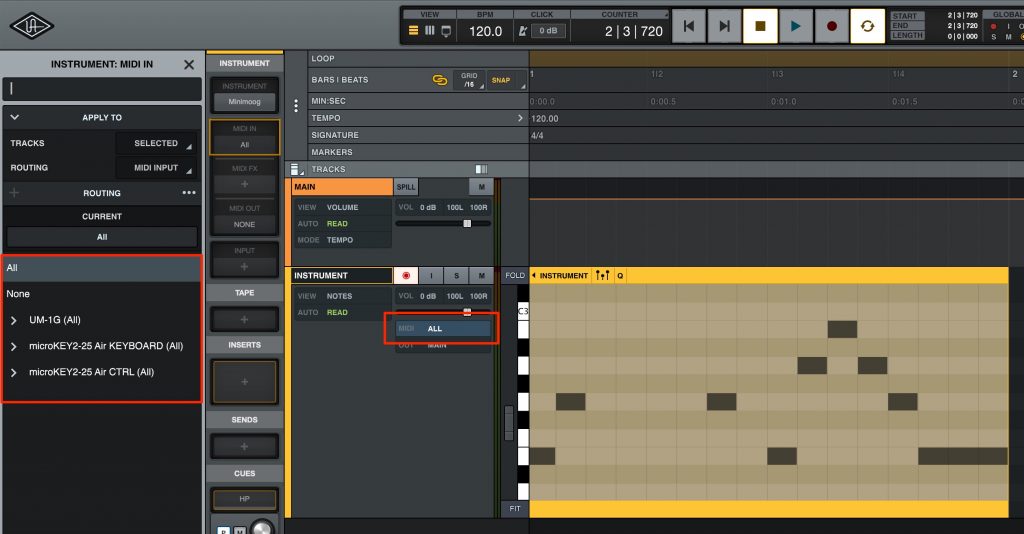
Check the MIDI keyboard connected to your Mac from the MIDI input, and you can start real-time recording right away.
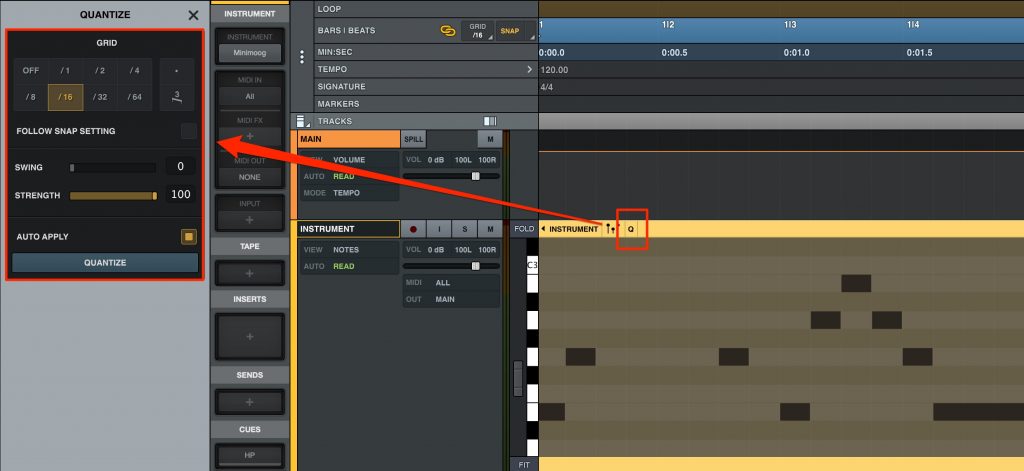
Access to frequently used functions such as quantize is also quick and intuitive.
Audio Recording in LUNA
Next, let's look at audio recording.
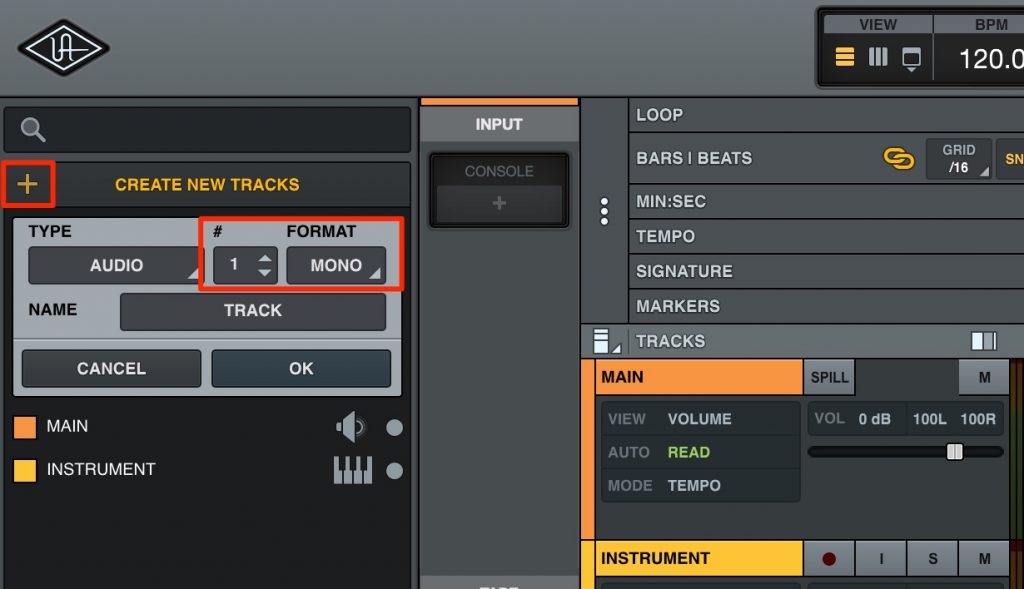
As with MIDI tracks, create an audio track from the "+" button.
Specify the number of tracks and mono/stereo, then press "OK".
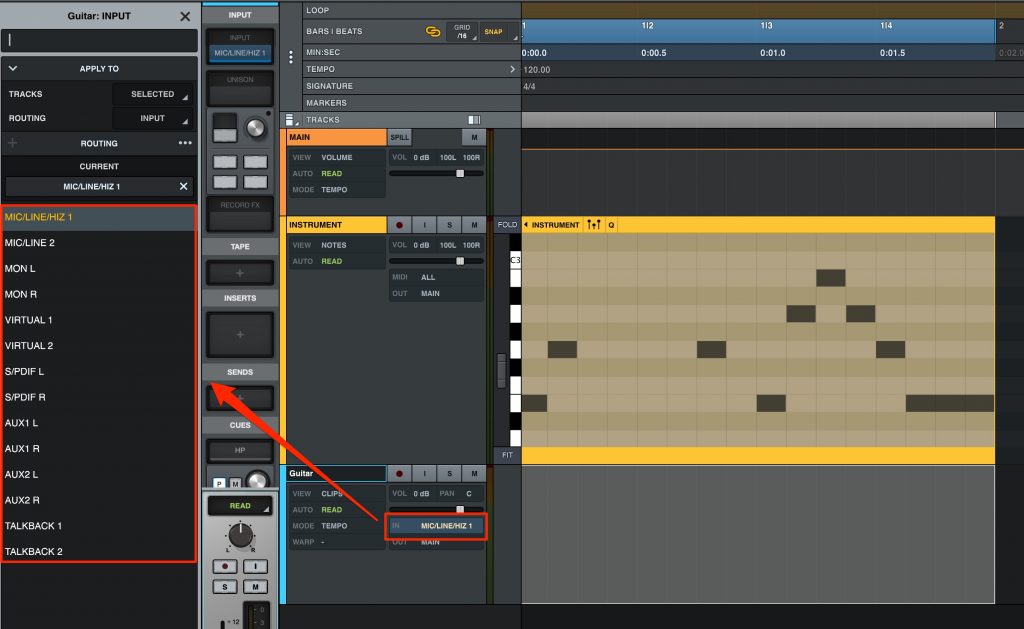
Specify the input channel your microphone or instrument is connected to.
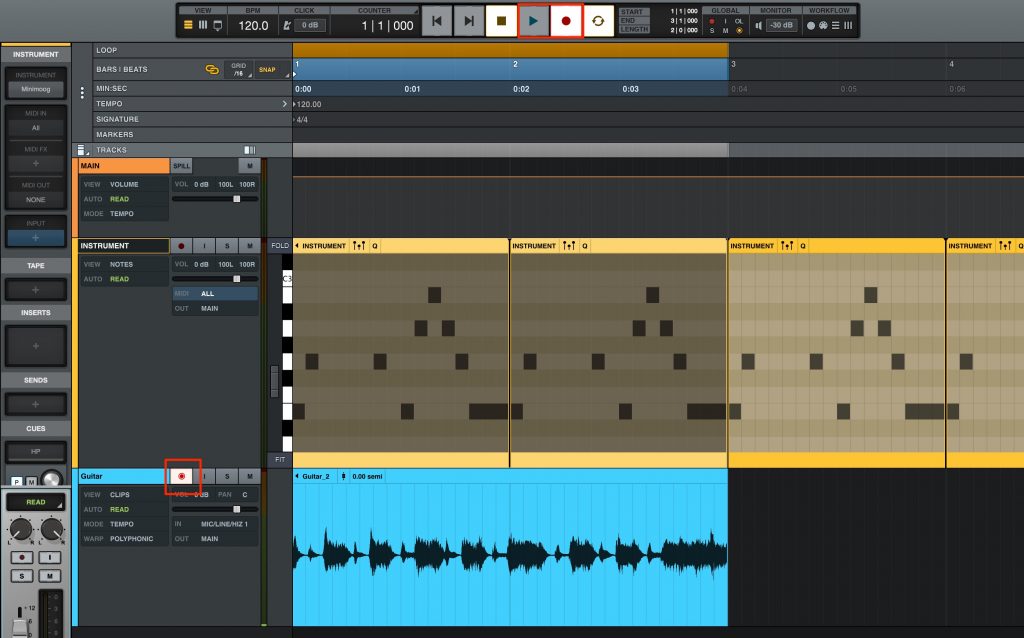
Enable the record button on the target track, and enable the record button on the transport as well.
Recording starts when you press the play button.
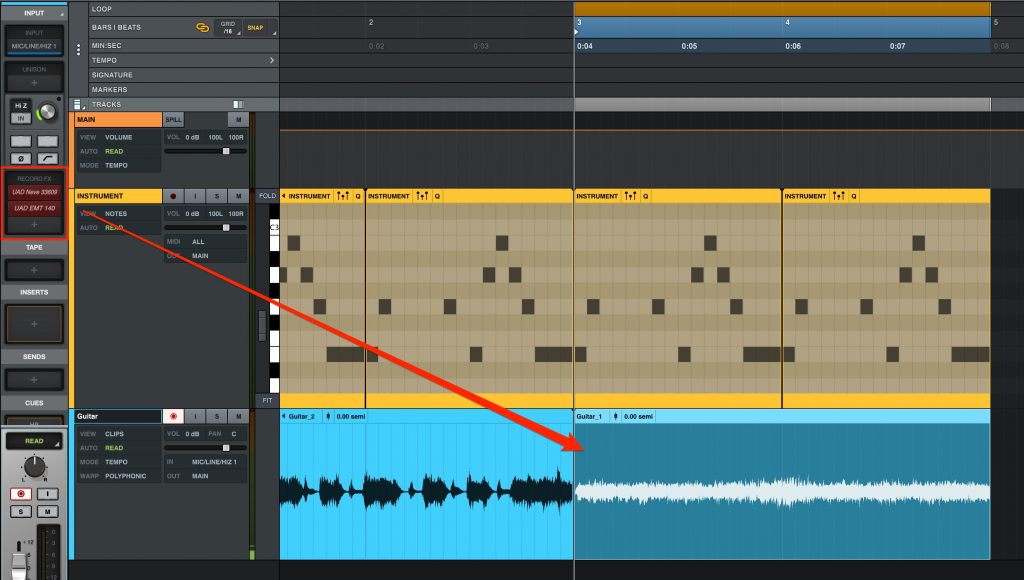
If you apply effects in "RECORD FX" at the recording stage, the UAD effect processing is printed into the recorded waveform.
This integration is very smooth and extremely useful when recording.
Of course, the plug-ins are processed by the DSP (in the audio interface), so they put no CPU load on your computer.
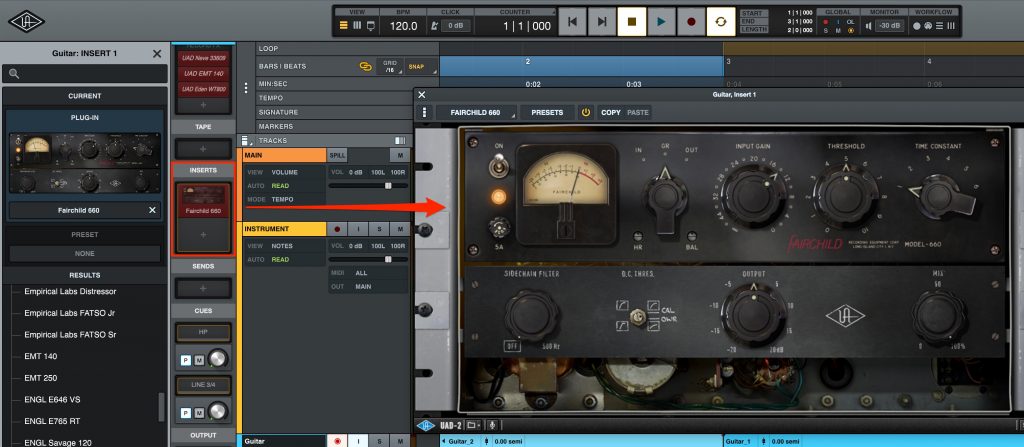
Normal effects are applied from "Insert".
This processing is also done on the DSP, but the effect results are not printed into the waveform, so use it when you want to fine-tune the sound during mixing or after recording.
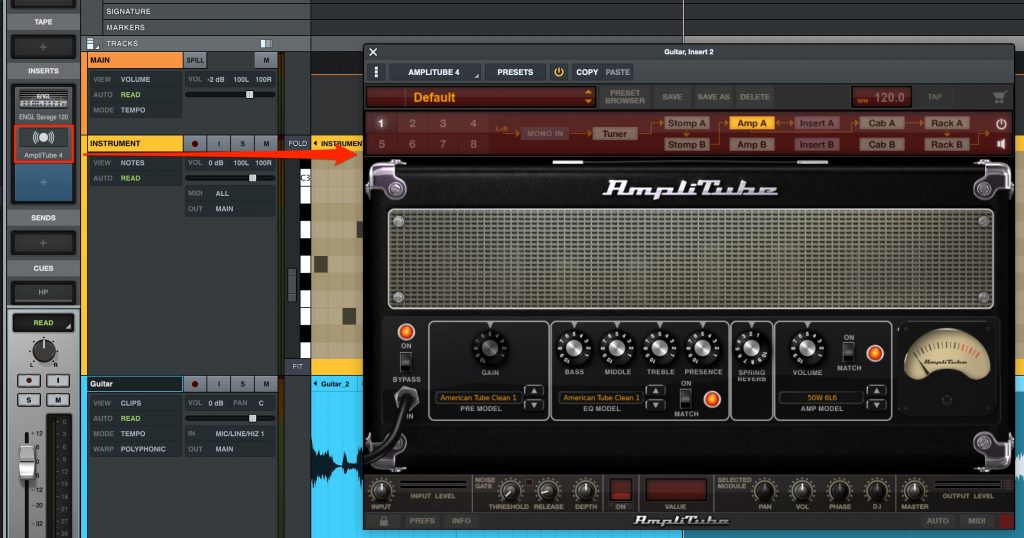
Effects that support the "Audio Units" format can also be used.
In this case, the CPU processing is done on the Mac.
UAD's "LUNA", which appeared like a new star.
What did you think?
The integration that makes the most of the company's devices feels like new territory for DAWs.
Since the features needed for music production have been carefully selected, the screen is easy to read, and even beginners should be able to work comfortably.
If you use an Apollo or Arrow product, you can use it free of charge, so please give it a try!
Product page (LUNA): https://www.uaudio.jp/luna.html
Frequently Asked Questions
Q1. Is LUNA paid software?
If you own an Apollo or Arrow, it is completely free. License authorization is done with iLok Cloud or an iLok USB key. If you don't own the hardware, you need to purchase it.
Q2. Can LUNA be used on Windows?
Currently it has only been released for Mac. Please check official information regarding future Windows support.
Q3. Can VST plug-ins be used in LUNA?
LUNA supports the Audio Units format used by Logic Pro, so UAD and third-party AU plug-ins can be used. VST is not currently supported.
Q4. Does using effects during recording put load on the computer?
No. Effect processing is handled by the audio interface's DSP (digital signal processor), so it puts no CPU load on your computer.
Q5. What should I do if LUNA doesn't launch?
If it doesn't launch after iLok authorization, move the cloud_prefs.json file in the Library to the Trash, then launch LUNA again and select "Skip".
NEW ARTICLES
Latest English Articles











