
In this review originally published in September 2022, we explore iZotope Ozone 10’s substantially updated AI-powered Master Assistant and its new Assistant View for intuitive mastering adjustments. New modules such as Stabilizer and Impact provide responsive tonal and dynamics control, while Tone Match, Width Match and Dynamics Match make the process more accessible. Improvements to existing modules also help produce masters with greater width, depth and clarity. We put these changes to the test with audio comparisons.
More Than AI: Innovative New Modules
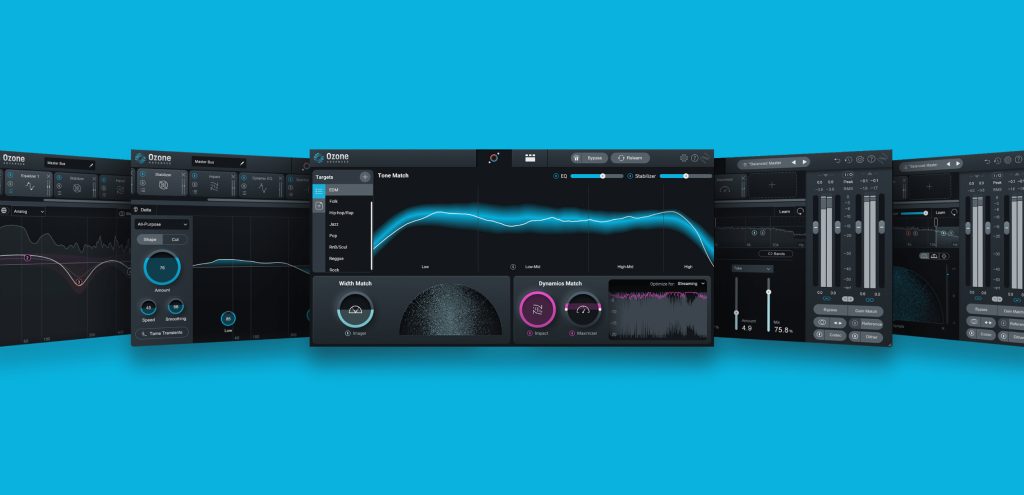
Ozone 10 brought a long-awaited update to iZotope’s mastering tools. At its launch, many producers were considering whether to adopt it.
Here, we will look at what changed in version 10 and test its capabilities.
- 1Testing Ozone 10’s Master Assistant
- 2Intuitive Adjustments in the New Assistant View
- 3Stabilizing Tonal Balance with the New Stabilizer Module
- 4Adjusting Microdynamics with the New Impact Module
- 5New Features in Imager
- 6New Features in Maximizer
Ozone 10 New Features — Video
Testing Ozone 10’s Master Assistant
Ozone is well known for Master Assistant, its AI-powered mastering assistance feature. Version 10 retains this feature and develops it further.
First, let us hand the job over to the assistant.
Click the button shown here to run Master Assistant.
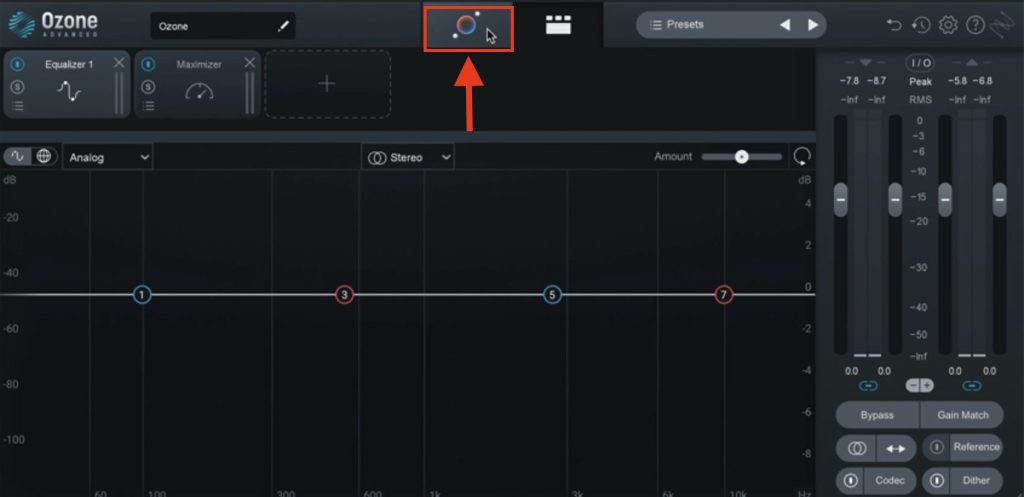
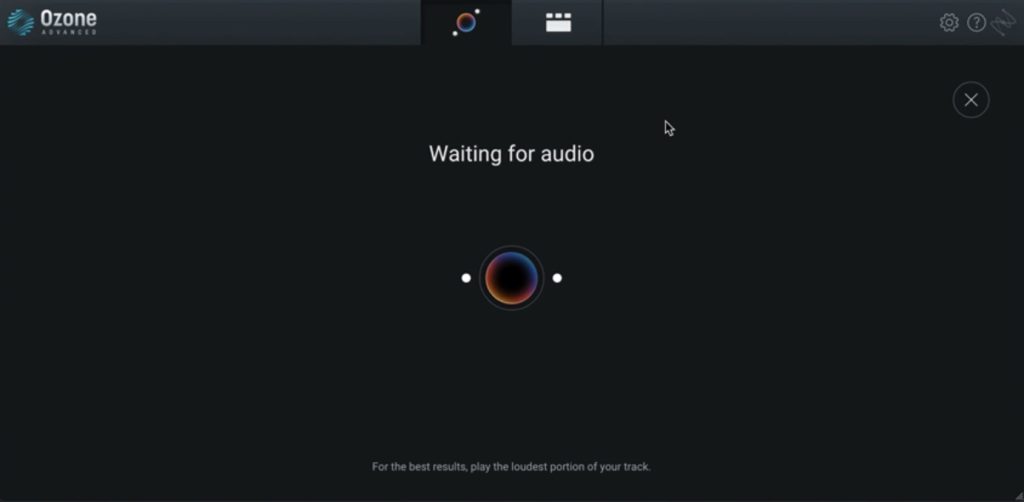
Unlike version 9 and earlier, there are no preliminary settings: it immediately waits for playback. Play the loudest part of your song.
The analysis finishes very quickly. Let us compare the result with the untreated version.
As expected, the assistant has produced a substantially more polished result.
Comparing Ozone 9
We have also prepared a version processed with Ozone 9’s Master Assistant. The loudness has been set to a similar level for comparison.
The results have slightly different tonal tendencies, but these can be adjusted in Assistant View, which we will cover next.
Even allowing for that difference, version 10 seems to offer greater width, depth and clarity. The new modules and improvements to existing modules discussed below help explain these results.
Intuitive Adjustments in the New Assistant View
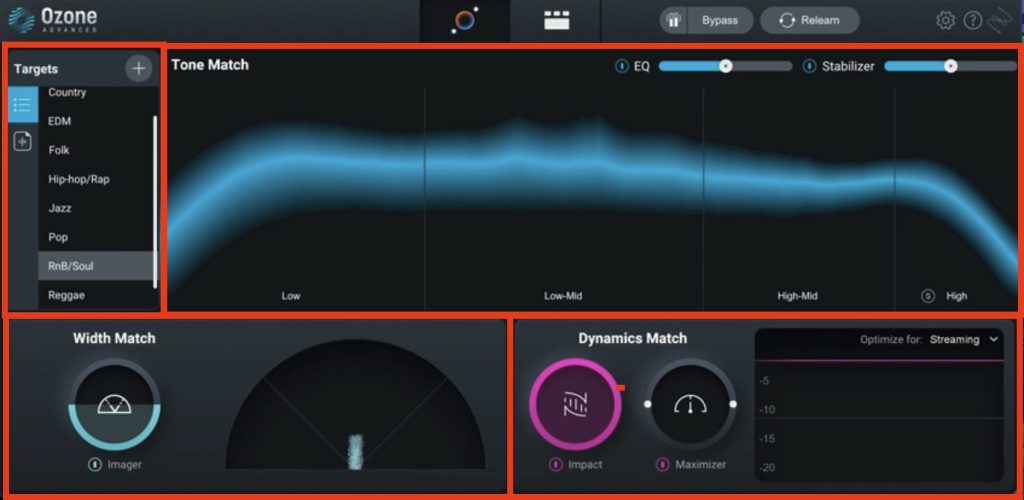
After Master Assistant finishes, the new Assistant View appears, as shown here.
It has three main areas: Tone Match at the top, Width Match at the bottom left and Dynamics Match at the bottom right.
Tone Match
In Tone Match, the broad blue band shows the target spectral shape. The list on the left determines the type of target.
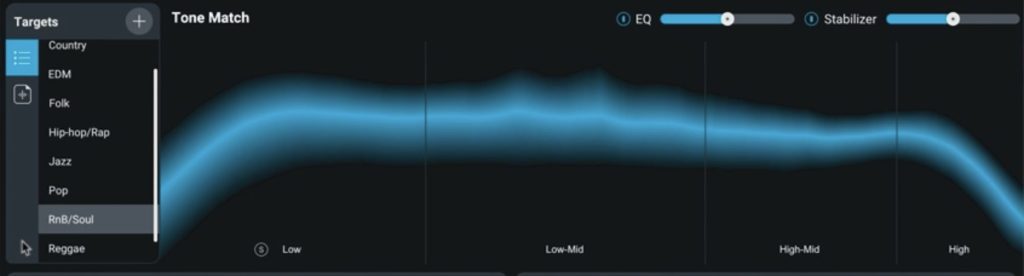
The list contains several genres. Here, Master Assistant has automatically selected RnB/Soul.
If the selection is wrong, or you simply want a different result, you can choose another target. Pop seems more appropriate for this track, so let us switch to it and listen.
The result is noticeably brighter. This seems a more suitable comparison with the Ozone 9 example above.
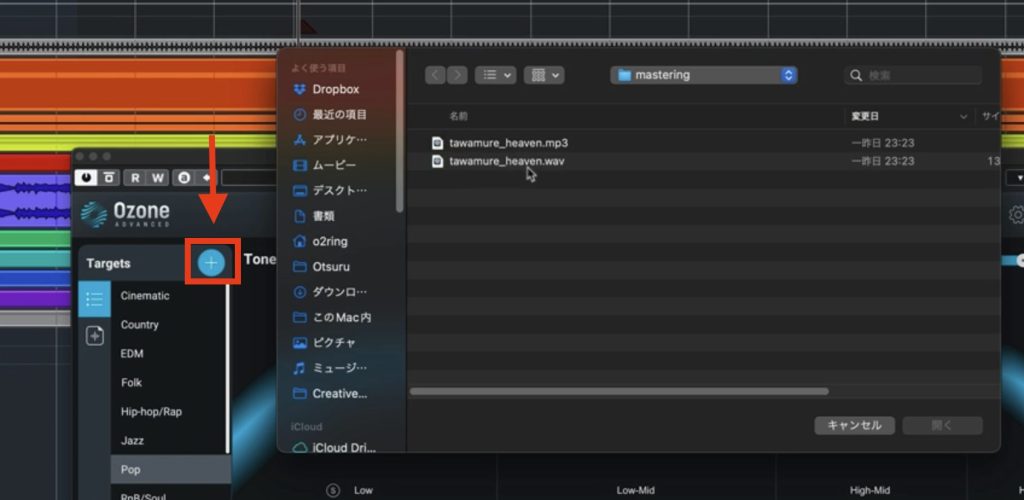
Rather than selecting from the list, you can also load a song of your own to use as a reference.
Click the + button above the list and select a file. Its spectral profile is then reflected in the target.
The Tone Match target affects EQ and Stabilizer, whose names appear at the upper right.
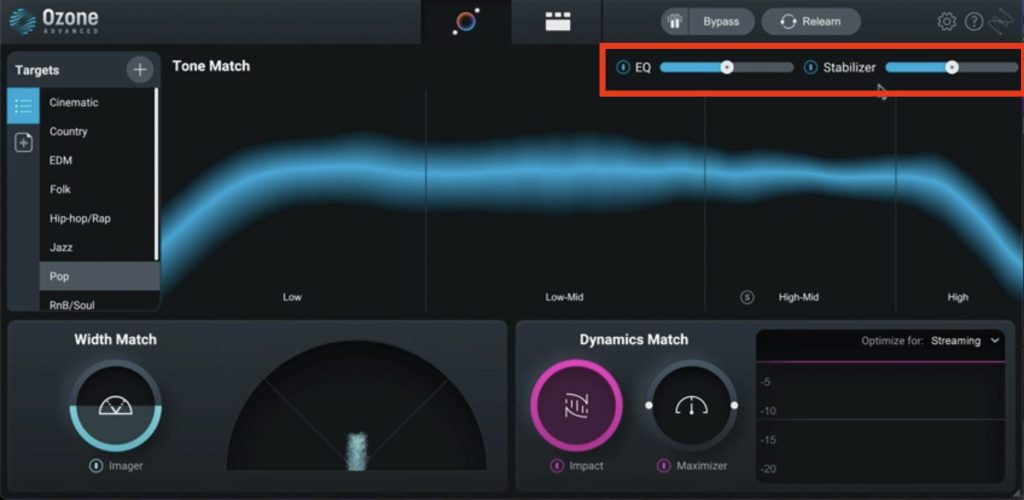
To view these modules, click this button to switch to Detail View.

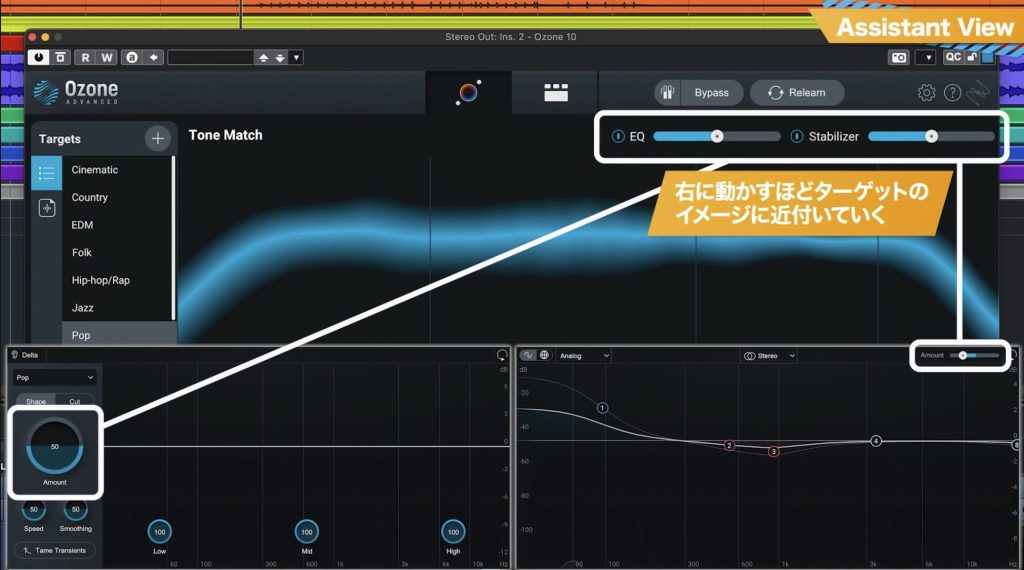
In EQ and Stabilizer, the Amount parameter controls how strongly the Tone Match target influences the processing.
These parameters are linked to the slider shown in Assistant View. Increasing it moves the result closer to the Tone Match target.
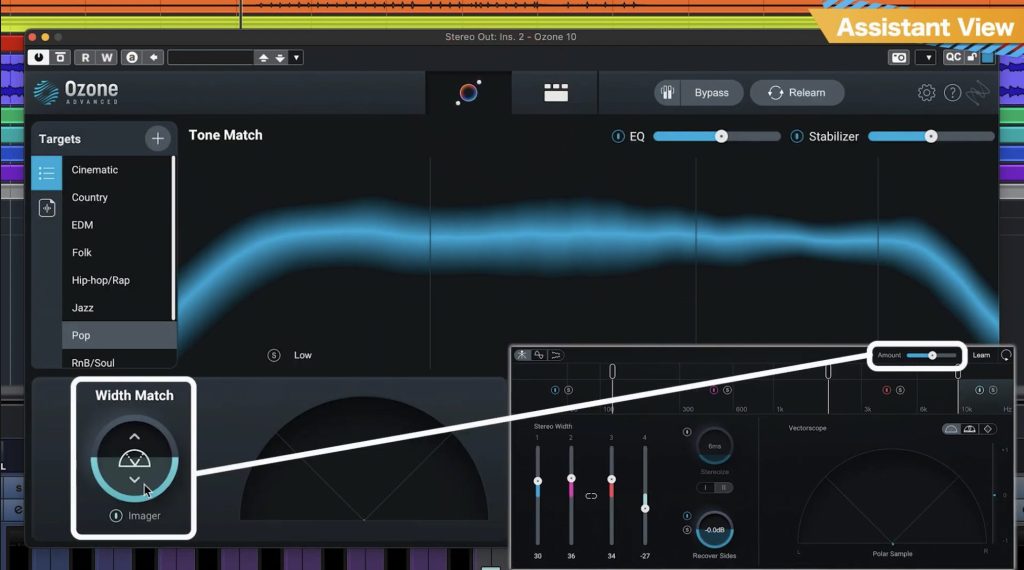
Width Match
Width Match controls the left-right spread of the sound—its stereo image.

In Detail View, this is linked to Imager. As with Tone Match, the module’s Amount parameter is linked to the value in Assistant View.
Increasing it brings the stereo image closer to the selected target. Some frequency bands may become wider, while others become narrower.
Dynamics Match
Dynamics Match lets you choose a loudness target: Streaming or DJ Play.
DJ Play produces higher loudness.
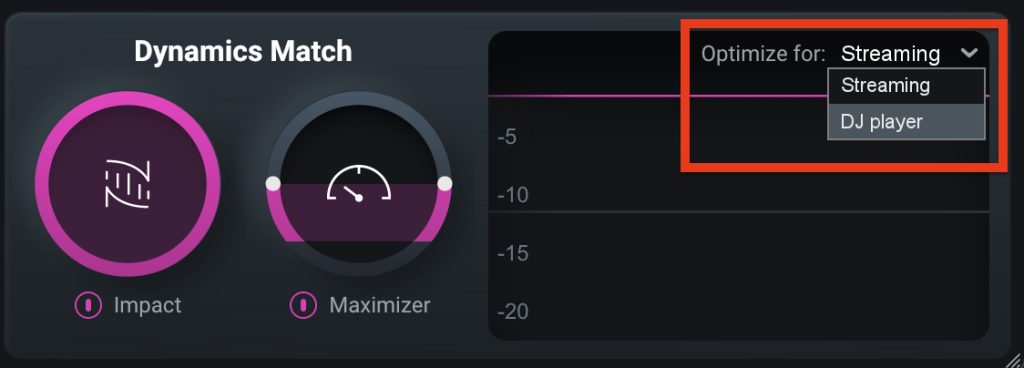
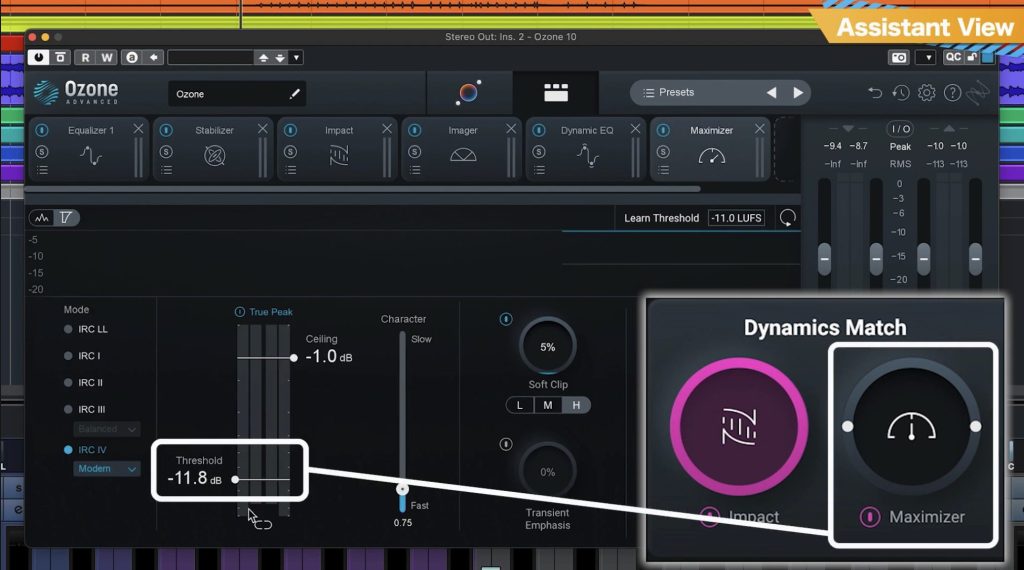
The corresponding modules are the new Impact module and Maximizer.
The Maximizer slider corresponds to its threshold. Raising the slider lowers the threshold and increases loudness.
We will cover Impact shortly. Its Amount control strengthens or reduces the dynamics processing established from the selected target.
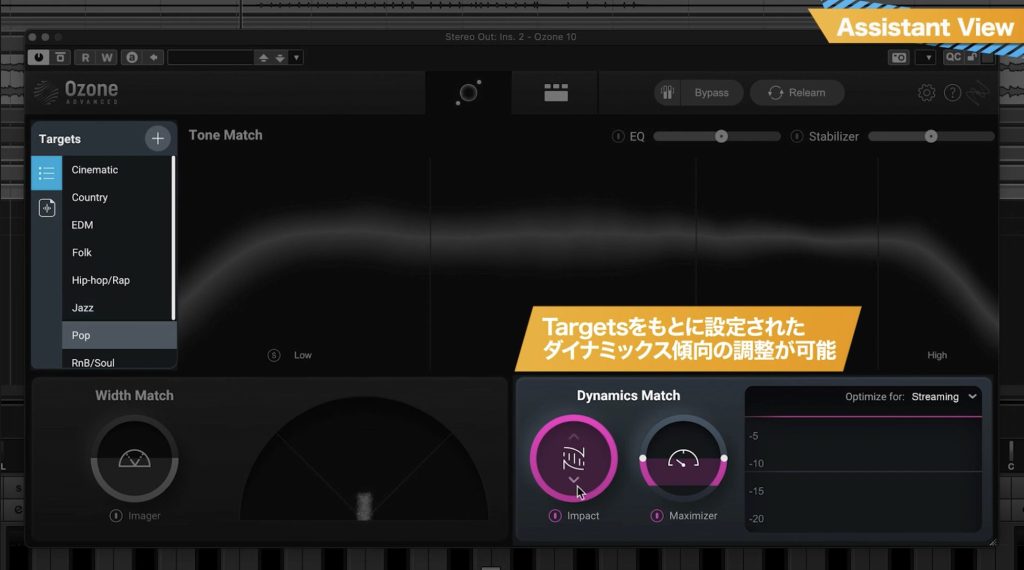
As you can see, you can leave most of the work to AI while easily making small adjustments with a few controls in Assistant View. If you want to refine the result in detail, simply use Detail View.
Stabilizing Tonal Balance with the New Stabilizer Module
Unlike a conventional EQ or dynamic EQ, Stabilizer dynamically adjusts equalization in response to the incoming sound to bring it closer to a target tonal balance.
The same target used in Tone Match is selected here. You can set Amount not only overall, but also for individual frequency ranges.
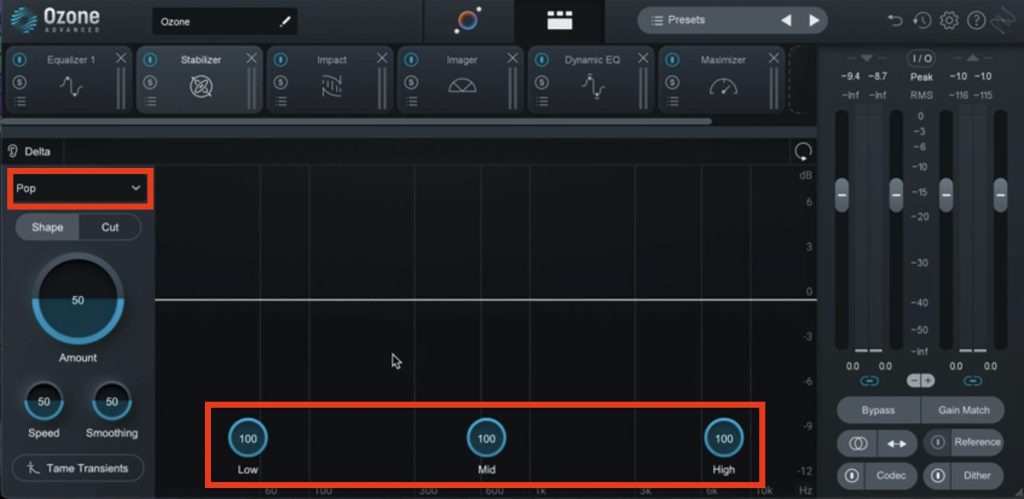
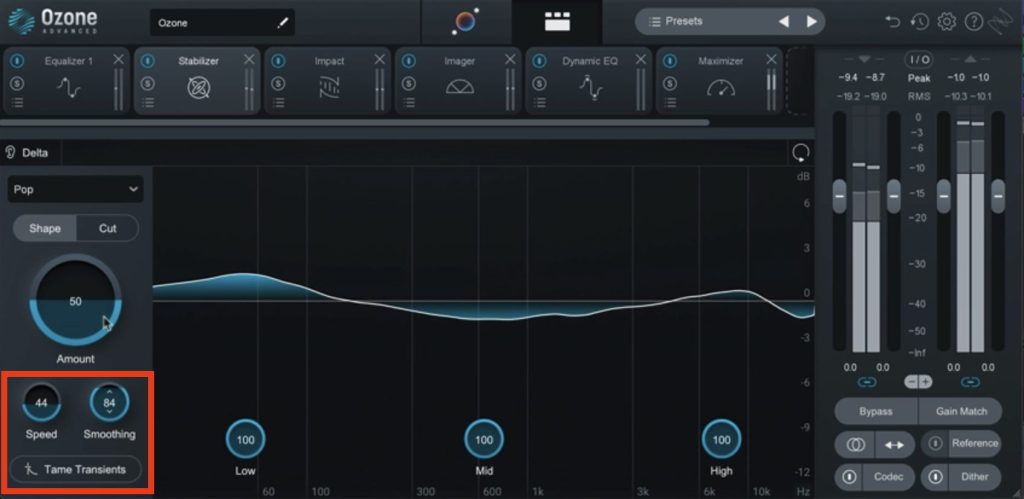
For finer adjustments, Speed controls how quickly the processing responds, while Smoothing adjusts the smoothness of the boost and cut curves.
Tame Transients smooths sudden, sharp transients. This also looks useful for producing a stable, easy-to-listen-to master.
Alongside the Shape mode shown here, Stabilizer has a Cut mode. This useful function detects concentrated resonances in particular frequency ranges and dynamically attenuates them.
Sensitivity controls how readily those resonances are detected.
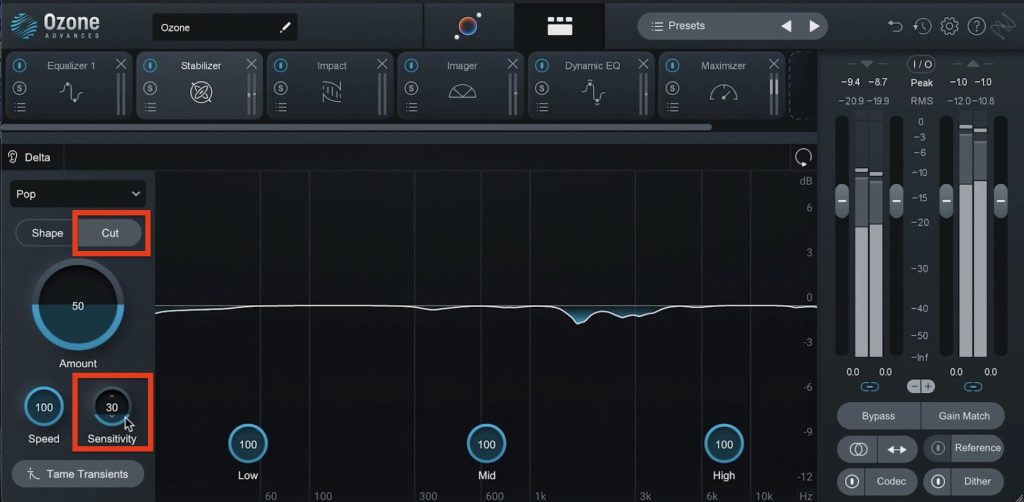
This allows listeners to enjoy a stable sound without being distracted by unwanted changes in tonal balance.
Adjusting Microdynamics with the New Impact Module
Impact lets you emphasize or reduce very fine details such as transients, with independent direction and amount controls for each frequency band.
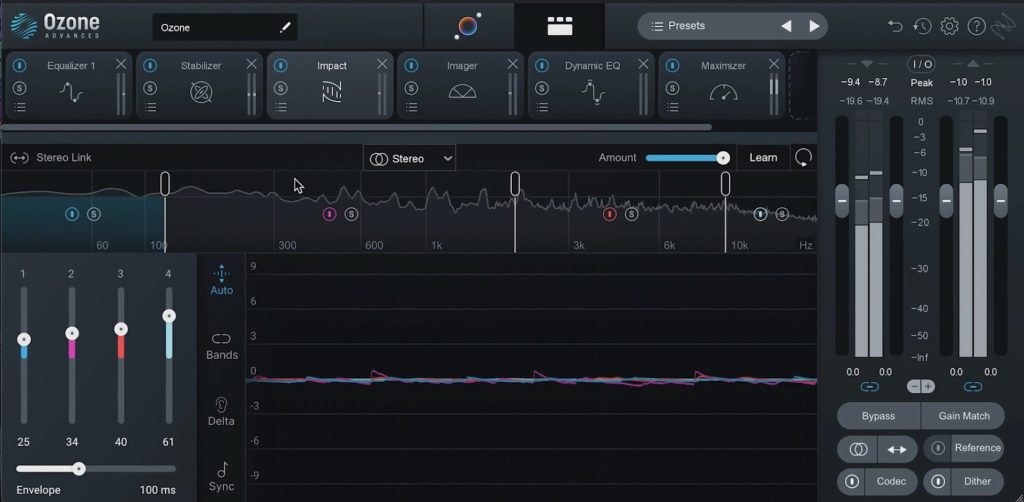
Let us compare the sound with and without Impact.
Applying Impact makes the overall feel of the track more lively.
Our impression is that it works on much finer details than those a compressor would usually address. The changes are subtle yet distributed throughout the sound, making a substantial difference to the overall impression.
This makes it easier to control punch and transients precisely while giving Impact and your compressor different roles.
New Features in Imager
Imager gains a new parameter called Recover Sides.
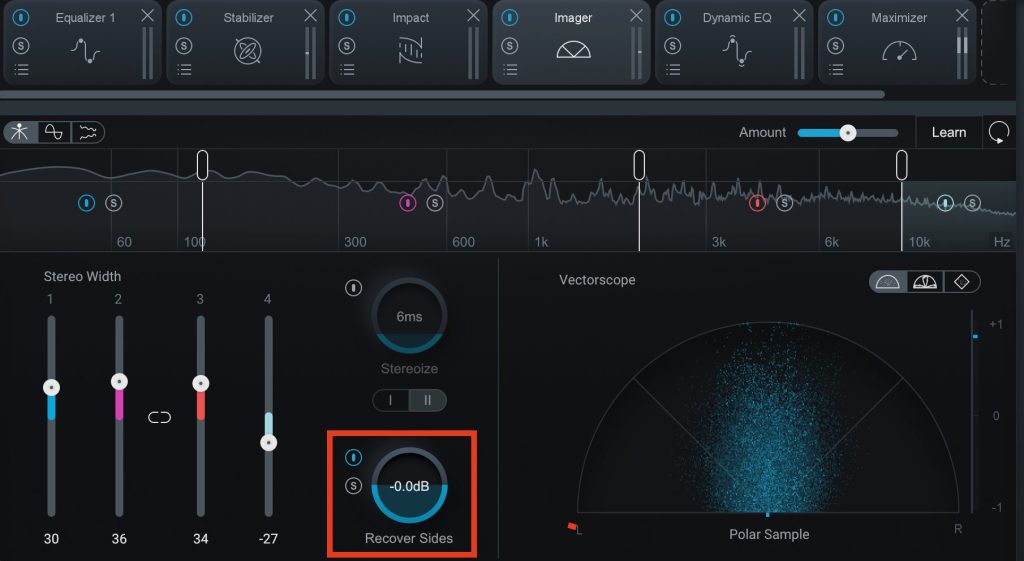
It recovers energy from the side signal that would otherwise be lost when narrowing the stereo image, helping prevent the narrowed frequency range from sounding thin.
For example, narrowing the low end is a common way to clean it up, but without recovery it can sound less full than the original. Increasing Recover Sides restores some weight, helping preserve energy comparable to the original stereo placement.
This gives us even more confidence to use Imager when shaping a master.
New Features in Maximizer
Maximizer gains a parameter called Soft Clip.
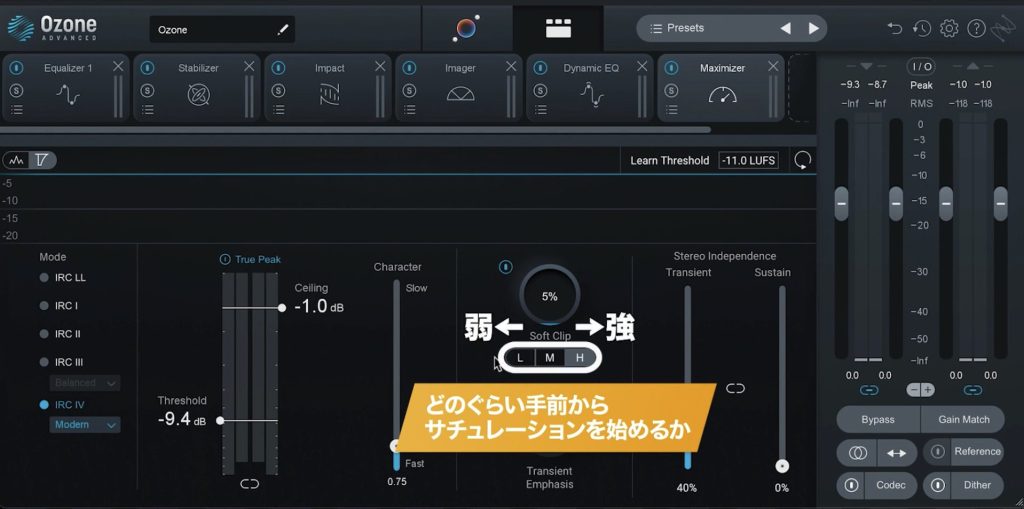
This function introduces saturation slightly before the level reaches the threshold, aiming for a natural sense of loudness alongside limiting.
Because it responds to the dynamics, it avoids an obvious sense of the sound being clamped down.
The L/M/H options control how far before the threshold saturation begins, letting you choose how aggressively it is introduced.
That concludes our overview of the improvements in Ozone 10, which had just launched when this review was originally published in September 2022. Its refinements made Ozone easier to use and helped it deliver results beyond the previous version. If these capabilities suit your workflow, the examples above offer a useful starting point for exploring it.
iZotope Ozone 10: Key Improvements in Mastering
We explore the changes introduced in version 10, compare it with version 9 and put its capabilities to the test.Video: https://t.co/NsdHG9VwYE
Article: https://t.co/CPsmOwljTq #DTM #Mastering pic.twitter.com/aUevUr3STw
— SLEEP FREAKS (@SLEEPFREAKS_DTM) September 27, 2022
Frequently Asked Questions
Q1. Can Ozone 10’s Master Assistant handle mastering entirely with AI?
After Master Assistant analyzes the audio and applies processing automatically, you can make simple adjustments in Assistant View. For more precise control and detailed refinement, switch to Detail View.
Q2. How does Stabilizer differ from a conventional EQ?
Rather than applying static equalization, Stabilizer analyzes the sound in real time and dynamically moves it toward a target tonal balance. You can set Amount for individual frequency ranges, and its Cut mode dynamically attenuates resonances for flexible, stable tonal control.
Q3. Was upgrading from Ozone 9 to Ozone 10 worthwhile?
In our comparison, the new modules, interface and improved Master Assistant contributed to greater width, depth and clarity. For users seeking efficient, high-quality mastering at the time of this review, we considered the upgrade worthwhile.
NEW ARTICLES
Latest English Articles











