
Studio One's transpose function makes it easy to change the key of a song. There are two methods, rewriting the MIDI data itself and transposing only the playback, and it is important to choose according to your purpose. It is useful when you want to match a vocalist's key or change the feel of a song, and Global Transpose in particular is a new feature that also works on audio tracks. Note, however, that applying it to drum tracks changes the sounds, so take care.
What Is Transpose?
The transpose function is a function for changing key, for example changing an event's key from C to E.
It is especially useful when "the song I made doesn't fit the vocalist's key" or when "I want to completely change the feel of the song."
You can also transpose every track by hand, but the transpose function makes it much easier.
There are several ways to transpose depending on your purpose, but broadly speaking there are two: transposing the data itself, and transposing only the playback.
Transposing by Rewriting the MIDI Data
This method transposes by directly changing specific notes in the note editor.
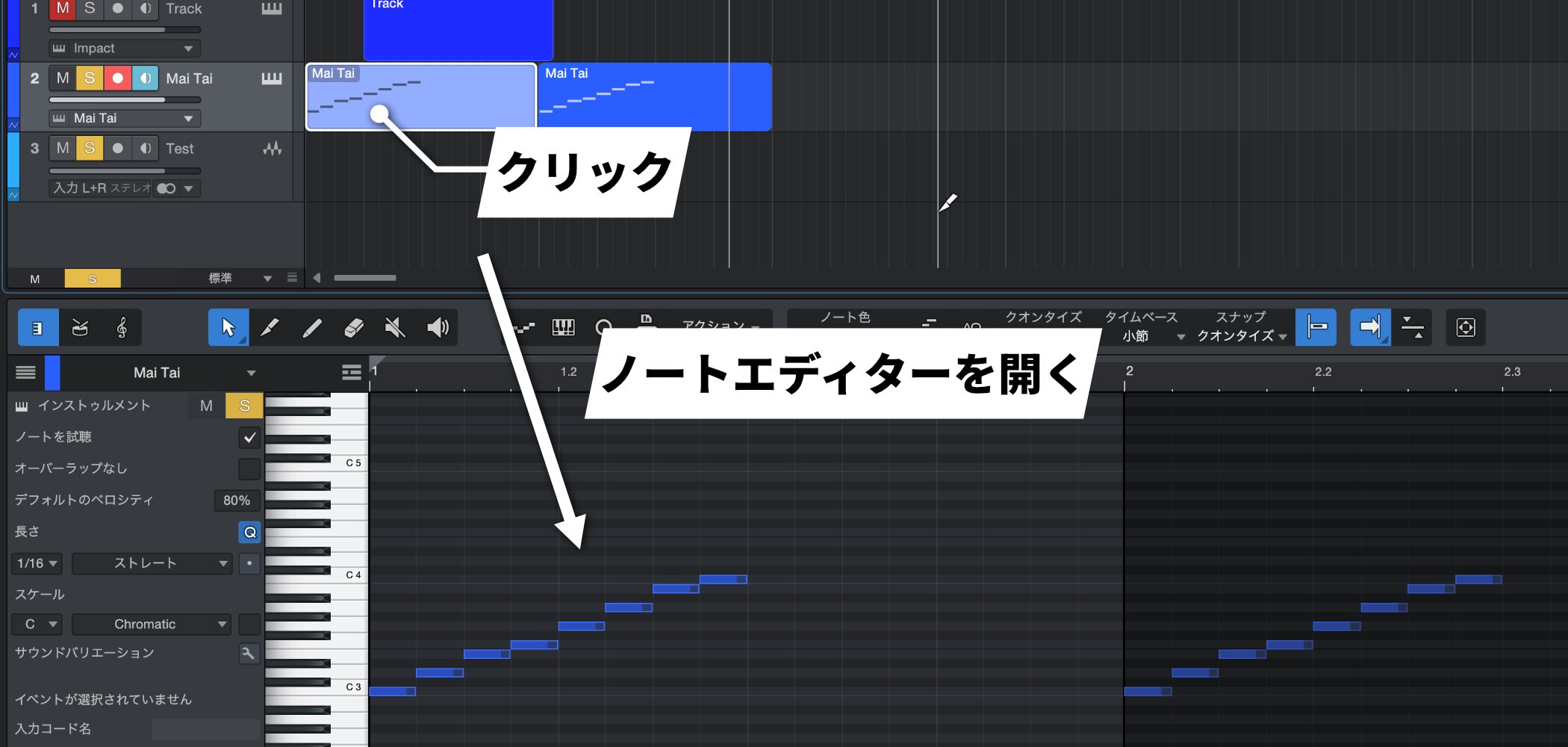
Click the MIDI event you want to transpose and open the note editor.
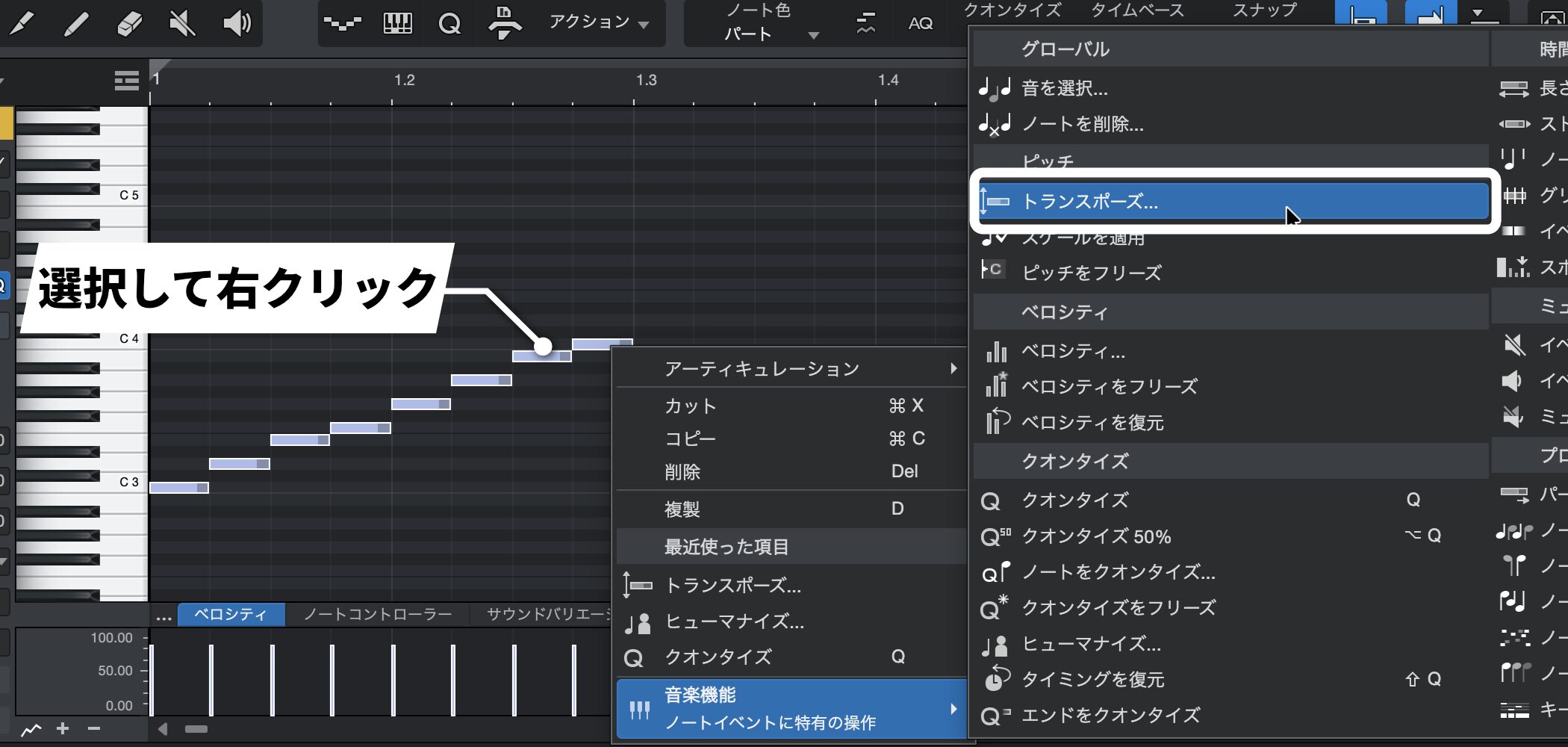
Select the MIDI notes you want to transpose and choose "Transpose..." from "Musical Functions" in the right-click menu.
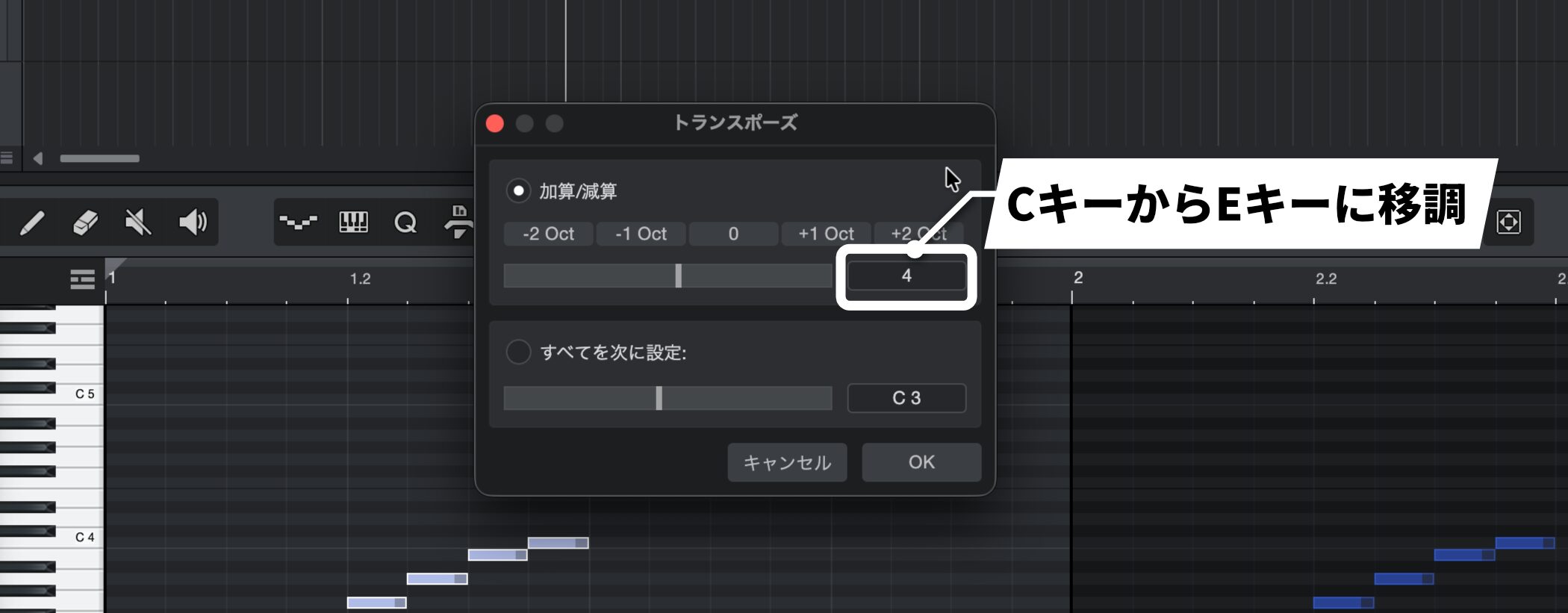
A settings window appears, so either choose an option that fits your purpose under add/subtract or enter a value directly.
Setting "1" raises the notes by a semitone, and "-1" lowers them by a semitone.
For example, to change from the key of C to the key of E, you raise it by 4 semitones, so enter "4" and click "OK."
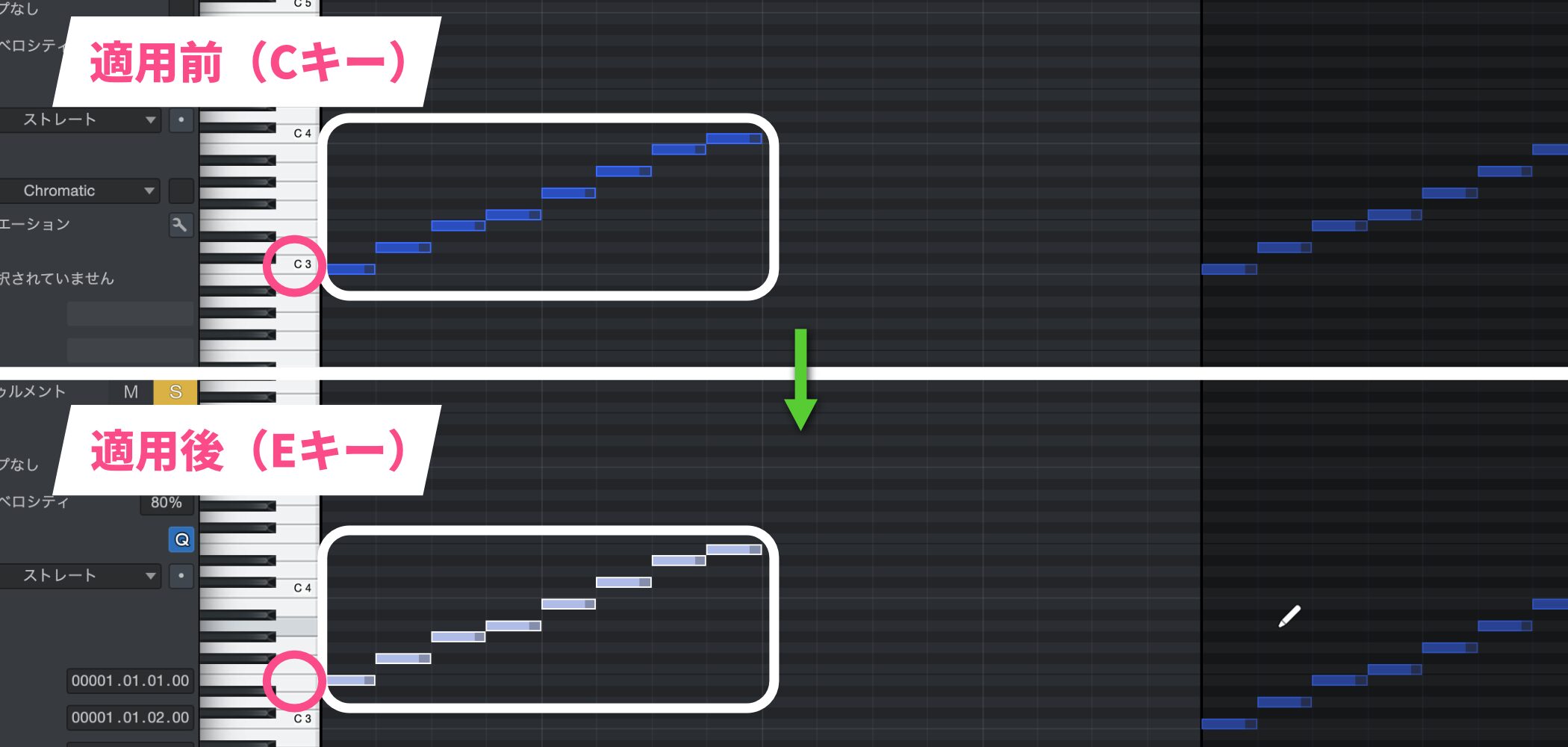
The selected notes move according to your settings.
You can also transpose per event using the same steps.
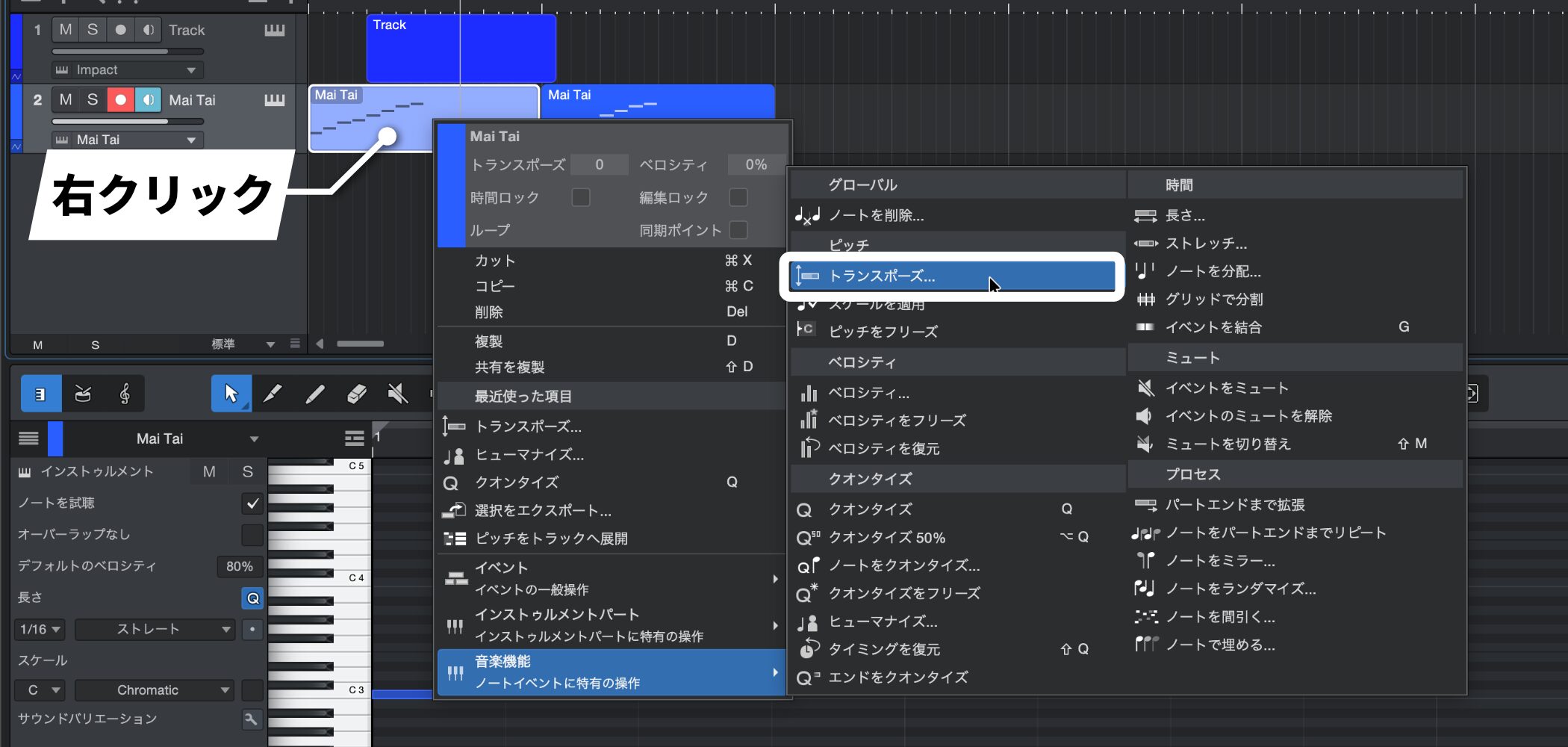
Right-click the event you want to transpose and choose "Transpose..." from "Musical Functions" in the menu.
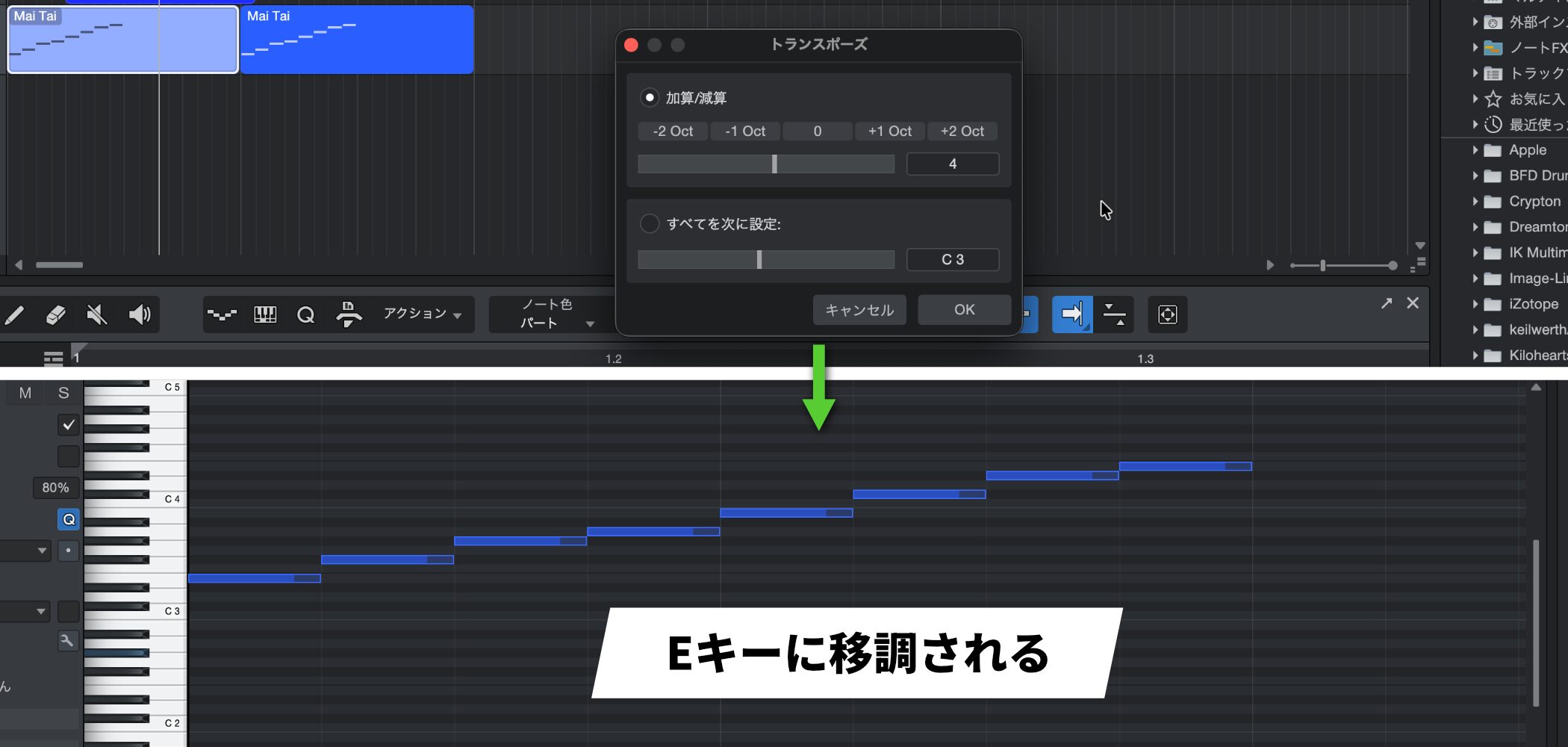
Set the transpose and click "OK," and all the notes in the selected event move according to your settings.
Note: Transposing Drum Tracks
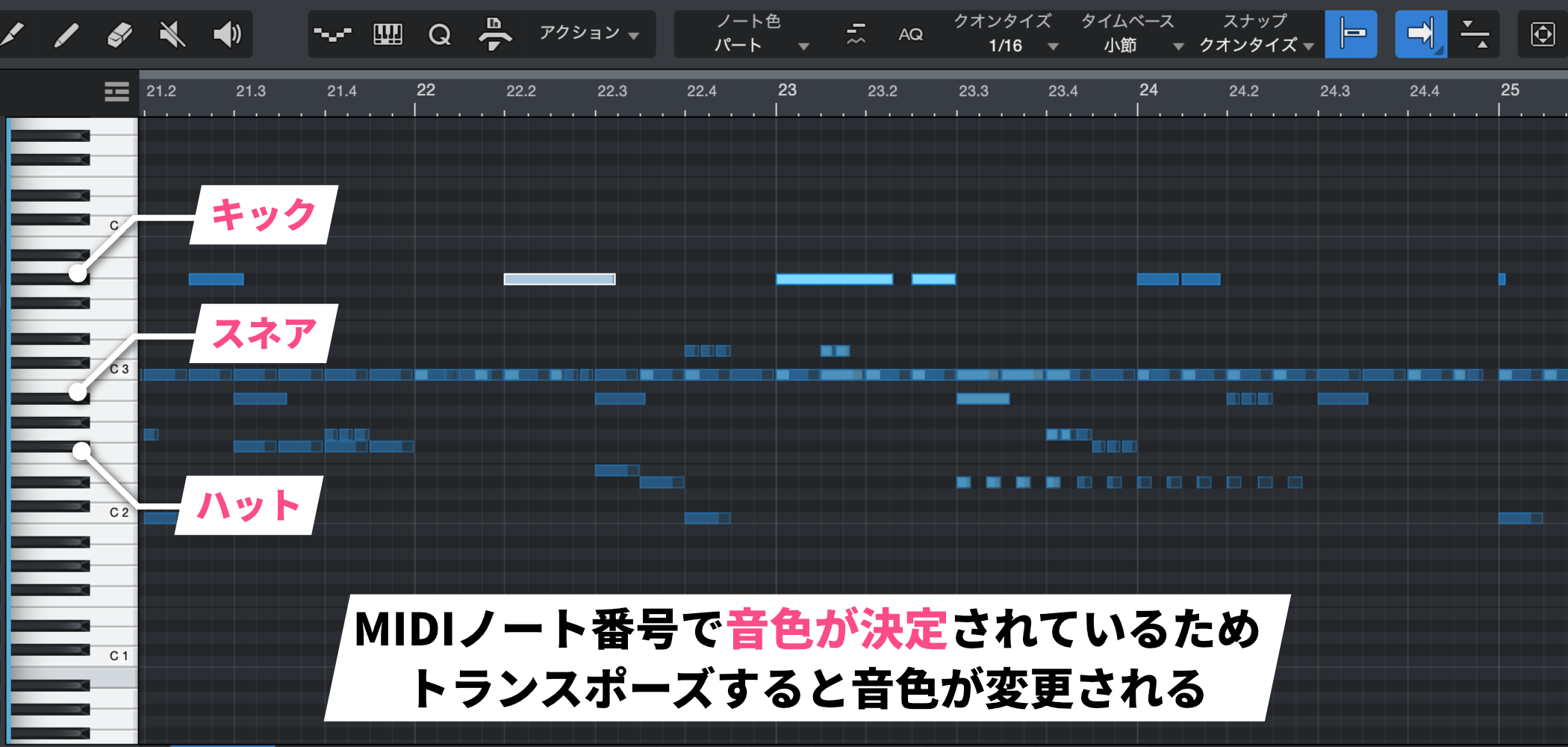
On drum tracks (kick, snare, hi-hat, and so on), the sound is determined by the MIDI note number.
So if you apply transpose, all the sounds change, which could be a disaster.
Be careful not to use transpose on drum tracks.
Transposing Only the Playback Without Changing the MIDI Data
This function, without changing the content of the MIDI data, transposes the sound being played in real time.
It is recommended for experimenting, such as when you want to casually try how different keys sound.
Transposing the Playback of the Whole Song
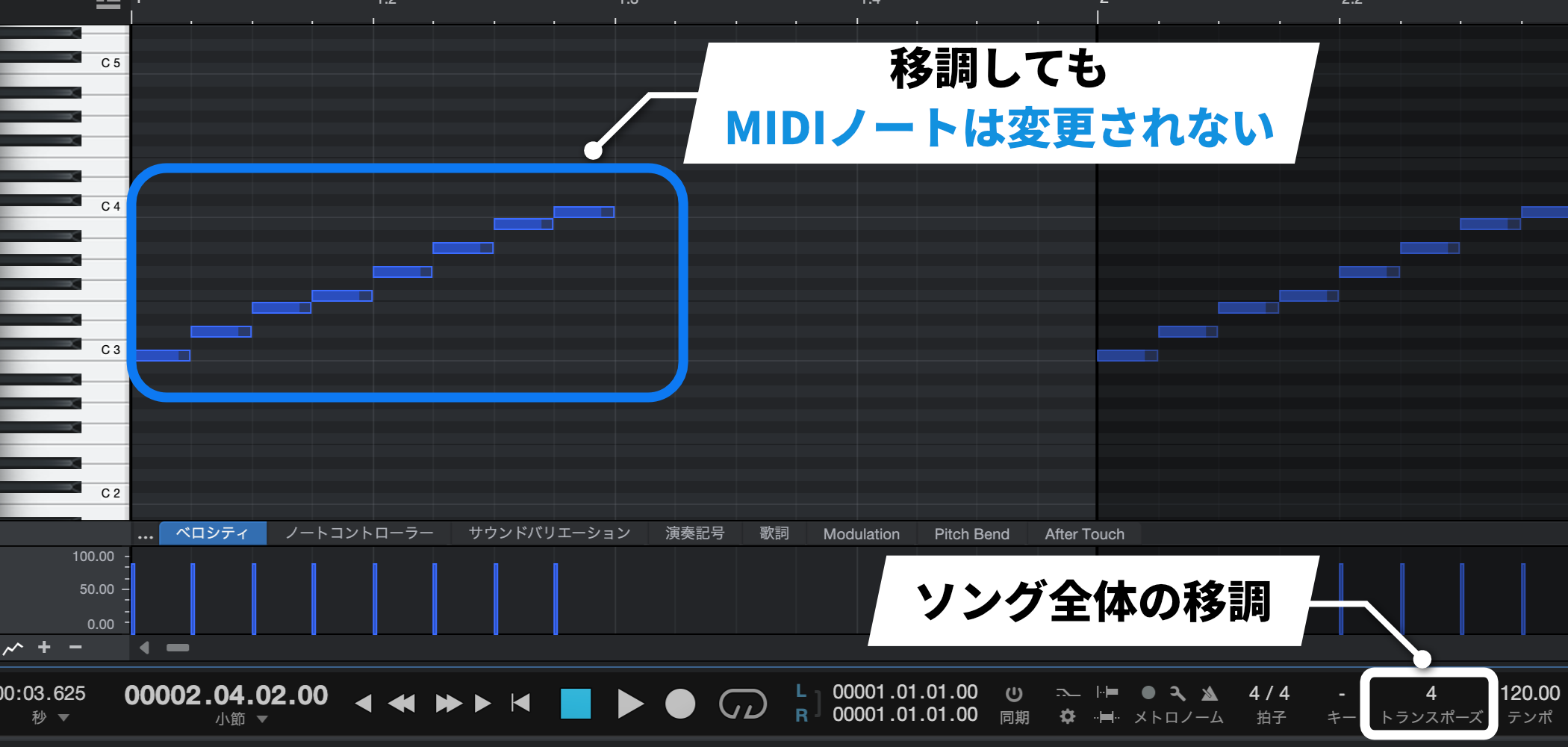
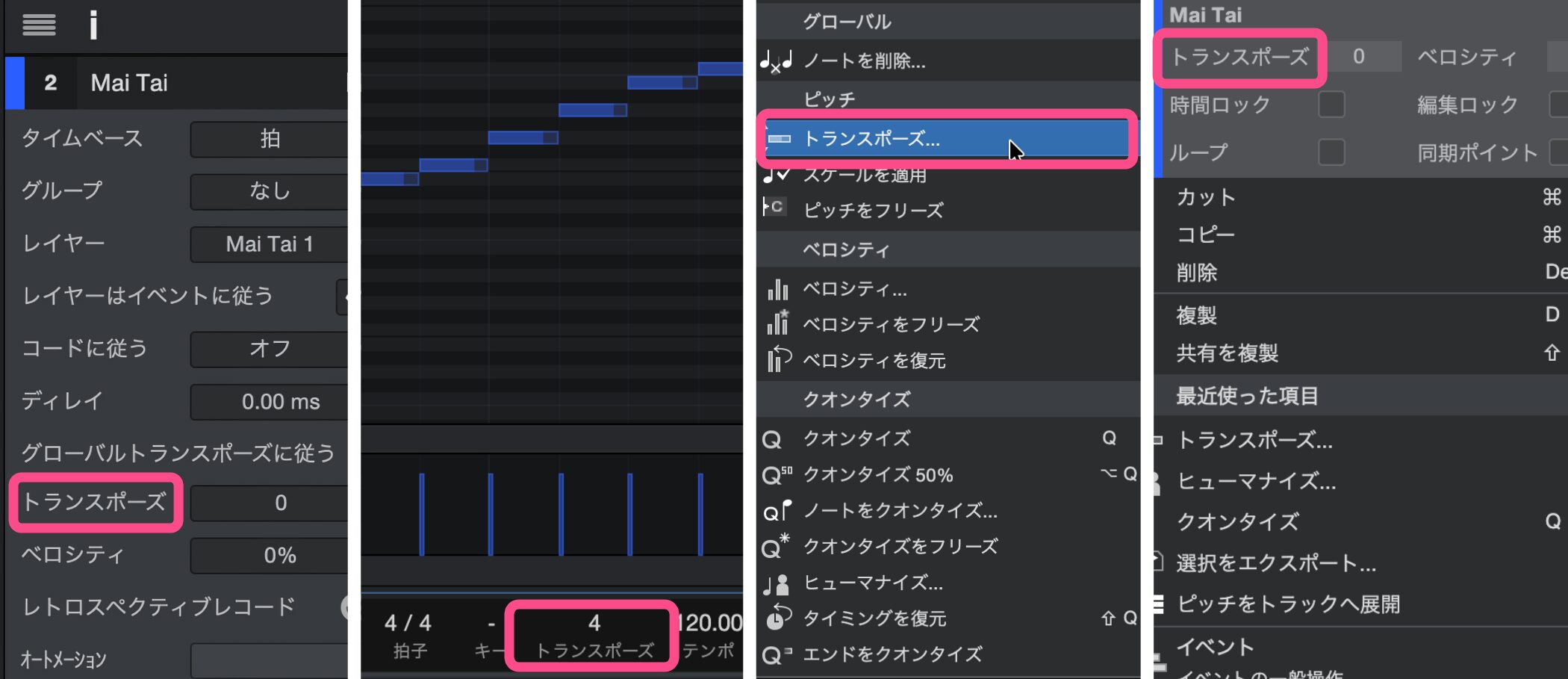
To transpose the whole song, adjust the transpose value in the Transport bar.
The MIDI notes do not move; only the playback is transposed, which is handy when you want to adjust the overall key while keeping the original data, such as when matching a vocalist's key.
This function, which transposes both audio tracks and instrument tracks in real time, is called Global Transpose and is one of the features newly introduced in Studio One Pro 7.
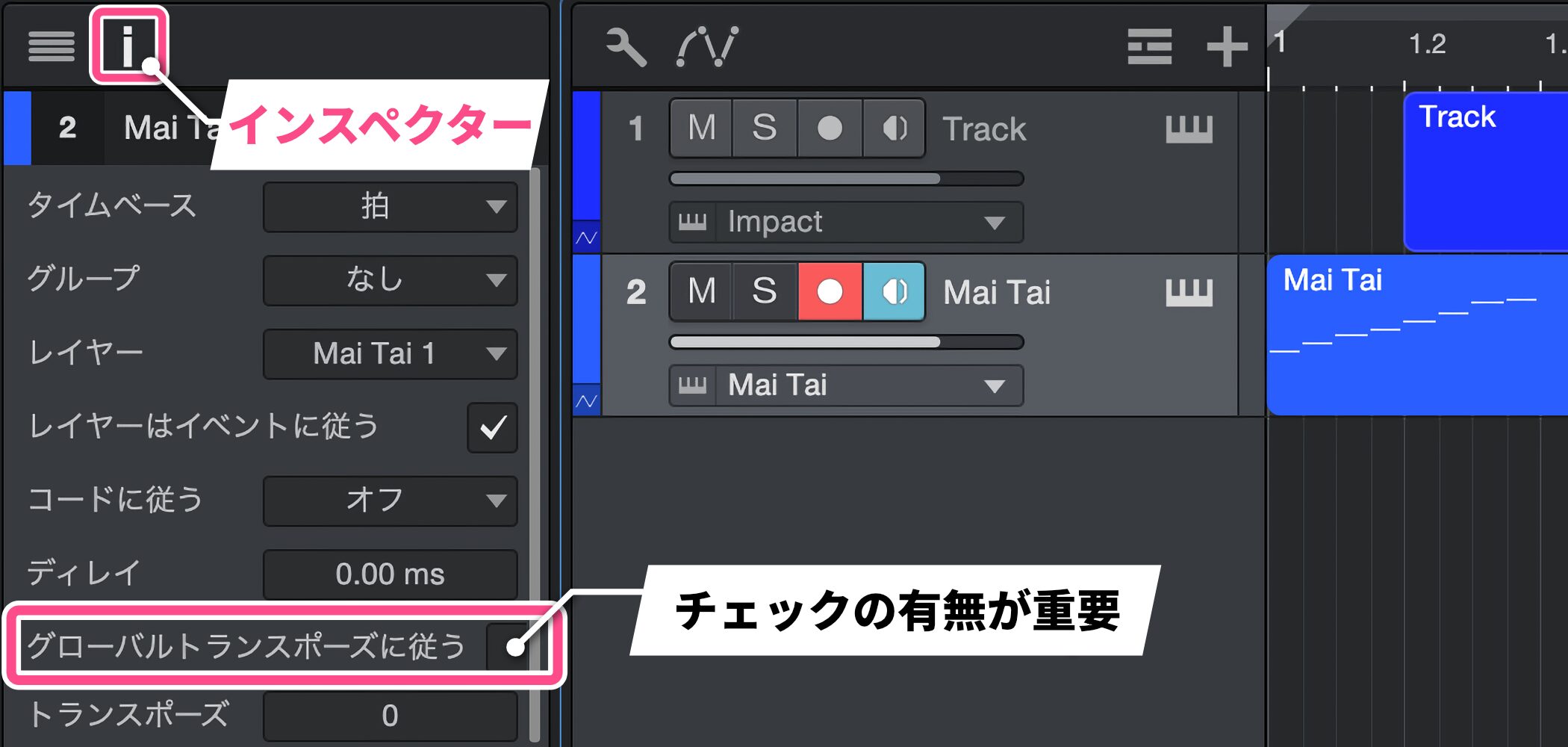
When using Global Transpose, the setting of the "Follow Global Transpose" checkbox in the Inspector of MIDI tracks (instrument tracks) is important.
Keep the following in mind.
| Setting | Checked | Unchecked |
|---|---|---|
| Effect | The track follows the song's global transpose and its pitch changes | The track is not affected by the song's global transpose |
| When to use | For instruments whose melody or chords you want to transpose, such as piano and synths | For tracks whose pitch you don't want to change, such as drums and noise effects |
Transposing Only the Playback of a Selected Track
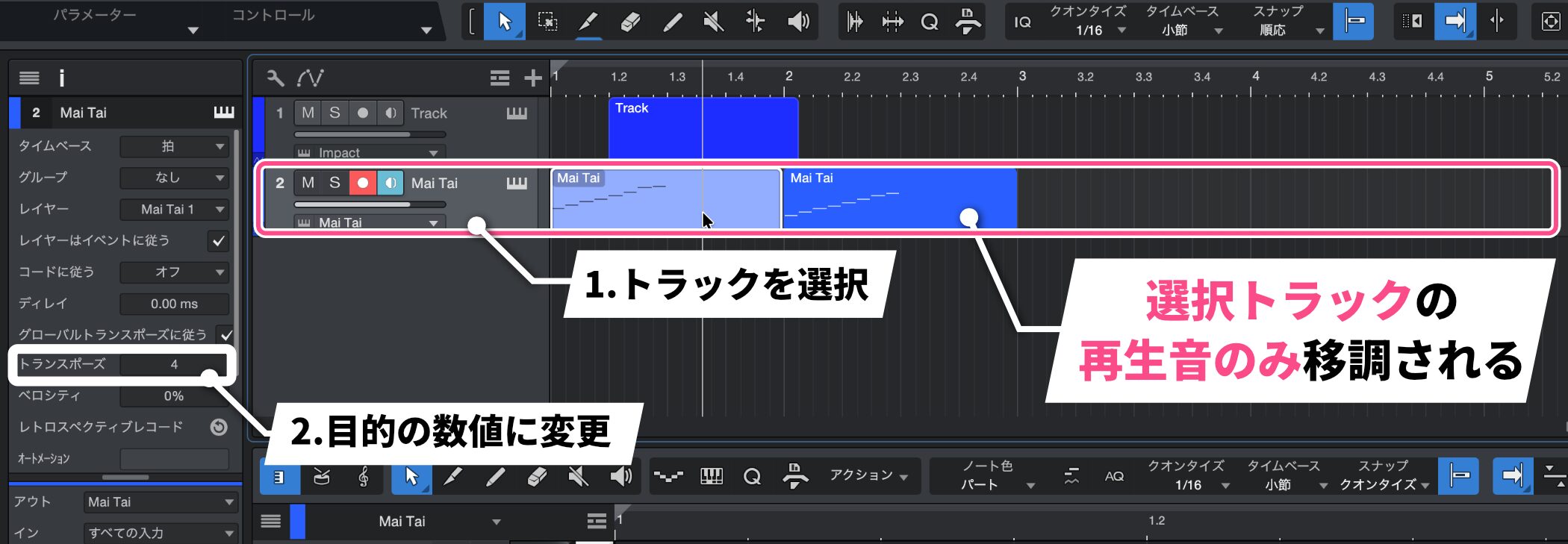
Select the track and change the transpose value in the Inspector.
After the change, only the playback of the whole selected track is transposed.
Transposing Only the Playback of a Selected Event
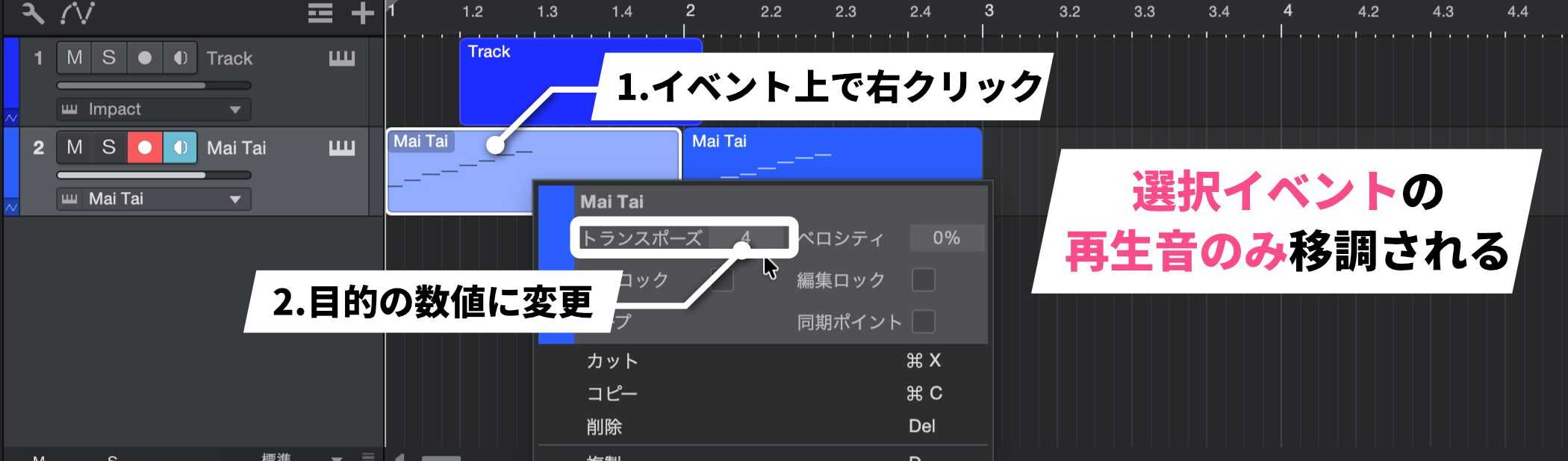
Right-click the event and change the transpose value.
After the change, only the playback of the selected event is transposed.

Frequently asked questions
Q1. Can I change the key in Studio One without changing the MIDI data?
Yes. With Global Transpose, which adjusts the transpose value in the Transport bar, you can transpose only the playback in real time while keeping the MIDI data. It is handy when you want to experiment while keeping the original data.
Q2. What happens if I use transpose on a drum track?
On drum tracks, the sound is determined by the MIDI note number, so applying transpose changes all the sounds. Be careful not to use the transpose function on drum tracks.
Q3. How many semitones do I raise it to transpose from the key of C to the key of E?
Transposing from C to E requires raising it by 4 semitones. Enter "4" in the transpose settings to change to the key you want.
Q4. What if I don't want certain tracks to be affected by Global Transpose?
Uncheck "Follow Global Transpose" in the track's Inspector, and that track is no longer affected by the song's transpose. This is effective for tracks whose pitch you don't want to change, such as drums.
NEW ARTICLES
Latest English Articles











