
Using Studio One's shortcut customization, you can greatly improve the efficiency of your DTM work. This article explains how to assign the operations you use most to the keys you prefer and how to unify shortcuts across multiple DAWs. It also covers the export and import functions that let you save your custom shortcuts as a file and take them with you, so you can recreate your working environment on a different computer, which helps your productivity in studios and on collaborations.
The Benefits of Customizing Shortcuts
Learning shortcuts is essential for working efficiently.
Because they let you perform operations instantly,
you will want to learn the shortcuts for operations you use often.
However, there are probably many shortcuts you just can't seem to remember.
That's when you'll want to use shortcut customization.
If you use two or more DAWs,
you can also unify the shortcuts to match one of them.
How to Set Shortcuts in Studio One
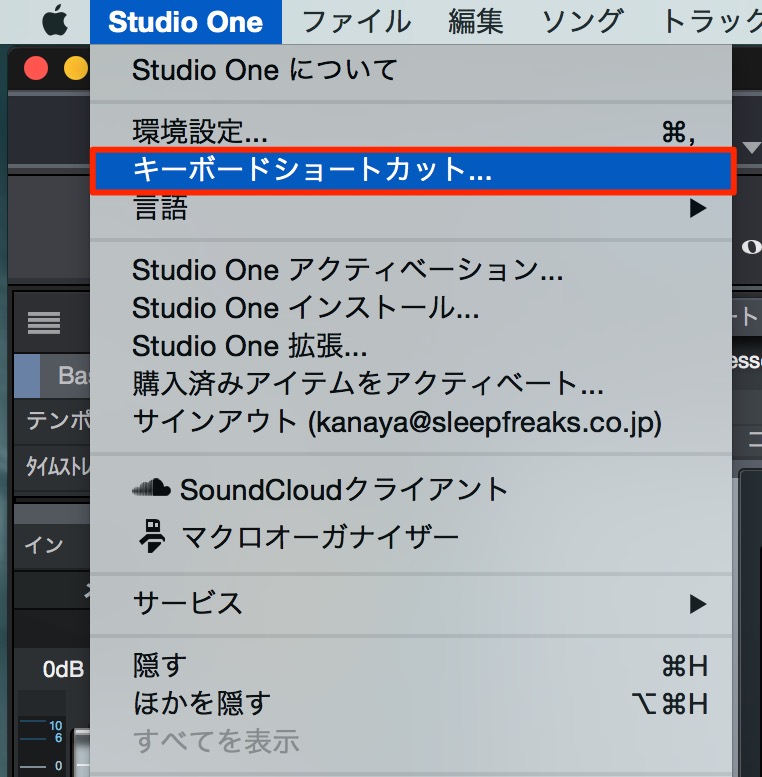
↑ From the menu bar, select "Preferences" → "Keyboard Shortcuts."
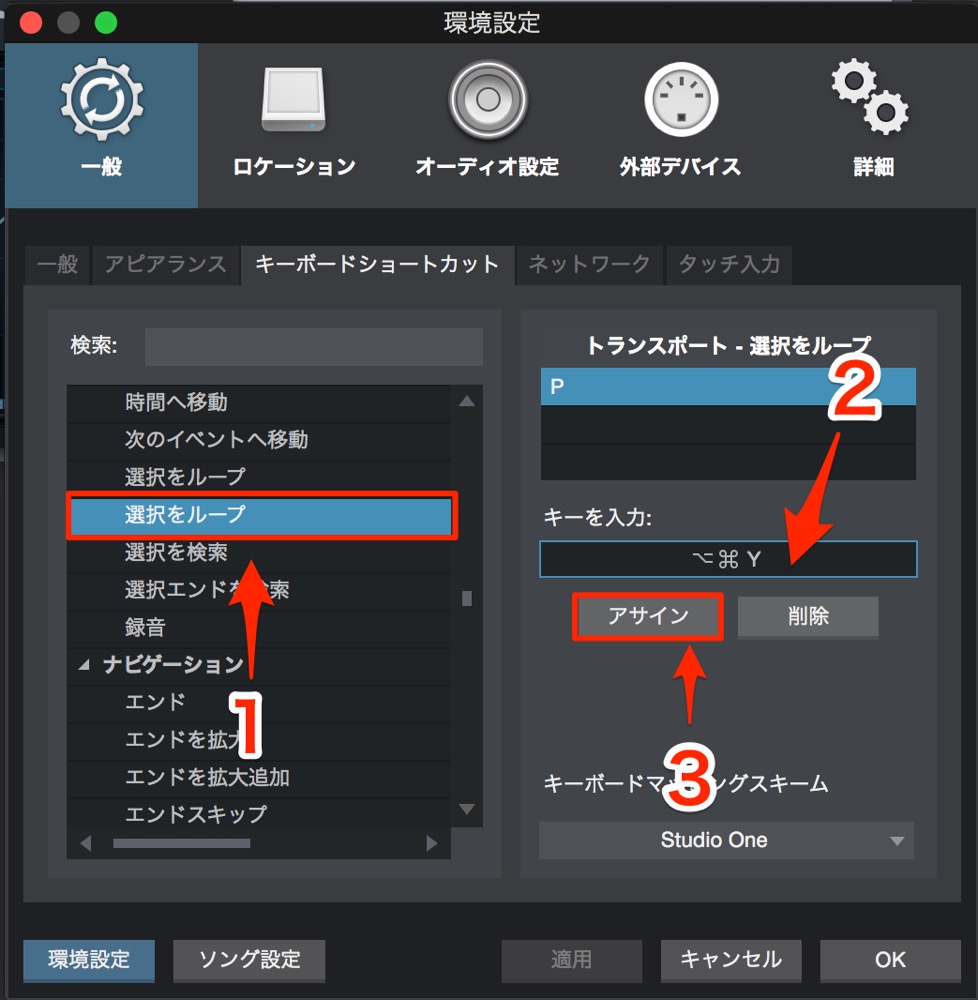
↑ The shortcut window opens.
- 1_Select the operation you want to assign.
- 2_Press the key you actually want to assign.
- 3_Click "Assign"
The shortcut is now assigned,
and you can use it right away.
Note
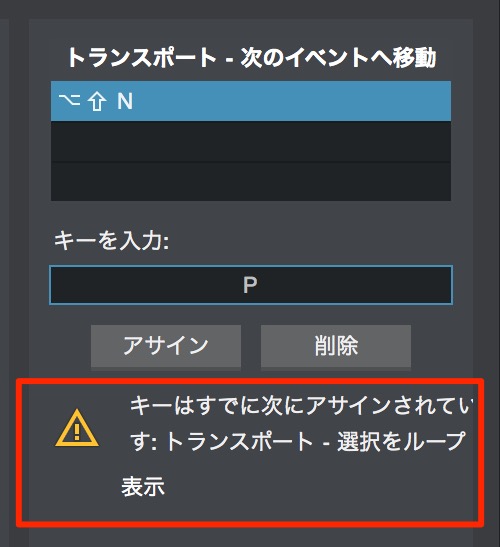
*If the shortcut is already used for another operation, a warning appears.
If you press "Assign" anyway, the previous shortcut is removed.
The Benefits of Exporting and Importing Shortcuts
For example, suppose you are using Studio One on a friend's computer.
The shortcuts are different from usual, so you can't concentrate.
That's when saving your shortcuts helps.
Save your shortcuts and take them with you,
then import them on your friend's computer and you can work in your usual environment.
The saved shortcut file is also very small,
so you can easily carry it on a USB drive or send it as an email attachment.
Exporting Shortcuts
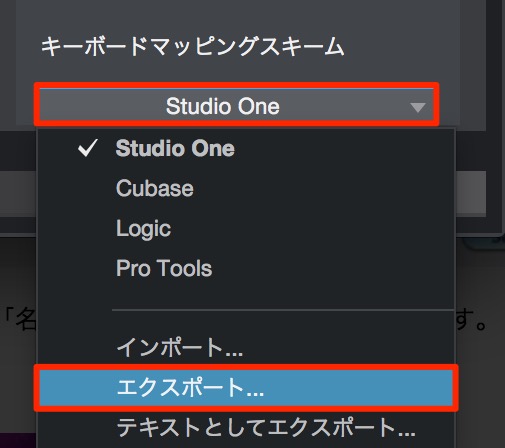
↑ Click the area outlined in red and select "Export."
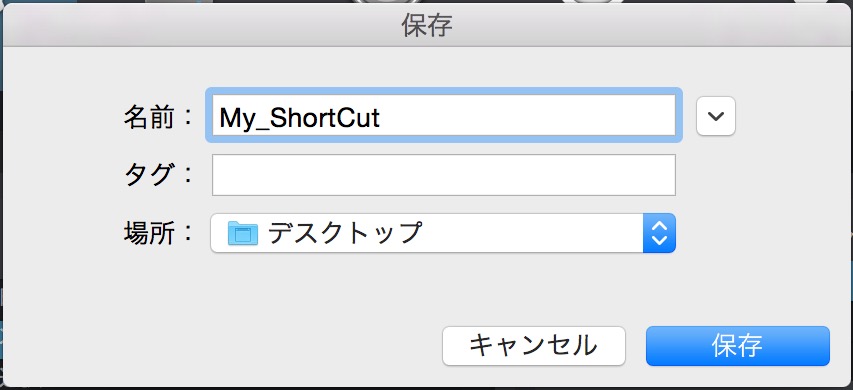
Set the name and location, then export.

↑ A file like this is created.
Just take this with you.
Importing Shortcuts
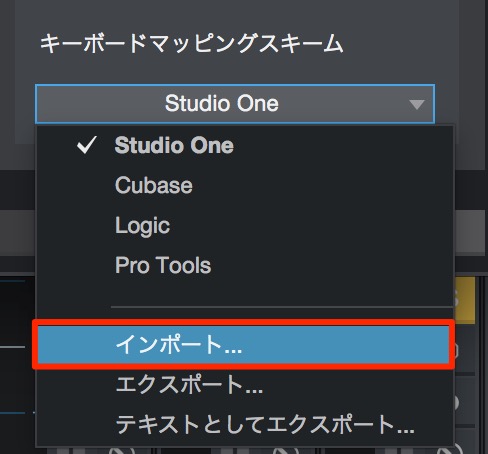
↑ In the same place as exporting,
select "Import" from the area outlined in red.
Then select the shortcut file you exported above,
and all the shortcuts in Studio One are replaced.

Frequently asked questions
Q1. What are the benefits of customizing shortcuts in Studio One?
Customizing shortcuts lets you perform the operations you use often instantly, greatly improving your efficiency. If you use several DAWs, unifying the shortcuts also prevents confusion.
Q2. What happens if I assign a key that is already used by another operation?
A warning message appears. If you click "Assign" anyway, the previous shortcut assignment is removed and replaced with the new operation.
Q3. Is there a way to move my custom shortcuts to another computer?
You can save your shortcut settings with the export function and carry them as a file. Just import it in Studio One on the other computer to recreate the same shortcut environment.
NEW ARTICLES
Latest English Articles











