
Sharing a reverb via send/return in Studio One can greatly reduce CPU load. Inserting a separate reverb on each of many tracks slows your computer down, but managing a single reverb effect on an FX channel optimizes processing. It also gives the whole song a sense of unity and makes it easy to switch the reverb on and off. This article explains the specific setup in Studio One and how AUX signal routing works, giving DTM beginners and intermediate users practical knowledge to mix more efficiently.
Reverb Puts a Heavy Load on the CPU
Among plugins, reverb is one that places a heavy load on the CPU.
If you use reverb on every track,
playback stops or your computer becomes sluggish.
This is where send/return comes in.
In short, each track shares a single reverb.
The benefits of using send/return include the following:
- It saves CPU, as explained above
- Because one reverb is shared, the song gains a sense of unity
- It is easy to switch the reverb on and off (you just mute one reverb)
Send/Return Explained
Setting Up Send/Return in Studio One
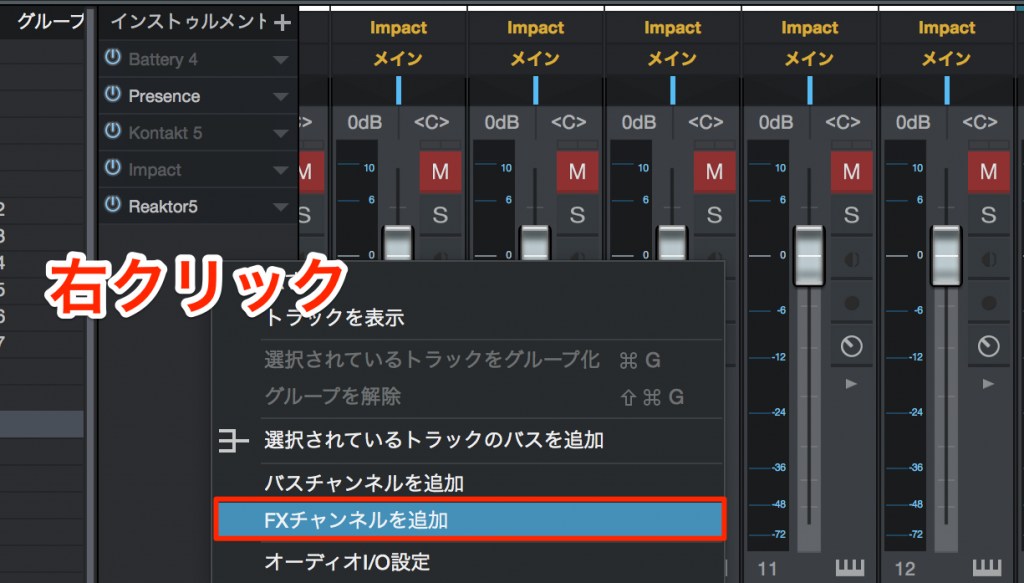
↑ Right-click an empty area of the Console window
and select "Add FX Channel" (also called "AUX" in other DAWs) from the menu.
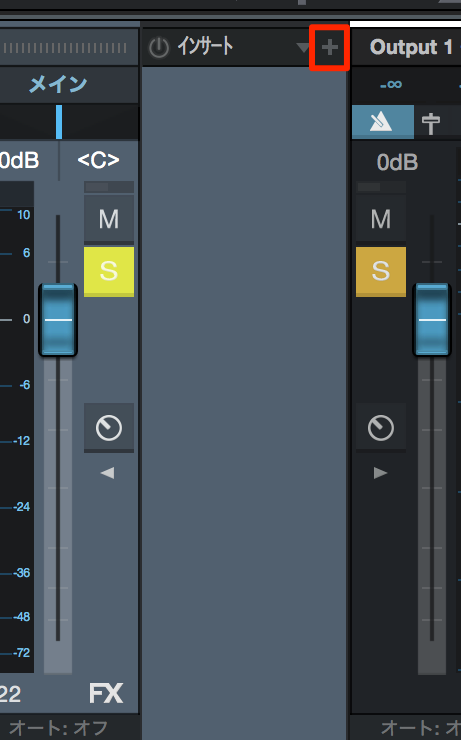
↑ Click the "+" button on the added FX channel and load a reverb.
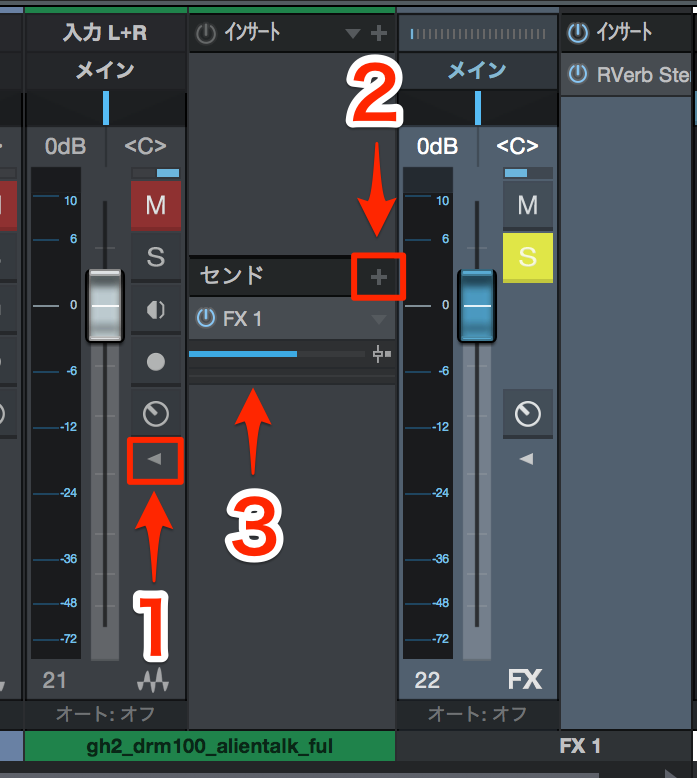
- 1_Click the "←" button on the track you want to add reverb to
- 2_Click the send "+" button and select the FX channel
- 3_Set the amount of reverb with the slider
AUX Explained
Here, we explain how signal routing works with AUX.
Understanding this will deepen your understanding of send/return.

Frequently asked questions
Q1. How much CPU can I save by sharing reverb via send/return?
The savings grow with the number of tracks. For example, compared with inserting a separate reverb on each of 10 tracks, sharing one reverb means you only carry the load of a single reverb, so you can expect a large reduction. The effect varies depending on your computer's specs and the reverb plugin you use.
Q2. Can I use several different reverbs with send/return?
Yes. Create multiple FX channels and insert a different reverb on each, and you can use several reverb settings. By assigning sends from each track to different FX channels, you can control the sense of space in more detail.
Q3. Can I adjust the reverb send amount for each track?
Of course. You can set the amount of reverb individually with each track's send slider. While sharing the same reverb, you can fine-tune how much reverb each track gets.
NEW ARTICLES
Latest English Articles











