
With Studio One's loop recording feature, you can record the same phrase over and over while keeping every take, then choose and combine the best ones afterward. This article explains the whole process, from setting the loop range and managing takes to stitching together only the good parts of multiple takes to create a "perfect take," which can greatly improve the quality of vocal, guitar, and other instrument recordings.
Record the Same Section Over and Over
Using the loop recording feature,
you can record the loop range repeatedly.
All the takes recorded this way are saved,
so after you finish playing, you can listen to them and combine them.
Loop Recording Explained
*The video uses Logic, but the concept is the same.
This Article Will Deepen Your Understanding

How to Loop Record in Studio One
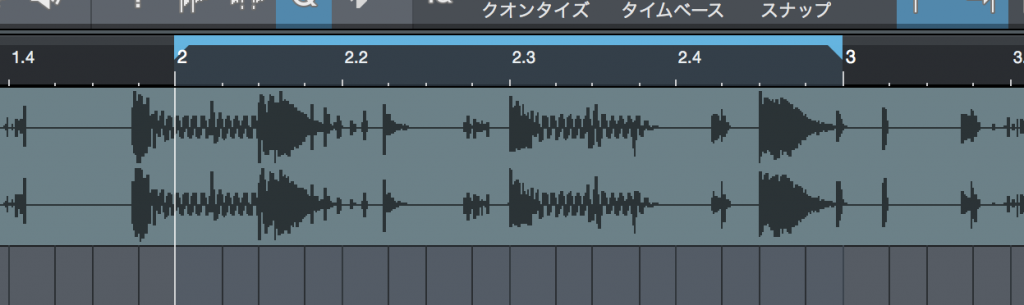
↑ Just set up a normal loop and record.
The loop range you set keeps recording until you stop.
Listening to Takes
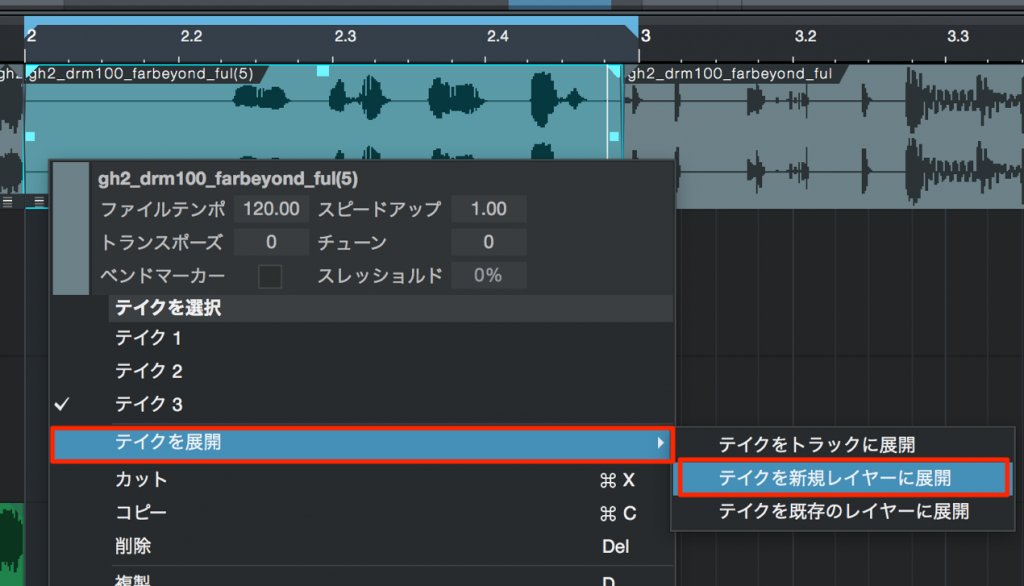
↑ Right-click the event and select "Unpack Takes" → "Unpack Takes to New Layers."
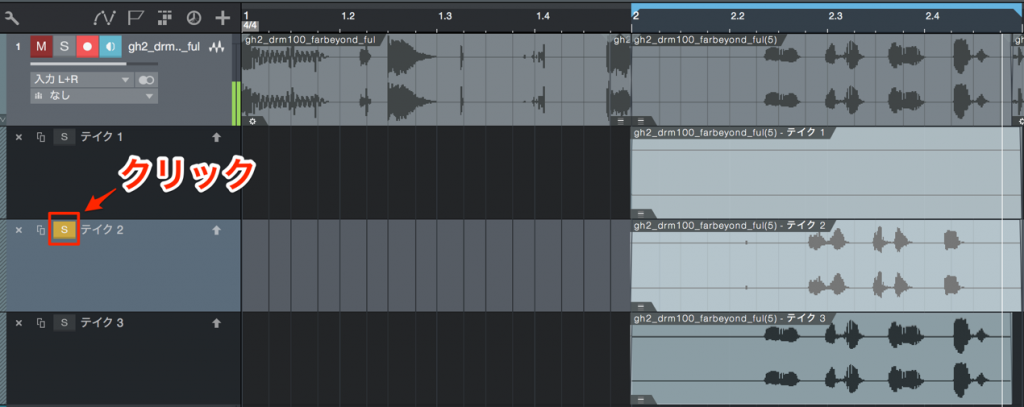
↑ All the takes from loop recording are shown,
so turn on the "S" button of the one you want to hear.
Now when you play Studio One, the take with its "S" button lit plays.
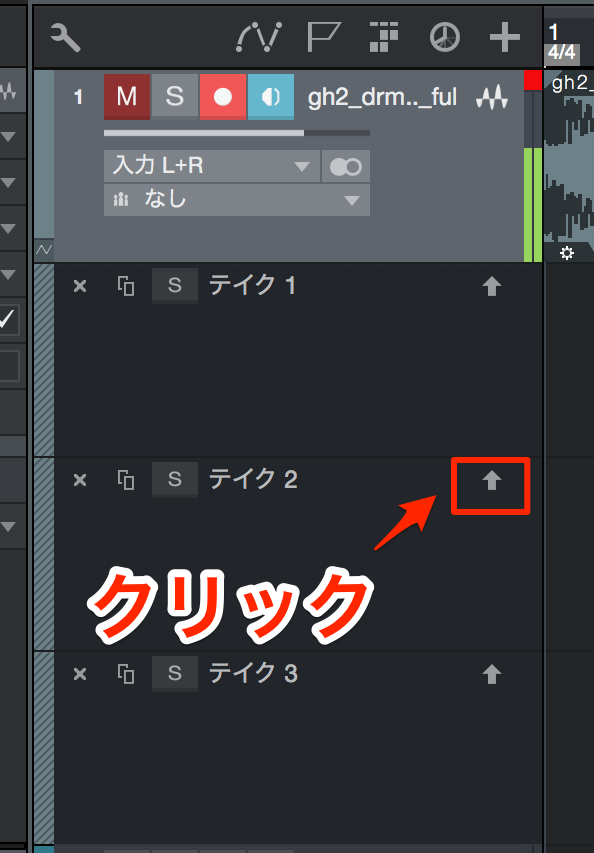
↑ When you find a take you like, click the arrow button.
The take moves to the top and is treated as the preferred take.
Combining Parts of Takes
You can stitch together only the good parts of your takes to create a "perfect take."
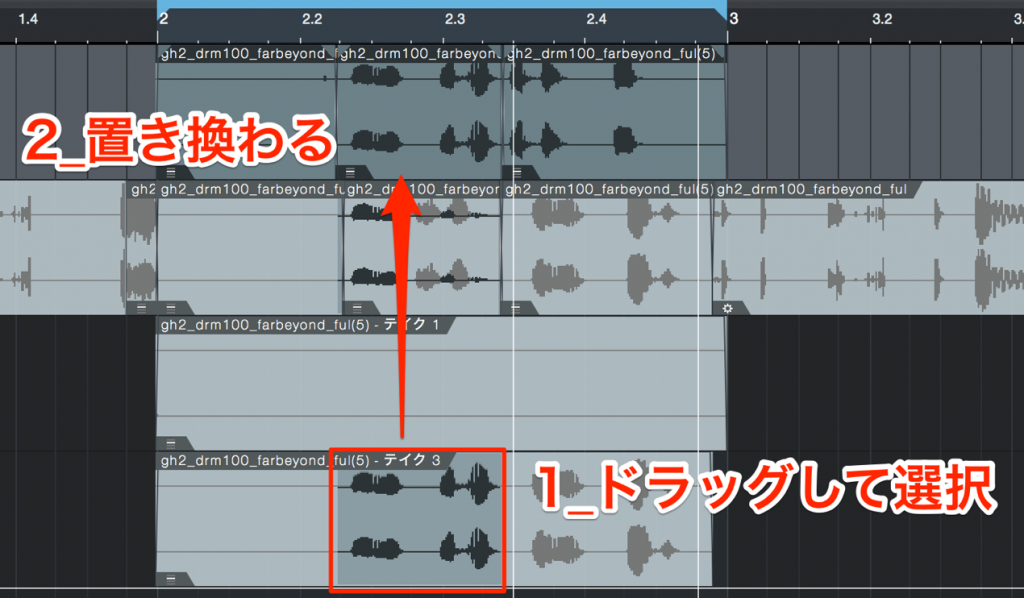
↑ Select the part you want to use by dragging, then double-click it.
Only that part moves to the top and is treated as the preferred take.
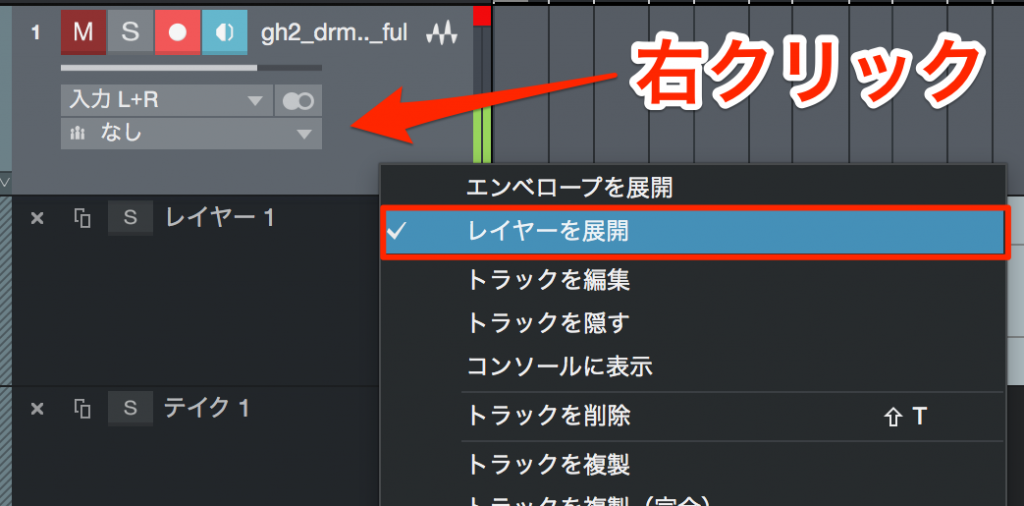
↑ When you have finished editing, right-click the track area
and uncheck "Expand Layers."

Frequently asked questions
Q1. With loop recording in Studio One, are all takes saved no matter how many times I record?
Yes. Every take recorded over the loop range is saved automatically. The loop range you set keeps recording until you stop, and afterward you can listen to and compare all the takes.
Q2. Can I combine only the good parts of multiple takes?
Yes. Right-click the event and unpack the takes, then select the part you want from each take by dragging and double-click it to build a perfect take that combines the best parts of different takes.
Q3. What should I do when I have finished editing after loop recording?
Right-click the track area and uncheck "Expand Layers." Editing is then complete, and only the takes you selected are active.
NEW ARTICLES
Latest English Articles











