
This article explains the practical steps and equipment needed to set up synchronization for live shows with Studio One. You will learn how to bring a laptop to the venue and send separate outputs: the backing track for the audience and a metronome signal for performers such as the drummer. It covers everything you need for live PA work, from choosing an audio interface, headphones, and a headphone amp, to routing in the Mixer window, handling multiple songs, and dealing with trouble, so you can run your band in practice with the help of a DAW.
Using Studio One Live

A DAW broadens the instruments and techniques you can use.
The problem, however, is that you cannot reproduce it live.
The solution is to bring a laptop and sync with it.
Tracks that cannot be covered by live performers or your lineup are sent to the PA and played directly.
Here, we will explain how to set up a synced live performance.
Equipment Needed for Syncing
First, let's check the equipment you need for syncing.
Audio Interface
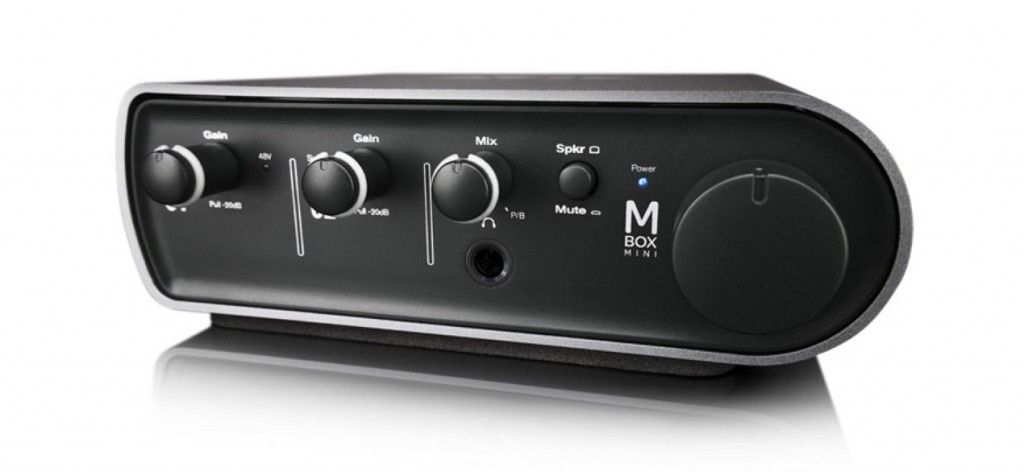
You need two stereo outputs.
In this explanation, we use "Output 1-2" and "Output 3-4."
About Choosing an Audio Interface

Headphones
Performers need these to hear the backing track and the metronome.
Headphone Amp
This device sits between the audio interface and the headphones.
It lets you control the monitor volume to suit the situation.
Buy one that matches the number of people who need to monitor.
Track Routing for Syncing
So that the live performance and the backing track stay together,
whoever handles the rhythm, such as the drummer, listens to the metronome.
However, if you just play the metronome normally, the audience will hear it (lol).
So we set things up to get around this.
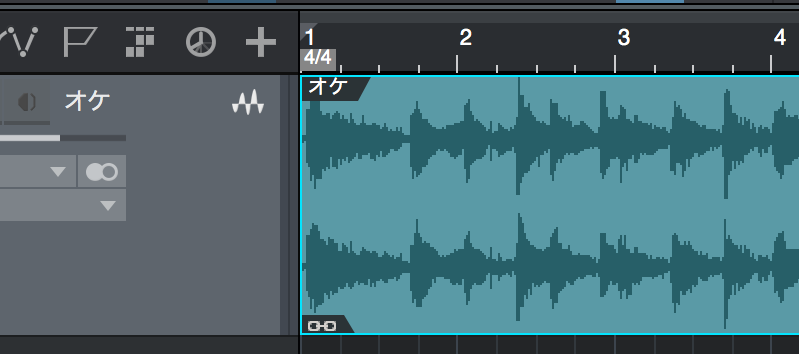
First, import the 2-mix backing track you will use live.
We will use this 2-mix for the explanation.
It is also fine if the backing track is split into separate tracks.
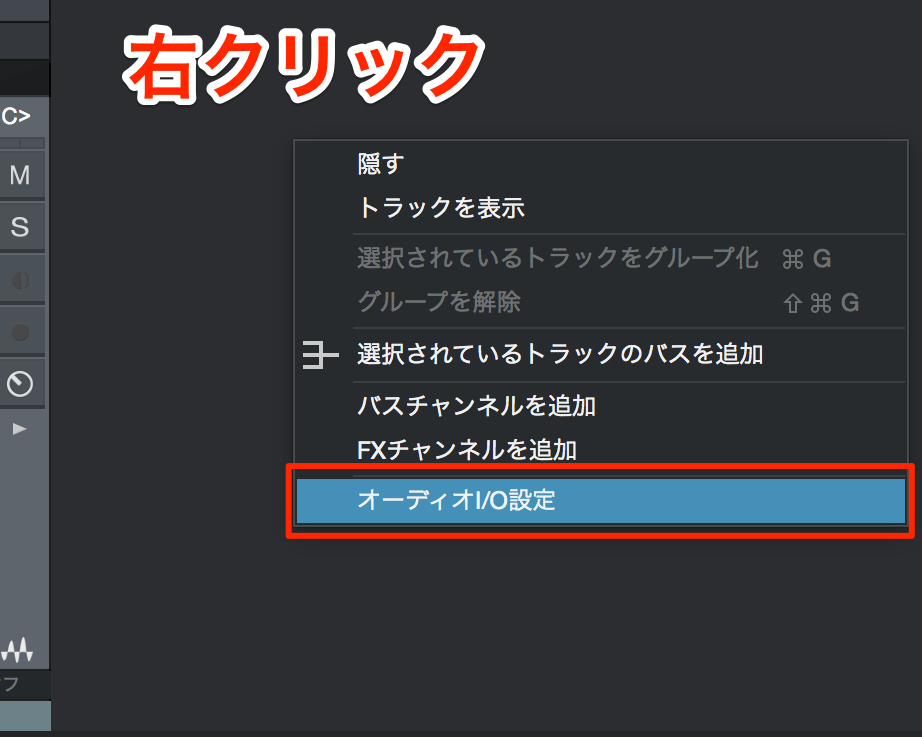
Right-click the Mix window
and select "Audio I/O Setup" from the menu.
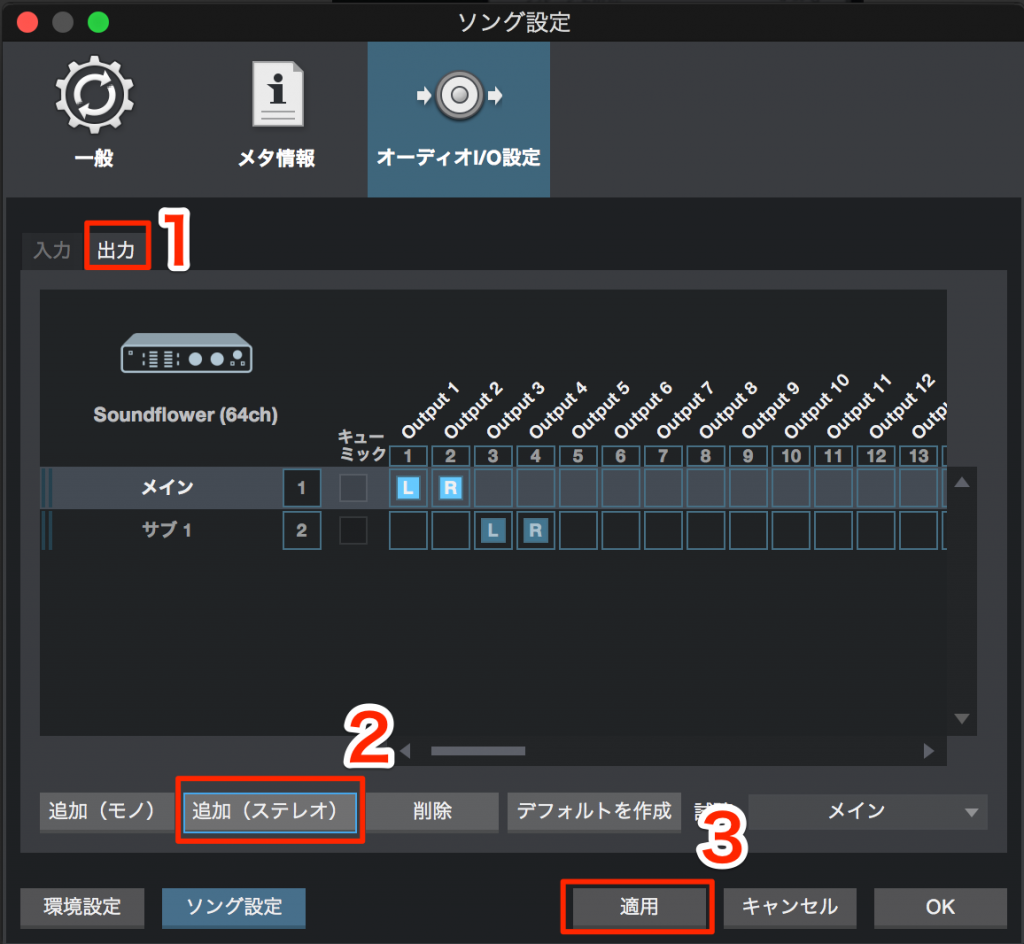
- Select the "Outputs" tab
- Click "Add (Stereo)"
- Click "Apply"
A new stereo output is now added.
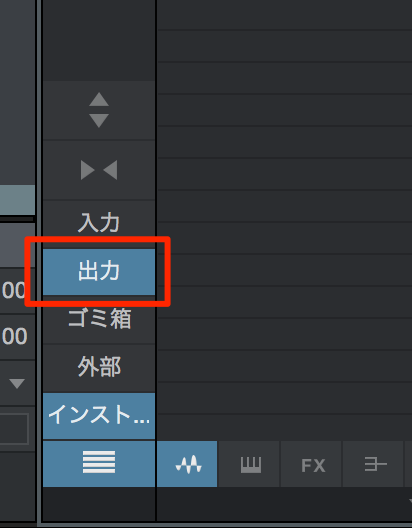
Turn on "Outputs" on the left of the Mixer window.
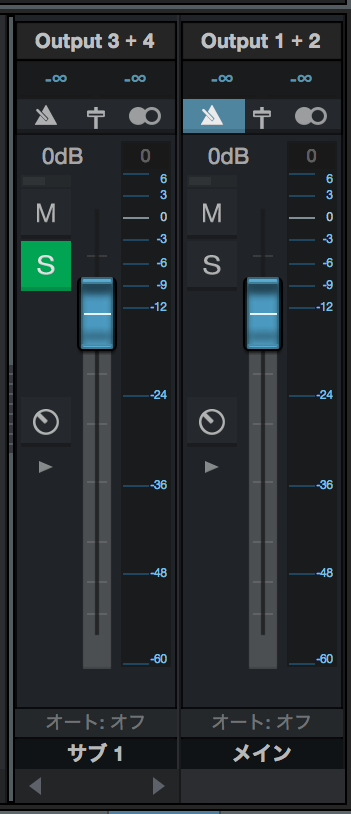
The output you set up above is displayed.
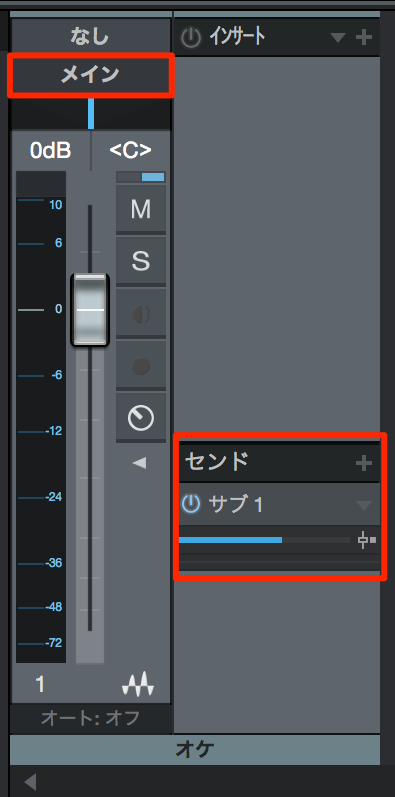
Check that the backing track's output is set to "Main",
and send it via a send to "Sub".
Now the backing track feeds both masters.
Next, let's give each output a name.
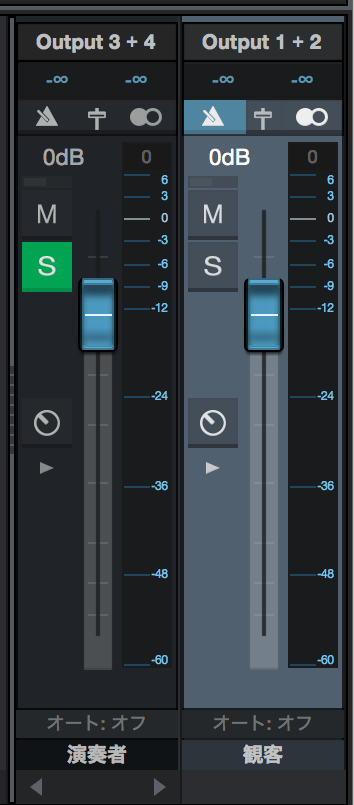
We named them "Audience (Main)" and "Performers (Sub)."
Finally, set up the metronome.
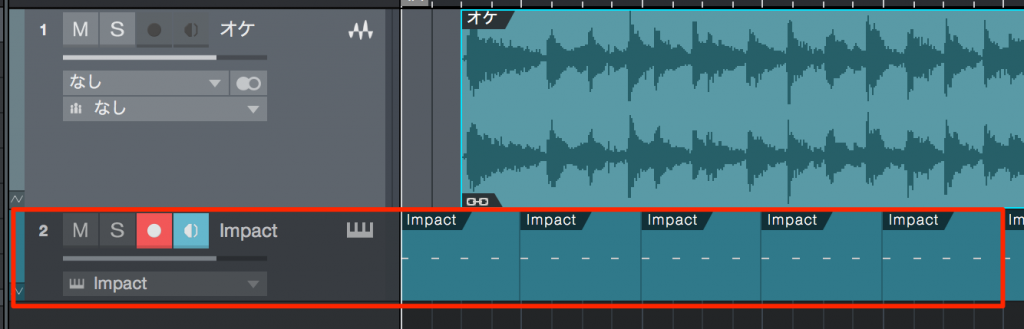
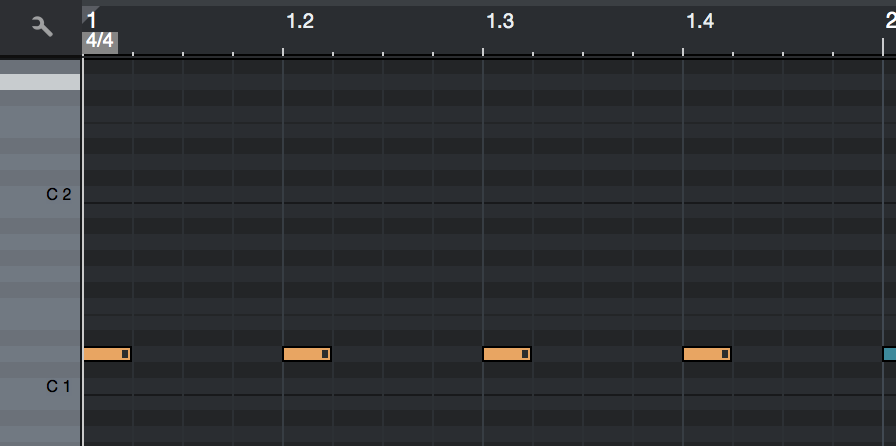
Program the metronome with percussion or drum sounds.
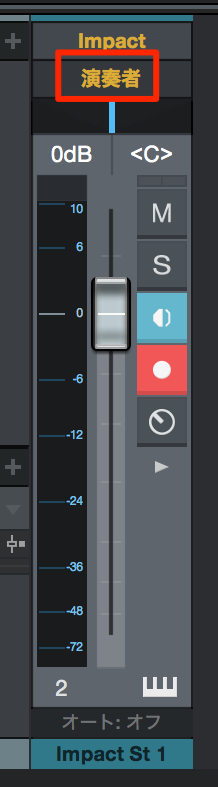
Open the Mixer window
and change the output of the software synth you programmed to "Performers".
That's it.
Connect the audio interface's "Out 1-2" to the PA (audience) and
"Out 3-4" to the headphone amp so the performers can monitor.
Volume balance issues such as "the backing track is too quiet" or "the click is too loud"
can be controlled individually by adjusting each track.
Possible Problems
Here are possible problems with the setup above and ways to improve it.
I want to adjust individual tracks rather than a 2-mix
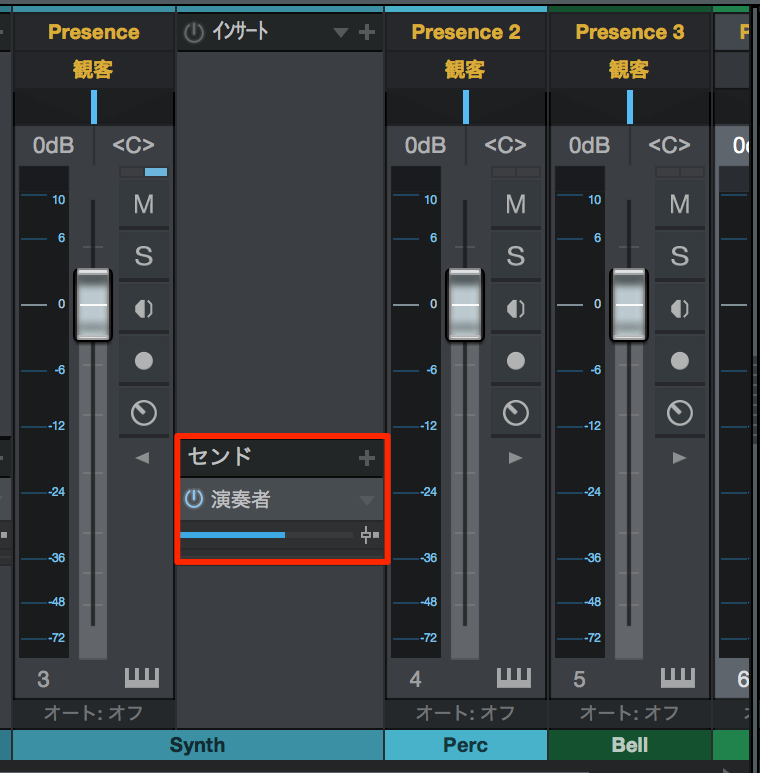
It is easy.
Send every track to "Performers" with a send.
Performers can also monitor only the tracks they need.
What about playing multiple songs?
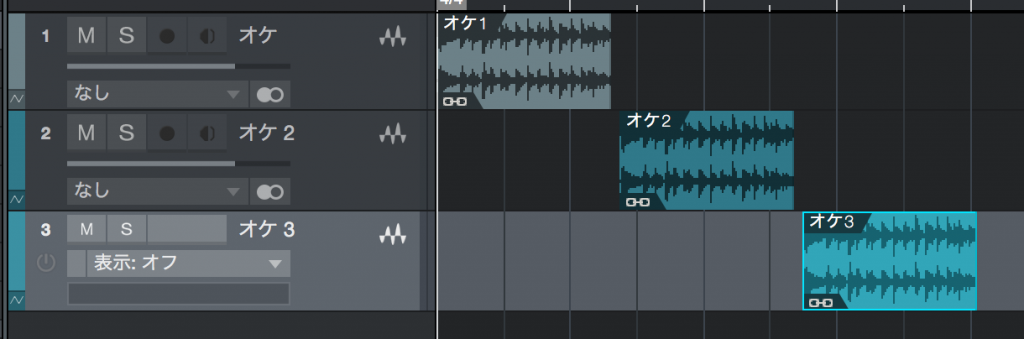
Line up the songs on the timeline.
Also, if you are allowing time for talking between songs (MC),
it is best for one band member to handle play and stop.
The tricky part is the metronome,
because each song has a different tempo.
Set the tempo using the settings in the following article.
"Changing tempo and time signature within a song"
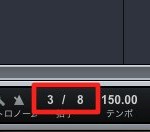
With this setting, the metronome you programmed above automatically follows the tempo.
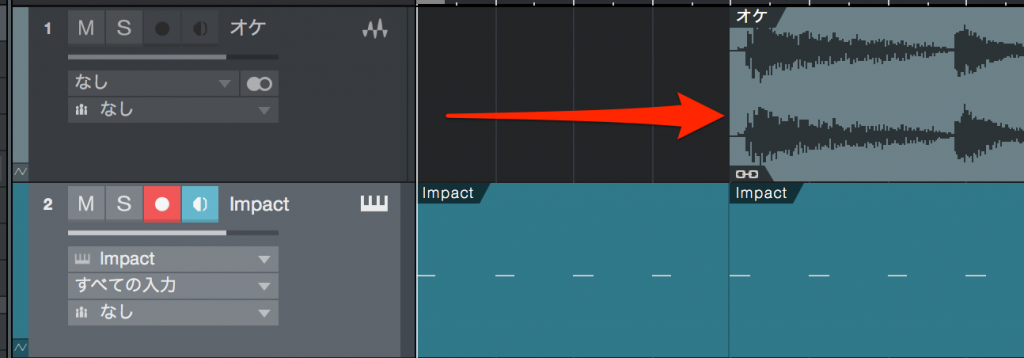
What about the count-in?
Performers can monitor the metronome at all times,
so to allow for this, move the region later and the problem is solved.
I want several people to monitor the click
Connect the sound coming out of "Out 3-4" to a device that lets several people monitor.
I'm worried the computer will stop
It is impossible to guarantee 100% that it will never stop,
but setting the buffer size to a higher value reduces the CPU load
and lowers the risk of it stopping.
"Recording latency settings"

Frequently asked questions
Q1. When syncing live, how do I keep the audience from hearing the metronome?
Split Studio One's output into two paths, and connect the audio interface's Out 1-2 to the PA (for the audience) and Out 3-4 to the headphone amp (for the performers). By sending the metronome only to the performers' output, the audience will not hear it.
Q2. When playing multiple songs, how do I change the metronome tempo for each song?
Line up the songs on the timeline and use Studio One's function for changing tempo within a song. The programmed metronome automatically follows each song's tempo, which saves you manual adjustments.
Q3. How can I reduce the risk of the computer stopping during a show?
Set the buffer size to a higher value in your audio interface settings to reduce the CPU load. This improves stability and lowers the risk of the system stopping.
Q4. What if several performers want to monitor the click?
Connect the signal from Out 3-4 to a device that several people can monitor from, such as a headphone amp or mixer, so everyone can monitor at the same time.
NEW ARTICLES
Latest English Articles











