
Programming with a hardware synthesizer in Studio One is possible with the correct connection via a MIDI interface and external device settings in the DAW. This article explains a practical workflow in detail, from connections for both all-in-one and separate keyboard/module setups, to the setup steps in Studio One, to rendering the external synth's sound to audio so you can work efficiently. This lets you go beyond the limits of software instruments for rich sound while optimizing CPU load.
How to Use an External Hardware Synthesizer with Studio One
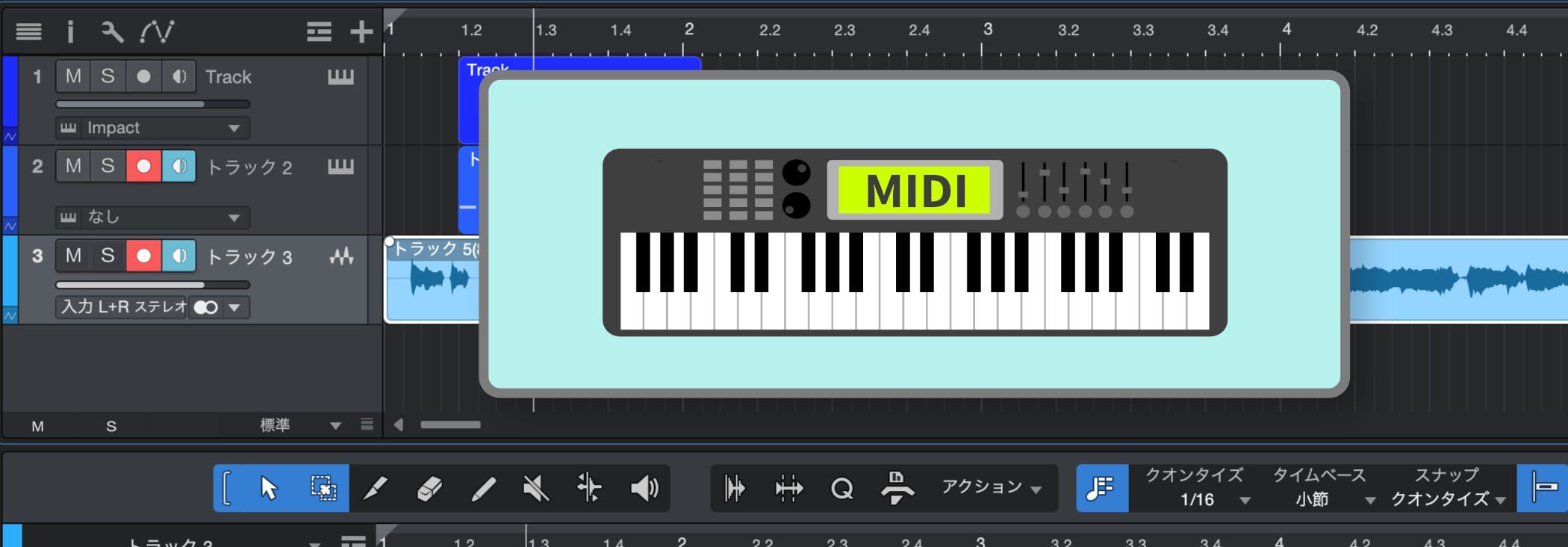
In Studio One, you can use not only the included software synthesizers but also the hardware synthesizers you own in your productions.
Here, we introduce the settings for using an external synthesizer.
Connecting the Hardware
First, connect your equipment correctly.
You need a MIDI interface for the connection (many audio interfaces have MIDI ports).
For a Synthesizer with a Built-In Keyboard and Sound Engine
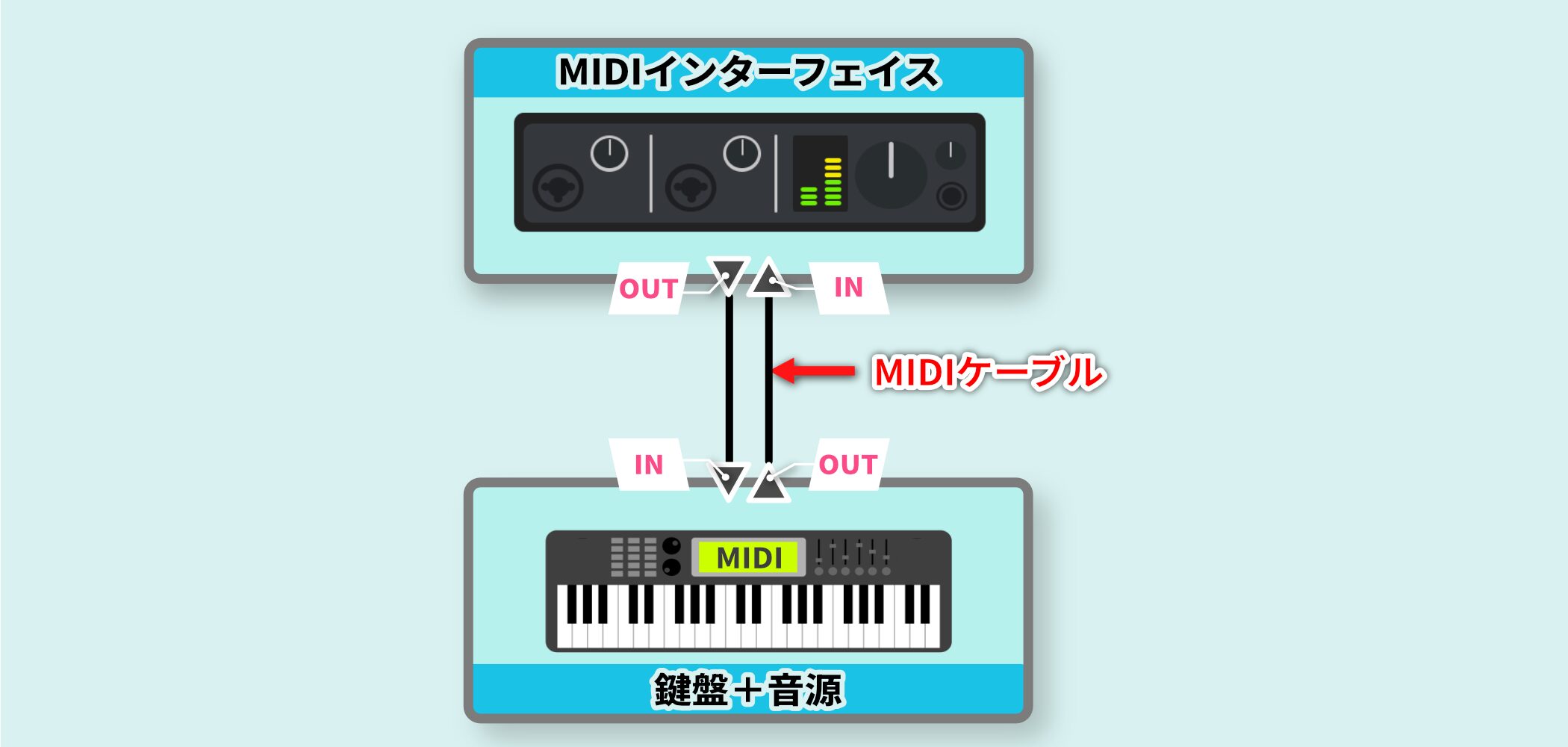
As shown, connect the synthesizer and the MIDI interface with MIDI cables.
- MIDI interface MIDI OUT → synthesizer MIDI IN
- Synthesizer MIDI OUT → MIDI interface MIDI IN
When the Keyboard (Controller) and Sound Source (Module) Are Separate
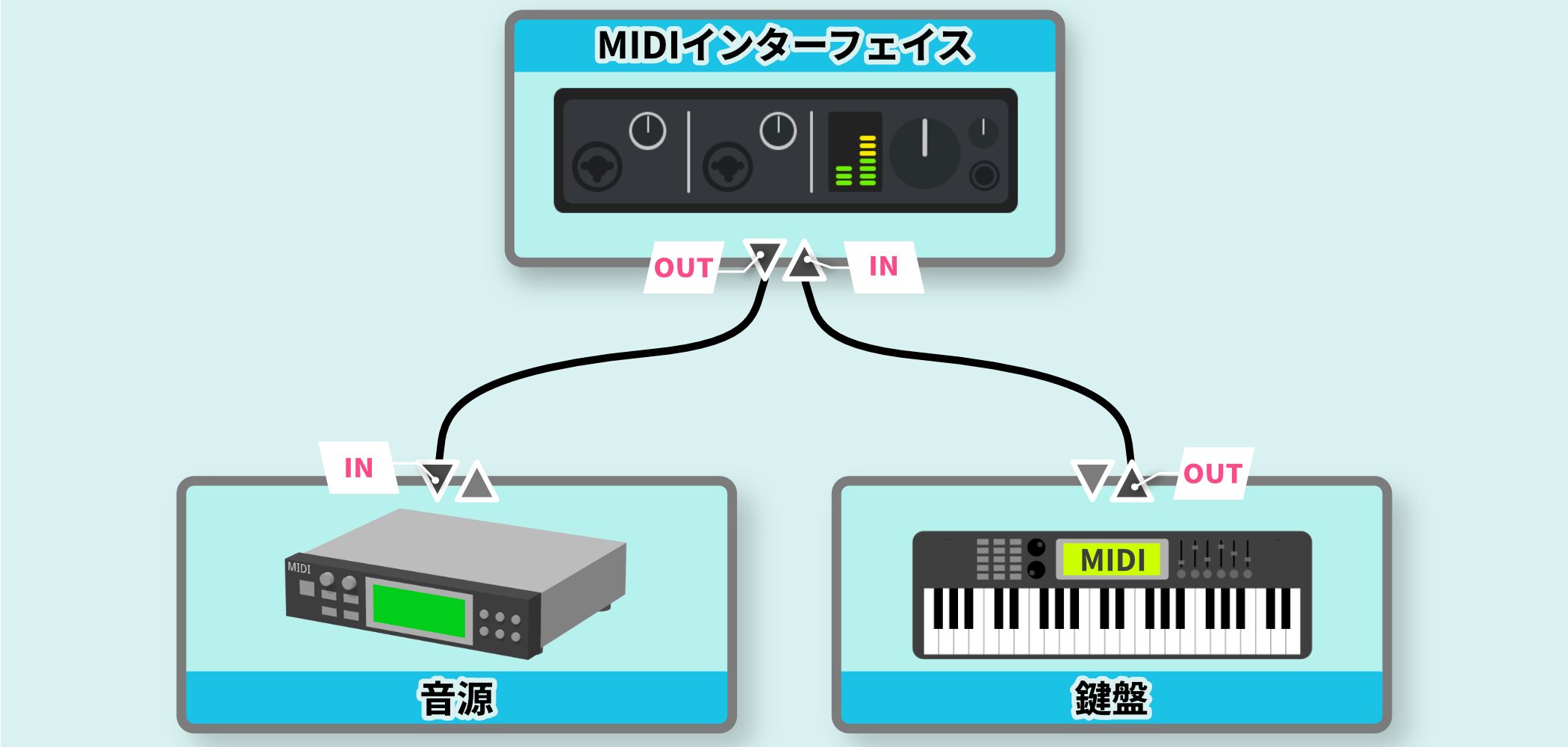
Connect the MIDI keyboard, the sound module, and the MIDI interface.
- MIDI interface MIDI OUT → sound module MIDI IN
- MIDI keyboard MIDI OUT → MIDI interface MIDI IN
Setting Up the External Device in Studio One
Next, configure Studio One to recognize the external synth.
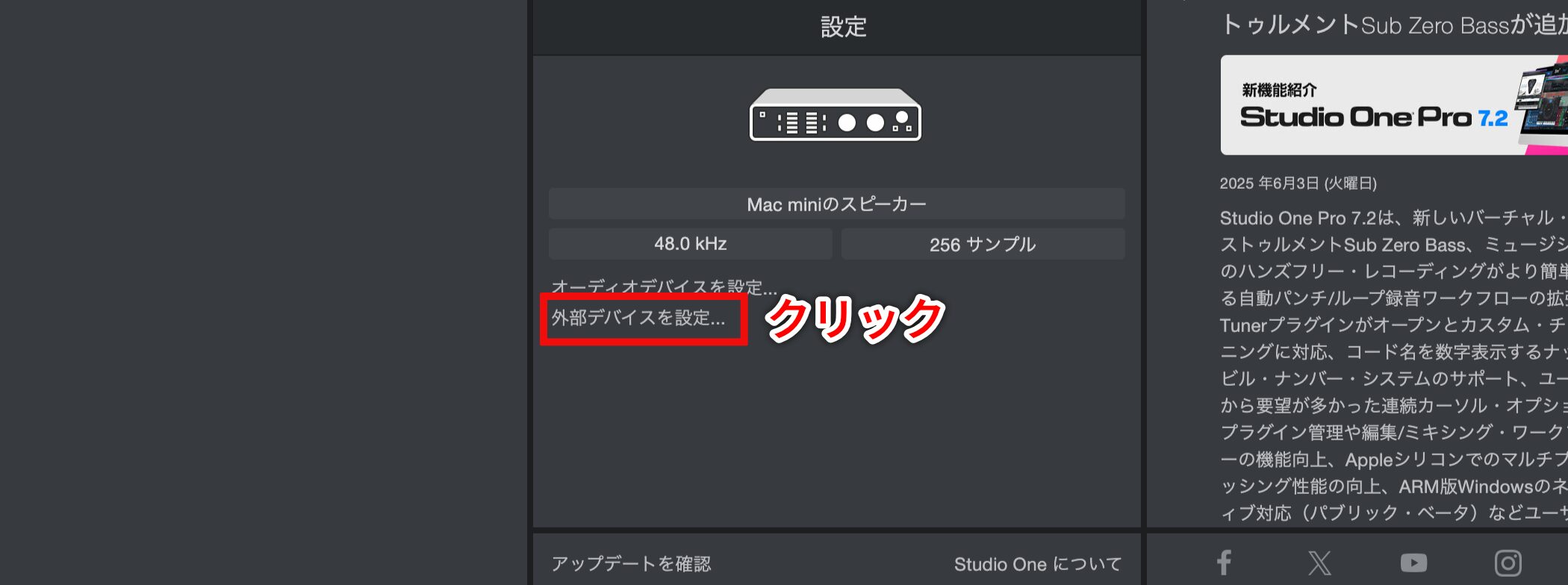
Launch Studio One and click "Configure External Devices..." in the "Setup" section of the Start page.
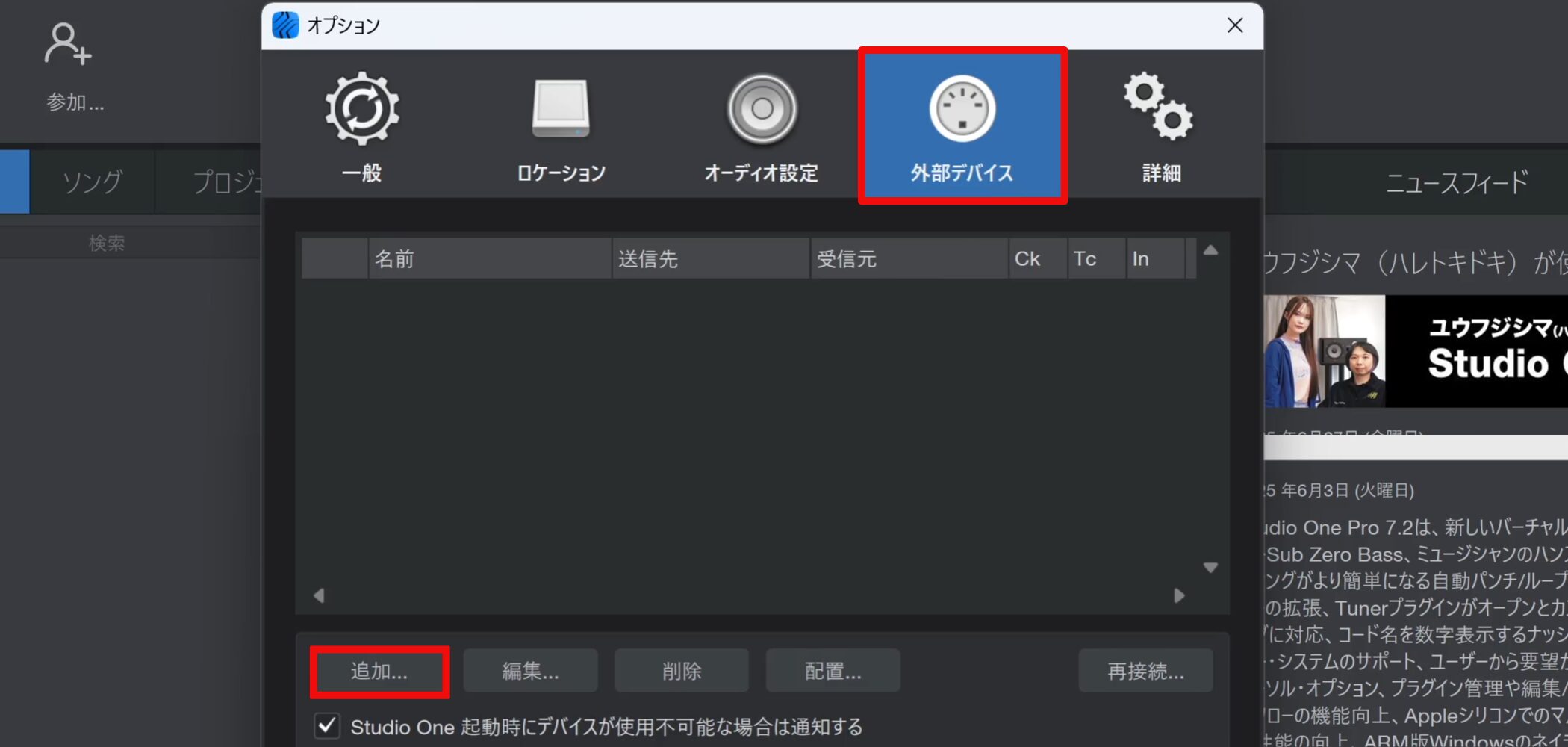
The Options window opens.
Check that the "External Devices" tab is shown, then click the "Add..." button at the lower left.
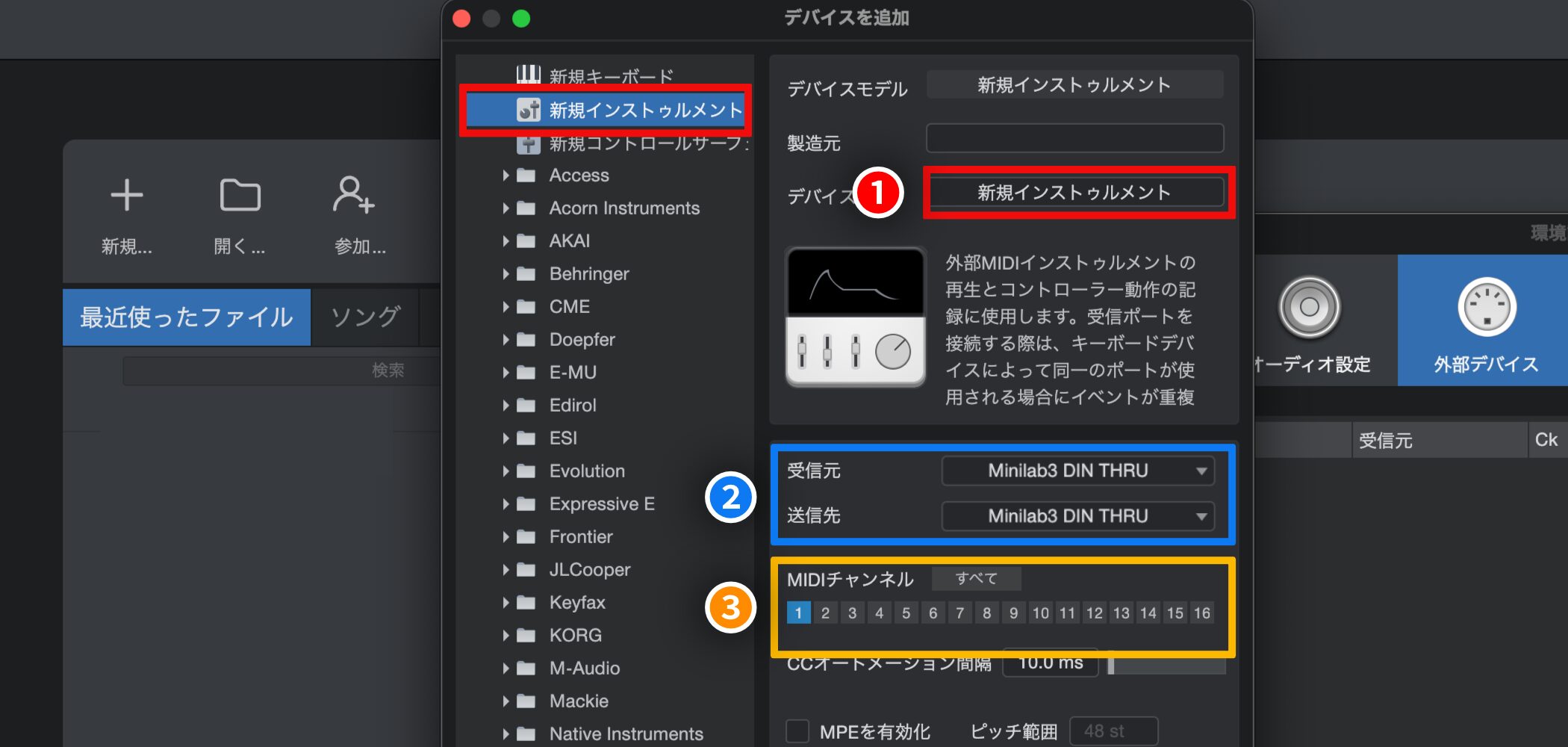
The "Add Device" window opens.
Select "New Instrument" from the list on the left and make the following settings on the right.
1 (red): Enter the name of the hardware synth
2 (blue): Select the name of the MIDI interface the hardware synth is connected to
3 (orange): Light up the MIDI channels the hardware synth can use (match your synth)
When you have finished, click "OK" to close the window.
Creating an Instrument Track and Programming
Once the setup is complete, create a track for programming MIDI.
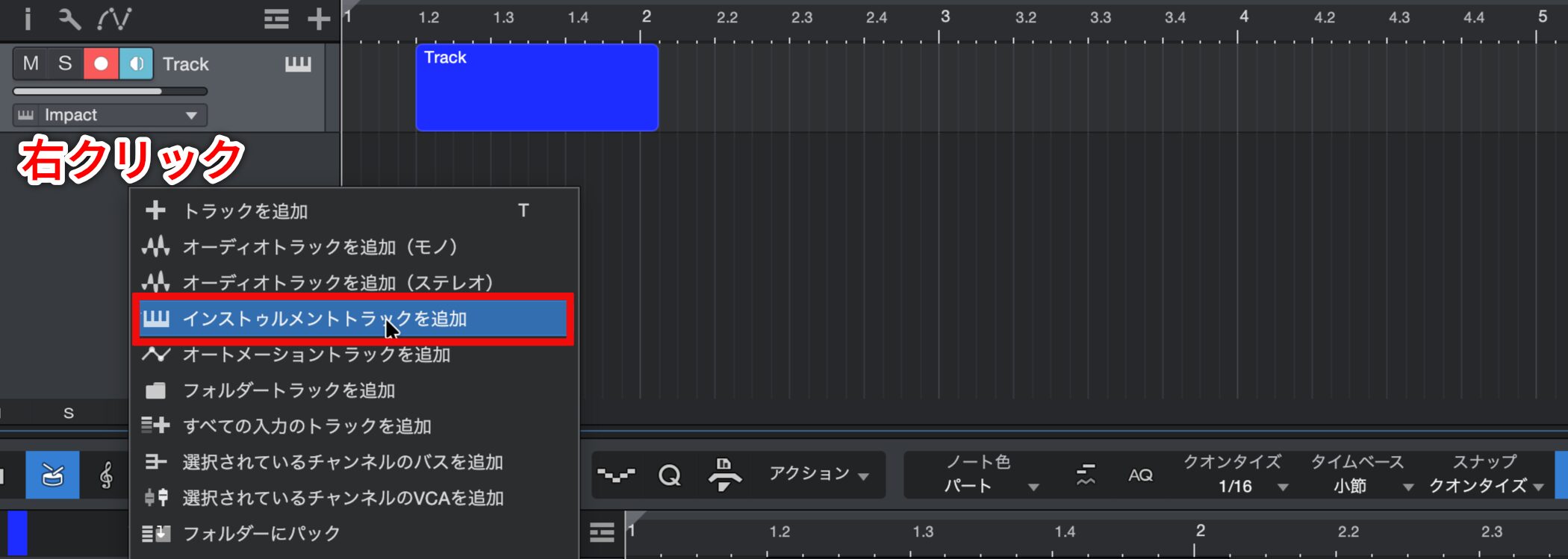
Right-click in the track list of the Song page and select "Add Instrument Track."
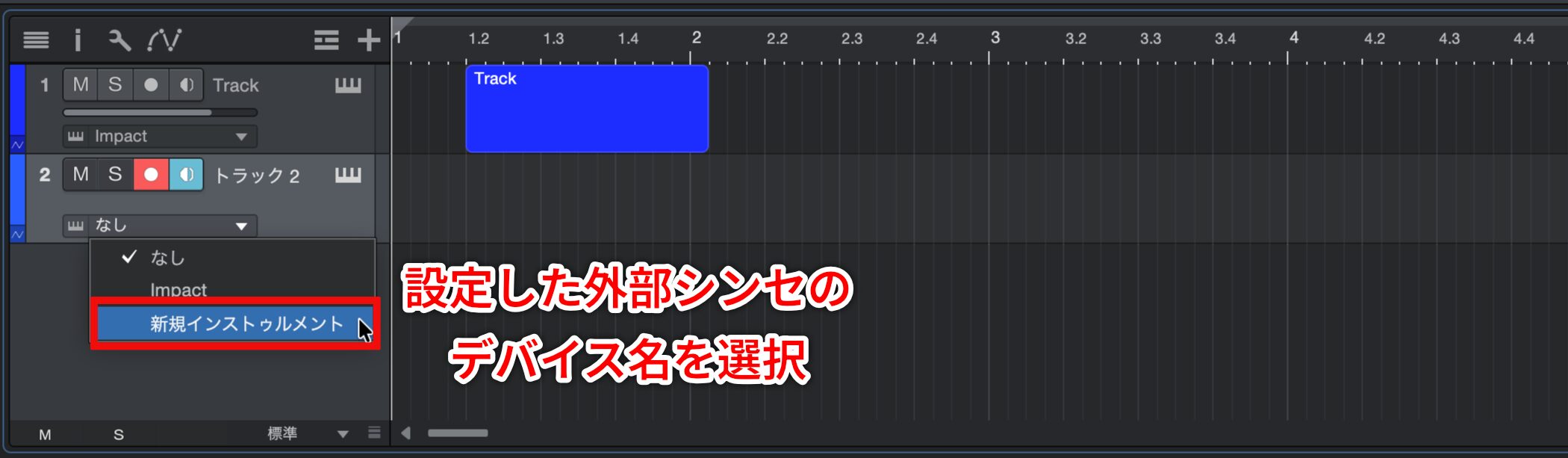
Click the output of the new instrument track (the part that says "None") and select the device name of the external synth you set up earlier.
Now, when you program MIDI notes on this track or play your MIDI keyboard, the external synth sounds.
Recording the External Synth's Sound as Audio
A finished MIDI track is, as it stands, only playing the external synth's sound.
Recording (rendering) this sound as an audio file has many benefits, such as reducing CPU load, applying audio effects in Studio One, and making mixing more efficient.
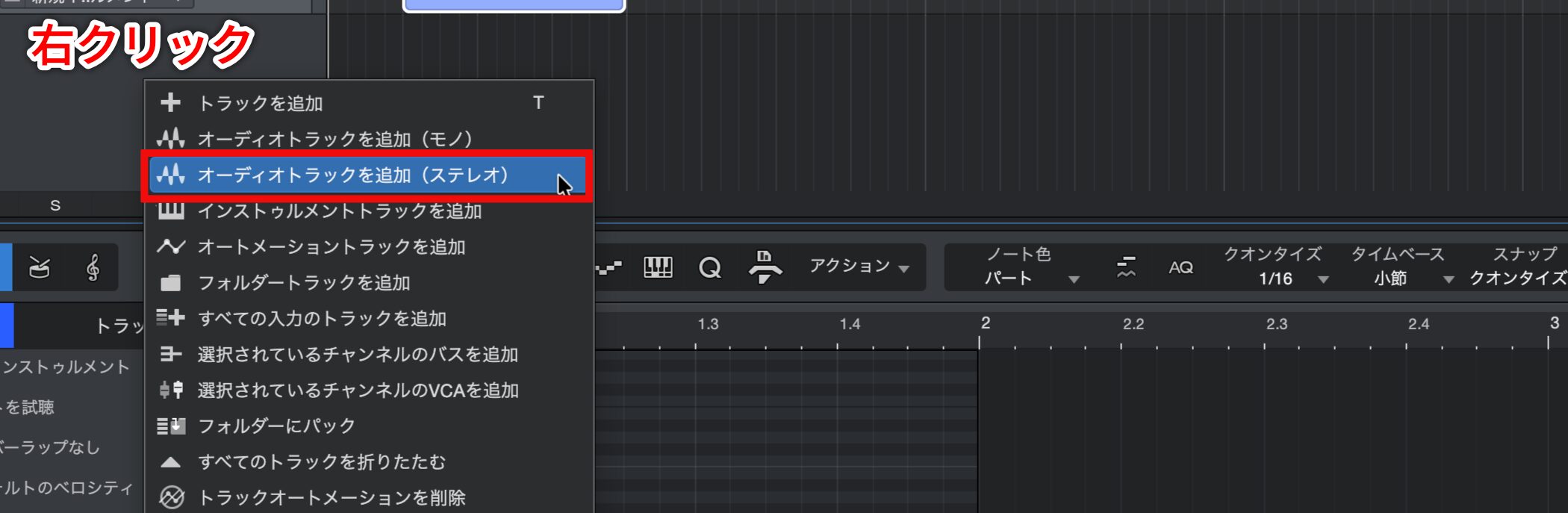
Right-click in the track list and select "Add Audio Track (Stereo)." (If the synth's output is mono, a mono track is also fine.)
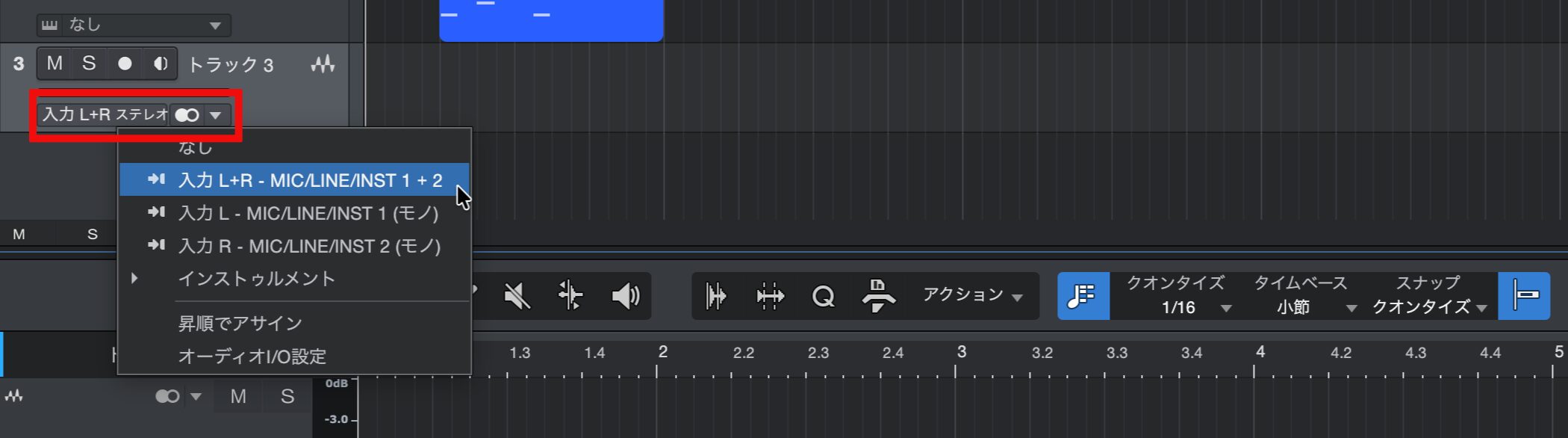
Set the input of the new audio track to the audio interface channel that receives the synthesizer's audio.

Turn on the record-enable button of the audio track and start playback, and the synth sound played by the instrument track's MIDI data is recorded to the audio track.

Frequently asked questions
Q1. What cables do I need to connect a hardware synthesizer to Studio One via MIDI?
You need MIDI cables and a MIDI interface. Many audio interfaces have MIDI ports, so you connect the synthesizer to Studio One via the MIDI interface. Pay attention to the direction of the MIDI OUT and MIDI IN connections.
Q2. How do I connect things if the keyboard and synth sound module are separate?
Connect three devices: the MIDI keyboard, the sound module, and the MIDI interface. Connect the MIDI interface's MIDI OUT to the sound module's MIDI IN, and the MIDI keyboard's MIDI OUT to the MIDI interface's MIDI IN.
Q3. What are the benefits of turning an external synth's sound into audio in Studio One?
It reduces CPU load, lets you apply audio effects flexibly, and makes mixing more efficient. Rendering the synth part to an audio file gives you a more stable production environment.
NEW ARTICLES
Latest English Articles











