
When using automation in Studio One, besides entering it manually with the Paint tool, you can record movements in real time by moving knobs while the song plays. You can choose from three modes, Touch, Latch, and Write, each of which behaves differently, so you can use them as needed for your purpose, whether making partial fixes or overall changes. Automation is recorded intuitively just by choosing a mode and moving knobs during playback, and when you are done you can easily disable it by switching modes, greatly improving the efficiency of mixing.
Recording by Moving Knobs and Buttons Directly
The previous article covered recording automation with the Paint tool.
This time, we introduce how to record movements by moving knobs while the song plays.
Studio One Automation Write Modes Explained
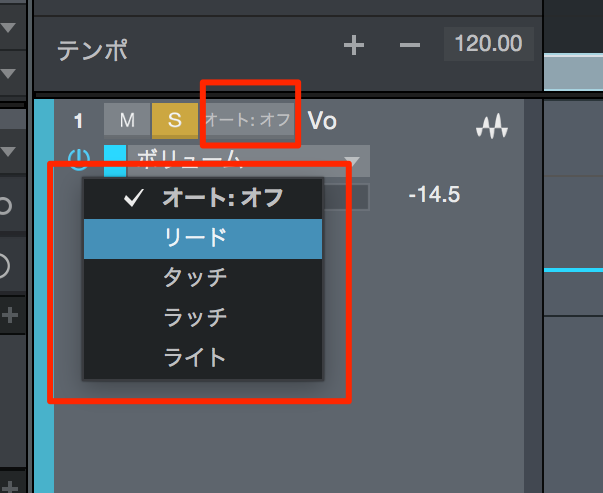
↑ When you select the automation parameter you want to record, you can choose a mode.
Off
A mode that does not apply the written automation.
All written automation is ignored.
Read
A setting that plays back the written automation.
Normally, after writing automation, you set the mode to Read.
The video uses Cubase, but the concept is the same.
Touch
During playback, automation recording starts when you touch the knob you want.
Automation is recorded only while you are touching the knob, and when you let go, it returns to the original value
. The data after that is not overwritten, so it is suited to fixing part of a pass.
Latch
During playback, recording starts when you touch the knob you want. (So far this is the same as Touch above.)
Not only while you are touching the knob, but even after you let go, it keeps the last value and continues writing
. Previous automation data is erased.
Write
Unlike Latch and Touch,
the current knob value overwrites the automation even if you don't move the knob during playback.
How to Write Automation
- 1_Choose the mode you want from Touch, Latch, and Write.
- 2_Start playback in Studio One.
- 3_Move the knob where you want to record automation.
- 4_When you have finished writing, stop playback.
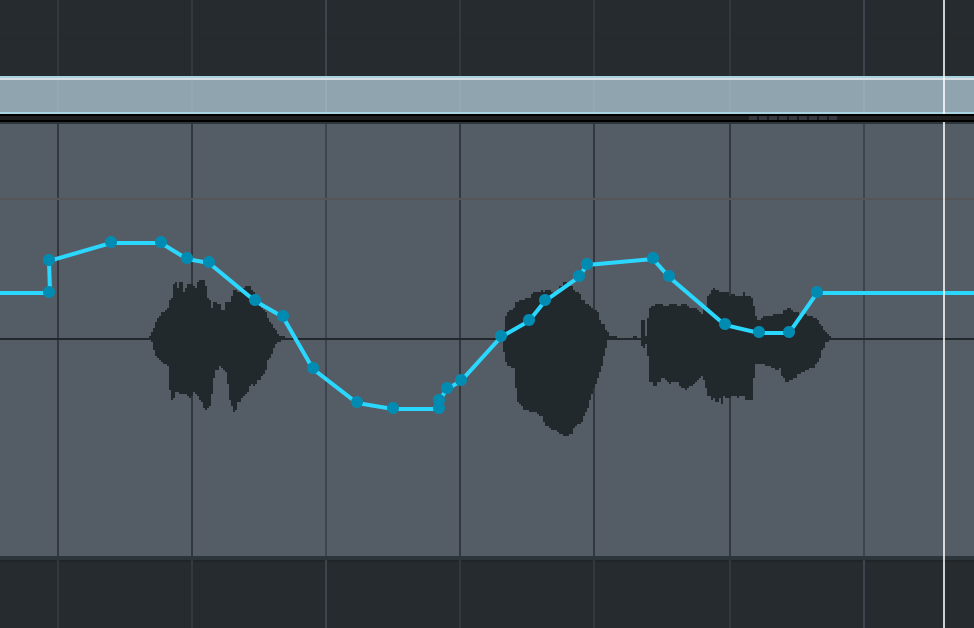
Turning Automation Off
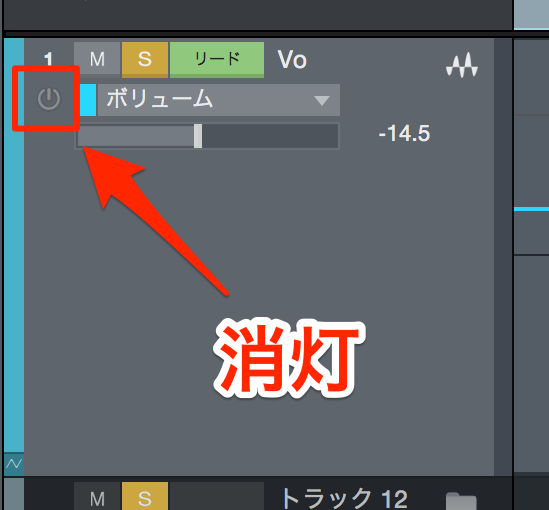
↑ Just click the power button of the automation parameter to turn it off.
You can switch each parameter on and off individually, which is very convenient.

Frequently asked questions
Q1. What is the difference between Touch and Latch automation in Studio One?
In Touch mode, the value returns to the original when you let go of the knob, which suits partial fixes. Latch, on the other hand, keeps the last value and continues writing after you let go, which suits making larger changes.
Q2. When is Write mode used?
In Write mode, the current knob value overwrites the automation even if you don't move the knob during playback. It is useful when you want to completely replace existing automation.
Q3. How do I disable recorded automation?
Just click the power button of the automation parameter to turn it off. You can switch each parameter on and off, making it easy to manage multiple automations.
NEW ARTICLES
Latest English Articles











