
Using Logic Pro's Fade tool and its Speed Down setting, you can easily recreate pitch-down and pitch-up effects like a turntable being manipulated. This technique, often used in hip-hop and R&B, is very effective as an accent in a song. Just draw a normal fade on an audio region and change the setting in the Inspector to "Speed Down." You can drag the fade to finely adjust where it starts and how long it lasts, and remove it in one step, greatly improving your efficiency.
Turntable-Style Pitch-Downs and Pitch-Ups with Logic's Fade Tool
The kind of sound you often hear in hip-hop and R&B:
a turntable-style pitch-down.
It's really cool, isn't it?
It works very well as an accent in a song.
In Logic, you can do this easily on audio regions.
How to Set It Up
First, here is the source material.
Let's apply a pitch-down to it.
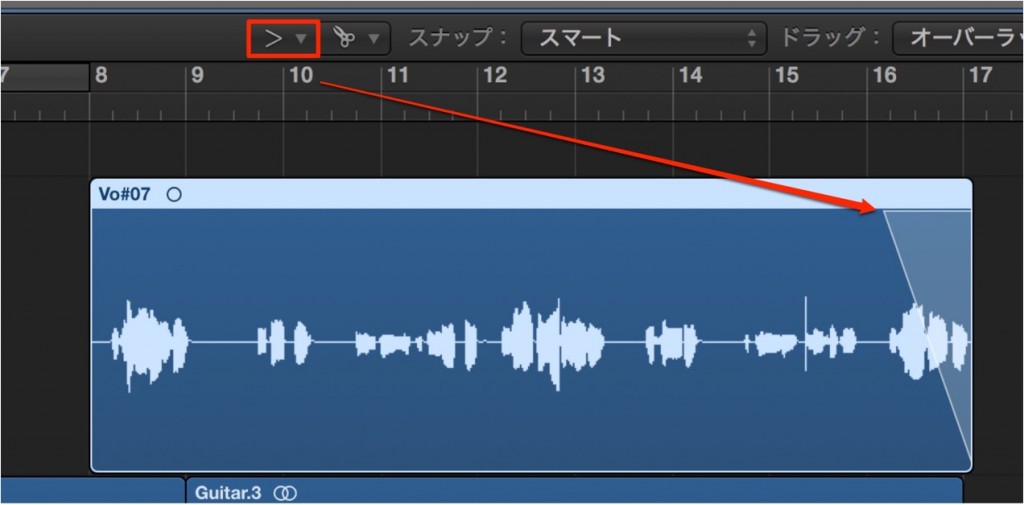
Select the Fade tool
and draw a normal fade over the part you want to pitch down.
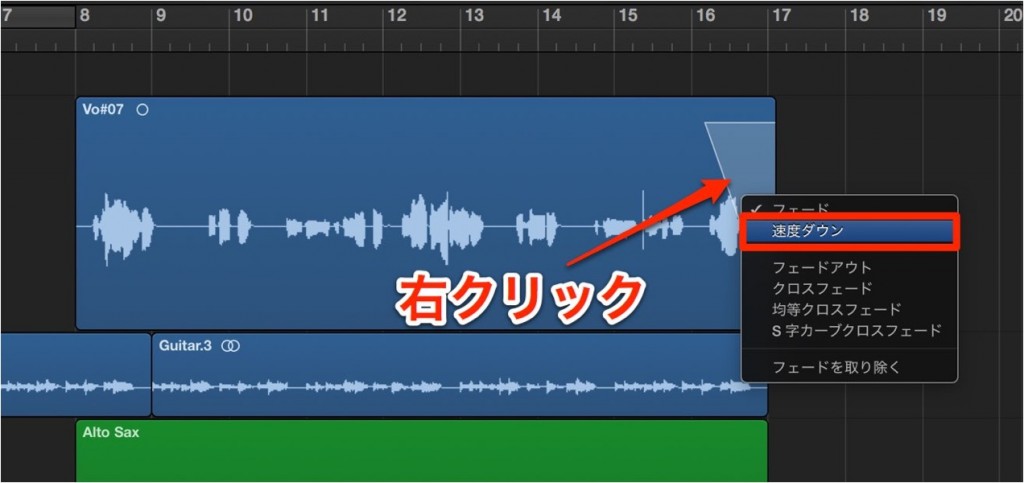
Click the fade,
and change the area outlined in red in the Inspector from "Fade" to "Speed Down."
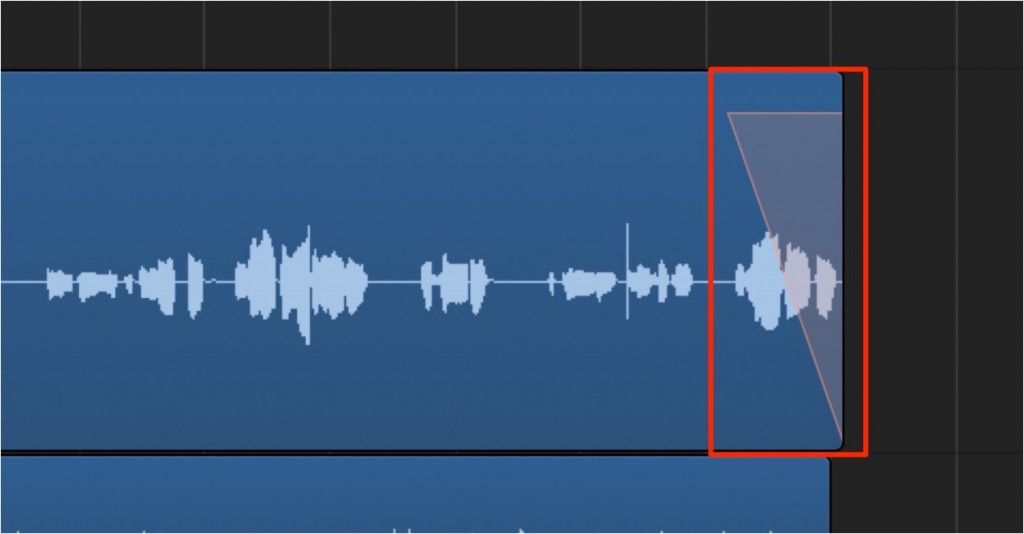
The fade turns orange.
That's all there is to it.
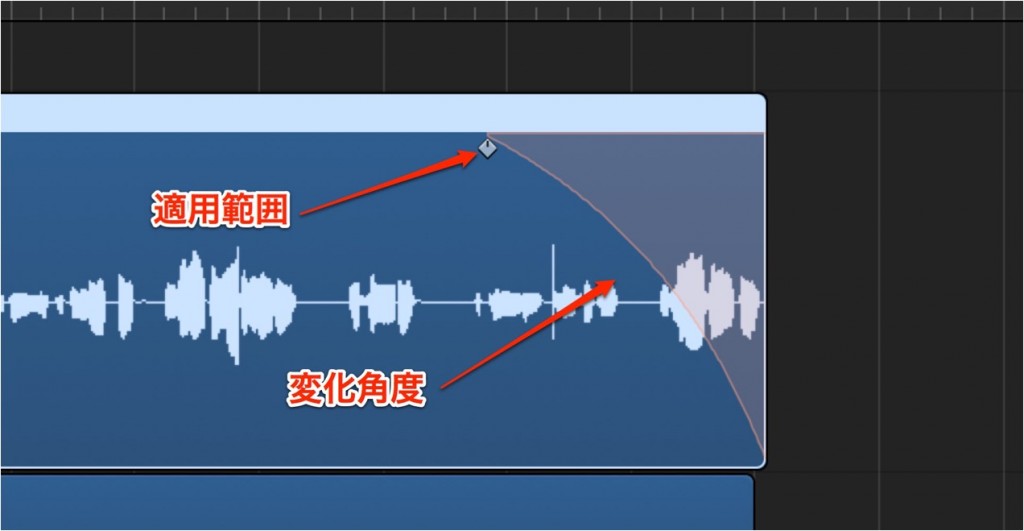
Drag the orange boundary
to adjust where the pitch-down starts and how long it lasts.
It sounds like this.
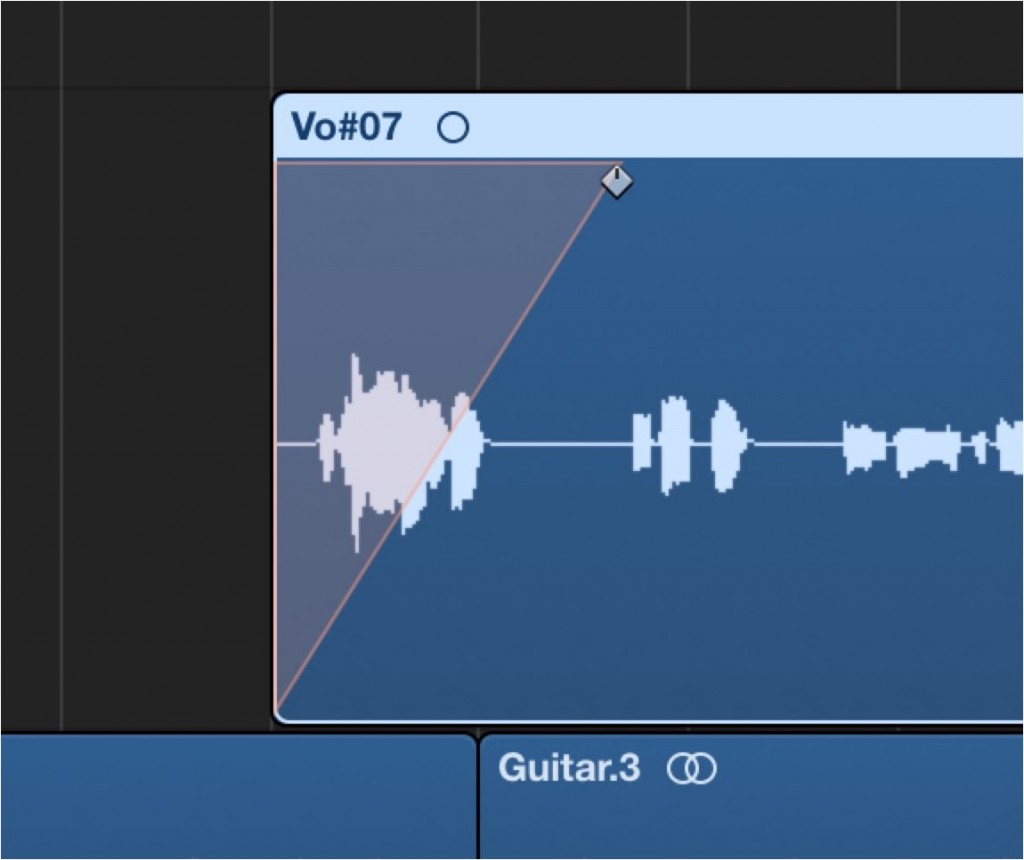
You can apply the same operation to the start of a region,
and in that case the pitch rises gradually from low.
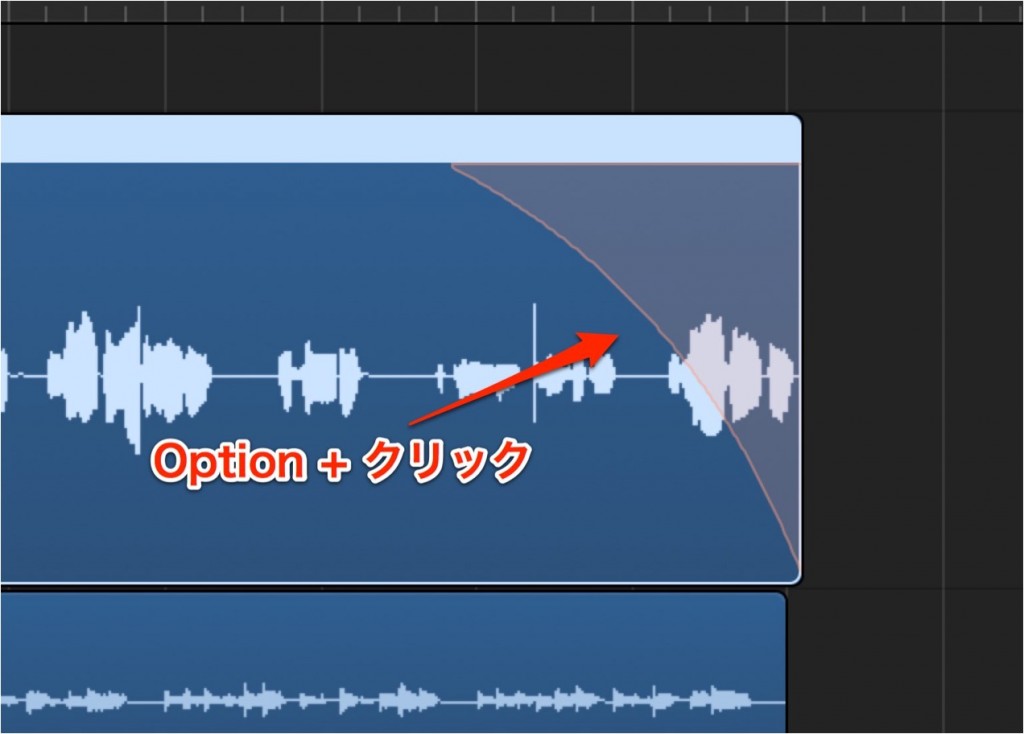
To remove them,
Option-click the part you want to remove with the Fade tool.

Frequently asked questions
Q1. Which tool do I use to create a turntable-style pitch-down effect in Logic Pro?
Use the Fade tool. Draw a normal fade on the audio region you want to pitch down, then change the setting in the Inspector from "Fade" to "Speed Down."
Q2. Can I adjust where the pitch-down starts?
Yes. Once the fade has turned orange, drag its boundary to freely adjust where the pitch-down starts and how long it lasts.
Q3. Can I create a pitch-up effect the same way?
Yes. Applying the same operation to the start of a region gives an effect where the pitch rises gradually from low. To remove it, simply Option-click it.
NEW ARTICLES
Latest English Articles











