The transformer object in Logic Pro's Environment is a powerful tool that converts incoming MIDI information into other information. This article explains step by step, from the basic way to add a transformer to an advanced technique for controlling multiple parameters (Volume and the EQ's Low-Pass Filter) at the same time with a single fader. Adjusting scale values enables finer, more precise linked control, making DTM production more efficient and greatly expanding your range of expression.
Converting MIDI signals with Logic's Transformer
Last time, we focused on the fader's "channel settings".
Here, we introduce the "transformer object",
a device that "rewrites" incoming "MIDI information" "into other information".
Using the "transformer object"
greatly expands the possibilities of the Environment.
Here, as examples,
we explain "controlling multiple items with one fader" and "turning buttons on and off".
Video Tutorial
- Logic X
- Logic 8/9
Converting MIDI signals with the Transformer
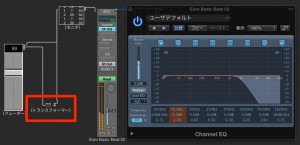
The "transformer object" is basically unchanged from Logic 9 and earlier,
so please look at the Logic 9 explanation first.
Adding and placing a transformer object
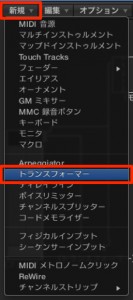
As in Logic 9, use [New] → [Transformer] in the Environment.
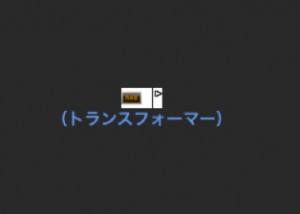
The transformer object has been created.
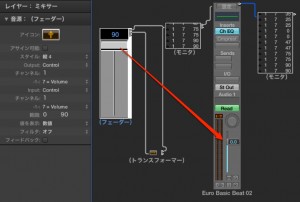
Just connecting it to the transformer like this only moves the Volume, so there is no particular change.
Changing MIDI information with the transformer object
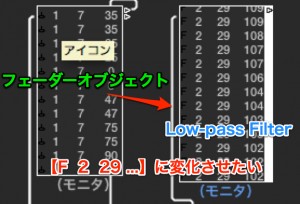
Now, using the transformer object,
we will control Volume and the EQ's Low-Pass Filter at the same time.
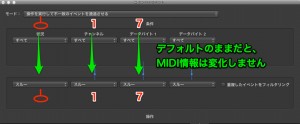
Double-click the transformer object.
By default, nothing is changed.
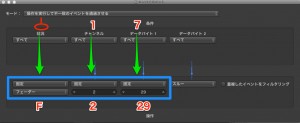
If you change the area outlined in blue to [Fader 2 29],
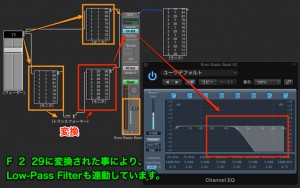
Volume and the EQ's Low-Pass Filter are now linked like this.
Bonus: finer settings
When the fader object's slider is raised all the way to the top,
we want Volume at [0.0 dB] and the Low-Pass Filter fully open at the same time.
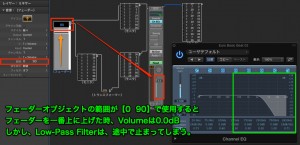
First, set the fader object's range to [0 90].
At this stage, even with the fader object's slider at the top,
the Low-Pass Filter stops partway.
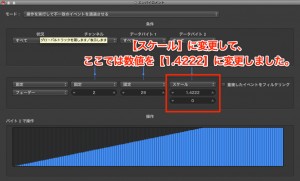
Here, we changed the operation for data byte 2 in the transformer object from earlier
from [Thru] to [Scale].
We also changed the value from [1.0000] to [1.4222].
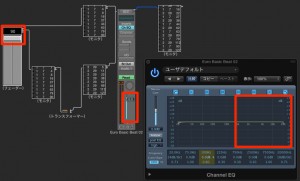
Now they are linked perfectly!
It is quite niche, but because the EQ's Low-Pass Filter fully opens
just when the Volume reaches 0.0 dB, it should be convenient.
Please give it a try.
Video point: Adding and placing a transformer
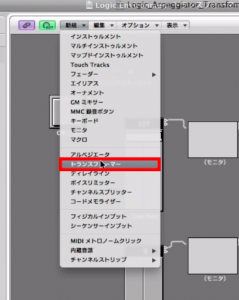
Select New → "Transformer" to add one.
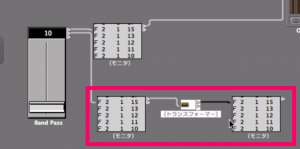
It is placed between monitors like this.
The first monitor shows the MIDI information going into the "transformer".
The second monitor lets you check the MIDI information after it has been converted by the "transformer".
Video point: Editing the transformer
Double-click the "transformer" and the following window appears.
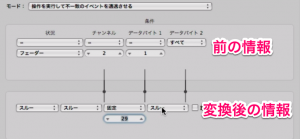
It looks difficult, but it is actually simple.
The top is the MIDI information coming into the "transformer",
and the bottom is the information it converts and sends out.
"Thru" means "as is":
the MIDI information is output without any change.
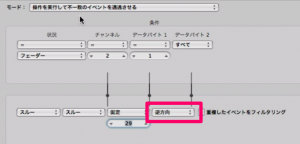
You can choose various items from this area,
and "Reverse" is very useful.
For example,
it can make values from "0 to 127" work in reverse as "127 to 0".
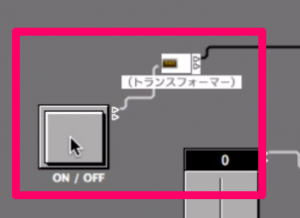
In the video, we also reverse "On/Off" to make it easier to use.
- Logic X
- Logic 8/9
Frequently Asked Questions
Q1. What is the transformer object in Logic Pro?
The transformer object is a device used in the Environment that can convert and rewrite incoming MIDI signals into different MIDI information. It enables linked control of multiple parameters and increases your creative freedom.
Q2. How can I control multiple items with one fader?
Double-click the transformer object to open its editing window and change data byte 2 to the fader number you want to control. Further adjusting the value with the "Scale" function enables precise linked control.
Q3. What is the transformer's "Reverse" function used for?
The Reverse function can invert values from 0–127 to 127–0. You can invert the on/off polarity of buttons or reverse the direction of a fader, creating a more usable controller setup.
NEW ARTICLES
Latest English Articles