
Logic Pro's Strip Silence function is a handy tool that automatically cuts silent sections and low-level noise from audio tracks such as vocals and guitar. It works faster and more accurately than processing by hand, so it can greatly improve the efficiency of your DTM work. By adjusting parameters such as the threshold and pre-attack time, you can remove unwanted silence while keeping breath sounds, allowing professional editing of your audio tracks.
Ideal for Audio Tracks Such as Vocals and Guitar
Using the Strip Silence function,
you can cut silent sections and low-level noise within a region all at once.
It processes faster and more accurately than working by hand, which improves your efficiency.
Strip Silence Explained
- Logic X
- Logic 8/9
Logic X: How to Use Strip Silence
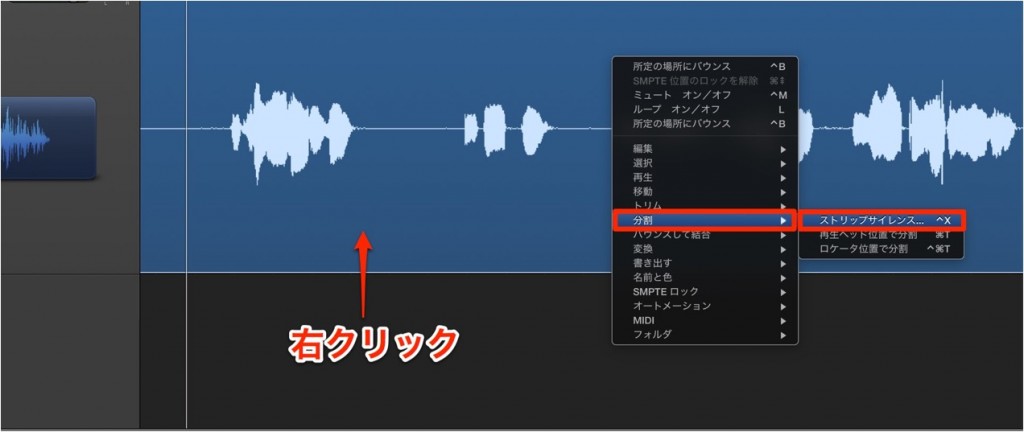
Right-click the region you want to apply Strip Silence to
and choose "Split" → "Strip Silence."
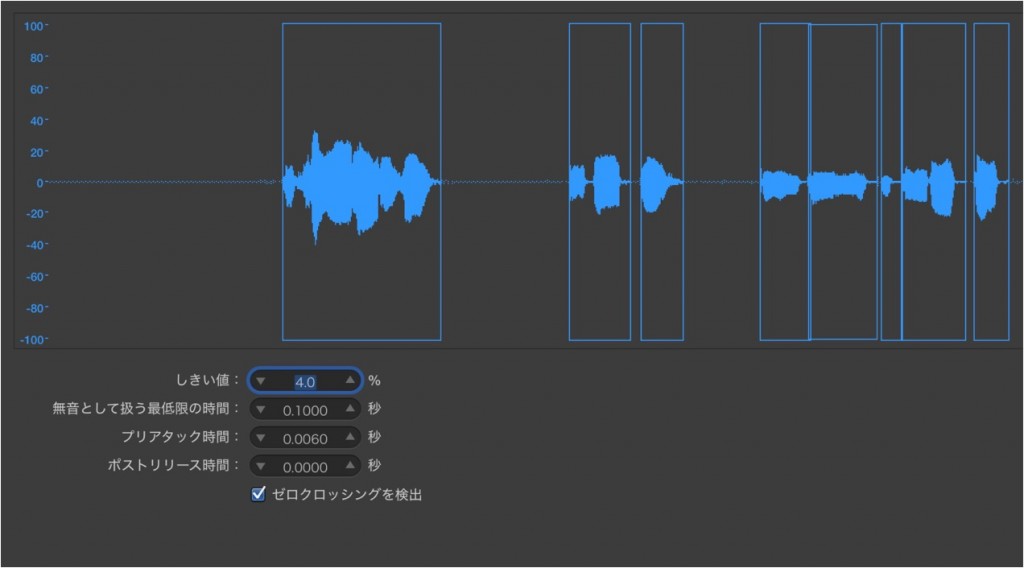
A dialog like this appears.
- Threshold
Determines how low a volume is treated as silence or noise. - Minimum Time to Accept as Silence
Even within a waveform, there are momentary gaps.
This sets how long a gap must last before it is treated as silence.
Shortening the time allows finer detection, but it is best to keep it to a level that does not sound unnatural. - Pre Attack-Time
Adds some margin before the point where the cut begins.
Use this to account for things like vocal breaths. - Post Release-Time
Adds some margin after the point where the cut ends.
Use this so that sounds fading out cleanly are not treated as silence or noise. - Search Zero Crossings
When checked, the audio is always split at a point where the value is zero.
This prevents noise at region boundaries.

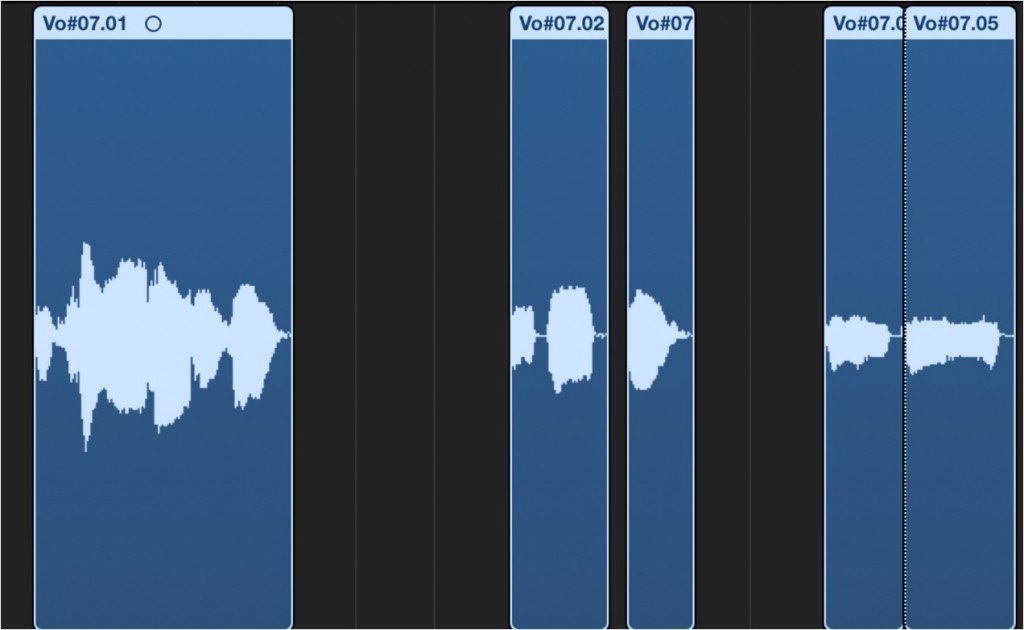
The region has been cut like this.
Logic: How to Use Strip Silence

↑ Select the region you want to apply Strip Silence to,
then choose "Audio" → "Strip Silence" from the menu.

↑ A dialog like this appears.
- Threshold
Determines how low a volume is treated as silence or noise. - Minimum Time to Accept as Silence
Even within a waveform, there are momentary gaps.
This sets how long a gap must last before it is treated as silence.
Shortening the time allows finer detection, but it is best to keep it to a level that does not sound unnatural. - Pre Attack-Time
Adds some margin before the point where the cut begins.
Use this to account for things like vocal breaths. - Post Release-Time
Adds some margin after the point where the cut ends.
Use this so that sounds fading out cleanly are not treated as silence or noise. - Search Zero Crossings
When checked, the audio is always split at a point where the value is zero.
This prevents noise at region boundaries.

↑ This is the screen with the settings above applied.
Everything outside the areas outlined in black is treated as silence or noise and cut.
Check the result, and if there are no problems, click "OK" in the dialog above.

↑ The region has been cut like this.
Very convenient.
- Logic X
- Logic 8/9

Frequently asked questions
Q1. What value should I set for the Strip Silence threshold?
The threshold is the parameter that determines what volume is judged as silence or noise. In Logic, it is set as a percentage; the higher the value, the more is treated as silence. The best value depends on the material, so it is important to adjust it while checking the result on screen.
Q2. What should I do if vocal breaths are being cut?
Setting a longer Pre Attack-Time adds a margin before the cut begins. This lets you remove unwanted noise while keeping natural breath sounds.
Q3. Do I need to check "Search Zero Crossings"?
We recommend it. With this option checked, splits are made at points where the waveform value is zero, which makes noise at region joins less likely and gives you higher-quality editing results.
NEW ARTICLES
Latest English Articles











