

Logic Pro's Screensets feature solves the problem of limited screen space when working in a DAW. By registering several optimal window layouts for different tasks, such as editing, MIDI programming, and mixing, and switching between them instantly with the number keys on your keyboard, you can greatly improve your efficiency. Anyone from beginners to advanced users can set it up easily, and it lets you produce music comfortably even on a small screen, making it a must-have feature for DAW users.
Work Efficiently Even on a Small Screen

When using a DAW, you run into the problem of not having enough screen space.
Because you switch between many windows as you work,
each individual window inevitably ends up small.
That is where the Screensets feature comes in handy.
You can register your favorite screen layouts and windows
and recall them just by pressing a specific key.
- Logic X
- Logic 8/9
Logic X: How to Set Up Screensets
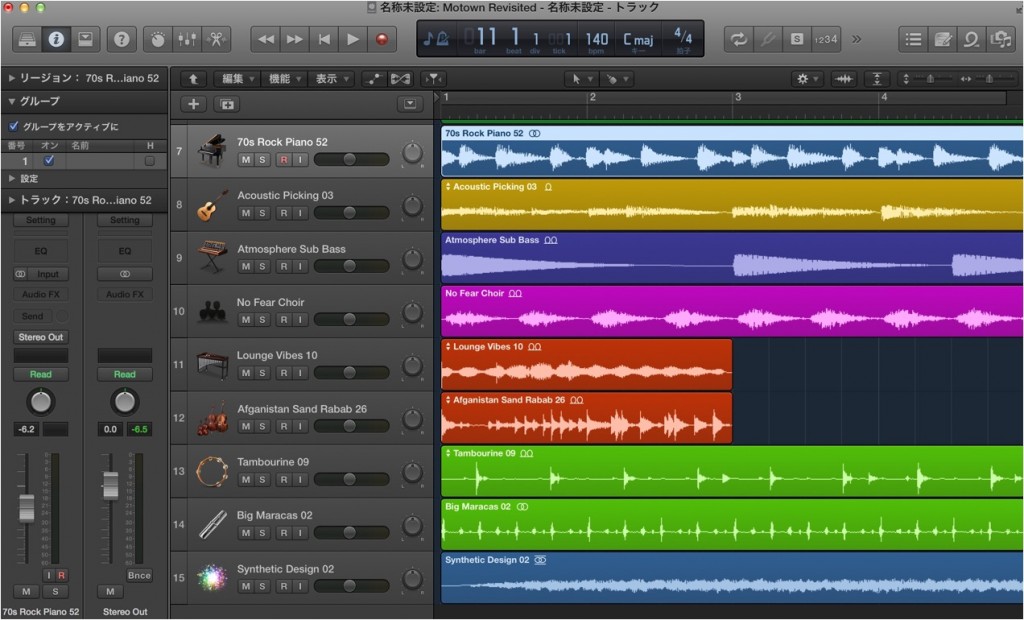
First, arrange the windows the way you like.
Window size, Transport position, zoom, and so on.
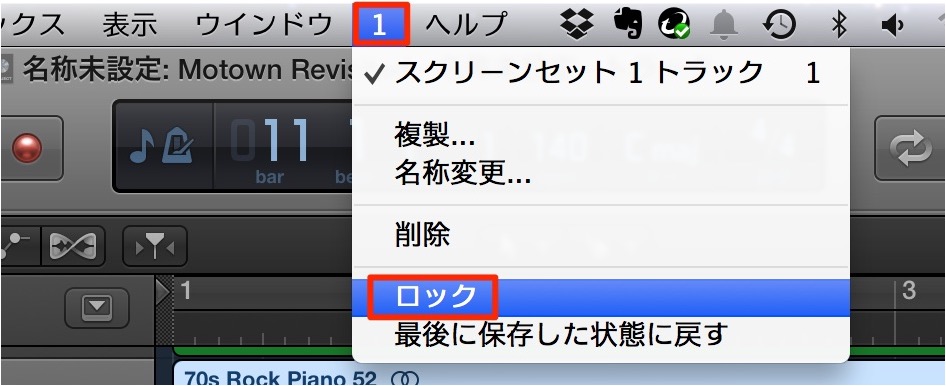
Now save this state.
From the top menu, choose the "number" → "Lock."
The screen is now registered.
The number shown next to "Screenset"
indicates the current screen number, which means the screen registered above has been assigned to "1."
Register the screens you use often one after another in the same way.
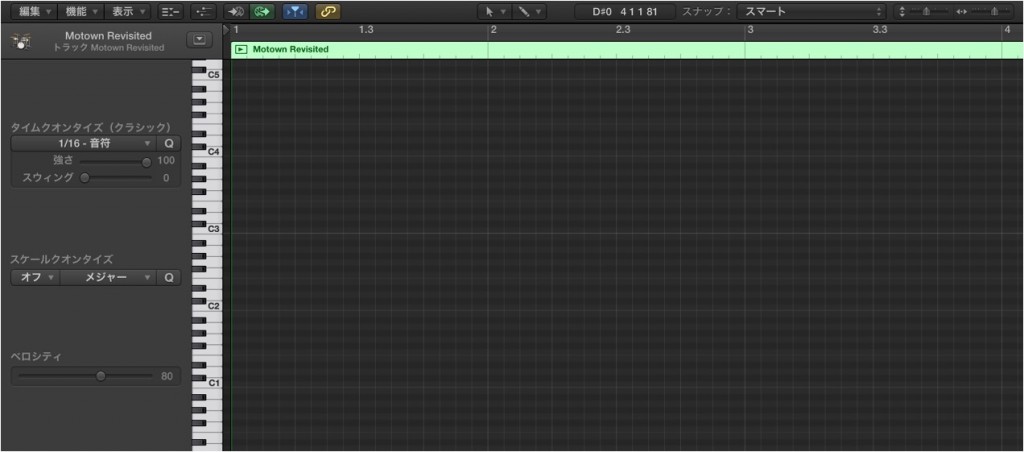
Next, let's register the Piano Roll window, which you use often.
We recommend expanding it to fill the screen, as it becomes very easy to see.
Once you have arranged the screen, register it the same way as above,
but screen number 1 is already in use.
So we will save the Piano Roll screen to Screenset 2.
From the top menu, choose the "number" → "Duplicate."
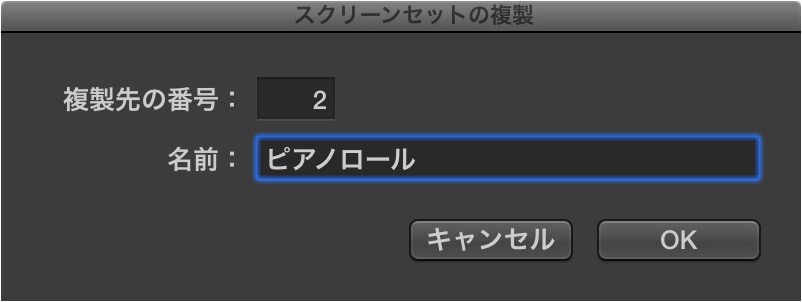
The dialog above appears.
Check the number and give it any name you like.
The Piano Roll is now registered to "2."
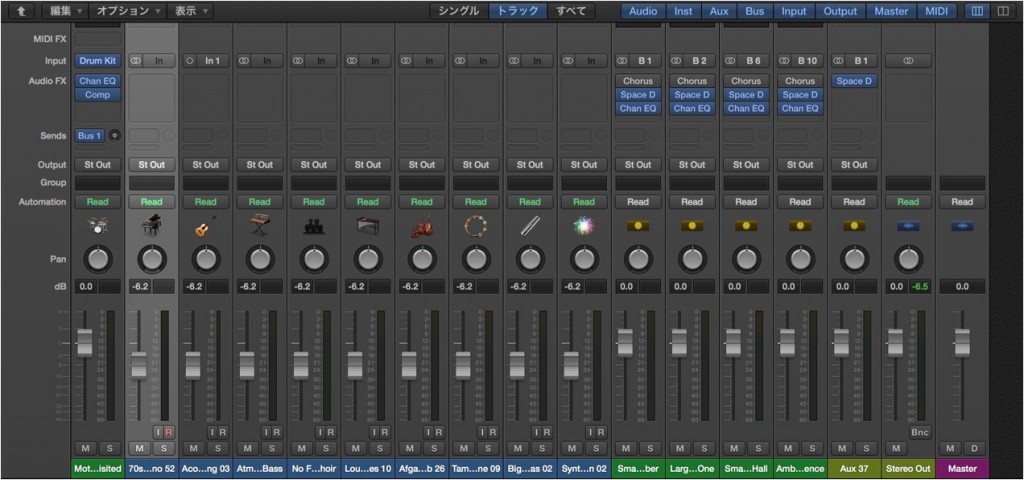
Finally, let's register the Mixer window too.
Expand this one to fill the screen as well, arrange it,
and then choose the "number" → "Duplicate" from the top menu.
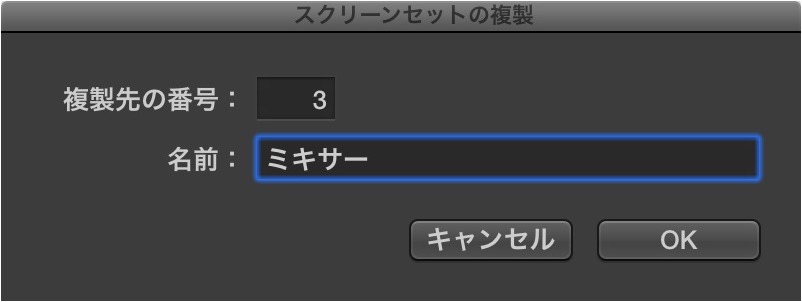
Check the "Number" and "Name" in the dialog and press "OK."
Three screens are now registered in total.
Using Screensets
Press "1," "2," or "3" on your keyboard
to switch instantly to the registered screen.
Using these, you can do editing, MIDI programming, and mixing on a large screen,
and easily move to another screen depending on the task.
Your work becomes dramatically more comfortable.
Only "1 to 3" are shown here, but you can register more than that.
If you want to change a locked screen, just unlock it from the top menu.
Be sure to make use of it.
Logic: How to Set Up Screensets

↑ First, arrange the windows the way you like.
Window size, Transport position, zoom, and so on.

↑ Once the screen is arranged, save this state.
From the top menu, choose "Screenset" → "Lock."
The screen is now registered.
The number shown next to "Screenset"
indicates the current screen number, which means the screen registered above has been assigned to "1."
Register the screens you use often one after another in the same way.

↑ Next, let's register the Piano Roll window, which you use often.
We recommend expanding it to fill the screen, as it becomes very easy to see.
Once you have arranged the screen, register it the same way as above,
but screen number 1 is already in use.
So we will save the Piano Roll screen to Screenset 2.

↑ From the top menu, choose "Screenset" → "Duplicate."

↑ The dialog above appears.
Check the number and give it any name you like.
The Piano Roll is now registered to "2."
As before, choose "Screenset" → "Lock" from the top menu so the screen does not change.

↑ Finally, let's register the Mixer window too.
Expand this one to fill the screen as well, arrange it,
and then choose "Screenset" → "Duplicate" from the top menu.

↑ Check the "Number" and "Name" in the dialog and press "OK."
Then lock it in the same way as above.
Three screens are now registered in total.
Using Screensets
Press "1," "2," or "3" on your keyboard
to switch instantly to the registered screen.

Using these, you can do editing, MIDI programming, and mixing on a large screen,
and easily move to another screen depending on the task.
Your work becomes dramatically more comfortable.
Only "1 to 3" are shown here, but you can register more than that.
If you want to change a locked screen, just unlock it from the top menu.
- Logic X
- Logic 8/9

Frequently asked questions
Q1. Can Logic Pro's Screensets be used in versions other than Logic X?
Yes, the same feature is available in Logic 8/9. However, the menu layout and operation may differ slightly, so follow the instructions for your version when setting it up.
Q2. How many Screensets can I register?
Numbers 1 to 3 are shown here, but you can register more than that. Saving several work layouts as needed lets you build a more efficient workflow.
Q3. Can I modify a Screenset after registering it?
Yes. Unlock it from the top menu and you can change the window layout. Lock it again after making changes to save the new layout.
Q4. How much time can the Screensets feature save?
Once set up, you no longer need to resize windows by hand, which greatly reduces the effort of frequent switching.
NEW ARTICLES
Latest English Articles











