

Accurately working out the tempo of reference songs and samples in Logic Pro is essential for programming, remixing, and using tempo-synced effects. This article explains, in four steps, a manual tempo analysis method that works well when a DAW's automatic detection falls short. By learning an efficient workflow that takes just a minute once you are used to it, from finding the downbeat to checking sync with the metronome and fine-tuning, you will greatly improve the accuracy and productivity of your production work.
Detect the Tempo of Reference Tracks, Including Commercial Songs
In production work, you will very often need to work out the tempo of a song.
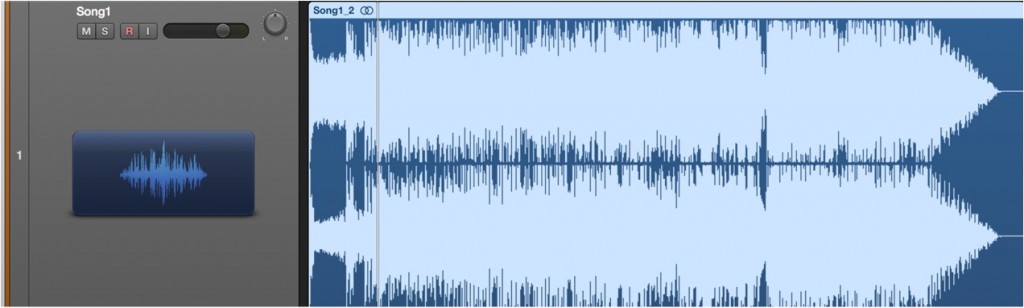
Knowing the tempo lets you do everything you want, such as:
- Layering your own programming over the song
- Remixing
- Copying the song efficiently
- Using tempo-synced settings on delays, synths, and so on
All of these become possible.
It is an adjustment you should always make before you start working.
DAWs do have automatic tempo detection, but
because of long analyses such as a whole song, silence before and after the song, or time signature changes,
the tempo is often not detected the way you expect.
Here, we introduce a manual method for analyzing tempo.
How to Analyze the Tempo
Reading through the article, it may look like there are many steps,
but don't worry. Once you are used to it, it takes just one minute.
*This requires that the song has a constant tempo.
Almost all modern music meets this condition.
1_Find the Downbeat
Double-click the region to open the Sample Editor (Audio File Editor).
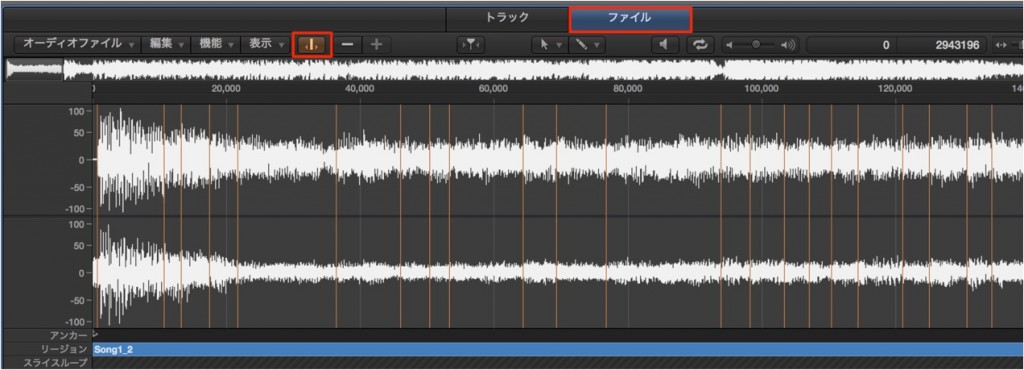
Click "Transient Editing Mode" (outlined in red) to turn it on.
Find beat 1 in the song.
Any part is fine as long as it is beat 1.
We recommend using the kick as a guide when searching.
In this song,
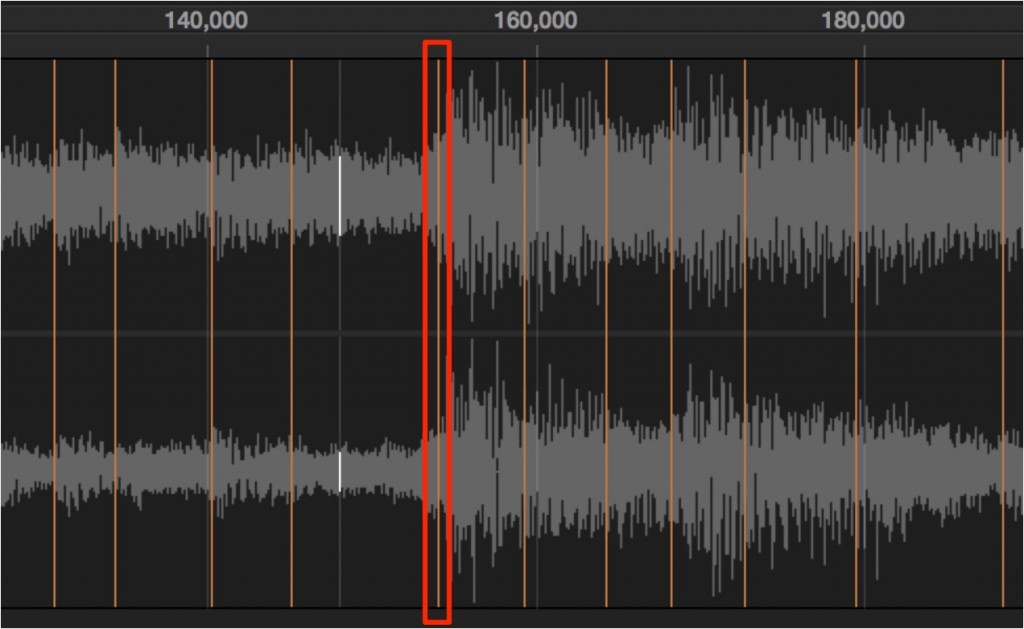
this is beat 1.
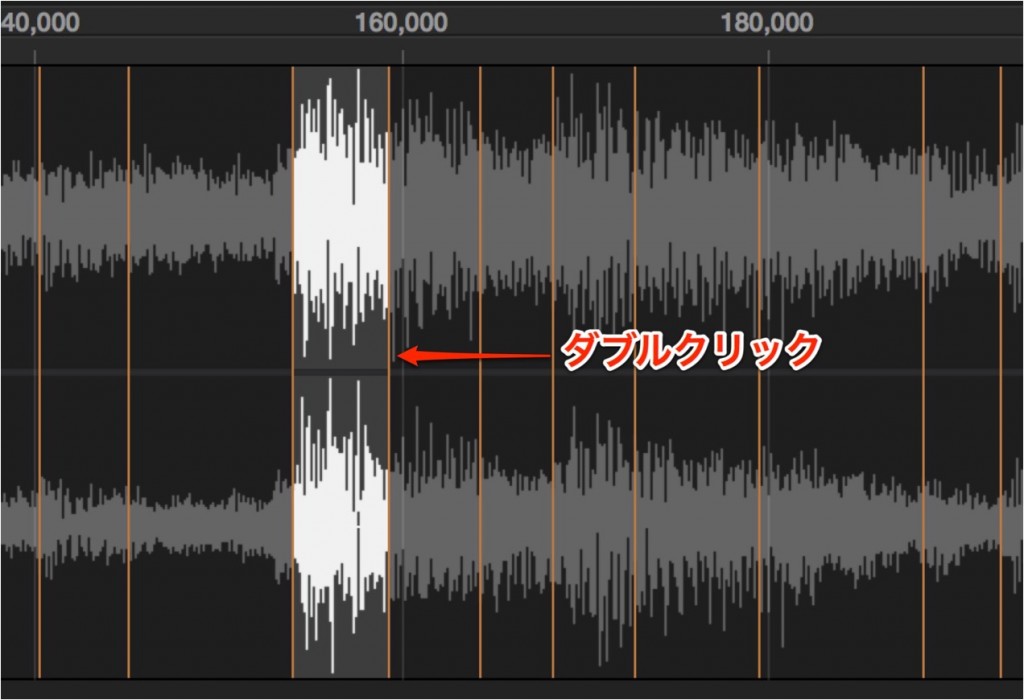
Double-click the transient at beat 1 to select only that section.

From the menu, select "Edit" → "Selection → Region."

Only that section becomes a region.
You have now extracted an accurate beat 1.
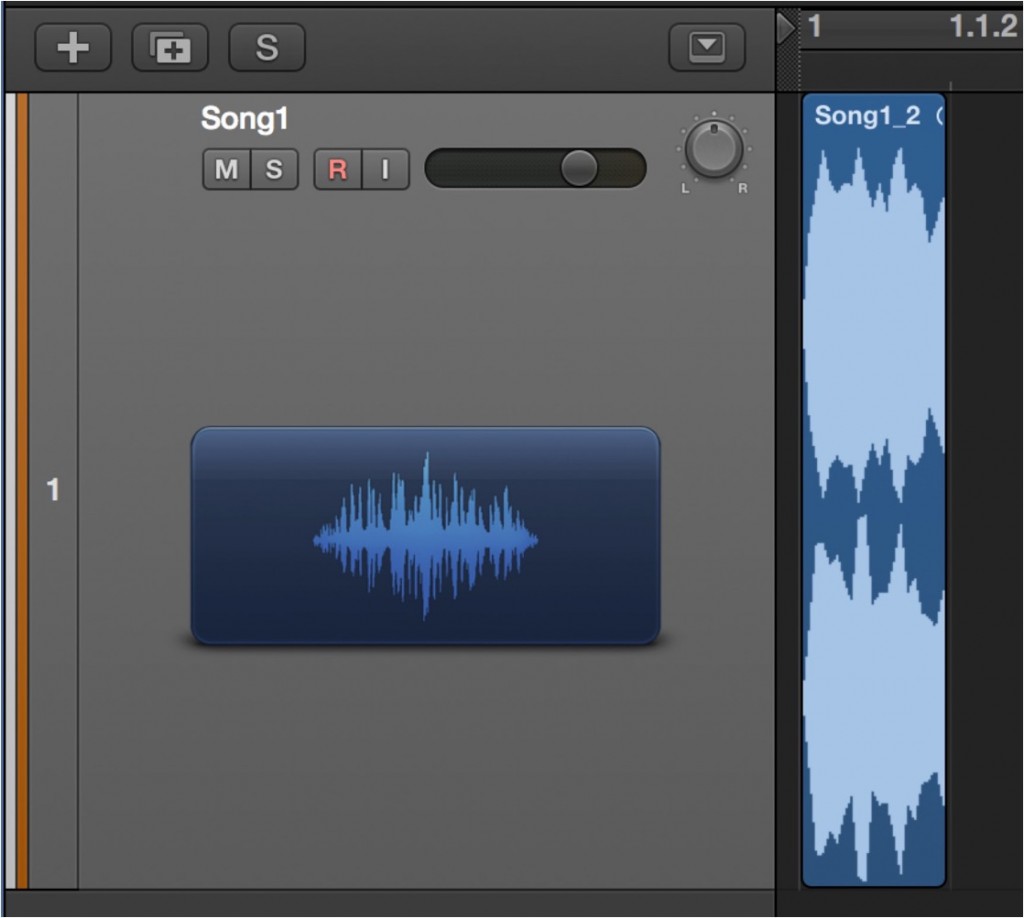
Move the extracted beat 1 region to the start of the song.
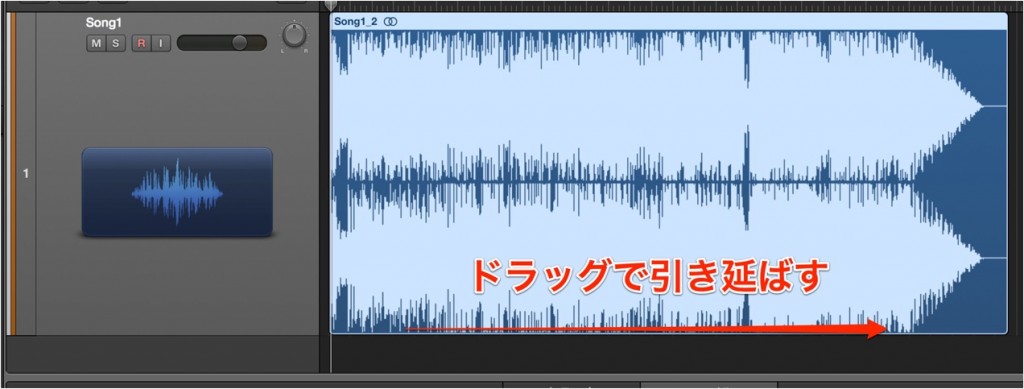
From there, extend the region to the end of the song.
2_Match the Tempo
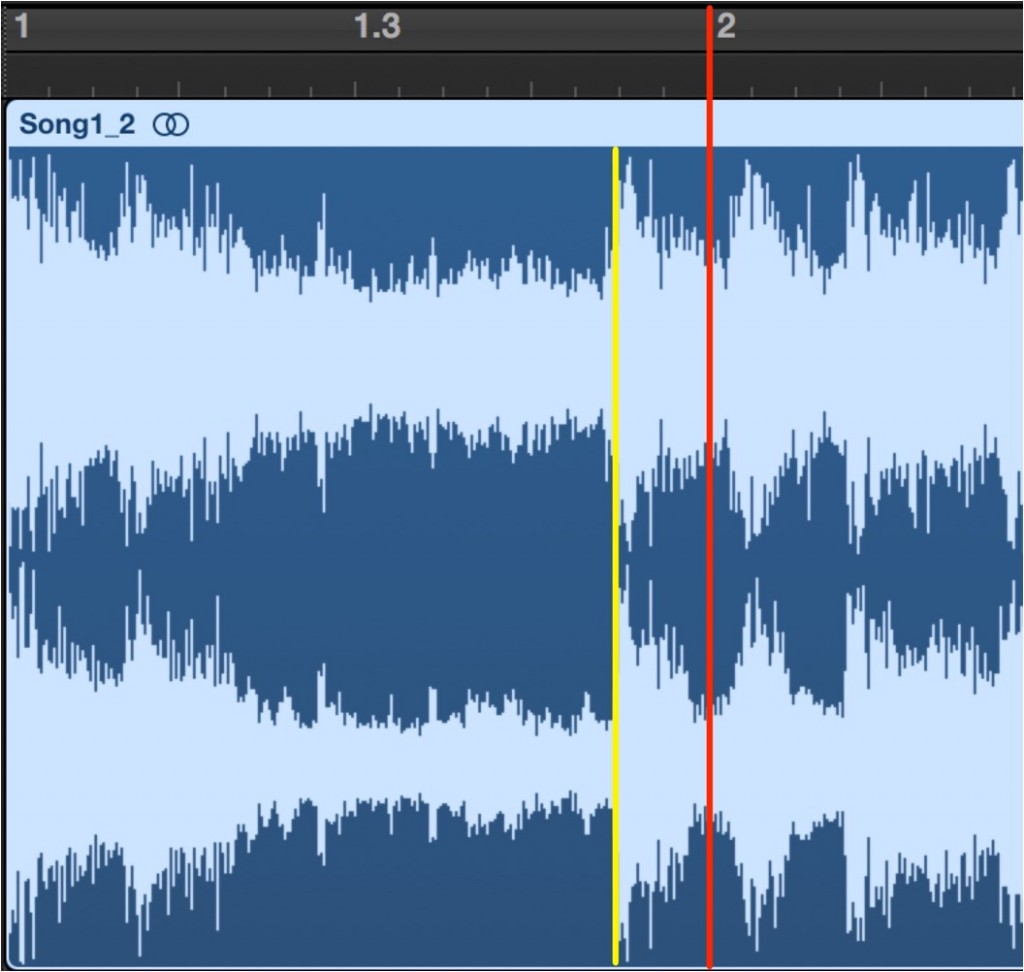
Check bar 2.
Align the song's bar 2 (yellow) with the project's bar 2 (red).

Changing the tempo moves the project's bar 2.
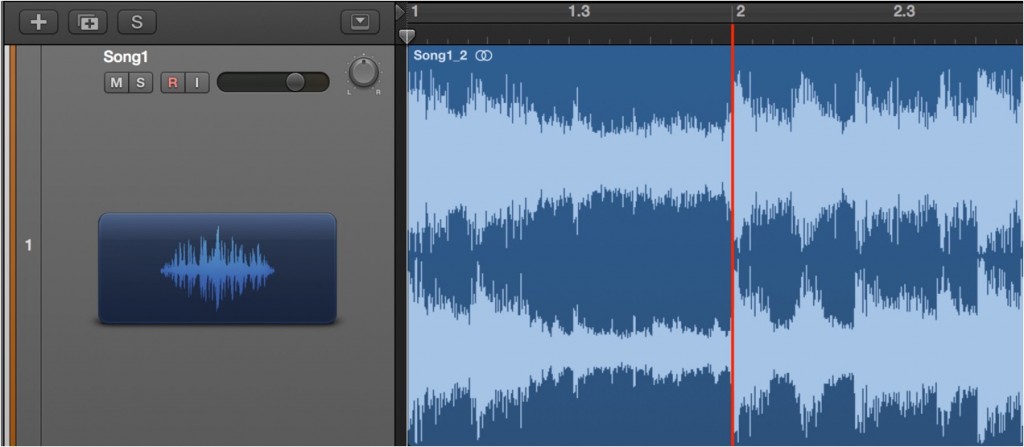
Watch it as you align it with the project's bar 2.
3_Check the Tempo
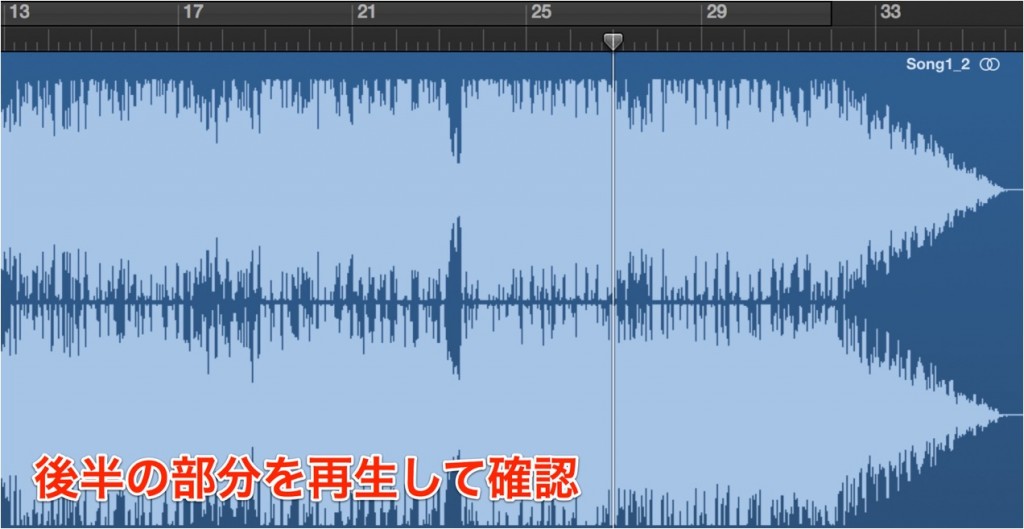
Check the latter half of the song to make sure it does not drift from the metronome.
At this point, if it does not line up with the metronome, the tempo is slightly off.
Just like a car traveling at 100 km/h versus 101 km/h,
the gap keeps growing the further you go into the song.
Change the tempo by +1/-1 at a time and fine-tune it until it is exactly in time.
4_Restore the Deleted Region
Restore the part of the region before the kick that you deleted in Step 1.
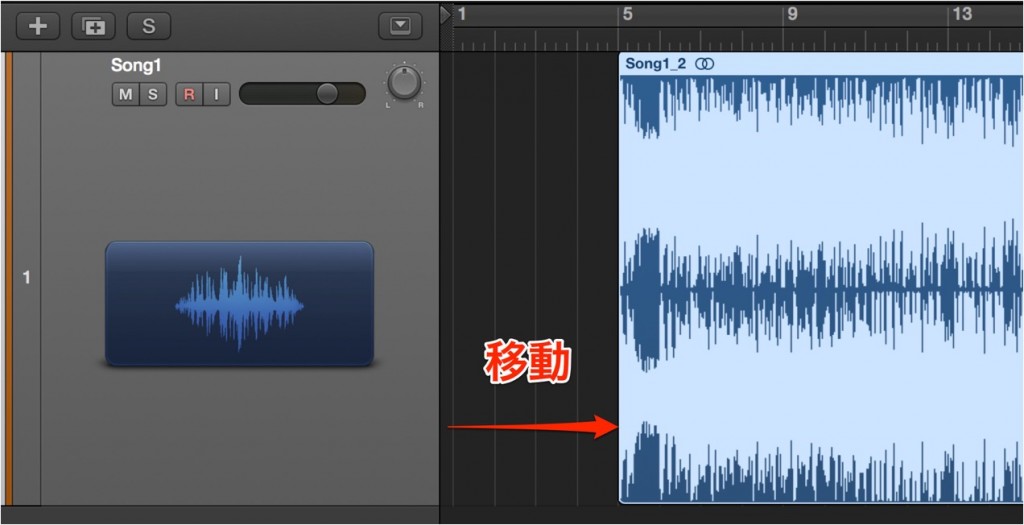
As long as you do not change the position of beat 1, it will not drift from the tempo.
Allowing for the part of the song before the kick, move the region later.
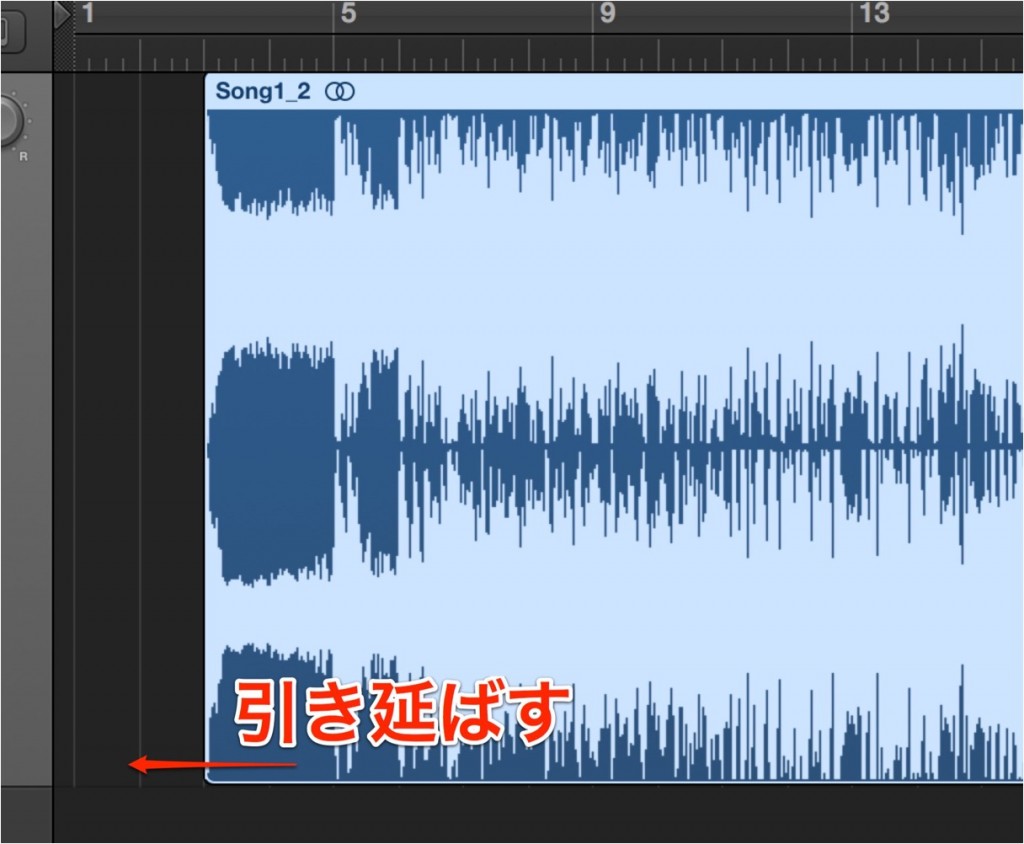
Drag the region to restore the deleted part.
That's it.
The whole song, including the silence, is now in sync with the tempo.

Frequently asked questions
Q1. Why doesn't Logic Pro's automatic tempo detection work accurately?
Long analyses of an entire song, silence before and after the song, and time signature changes partway through can prevent automatic detection from working accurately. In those cases, the manual method in this article is effective.
Q2. What is the most important point in tempo analysis?
The key is detecting beat 1 accurately. By extracting the downbeat in the Sample Editor and placing it at the start of the song, the tempo matching that follows becomes much more accurate.
Q3. What should I do if the tempo drifts further off later in the song?
That is a sign the tempo is slightly off. Fine-tune the tempo in steps of ±1 until it syncs perfectly with the metronome, and the whole song will be in sync.
Q4. Does this method work for every song?
The song must have a constant tempo. Almost all modern music meets this condition, so it is practical. It cannot be used for songs whose tempo varies.
NEW ARTICLES
Latest English Articles











