
Logic X's playback mode settings are an important feature that directly affects the efficiency of composing. There are four playback methods, Marquee tool, Cycle, Region selection and Specified position, and using each according to your purpose lets you work quickly. The key to more efficient DTM work is understanding that the modes have an order of priority, and that when a higher mode is in effect, lower modes do not function.
Set playback rules to make Logic X easier to use

When composing, playing back the project is, needless to say, an important operation.
Logic provides several playback modes to suit what you are doing.
Understanding and mastering these modes directly improves your efficiency.
This time we explain Logic's playback modes.
Logic X playback modes video tutorial
Overview and settings of the playback modes
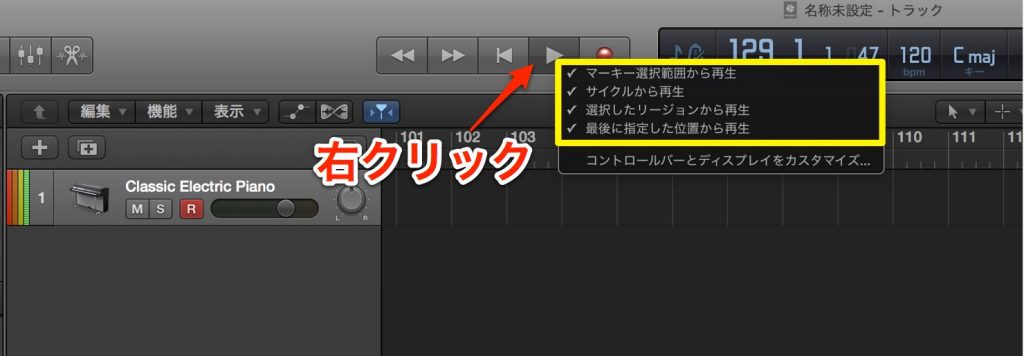
To check or change the playback mode, right-click the Play button.
A menu appears with four items.
A checked item is enabled,
and clicking an item toggles its check on and off.
First, an explanation of each item.
Play from Marquee Selection
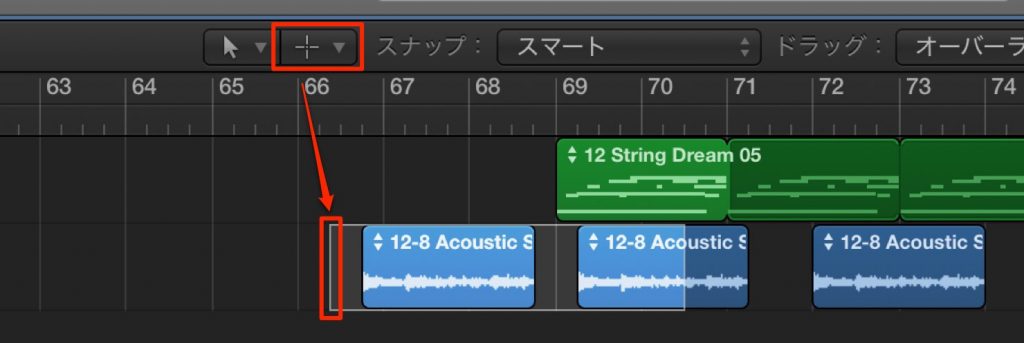
When this item is enabled, playback starts from the beginning of the range selected with the Marquee tool.
If you are not using the Marquee tool,
the following playback methods take precedence even if it is enabled in the menu.
Play from Cycle
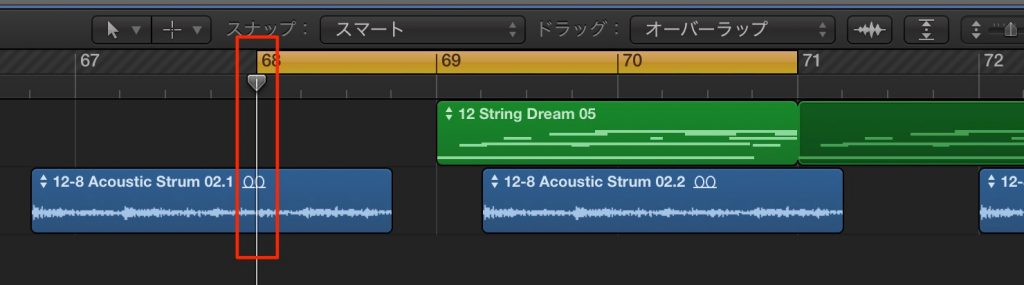
When this item is enabled, playback starts from the beginning of the loop range.
If no loop range is set,
the following playback methods take precedence even if it is enabled in the menu.
Play from Selected Region
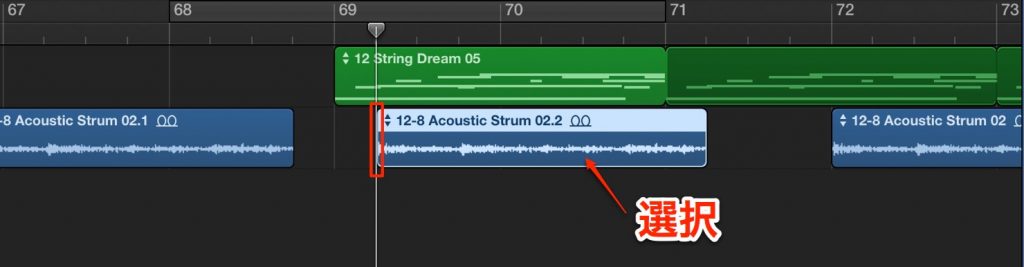
When this item is enabled, playback starts from the start position of the selected region.
If no region is selected,
the following playback methods take precedence even if the item is enabled in the menu.
Play from Last Locate Position
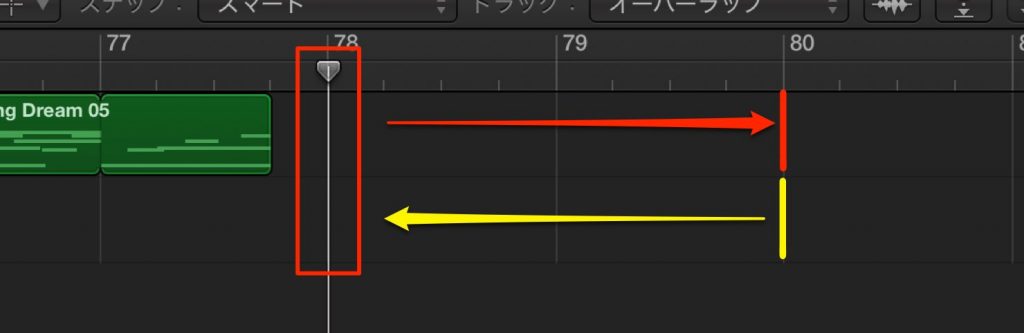
When this item is enabled, playback returns to the position you last specified and played from.
Priority of the playback modes
These items have an important rule:
items shown higher up are stronger.
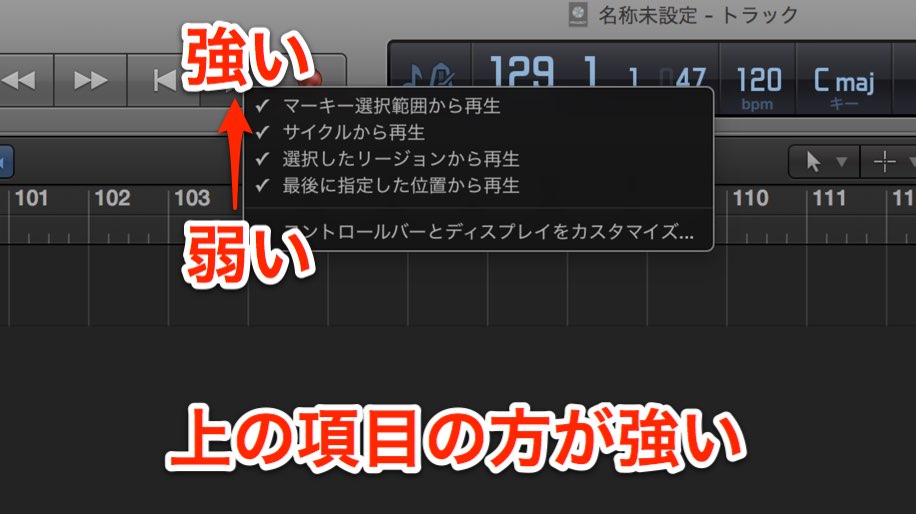
- 1. Marquee tool > 2. Cycle > 3. Region > 4. Play from specified position
That is the order.
Even if all four items are enabled in the menu, only one item actually applies.
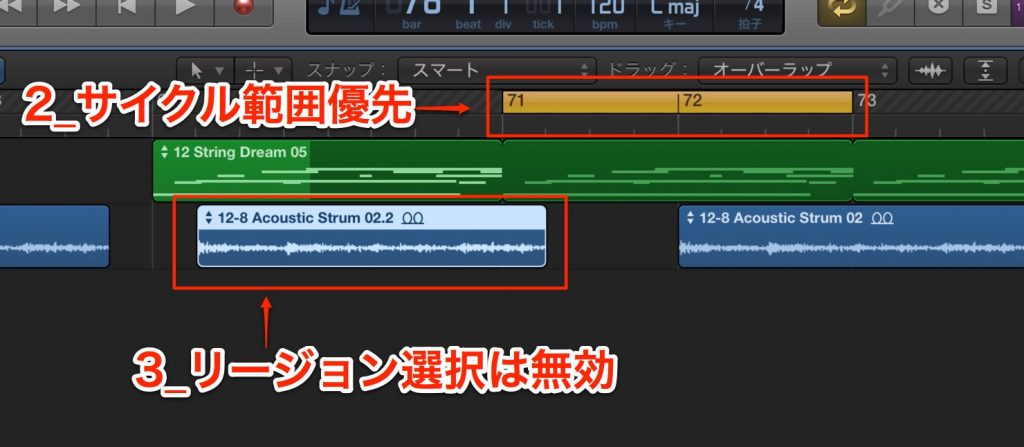
For example, if "2. Cycle" is set, even if you "3. select a region" and play,
playback from the cycle range takes priority.
Conversely, even if all four items are enabled in the menu,
if you do not specify "1. Marquee tool", "2. Cycle" or "3. Region",
"4. Play from specified position" applies.
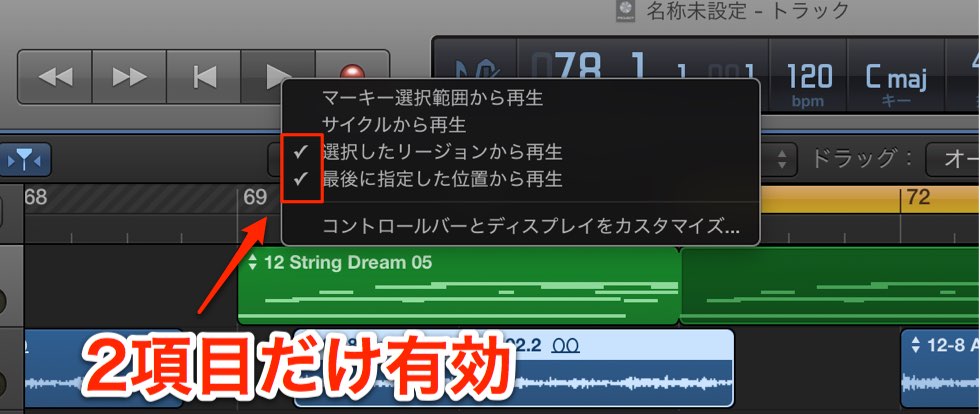
Of course, items disabled (unchecked) in the menu no longer affect the playback position.
For example, if "2. Cycle" is disabled and "3. Region" is enabled,
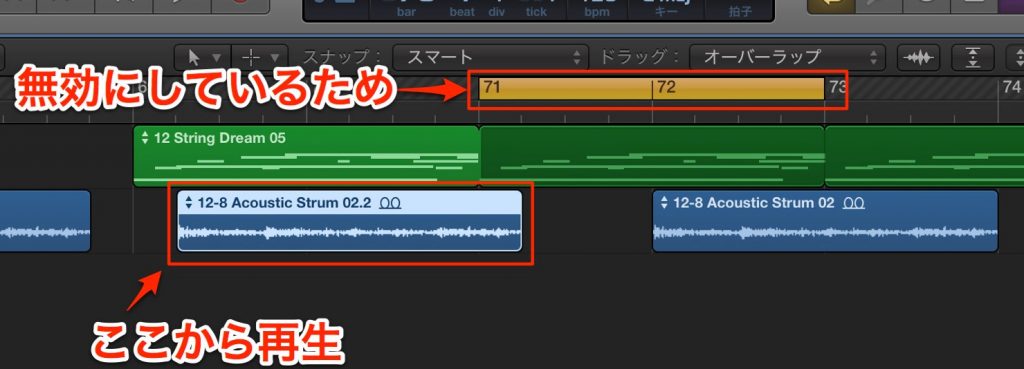
playback starts from the start position of the selected region even if a cycle range is set.
How was that?
If you understand these rules, you can quickly switch between several playback methods.
Please keep them in mind during production to make your work more efficient.

Frequently Asked Questions
Q1. When several playback modes are enabled in Logic X, which takes priority?
The order of priority is Marquee tool > Cycle > Region > Specified position. If a higher mode is enabled and specified, the lower modes do not function.
Q2. I have Cycle enabled, but playback starts from the selected region. Why?
"Play from Cycle" may be unchecked in the menu, or no cycle range may be set. In that case, the next item in the order, "Play from Selected Region", applies. Right-click the Play button to check the settings.
Q3. How do I set the playback mode?
Right-click the Play button to display the menu. Four items are listed, and you can enable or disable each one by clicking to toggle its check.
NEW ARTICLES
Latest English Articles











