
Logic Pro's stem export function, which exports multiple tracks to audio files in one go, is very handy for reducing CPU load before mixing and for moving to another DAW. It greatly reduces the effort of soloing and bouncing one track at a time, and it offers fine control over settings such as file format, bit depth, and bypassing effects. It is available in both Logic X and Logic 8/9, and with proper folder management and settings, you can set up an efficient, comfortable mixing environment.
Useful for Many Purposes, Such as Before Mixing or Moving to Another DAW
Software synths are invaluable in production, but CPU usage is a concern.
By the time a song is nearly finished, you are probably using quite a few of them.
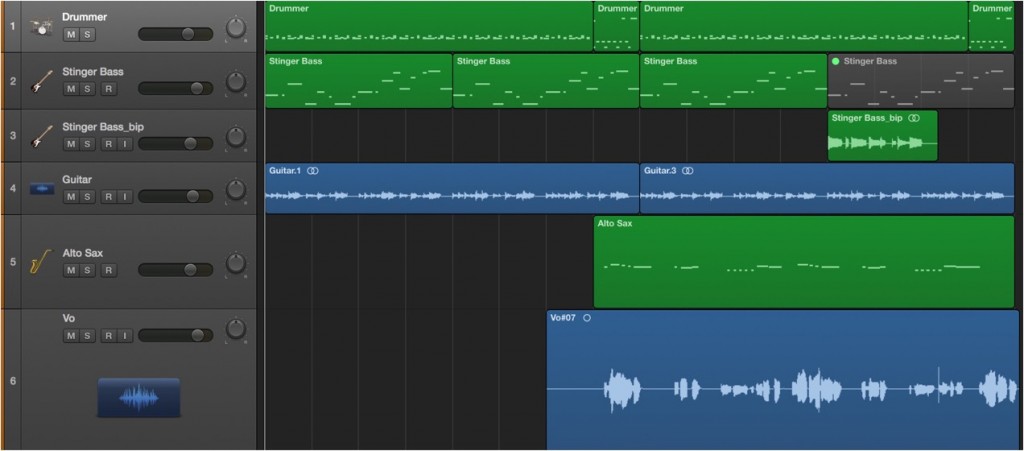
To mix comfortably, you will want to convert finished MIDI tracks to audio.
That is where this export function comes in handy.
Using it frees you from the tedious routine of soloing one track at a time and bouncing it.
This way of exporting is called "stem export" (parallel out).
- Logic X
- Logic 8/9
Logic X: How to Export
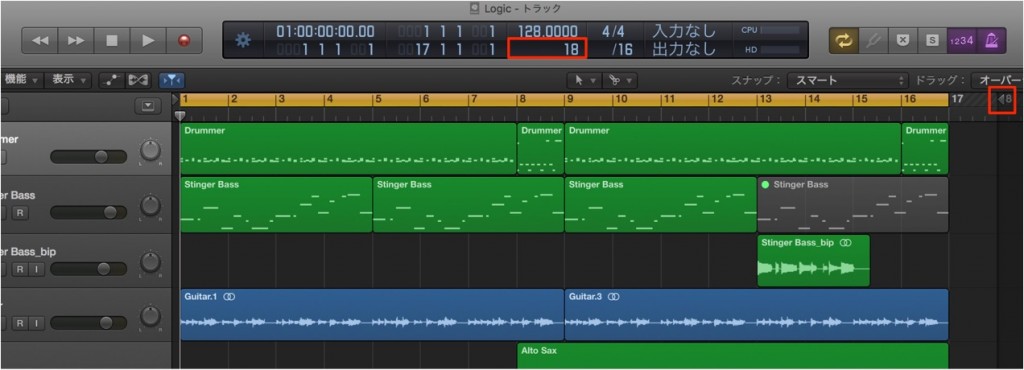
Change one of the areas outlined in red to specify the export range.
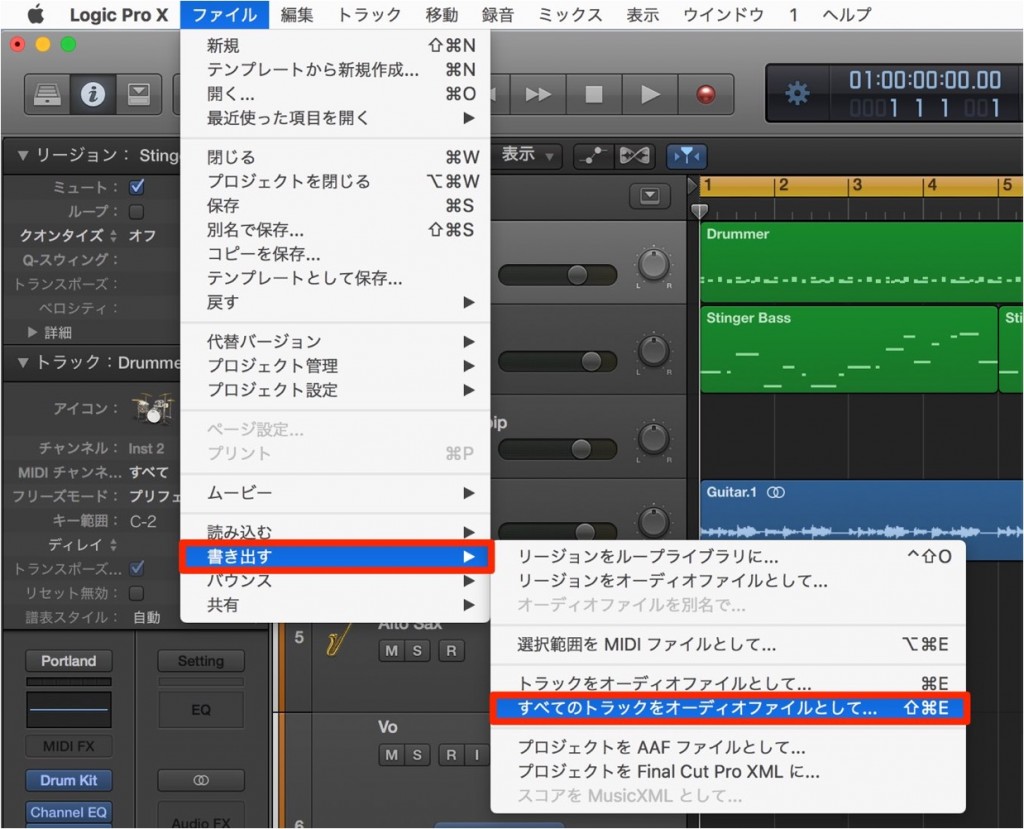
From the top menu, choose "File" → "Export" → "All Tracks as Audio Files."
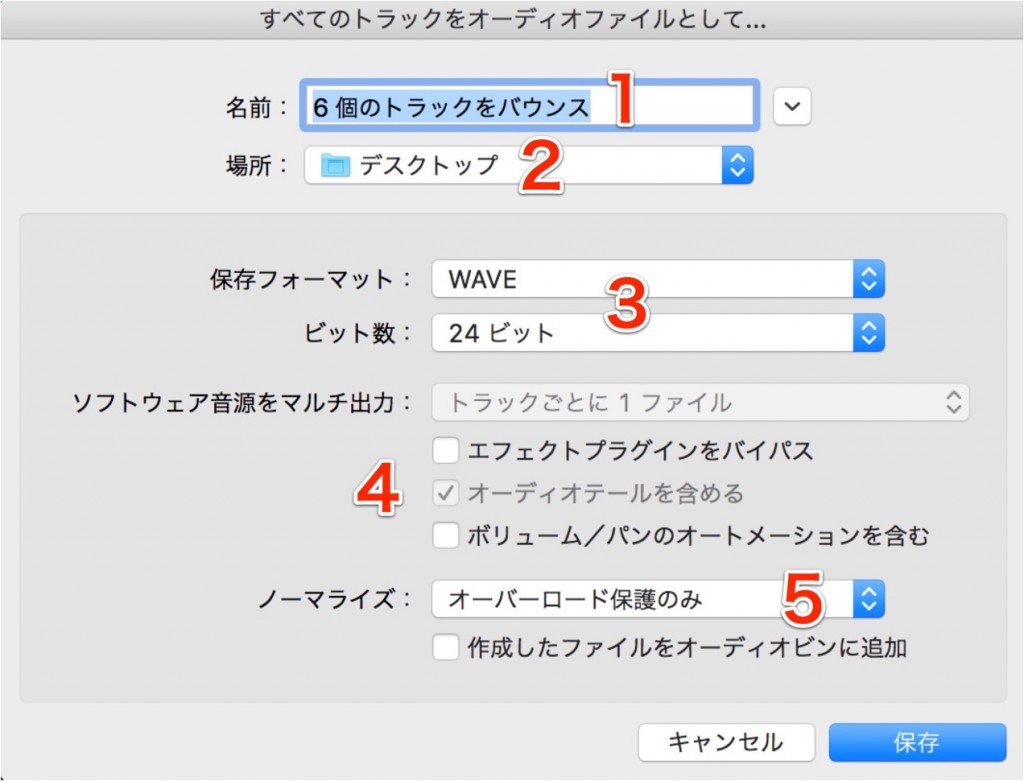
The export dialog above appears.
- 1_Check the number of tracks to be exported.
- 2_Specify where the tracks will be exported.
Since many files will be created, it is a good idea to prepare a dedicated folder. - 3_Choose the file format and bit depth to export.
- 4_By checking "Bypass Effect Plug-ins,"
you can export while ignoring all effect plug-ins currently applied to the tracks.
The "Include Volume/Pan Automation" option below it works the same way. - 5_This is volume control for the exported tracks (Normalize).
It prevents overly loud sounds from clipping.
Normally you can leave it as is, but if you do not want the volume to change, you may set it to "Off."
Once these are set, press the "Save" button.
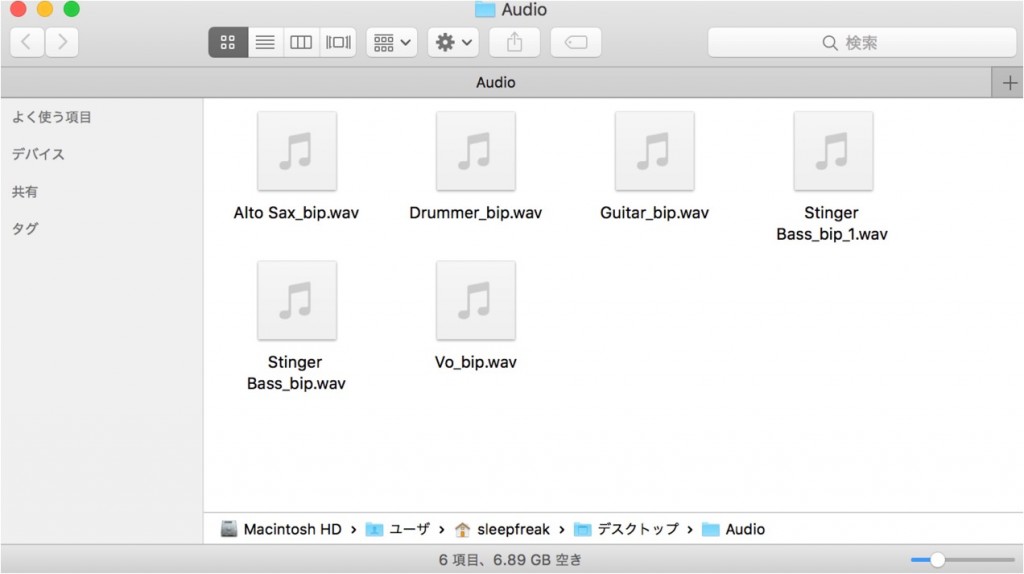
When the export is complete, the files are created in the specified location.
Logic: How to Export

↑ Drag the area outlined in red above to set the length of the export.
You can also change it by entering bar numbers in the lower red outline.

↑ From the top menu, choose "File" → "Export" → "All Tracks as Audio Files."

↑ The export dialog above appears.
- 1_Check the number of tracks to be exported
- 2_Specify where the tracks will be exported
Since many files will be created, it is a good idea to prepare a folder for them - 3_Choose the file format and bit depth to export
- 4_By checking "Bypass Effect Plug-ins,"
you can export while ignoring the plug-ins currently applied to the tracks
The "Include Volume/Pan Automation" option below it works the same way - 5_This is volume control for the exported tracks.
It prevents overly loud sounds from clipping.
Normally you can leave it as is, but you may also set it to "Off."
Once these are set, press the "Save" button.

↑ After exporting, a file for each track is created in the location you specified above.
- Logic X
- Logic 8/9
Notes on Exporting

- External synths cannot be exported with this method.
Export them using the method below.


Frequently asked questions
Q1. What should I watch out for when exporting stems in Logic Pro?
Since many files are generated at once, it is important to prepare a dedicated folder in advance. Also, external synths cannot be exported with this function, so you need to use the conventional bounce method.
Q2. How can I prevent clipping when exporting stems?
You can adjust the output level with the track volume control (Normalize) in the export dialog. For sounds that are too loud, this option lowers the volume to prevent clipping.
Q3. What should I do if I want to export tracks without effects?
Check "Bypass Effect Plug-ins" in the export dialog to export while ignoring the plug-in effects currently applied.
NEW ARTICLES
Latest English Articles











