
When bouncing (exporting) a song produced in Logic Pro, problems such as no audio output or noise can occur. This is caused by the computer's CPU not keeping up with the speed of the export processing. As a solution, this article introduces changing the export mode in the Bounce window to "Realtime." Exporting over the song's actual running time gives the CPU more headroom and avoids the problem. You'll learn the cause of a common export error and a practical fix.
Tracks don't play in the bounced file, noise gets in, and more
When exporting a song you've produced, you use "Bounce."
When you do this,
tracks that should play may be silent, or noise may get in.
Such problems can occur.
This time, we introduce how to deal with them.
Solution
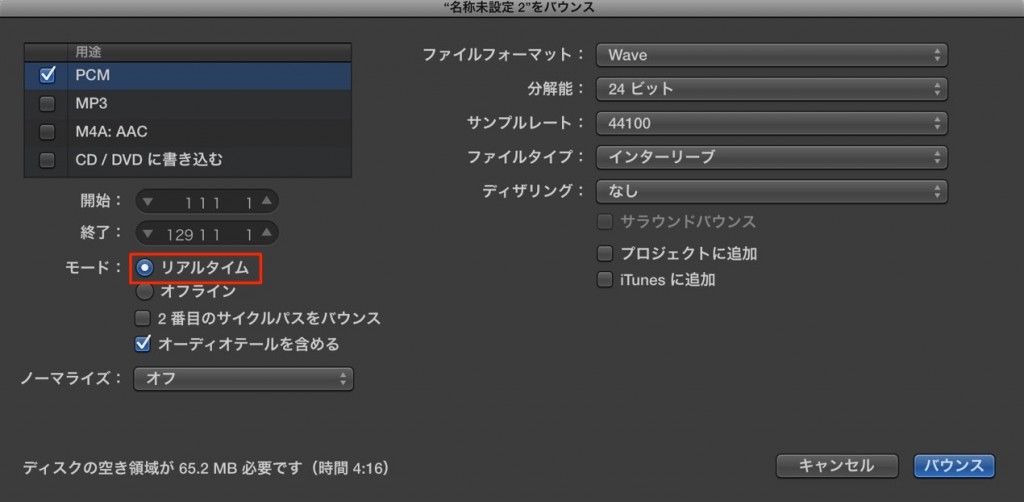
This symptom is caused by the computer's CPU not keeping up with the export processing.
Change the export mode in the Bounce window to "Realtime."
The song is exported over its actual running time, giving processing more headroom.
If problems occur in your exported files, be sure to try this.
Frequently asked questions
Q1. What causes noise in Logic Pro bounces?
The main cause is that the CPU can't keep up with the export speed. It is especially likely with heavy songs or many plug-ins, and becomes noticeable when the computer's specs are insufficient.
Q2. Where can I change the export mode in the Bounce window?
Select "Realtime" in the mode setting inside the Bounce window. Processing takes the actual length of the song, reducing the CPU load.
Q3. Does bouncing in Realtime mode take longer?
Yes, it takes as long as the song's actual running time. However, it gives processing more headroom, which prevents audio problems.
NEW ARTICLES
Latest English Articles











