
Nudge is an essential feature in Logic Pro that lets you move regions precisely and quickly by a preset amount. It is far more efficient than moving regions by hand and is especially useful for fine-tuning the timing of recorded takes such as vocals and guitar. By setting the nudge value to a bar, 10 milliseconds, or similar and using Option + arrow keys, you can edit audio to professional quality. Learning everything from the basic setup to advanced techniques can dramatically boost your DTM productivity.
Move Regions Quickly and Precisely
"Nudge" is a function that moves regions earlier or later
by a preset amount.
Compared with moving regions by hand,
you can move them quickly and precisely, which improves your efficiency.
- Logic X
- Logic 8/9
How to Set Up Nudge in Logic X
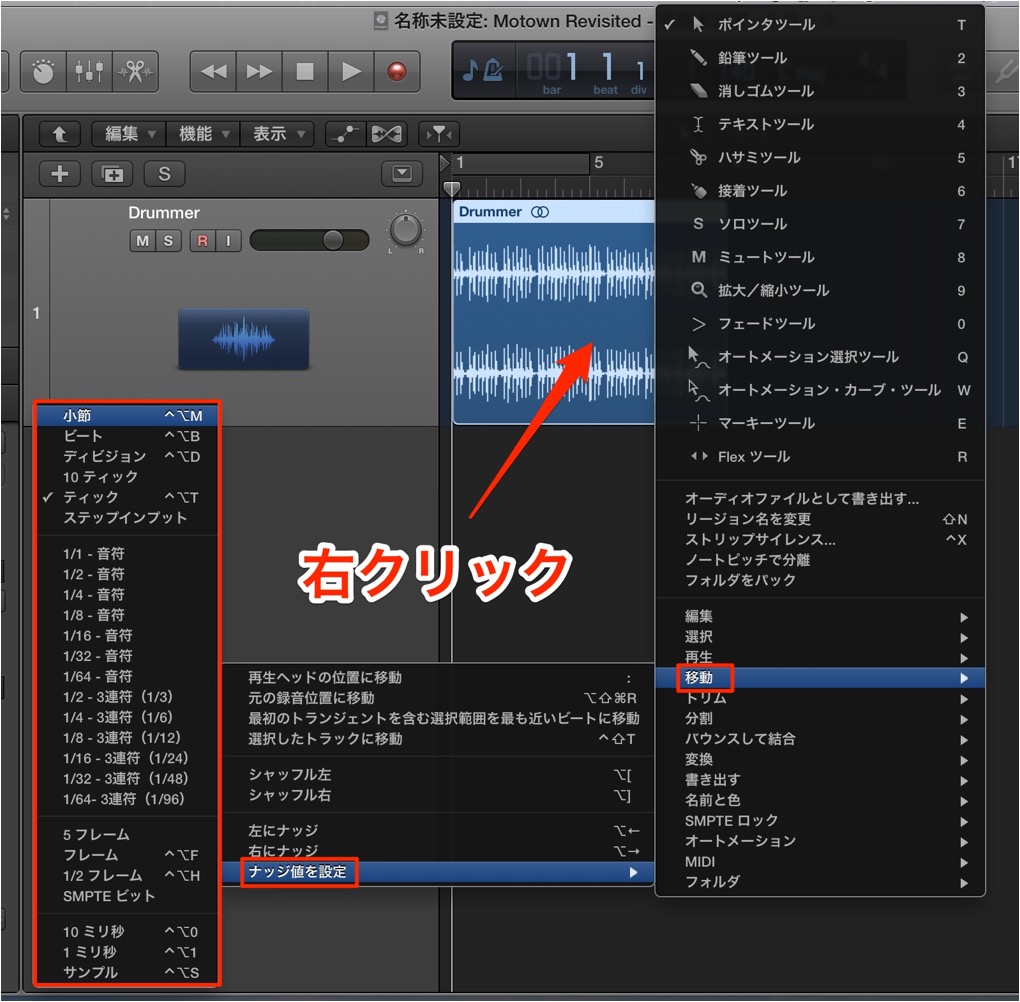
Right-click any region.
From the "Move" → "Set Nudge Value to" menu,
set how far one nudge moves. Here, we chose "Bar."
You can also choose values such as time units (milliseconds) and samples here.
Using Nudge
It is very easy to use.
Select the region you want to nudge.
Press Option + left/right arrow keys
. The region moves.
Of course, it moves by the amount you set above.
Advanced Nudge Technique
It is useful for fine-tuning the timing of recorded takes
such as vocals and guitar.
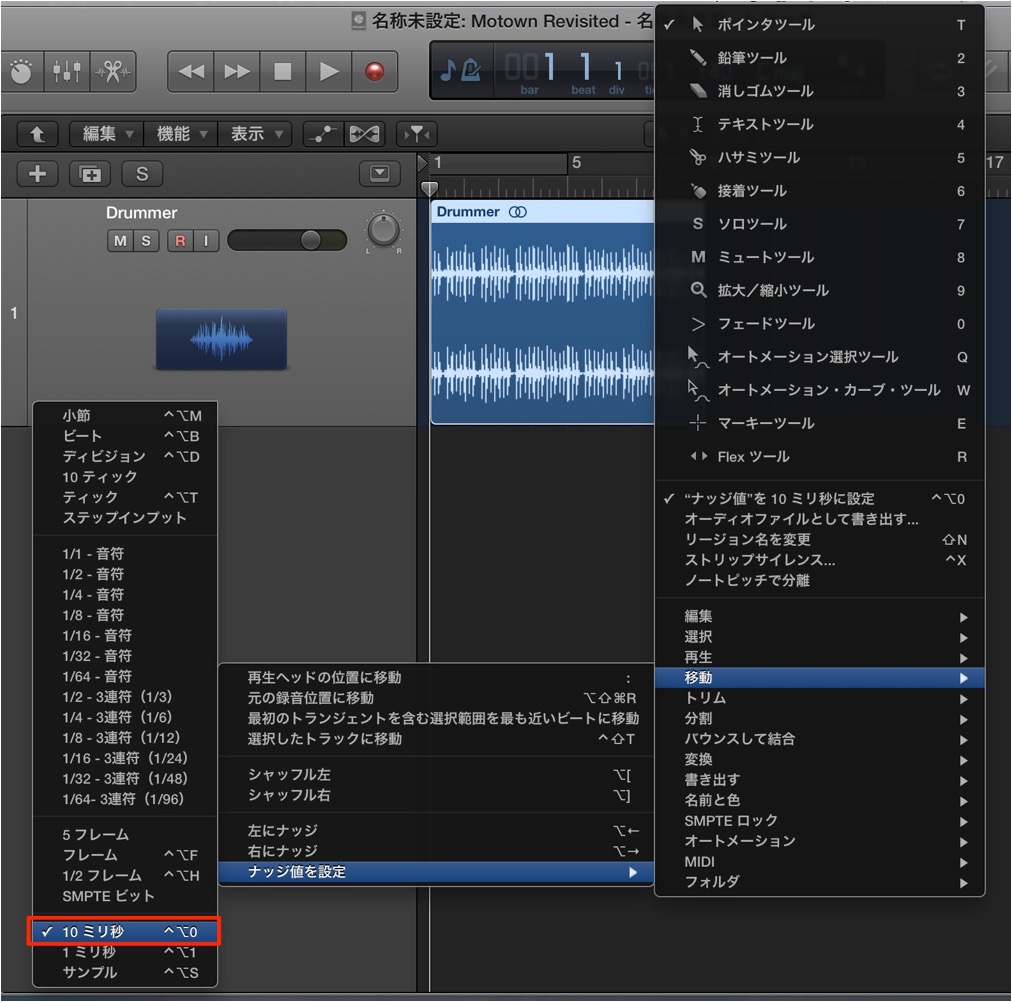
From "Set Nudge Value to" above, set the value to "10 ms."
Nudge repeatedly with this setting
to fine-tune the timing of the performance.
How to Set Up Nudge in Logic 8/9
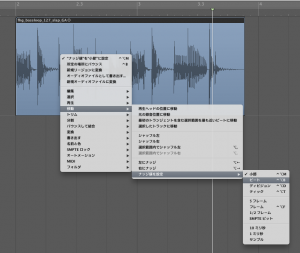
↑ Any region will do. Select it and right-click.
From the "Move" → "Set Nudge Value to" menu,
set how far one nudge moves. Here, we chose "Bar."
You can also choose values such as time units (milliseconds) and samples here.
Using Nudge
It is very easy to use.
↑ Select the region you want to nudge.
Press
Option + left/right arrow keys
. The region moves.
Of course, it moves by the amount you set above.
Advanced Nudge Technique
It is useful for fine-tuning the timing of recorded takes
such as vocals and guitar.
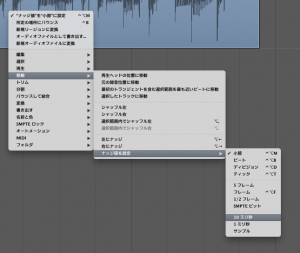
↑ From "Set Nudge Value to" above,
set the value to "10 ms."
Nudge repeatedly with this setting
to fine-tune the timing of the performance.
This can be expected to improve the quality considerably.
- Logic X
- Logic 8/9
Frequently asked questions
Q1. Does nudging in Logic Pro work differently depending on the OS?
Logic Pro is Mac-only software, so there is no Windows version. You nudge with Option + left/right arrow keys. If the key commands differ in your version of Logic, check your key command settings.
Q2. When setting the nudge value in time, how many milliseconds is best for adjusting vocal timing?
The article introduces 10 ms in the advanced technique. This suits fine adjustments, but for correcting larger offsets, we recommend starting at around 50 to 100 ms. Change the value according to how much adjustment is needed.
Q3. Can nudge be used on MIDI notes?
The nudge function is mainly used to adjust the position of audio and MIDI regions. When you need to work note by note, editing in the Piano Roll or Score Editor is effective.
NEW ARTICLES
Latest English Articles











