
Markers in Logic Pro are a feature that greatly improves your efficiency in the DAW. By placing marks at any position in a song, you can grasp the song's structure, such as the verse and chorus, at a glance and move quickly to the spot you want. You can also name and color markers, so they work as notes for places that need editing too. Because you can see the overall structure without zooming in, it is a basic feature that helps streamline the production and arrangement of complex songs.
Find the Spot You Want Quickly

The marker feature places a mark at a position in the song.
Registering markers
lets you play instantly from a marker position and makes it easier to locate spots to edit
, making your work easier.
The usual way to use them is to register sections such as the verse and chorus as markers,
but they are also handy for leaving notes, such as places you want to fix.
- Logic X
- Logic 8/9
How to Add Markers in Logic X
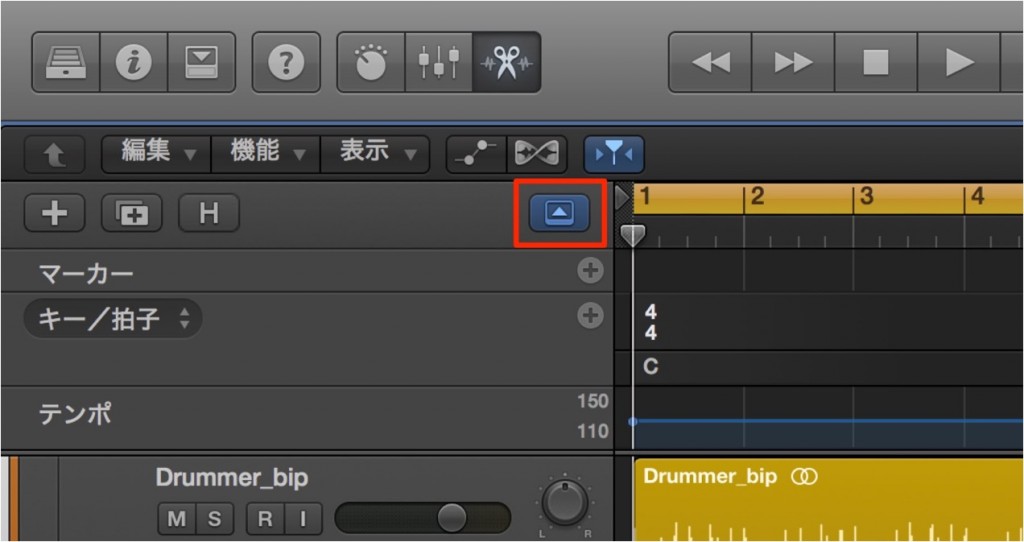
Click "Global" to show the global tracks.
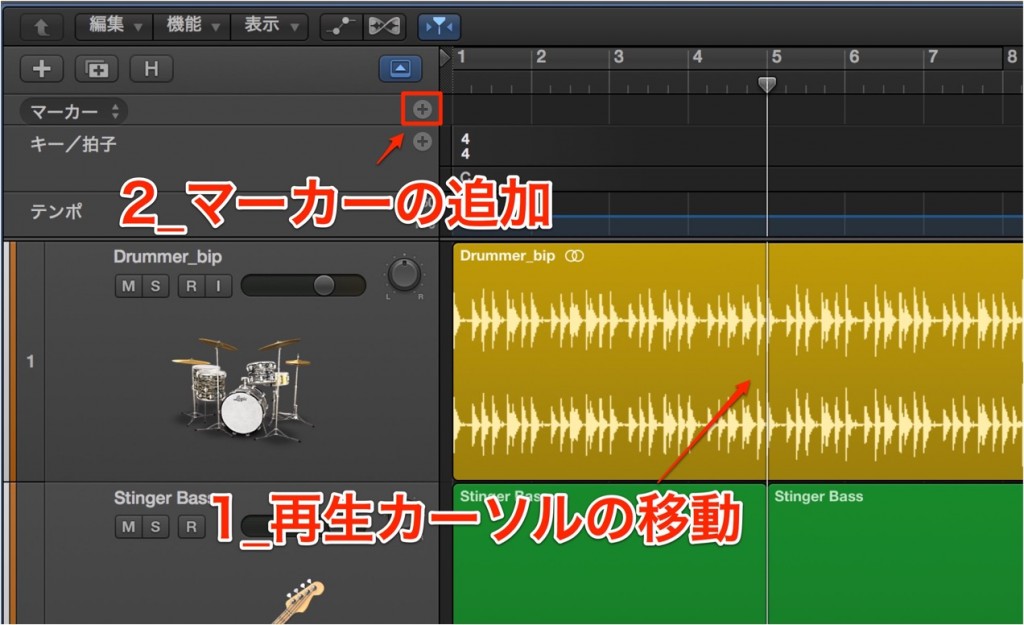
The marker view appears.
- 1_Move the playhead to where you want a marker
- 2_Click "+"
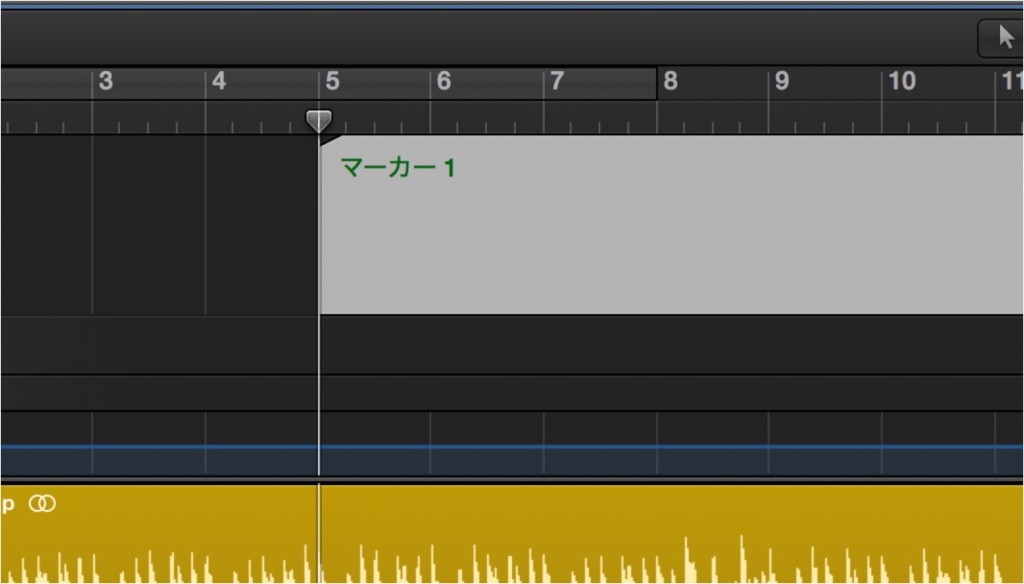
A marker has been added at the playhead position.
Do this to match the song's structure.
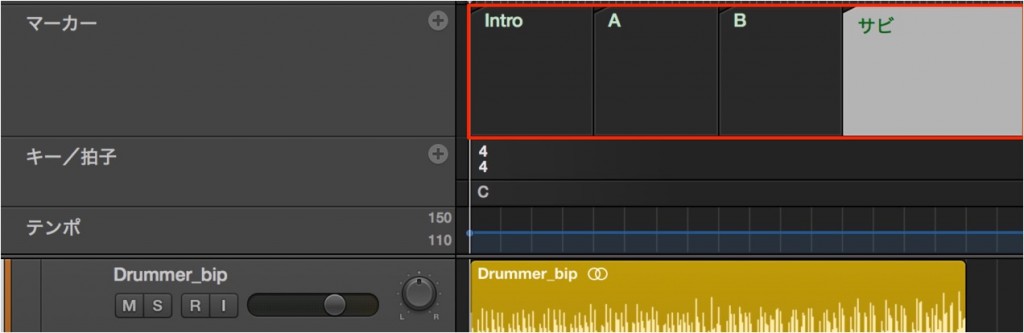
You can see the structure at a glance without zooming in.
- Double-click a marker to name it
- Drag the edge of a marker to change its range
- Select a marker and press Delete to delete it
How to Use Markers
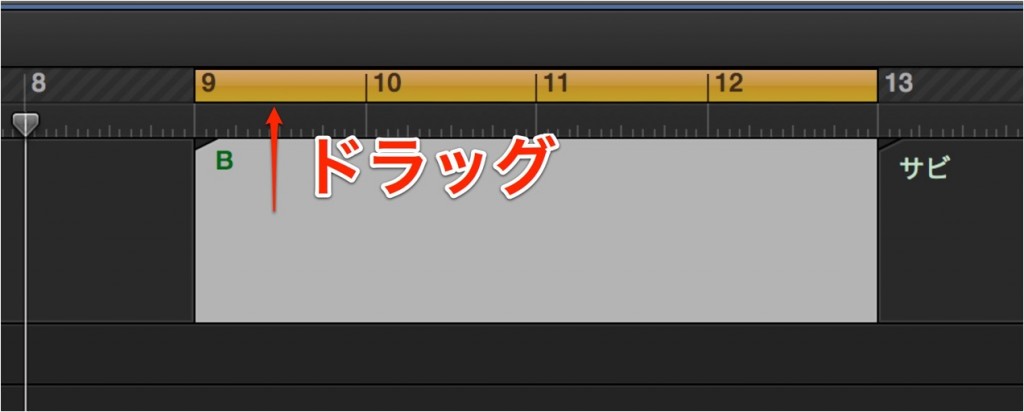
Drag a marker upward to set the loop range to that marker.

Select a marker and use the color palette (Option + C) to color it.
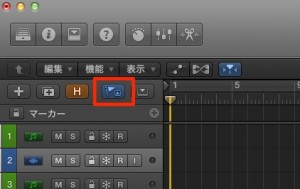
How to Add Markers in Logic 8/9

↑ From the area outlined in red in the Arrange window,
click "Global" → "Marker."

↑ The marker view appears.
- 1_Move the playhead to where you want a marker
- 2_Click "Create"

↑ A marker has been added at the playhead position.
Do this to match the song's structure.

↑ You can see the structure at a glance without zooming in.
How to Use Markers

↑ Drag a marker upward to set the loop range to that marker.

↑ Double-click a marker to rename it.

↑ Drag either end of a marker left or right to change its range.

↑ Select a marker and press Delete to delete it.

↑ Click a marker and use the color palette to color it.
- Logic X
- Logic 8/9

Frequently asked questions
Q1. When should I use markers in Logic Pro?
They are mainly used to understand the song's structure and to edit more efficiently. Registering sections such as the verse and chorus as markers lets you see the whole song at a glance. They are also handy for leaving notes about places that need fixing.
Q2. What do I gain by coloring markers?
Coloring markers makes it easier to tell sections apart visually. For example, you can use different colors for important sections and sections to fix, helping you prioritize your work.
Q3. How do I delete a marker?
Just select the marker you want to delete and press the Delete key. The operation is the same in Logic X and in older Logic (8/9).
NEW ARTICLES
Latest English Articles











