
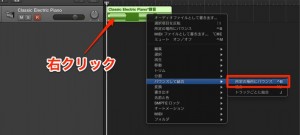
Converting MIDI tracks to audio in Logic Pro is a very important task in DTM production. This conversion makes mixing more efficient, reduces the processing load on your computer, and allows fine adjustments through waveform editing. In Logic X, you can do it easily just by right-clicking a MIDI region and choosing "Bounce and Join" → "Bounce in Place." After converting, you can delete the instrument track to reduce file size, but it is important to create a branch of your work with "Save As" in case you need to redo your edits.
Benefits of Converting MIDI to Audio
- Converting to audio makes the final mixing stage easier
- It reduces the load on your computer
- As waveforms, the parts can be edited in many ways
Logic has many ways to export, but here we describe the simplest.
- Logic X
- Logic 8/9
Logic X: How to Convert MIDI to Audio
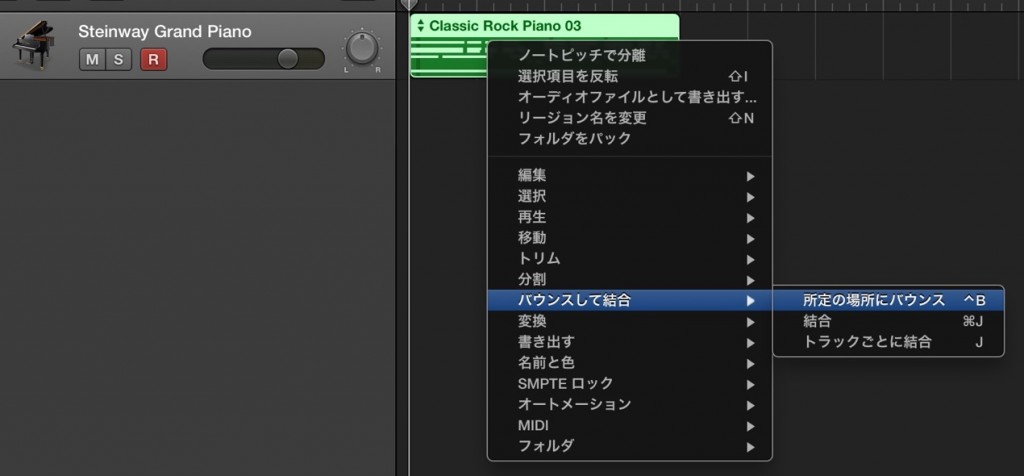
Right-click the region you want to export
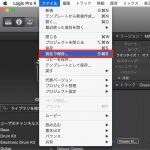
and choose "Bounce and Join" → "Bounce in Place" from the menu that appears.
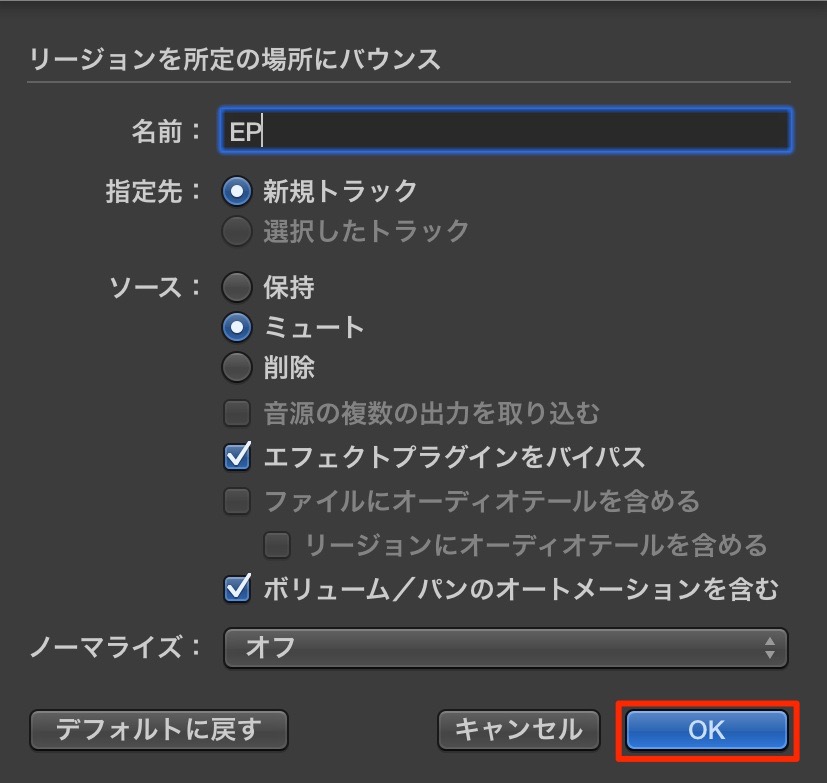
Give it any name and press OK.
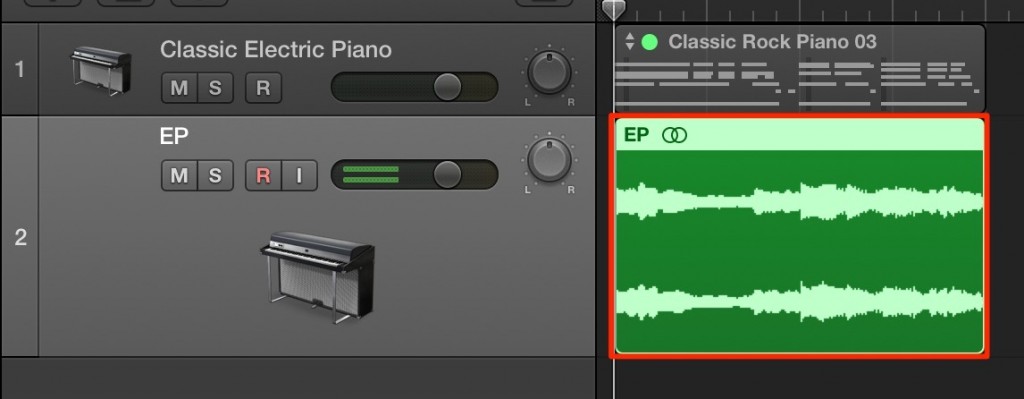
The conversion is done just like that.
Many people find this function tricky, but it is used very often.
Be sure to master this workflow.
Logic: How to Convert to Audio
Right-click the region you want to export.
From the menu that appears, choose "Bounce and Join" → "Bounce in Place."

The screen below appears, so give it any name and press OK.
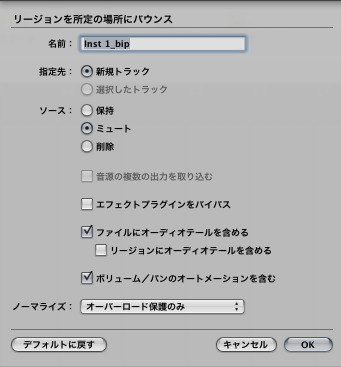
The conversion is done just like that!!
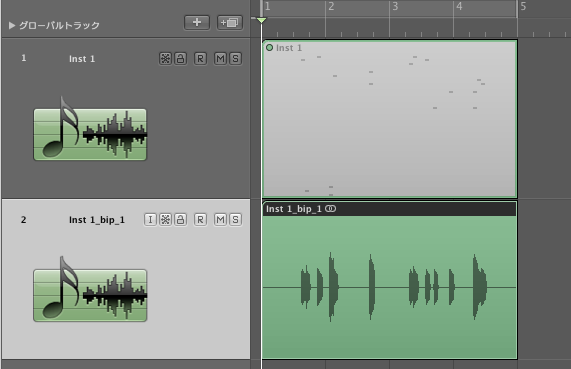
Many people find this function tricky, but it is used very often.
Be sure to master it here.
- Logic X
- Logic 8/9
Avoid Risk with "Save As"
After converting to audio, you delete the instrument track,
but there may be times when you want to go back to the programming stage.
We strongly recommend using Save As to create a branch point in your work.

Frequently asked questions
Q1. What are the main benefits of converting MIDI to audio?
Converting to audio reduces the load on your computer and makes mixing easier. The waveform display also lets you fine-tune timing and volume intuitively and enables many kinds of editing, making the final finishing work more efficient.
Q2. What are the steps to convert MIDI to audio in Logic Pro?
Right-click the region you want to convert and choose "Bounce and Join" from the menu that appears. Then click "Bounce in Place," give it any name, and press OK.
Q3. What should I do if I want to return to the programming stage after converting?
We strongly recommend creating a branch of your work with "Save As" before converting to audio. That way, even if you want to redo your edits later, you can return to the state before conversion and continue working.
Q4. How much does converting MIDI to audio reduce the load on my computer?
Since the software synth no longer has to be processed, CPU usage drops significantly. Especially when using many plug-ins, system stability improves and you can apply more effects processing.
NEW ARTICLES
Latest English Articles











