
Groove Templates in Logic Pro automatically extract the timing feel of a song you like and apply it to MIDI data. Even the same phrase can sound different depending on its sound, timing, and dynamics, but with this feature you can carry the feel of a drum loop or sampled material over to other instruments. Simply create and save a template from the Flex and Quantize menus, then apply it to straight-programmed MIDI to give your parts a natural, human groove. Saving and stocking several grooves also makes your production more efficient and expressive.
Extract Your Favorite Feel and Bring It into Your Song

Have you ever tried programming the rhythm pattern of a song you think is cool?
The phrase was exactly the same, yet it probably did not sound the way you expected.
This is because the sound, timing, dynamics, and length of your version
differ from the actual song.
With the Groove Template feature,
you can extract the timing element from a pattern you like
and use it in your song.
- Logic X
- Logic 8/9
Logic X: Extracting a Groove
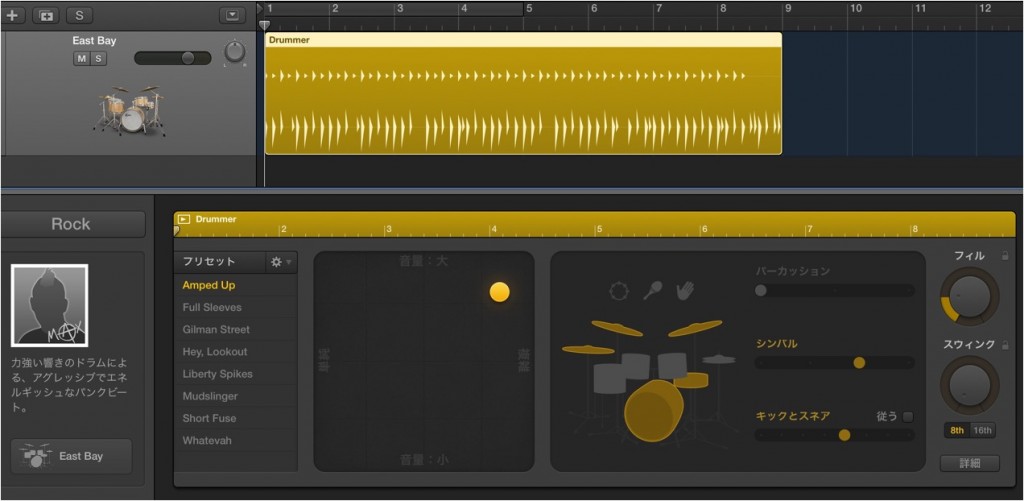
Here, let's use a groove from Drummer, a new feature in Logic X.
We created a pattern to our liking.
See the article below for how to use Drummer.


We converted Drummer to audio.
We will apply the feel of this pattern to other instruments to tighten up the song.
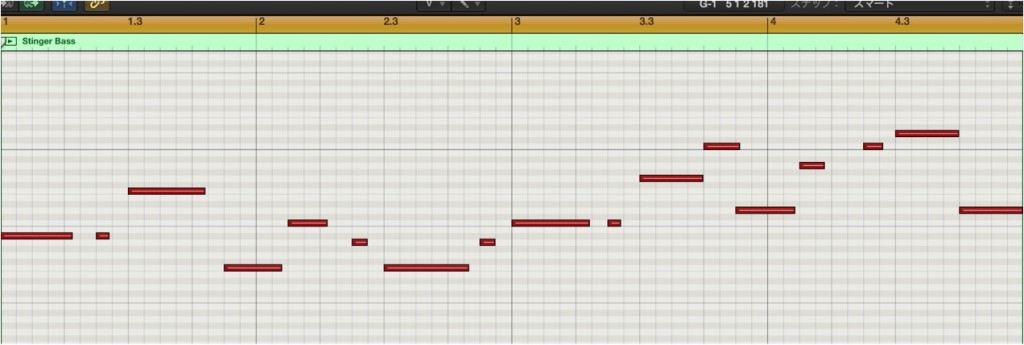
We programmed a bass part to match the drums.
Both velocity and timing are straight-programmed.
Now we use the Groove Template feature.
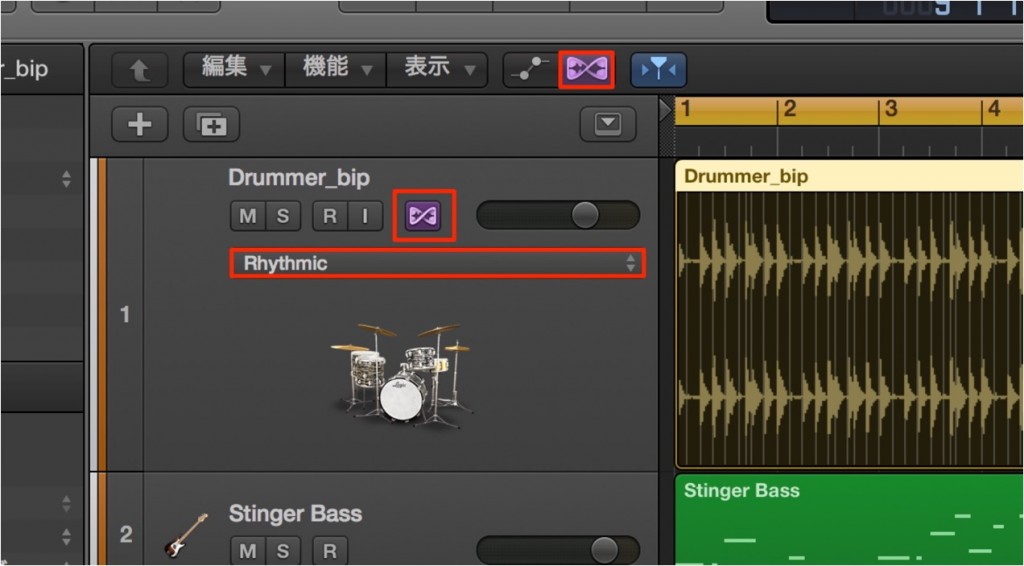
Turn on "Flex" in the area outlined in red.
From the red outline, choose the option that suits your material.
Since this is drum material, choose "Rhythmic."

Click "Quantize" in the Inspector.
From the menu, choose "Make Groove Template."
The feel of the drum pattern has been extracted.
Logic X: Using a Saved Groove Template
Apply the saved groove template to the bass part from earlier.
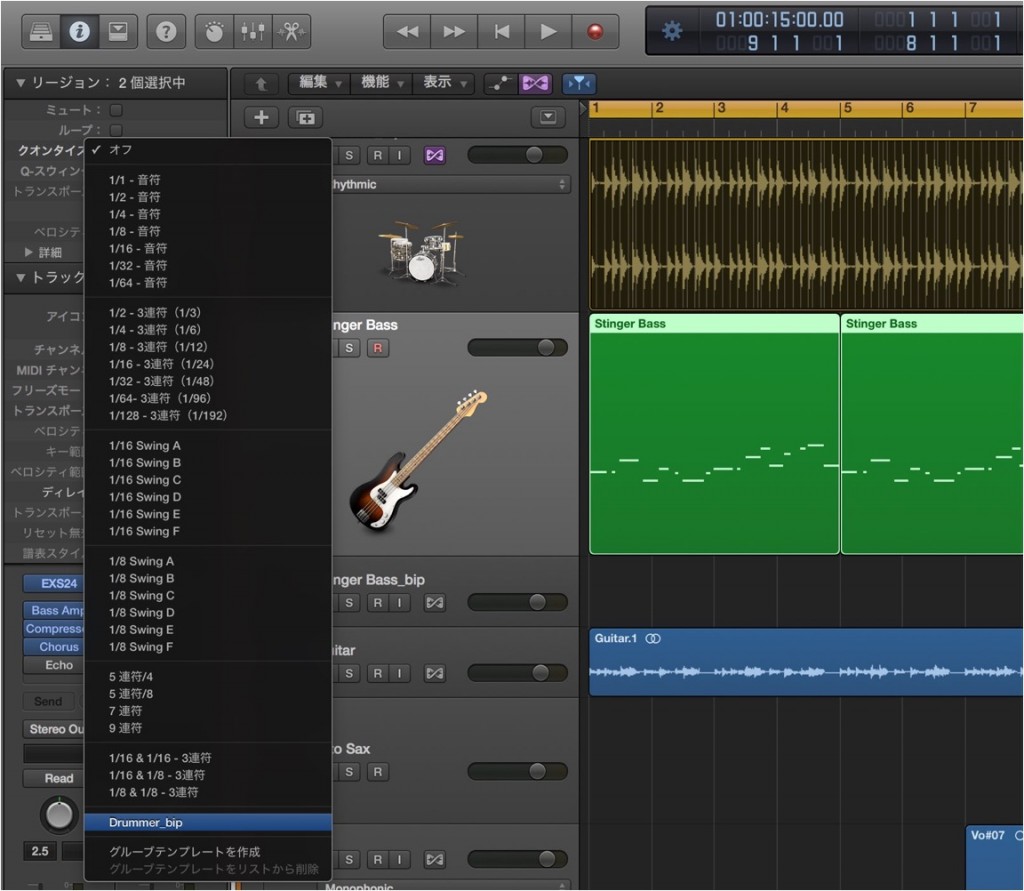
- 1_Select the region you want to apply the groove to.
- 2_The groove you just extracted appears in the Quantize menu in the Inspector.
Select it.
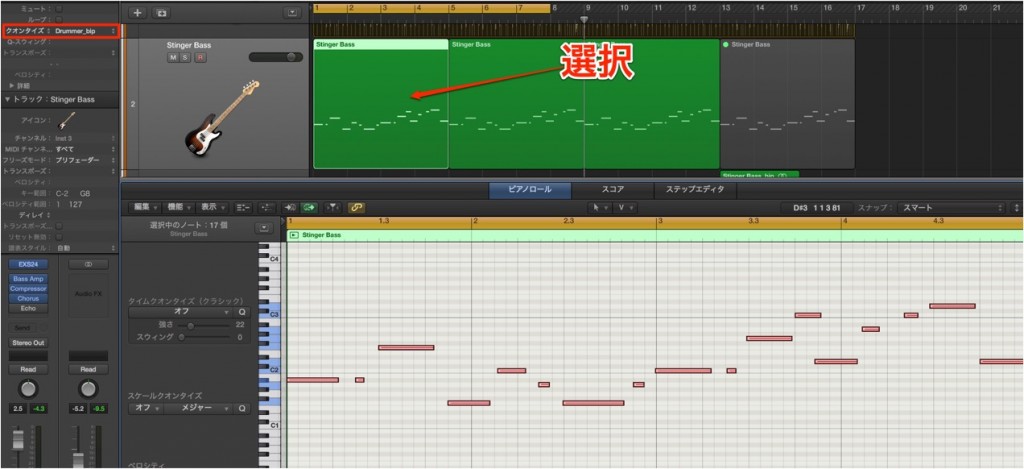
The timing of the model has been applied like this.
Occasionally, some spots may end up with odd timing.
In that case, adjust them manually.
All that is left is to add velocity, and you are done.
This time we worked with a drum loop,
but grooves can be detected from other instruments too.
We also recommend detecting and saving every feel you like
so you have a stock of them.
Extracting a Groove

↑ We found a cool pattern on a sample CD.

↑ This is a MIDI file programmed using the pattern above as a model.
Both velocity (except for ghost notes) and timing are straight-programmed.
That sounds a bit stiff...
Now we use the Groove Template feature.

↑ Click "Flex" in the area outlined in red.
 ↑
↑ From the red outline, choose the option that suits your material.
Since this is drum material, choose "Rhythmic."

↑ Click "Quantize" (outlined in red) in the Inspector.

↑ From the menu, choose "Make Groove Template."
The feel of this drum part has now been extracted.
Logic: Using a Saved Groove Template
Apply the saved groove template to the MIDI data from earlier.

↑
- 1_Select the region you want to apply the groove to.
- 2_The groove you just extracted appears in the Quantize menu in the Inspector.
Select it.

↑ The timing of the model has been applied like this.

↑ All that is left is to add velocity, and you are done.
Sounds great!!
This time we worked with a drum loop,
but grooves can be detected from other instruments too.
We also recommend detecting and saving every feel you like
so you have a stock of them.
- Logic X
- Logic 8/9

Frequently asked questions
Q1. What is the difference between Groove Templates and humanize?
Humanize shifts notes randomly to add a human touch, whereas a groove template extracts and applies the intentional timing pattern of a specific song. This lets you reproduce the feel you want more accurately.
Q2. Can Groove Templates be used with instruments other than drums?
Yes. You can extract grooves from any instrument, such as bass, guitar, or keyboards. Change the Flex setting, such as "Rhythmic," to suit the instrument.
Q3. Can I reuse a groove template I created across multiple songs?
Yes. Saved groove templates can be kept in stock and applied by selecting them from the Quantize menu in another project, which makes production more efficient.
NEW ARTICLES
Latest English Articles











