This article explains the LFO and distortion sections of Logic Pro's AutoFilter plug-in. Using the LFO lets you change the filter's movement automatically, enabling extreme sound design synced to the tempo. You can learn the settings step by step, such as adjusting the depth with Cutoff Mod, choosing a movement pattern with Waveform and syncing to tempo with Beat Sync. Combining it with the distortion section lets you distort the sound to fatten it or make the effect more dramatic, for more expressive tracks.
Make the filter's movement even more extreme
Following the previous "envelope section",
"LFO" and "distortion" are explained here.
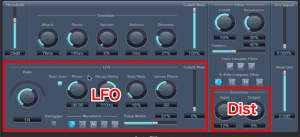
In addition to being suited to creating even more extreme sounds,
it lets you get changes in sound in time with the tempo.
AutoFilter video index
1_Filter section
2_Envelope section
3_LFO / distortion section *This video
Video point: Adjusting the depth of the LFO
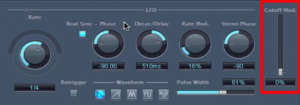
Set how strongly the "LFO" is applied with "Cutoff Mod".
As in the photo above, when the value is "0", the "LFO" has no effect
Set it high and then set the overall parameters.
We recommend fine-tuning the effect with this "Cutoff Mod" again afterwards.
Video point: Deciding the LFO's movement
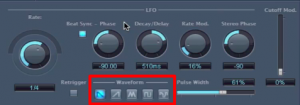
"Waveform" sets how the "LFO" moves.
It changes just as it looks, so the effect should be easy to predict.
With "Random" on the far right, the movement is different every time you play,
which helps keep patterns from getting stale.
Video point: Deciding the LFO's speed
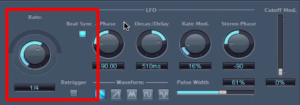
This sets the repeat speed of the "Waveform" specified above.
The further you turn the knob to the right, the faster the repeat cycle.
Also, by lighting up "Beat Sync",
the cycle syncs to Logic's current tempo.
It then works on the concept of "bars / number of times".
In the photo it is set to "1 (bar) / 4 (times)",
so the "Waveform" repeats every quarter note.
Video point: Distorting the sound
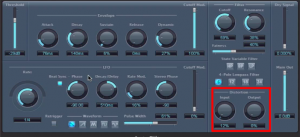
Using "distortion" adds distortion to the sound.
You can expect effects such as "making the effect more dramatic" and "fattening the sound".
- Input: gives a more natural distortion effect
- Output: gives an intense distortion effect
You can also use the two knobs together.
Adjust them to get the sound you are aiming for.

Frequently Asked Questions
Q1. Where do I set the LFO amount in Logic Pro's AutoFilter?
Adjust the LFO amount with the "Cutoff Mod" knob. At "0" there is no effect, and setting a higher value strengthens the LFO effect. We recommend setting it high first and then fine-tuning.
Q2. How do I choose the LFO's movement pattern?
You can choose it from the "Waveform" menu. There are several patterns, such as triangle and sine waves, and because they change just as they look, the effect is easy to predict. Choosing "Random" gives a different movement every time you play, which helps keep things from getting stale.
Q3. How do I make the distortion effect sound natural?
Use the two knobs, Input and Output, as appropriate. Input gives natural distortion and Output gives intense distortion, so combine and adjust both to suit the sound you are aiming for.
NEW ARTICLES
Latest English Articles