
Using Logic Pro's audio transpose capability, you can adjust the key of recorded vocals and other audio material to fit your song. Unlike MIDI, audio files are normally hard to change in pitch, so this greatly reduces the effort of re-recording because of a key mismatch. With the Time and Pitch Machine, you can make fine adjustments in cents to fit the ideal key while maintaining professional sound quality. The setup differs between Logic X and earlier versions, but either way it is an efficient workflow that takes just a few clicks.
Changing the Pitch to Fit Your Song
You want to use audio material you like, but it doesn't match the song's key...
You prepared a backing track for vocal recording, but the key didn't suit the singer and had to be changed...
Those are the moments that can break your heart (lol).
Unlike MIDI, audio has the drawback that you cannot change it casually.
The solution is transposing the audio.
Using this function, you can solve all the problems mentioned above at once.
- Logic X
- Logic 8/9
How to Transpose Audio in Logic X
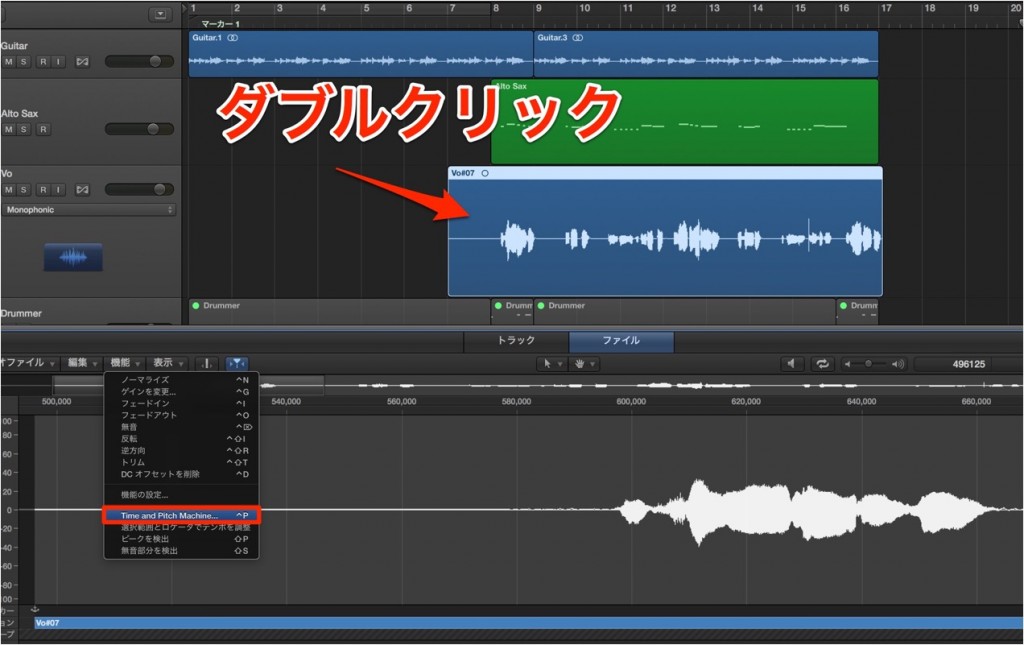
Double-click the audio file you want to transpose to open the Sample Editor (Audio File Editor).
Choose "Functions" → "Time and Pitch Machine" from the menu.
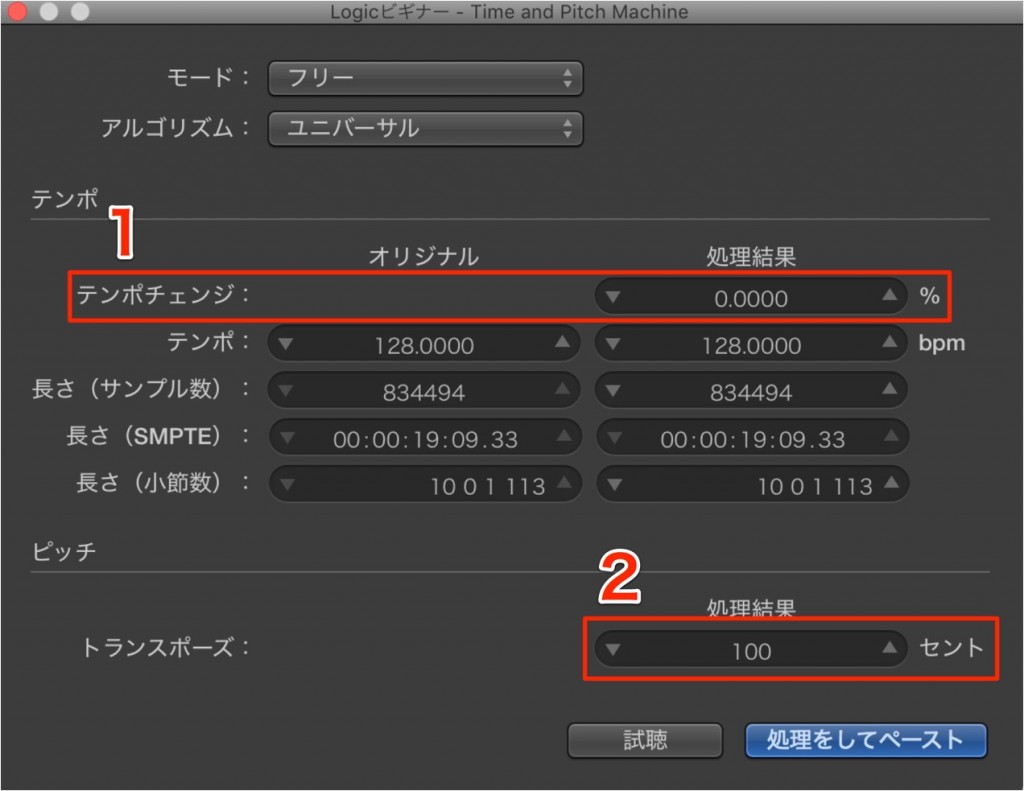
- 1_Set the tempo value to "0" so the speed does not change along with the pitch.
- 2_Change the pitch in cents. "100" is one semitone.
Positive values raise the pitch, and negative values lower it.
After setting the value you want, select "Process and Paste."
The audio material is now transposed.
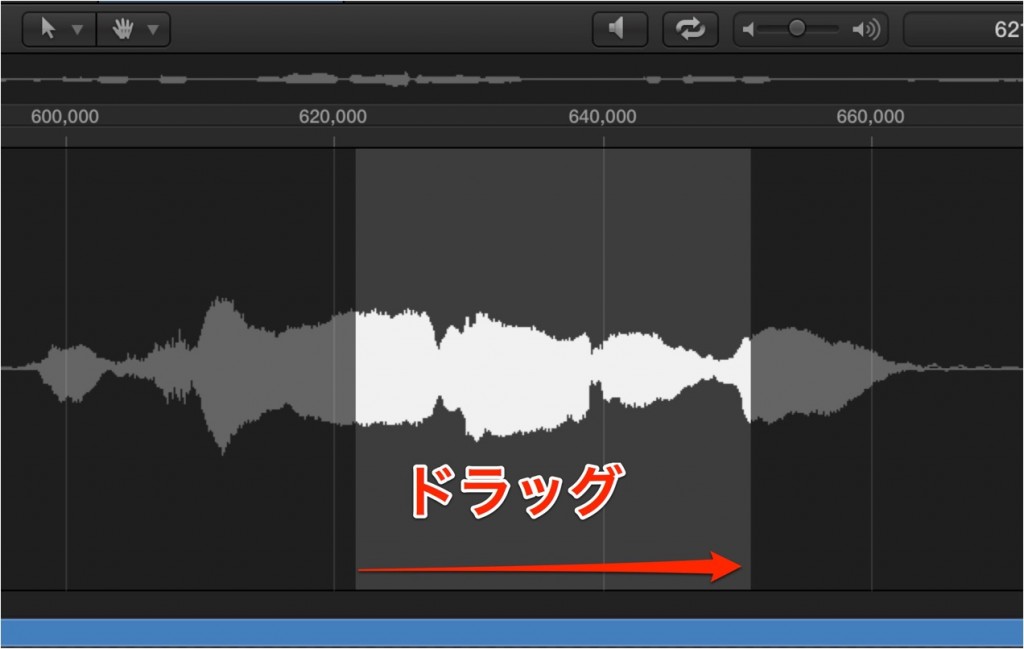
You can also select a range in the Sample Editor
to transpose only a specific section.
How to Transpose Audio in Logic 8/9

↑ Double-click the audio file you want to transpose.

↑ The Sample Editor opens.
Choose "Factory" → "Time and Pitch Machine" from the menu.

- 1_Set the tempo value to "0" so the speed does not change along with the pitch.
- 2_Change the pitch in cents. "100" is one semitone.
Positive values raise the pitch, and negative values lower it.
After setting the value you want, select "Process and Paste."
The audio material is now transposed.

↑ You can also select a range in the Sample Editor
to transpose only a specific section.
- Logic X
- Logic 8/9

Frequently asked questions
Q1. Does transposing audio degrade the sound quality?
The Time and Pitch Machine uses an advanced algorithm, so with the right settings you can keep quality loss to a minimum. Setting the tempo change to "0" changes only the pitch, helping preserve the sound quality.
Q2. Can I make adjustments smaller than a semitone?
Yes. It supports adjustments in cents, where 100 cents = 1 semitone. Because you can adjust in 1-cent steps, very fine pitch corrections are possible.
Q3. Can I transpose only a specific section?
Yes. By selecting a range in the Sample Editor, you can transpose just part of the audio file.
NEW ARTICLES
Latest English Articles











